Live overview
Live is the program that runs the prepared project: it communicates with the PLCs, displays the screens, and keeps alarms and records. This topic describes startup, the main screen elements, the connection state and shutdown.
What is Live
Live (FabyaVision_Live.exe) is the program that runs the project prepared in Studio. It reads the project file (.fvs), connects to PLCs and other devices for tags, shows the screens to the operator, monitors alarms, archives data, and runs scheduled tasks and scripts. Screens are drawn with WebView2 on Windows; therefore Microsoft Edge WebView2 Runtime must be installed on the computer. If it is not installed, Live shows the message Microsoft Edge WebView2 Runtime is not installed on this computer and closes.
Live only runs the project; screen, tag or alarm definitions cannot be changed in it. To make a change, edit it in Studio and upload the project to Live.
How to open Live
The project that runs at startup is determined in the following order:
- Project on the command line
If a project file is passed to Live (
FabyaVision_Live.exe C:\Projeler\Tesis\Tesis.fvs), that project opens directly. The Start Live button in Studio starts Live in this way. - Last project
If no project is given on the command line and Start automatically with the last project is on, the most recently opened project opens without the project selection screen being shown. In a new installation this option is off.
- Select project screen
Otherwise the project selection screen appears. Details: Files and folders of Live.
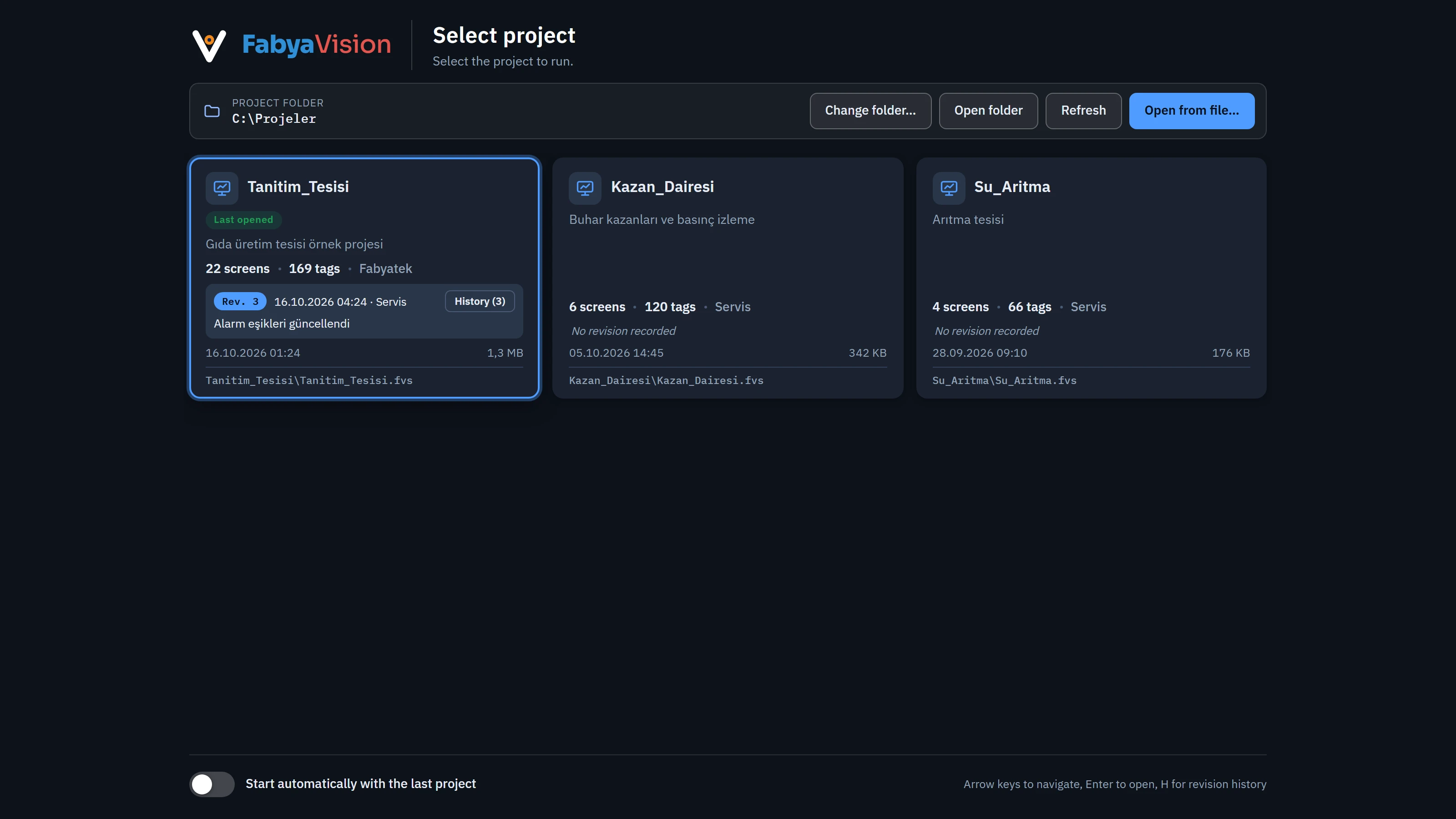 1234
1234- Project folder — the folder that is scanned.
- Project card — name, description, number of screens / tags, last revision.
- Open from file… — a project outside the folder.
- Start automatically with the last project
- Project card
- The project name, description, N screens · N tags, author, modification date, file size, path relative to the folder and latest revision (Rev. N, date, uploader, description). Projects with the old
.fyscadaextension carry an Old format badge; the most recently opened project carries a Last opened badge. A file that cannot be read is shown as a red Unreadable card with a message giving the reason. - Change folder…
- Selects another folder that contains projects; the selection is saved.
- Open folder
- Opens the project folder in Windows Explorer.
- Refresh
- Scans the folder again (F5).
- Open from file…
- Selects a project file outside the folder.
- Start automatically with the last project
- If on, when the program starts the last project opens without showing the selection window.
Clicking a card, or selecting it with the arrow keys and pressing Enter, opens the project; H shows the revision history of the selected project (without opening the project). If the folder is empty, the page says There are no projects in this folder and reminds you how to upload from Studio.
A short splash screen appears during startup; the main window comes up when it is ready.
Main display
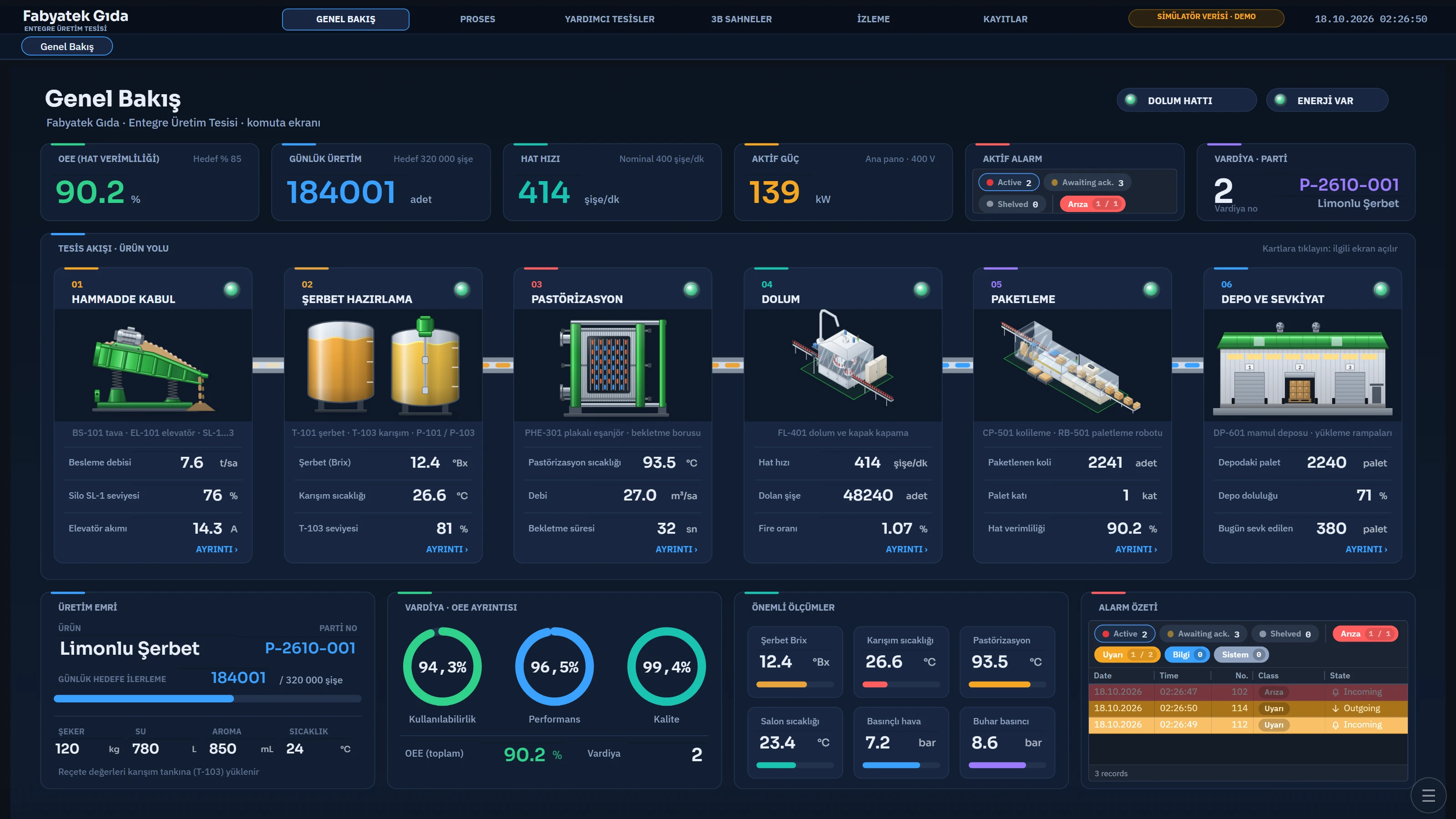 123
123- Fixed top area — navigation bar (defined in Screen management).
- Screen area — the open main screen.
- System menu button (☰).
- Screen area
- Most of the screen is taken up by the open main screen. The first screen is the project's Start screen (the first screen if none is selected). The screen is fitted proportionally to the window; if Page size is set to Actual size, it is shown at its designed pixel size and scroll bars appear when needed.
- Fixed top and bottom area
- Upper and lower strips that stay on every screen, if defined in Screen management. The navigation menu usually sits here. See Screen management.
- Menu bar and toolbars
- If defined in the project, it appears at the edges of the screen. See Menus and toolbars.
- Alarm line
- When Show alarm line is on and an alarm is active, the most important alarm line appears at the bottom of the screen: the number of alarms, time, alarm number and text, and pending acknowledgement if the alarm is waiting to be acknowledged. Clicking the line opens the Alarms window.
- Status bar
- If Live settings › Window › Status bar is on, a thin bar appears at the bottom of the display: the logged-on user on the left, the open screen in the center, the PLC connection summary and the clock on the right. Details: Live settings.
- System menu button
- The ☰ button at the bottom right. The user, screen list, connection states, language, on-screen keyboard, remote monitoring and closing the program are here (below).
 1234
1234- User — No session if there is no session; clicking opens the log-on window.
- Open screen
- Connection summary
- Time
System menu
It opens when the ☰ button is clicked; clicking outside the menu closes it.
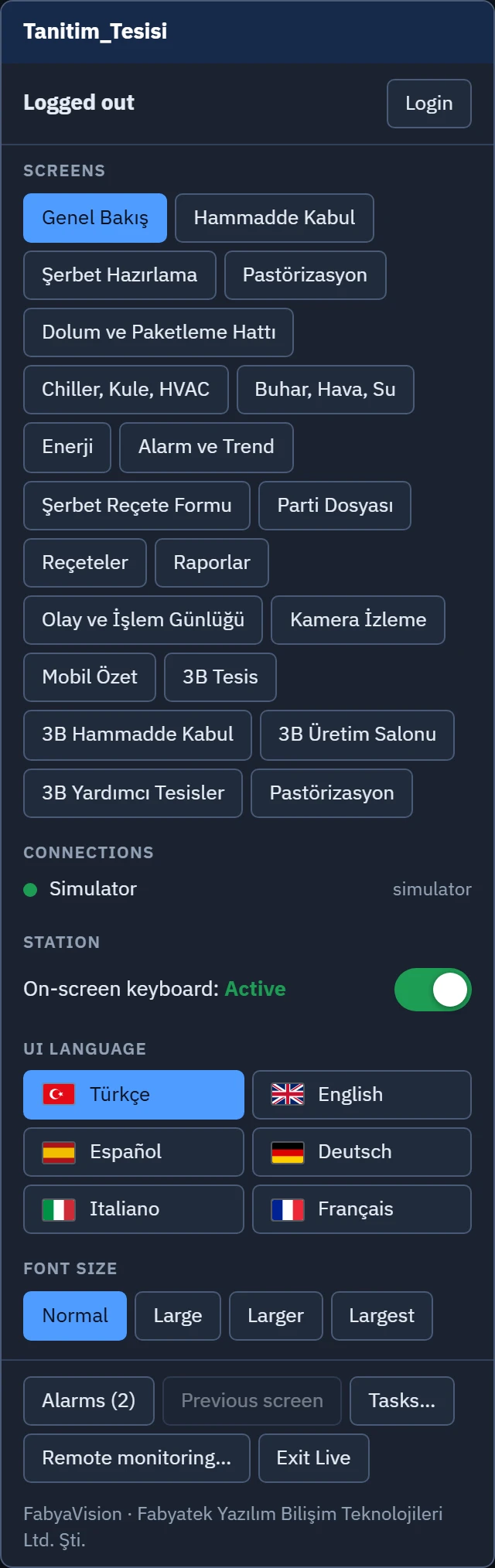 12345
12345- User — session, group, Log on / Log off.
- Screens — clicking opens the screen.
- Connections — the state of each connection.
- Station — the on-screen keyboard switch.
- Bottom buttons — Alarms, Previous screen, Tasks…, Remote monitoring…, Exit Live.
| Section | Content |
|---|---|
| Title and user | Project name; the user in the session (or Logged out if there is none), the user group, and the Log on / Log off button. |
| Screens | The screens in the project's navigation menu (all full screens if no menu is defined). A screen that requires authorization appears with a lock icon; clicking it asks for login. The current screen is highlighted. |
| Connections | Each connection and its state: connected, connecting, no connection, no driver, inactive (off) or simulator. When the connection is lost, the cause of the error is written below it in red. For connections that require a user name / password there is an Enter password / Password… button. |
| Language | Language buttons, if more than one language is enabled in Live in the project. |
| Station | On-screen keyboard switch (Active / Inactive). |
| Interface language, Font size | The language of menus and windows (Türkçe, English, Español, Deutsch, Italiano, Français; each with its flag) and the font size (Normal, Large, Larger, Largest). |
| Bottom buttons | Alarms (with the number of active alarms), Previous screen, Change project…, Revision history…, Tasks… (if the project has a scheduled task), Remote monitoring…, Exit Live. |
Menu details and operator operations are described in the Operator guide. The Tasks… window is introduced in the topic Troubleshooting.
Connection states
The state of each connection is monitored for as long as Live is running; if a connection is lost, Live tries to reconnect. The states appear in the system menu, in the status bar (PLC: 3 / 4 connected) and in the <Bağlantı>_Baglanti status tags. The causes of errors are listed in the topics Connection diagnostics and Troubleshooting.
Shutdown
The Exit Live button brings up this question: Exit the Live program? Monitoring, alarms and logging will stop. Once Close is confirmed, the scheduled At Live shutdown tasks run, the additional applications marked Close on exit are closed, the persistent tag values are written and the program closes. If Require authorization to exit is on (Live settings › General › Session), closing requires a user with the exit authorization; if there is no session, the login window opens.
If Closing and Alt + F4 are blocked in the window settings, the window button and Alt+F4 do not work; the program can be closed only from the system menu.
Limitations and points to note
- Live runs only one project at a time. Change project… closes the open project and opens the selected one (monitoring, alarms and logging stop until the new project is opened; confirmation is requested).
- Blocking Alt+F4 and blocking the Windows keys on a real keyboard must be tried in the field; real key input is not sent in the automated tests.
- If the WebView2 process crashes, Live reloads the screen and recovers where it left off; if the main browser process terminates, the program closes. For details, see Log files.