What FabyaVision is
The two programs of FabyaVision, Studio (project design) and Live (plant operation), how they work together, what can be done and the limits.
FabyaVision is Fabyatek's SCADA / HMI software: it displays the data of a production plant coming from PLCs and other devices on the screen, lets the operator issue commands, and records alarms and historical data. The product consists of two programs.
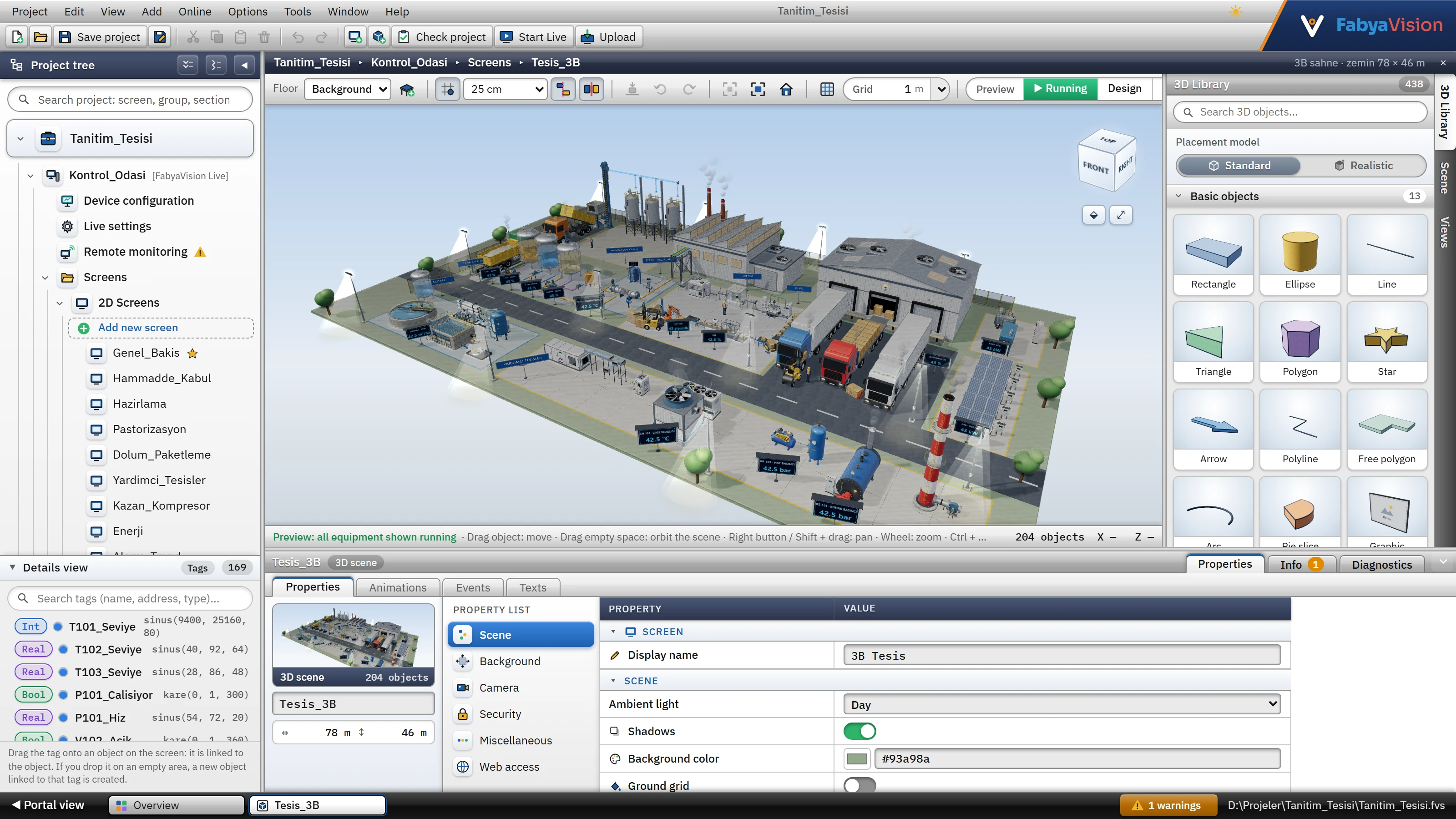 1234
1234- Menus and toolbar — save the project, check it, upload it to Live.
- Project tree — screens, tags, connections, alarms and other sections.
- Workspace — a 2D screen or 3D scene is designed here.
- Inspector — properties, tag connections and events of the selected object.
How it works
A project is a single file (.fvs). Studio creates the file; Live reads and runs it. Live does not modify the project file; the records it produces while running are written to the .veri folder next to the project (File and folder locations).
- Design
In Studio, prepare the connections, tags and screens. No PLC is needed: the Simulator driver generates signals.
- Test
Tools›Check project (F7) lists the errors; Online›Start Live (F5) saves the project and opens it in Live. Details: Check the project.
- Upload to Live
Project›Upload project to Live… copies the project to the project folder of the Live computer and saves each upload as a revision together with its description. Details: Uploading the project to Live.
- Run it
Open Live and select the project on the project selector screen. The operator browses the screens, acknowledges alarms and enters values.
- Observe
If you wish, Live offers a read-only view to browsers and TVs on the network: Remote monitoring.
Components
| Component | What it does | Details |
|---|---|---|
| Studio | The project design program. It is a desktop program; WebView2 (the Microsoft Edge infrastructure) runs inside its interface. | Main window |
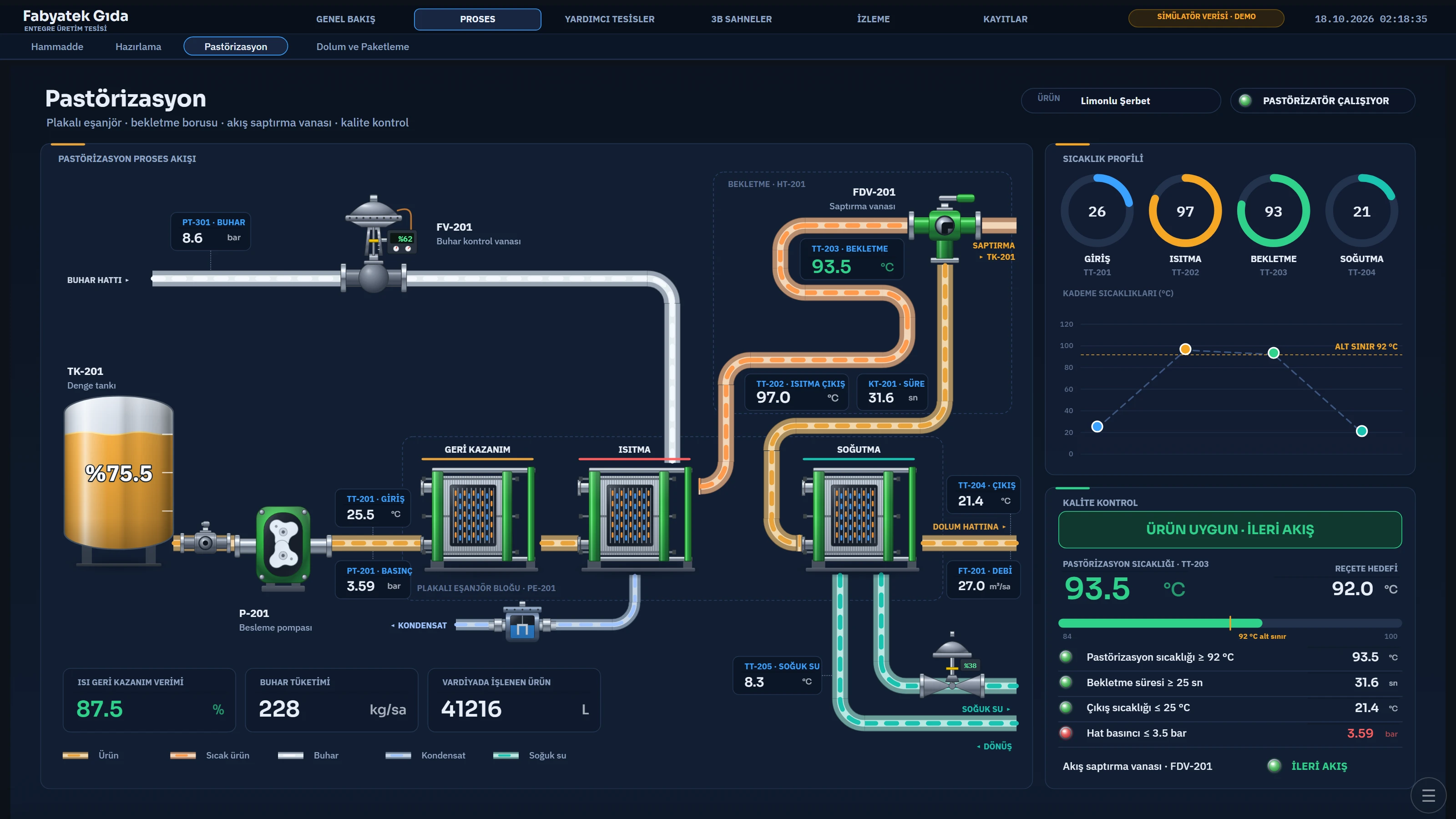
| Live | The program that runs the plant. PLC communication, alarms, archives, reports, recipes, tasks and scripts run here. | Live |
| Project file | The single file that holds the entire design (.fvs; .fyscada in older projects). | Project files |
| Browser / TV | The read-only monitoring pages that Live provides. | Remote monitoring |
| User manual | This manual. It opens in the default browser in Studio with F1 or Help›User manual. | Menus |
What you can do
- 2D screens and 3D scenes: draw process diagrams with the object library; in a 3D scene, make the plant explorable. 2D editor, 3D screens, object catalog.
- Tags and communication: define PLC addresses as tags and bind them to objects. Tags, drivers.
- Alarms: digital and analog alarms, alarm classes, acknowledgment. Alarm system.
- Historical data and trends: record the selected tags over time and monitor them as curves. Historical data, Trend.
- Recipes and reports: load product recipes to the PLC; record a production report with a trigger signal. Recipes, Reports.
- Users and authorizations: operator, engineer and administrator groups; authorization per object and screen. User administration.
- Scripts and tasks: scripting with VBScript, JavaScript, C and Python; scheduled tasks. Scripts, Tasks.
- IP camera: place the camera image on the screen. IP camera.
- Multilingual: the interface (and the manual) in Turkish, English, Spanish, German, Italian and French; as many languages as you like for project texts. Languages and texts.
- Multi-screen and TV: spread Live over several monitors, or cycle screens on the second monitor. Multi-screen and TV.
- Excel: export the tables to Excel and import them from Excel. Import / export with Excel.
Supported drivers
Communication is carried out with a driver selected for each connection. Studio offers 11 drivers:
| Driver | Default port | Manual |
|---|---|---|
| Siemens S7-1500, S7-1200, S7-300 / 400 | 102 | S7 driver |
| OPC UA | 4840 | OPC UA |
| Modbus TCP | 502 | Modbus TCP |
| Allen-Bradley EtherNet/IP | 44818 | Allen-Bradley |
| Mitsubishi MC Protocol | 5007 | Mitsubishi MC |
| Omron FINS | 9600 | Omron FINS |
| OPC DA (classic OPC, local server) | none (COM) | OPC DA |
| MQTT | 1883 | MQTT |
| Simulator (signal generator without a PLC) | none | Simulator |
Limitations and points to note
- Studio does not connect to the PLC. Tag values arrive only in Live. Online›Test connections… in Studio only tests whether the target port is listening (TCP connection); the protocol test is performed in Live.
- Remote monitoring is read-only and does not use HTTPS. No commands can be issued from the browser, and alarms cannot be acknowledged. Do not expose the server directly to the internet; follow the Access via VPN guide.
- There is no multi-station architecture. There is no server / client arrangement in which several Live computers share tags, alarms and logs, and no redundancy (hot standby). Each Live runs its own project and its own records.
- Live is not a Windows service. To make it start when the computer starts, select the option in the installation (a shortcut is placed in the Startup folder); if the program closes, it does not restart by itself.
- System requirements: Windows 10 and later, .NET Framework 4.8, WebView2 Runtime. Details: Installation.