Reference for the Studio menu bar and toolbars: the logic of each menu, the commands, the shortcuts and the situations in which commands are disabled.
The commands of Studio are collected in the menu bar and in the toolbar; the same commands are also found in the right-click menus. This topic first explains how the menus work and the logic of each menu, and then gives the complete reference tables.
Using menus
Clicking a menu name opens the menu; while a menu is open, moving the mouse over another menu name opens that one. Clicking outside, Esc, the mouse wheel or the window losing focus closes the menu.
Keyboard: use ↑↓HomeEnd to navigate, Enter runs the command, → opens the submenu, ← or Esc returns to the level above.
Submenus (rows marked ›): clicking the row opens the submenu in the same place; the first row, ‹ <Name>, goes back.
Disabled (gray) commands are not valid in the current state: for example, Undo is disabled when there is no operation to undo, Align when the 2D screen editor is not open, and Rotate and Model when the 3D editor is not open. The menu is recalculated every time it is opened.
Menu logic
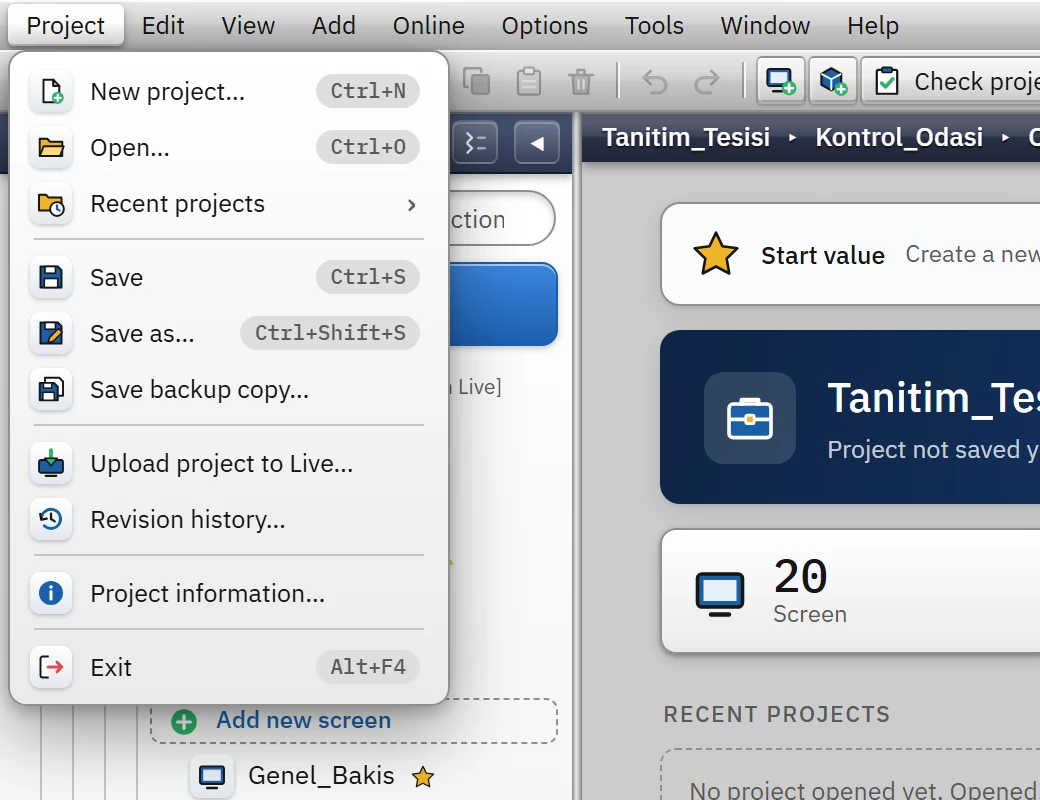
Project menu: file operations, backup, upload to Live and version history.
Project
Project file operations: new, open, save, save as, backup copy; upload to Live and version history; project information. The Recent projects submenu lists the 10 most recently opened projects at most; a row whose file cannot be found is gray and marked (not found); at the bottom is Clear list (files are not deleted). Details: Project files.
Edit
Undo / redo, clipboard commands, duplicate, delete, selection, locking, renaming and object arrangement (align, order, size, group). The 3D editor also has rotate and model commands.
View
Showing and hiding panels (project tree, detail view, Inspector), overview, grid and snap options, zoom, animation preview, full screen. Checked (✓) commands are options that are on.
Add
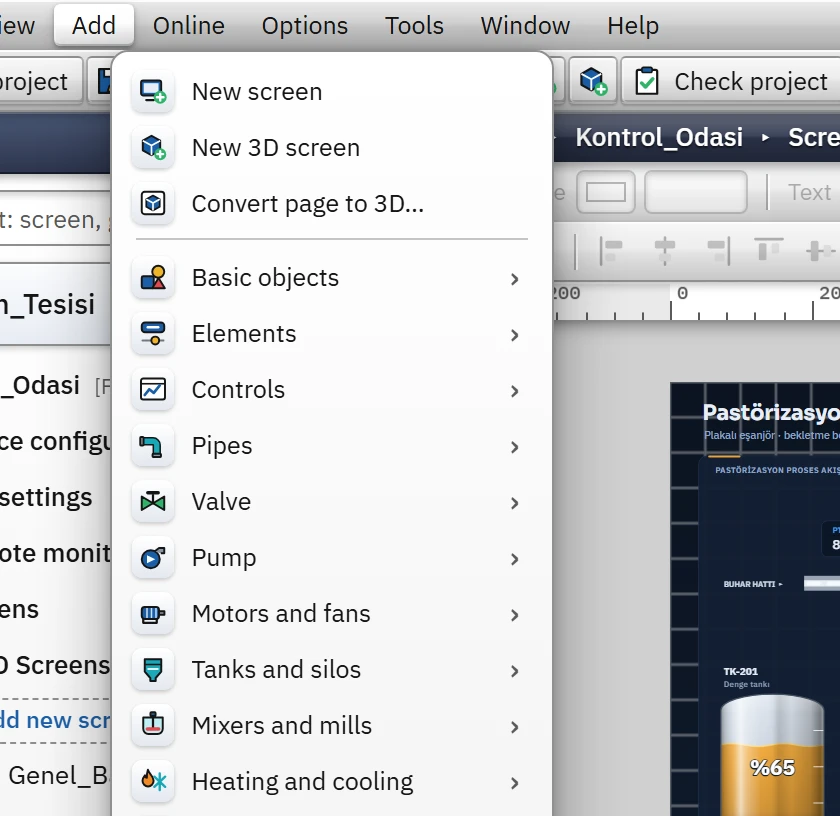
New 2D / 3D screen, convert screen to 3D and the object groups. Clicking a group lists that group's objects; selecting an object makes it the drawing tool, and you place it by clicking on the screen. If the screen editor is not open, the object groups are inactive. When a 3D scene is open, the groups of the 3D library appear; otherwise those of the 2D library. Object library
Online
Live-related commands: start Live, upload to Live, revision history, test connections. Studio does not connect to the PLC; Test connections… tries a TCP connection for each connection (2-second timeout) and only reports whether the target port is listening.
Options
Studio settings, theme, 3D view, interface language and scale. Options
Tools
Project check, script compilation, sample code, and export / import of tags with CSV / Excel. Check the project, Tag transfer
Window
The list of open editors (the active one is marked with •) and Close all editors. Its content varies depending on the open tabs.
Help
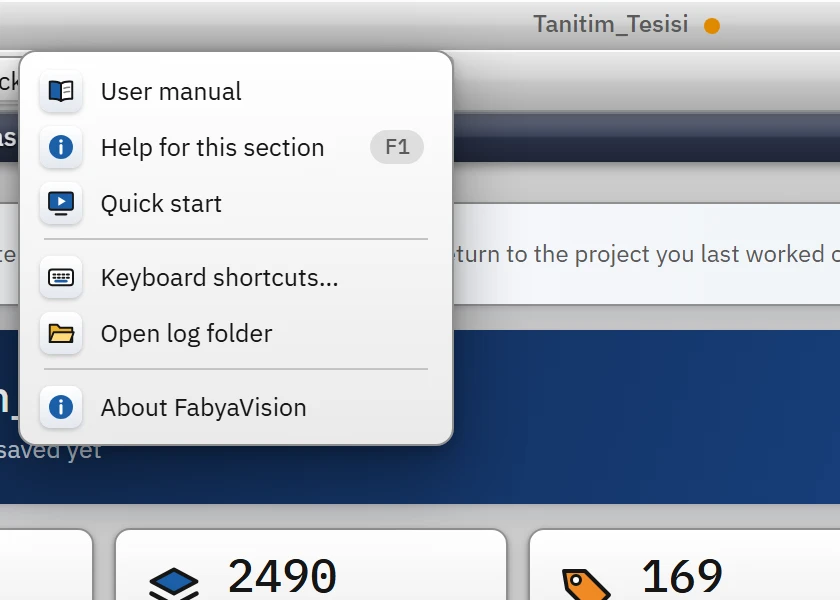
Manual, context-sensitive help, shortcuts, log folder, about (see below).
Add menu (when the screen editor is open): new screen commands and object groups.
Help menu
Help menu.
Command
What it does
User manual
Opens this manual in the default browser (home page). The manual is a static site that comes with the installation; it is in the wwwroot\help folder of Studio.
Help for this section (F1)
Opens the manual topic that corresponds to the open section or screen type (2D / 3D); if no match is found, a general topic or the home page of the manual opens.
Shows the version, build date, computer, user, program path, manufacturer and web address.
Toolbar
The toolbar at the top of the window consists of a single row of buttons; when the mouse is held over a button, a tooltip that also contains its shortcut appears. Disabled buttons are gray.
123456
Toolbar.
New project (Ctrl+N)
Save project (Ctrl+S)
New screen / 3D screen
Check project (F7)
Start Runtime (F5)
Upload — upload to Live
Button
Command
Shortcut
New
Opens the New Project window
Ctrl+N
Open
Opens a project
Ctrl+O
Save project
Saves
Ctrl+S
Save as
Saves under another name or to another location
Ctrl+Shift+S
Cut, Copy, Paste, Delete
Object or row operations (disabled when nothing is selected)
Ctrl+X, Ctrl+C, Ctrl+V, Delete
Undo, Forward (redo)
Undoes / redoes the last action
Ctrl+Z, Ctrl+Y
New screen, New 3D screen
Adds a new screen to the group of the open screen (3D scene rotating 360°)
Check project
Checks the project
F7
Start Live
Saves the project and opens it in Live
F5
Upload
Uploads the project to the project folder of the Live program: a description of the change is entered (new revision), the folder is selected, the file is copied
Toolbars of the screen editor
When the 2D screen editor is open, two more toolbars appear above the canvas. The upper one, the format bar, contains the fill and line color of the selected object, the font size, the font, the bold / italic / underline and alignment buttons, the layer number and the zoom percentage. The lower one, the layout bar, has the following command groups:
Group
Buttons
Order
Bring to front, bring forward, send backward, send to back
Alignment
Align left, center horizontally, align right, align top, center vertically, align bottom
Distribution and size
Distribute equally horizontally / vertically, same width, same height
Group
Group (Ctrl+G), ungroup (Ctrl+Shift+G)
Grid
Show / hide the grid, snap to grid (Alt turns it off temporarily), grid square (pixels), alignment guides, prevent overlap
View
Animation preview, zoom out, zoom in, fit screen (Ctrl+0)
The tables below were generated from the menu content taken from Studio. Rows marked Opens a submenu are commands with a submenu; the name of some commands changes depending on the state (for example, checked options start with ✓, and the Window menu shows the names of the open editors).
 123456