Quick start: your first project
Without needing a PLC, building, checking and running in Live a first project consisting of a tank, a pump, a value field and a button using the Simulator (about 30 minutes).
In this topic, you will build a small project that runs without a PLC: a tank whose level changes by itself, a pump that is switched on and off with a button, and a value field that shows the tank level. At the end you will run the project in Live and load it to Live.
What you will do
| Step | Work performed |
|---|---|
| 1 | Creating a new project |
| 2 | Adding a simulator connection |
| 3 | Defining two tags: Tank1_Seviye and P101_Calisiyor |
| 4 | Placing four objects on a screen: tank, pump, value field, button |
| 5 | Binding object properties to tags |
| 6 | Binding a click event to a button |
| 7 | The tank appearing in the alarm color when the level exceeds 90 (animation) |
| 8 | Checking and saving the project |
| 9 | Running in Live |
| 10 | Uploading the project to Live |
- Create a new project
Select Project›New project… (Ctrl+N). Type
Ilk_Projein the Project name field, and select a folder for your projects as the Location (Browse…). Leave Empty project selected as the Empty project and click Create.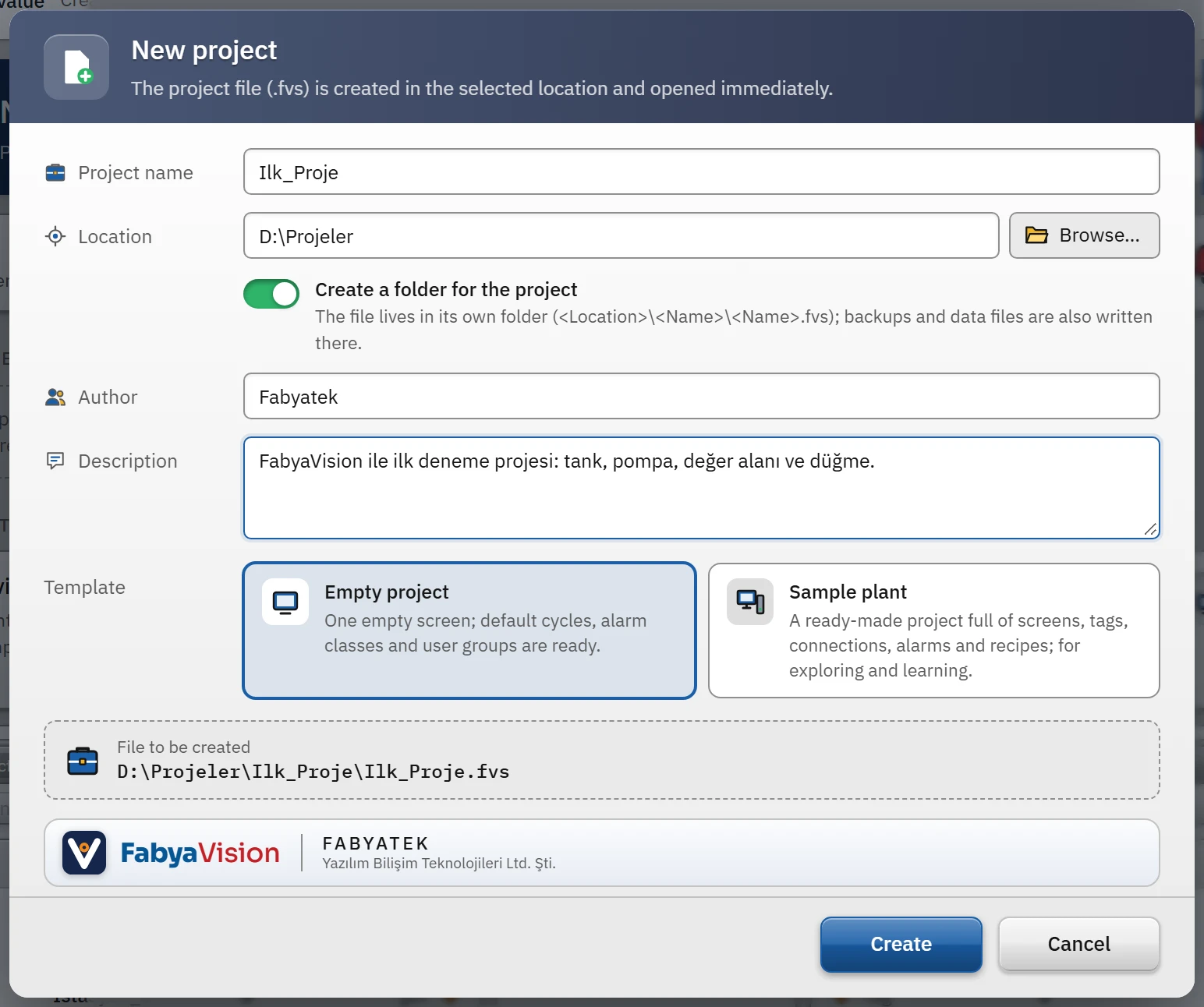 12345
12345New Project window: name, location and template. - Project name — this also becomes the file name.
- Location — the folder in which the project will be saved.
- Template — leave Empty project selected.
- File to be created — the path is shown here.
- Create — writes the file immediately and opens it.
Check: the project file is created and opened immediately. The project name appears in the title bar of the window and the file path (
…\Ilk_Proje\Ilk_Proje.fvs) in the status bar at the bottom right. The project name must start with a letter or digit; it may contain letters, digits, spaces,_,-and.(at most 60 characters). - Add the simulator connection
In the project tree, open Connections and click Add. The Name cell of the new row becomes editable: type
Simand press Enter. With the row selected, choose Communication driver from the Communication driver list in the Inspector below.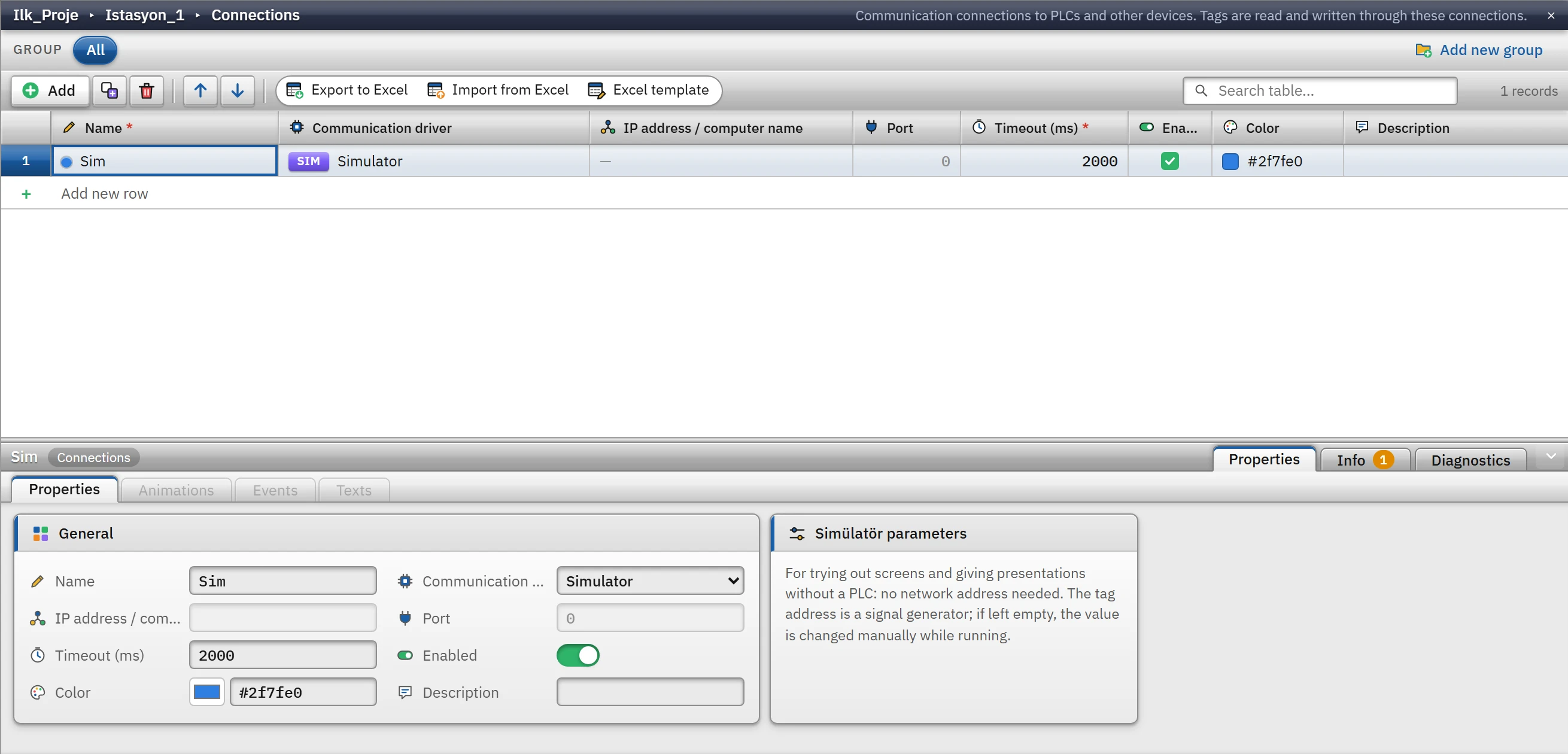 1234
1234Sim connection: the driver is Simulator; no IP address or port is required. - The Connections section.
- Add — opens a new row.
- Communication driver — Simulator.
- Inspector — all fields of the selected row.
Check: in the table, in the
Simrow, the driver shows Simulator and IP address shows—. The simulator generates signals and does not require a network address; for details, see Simulator. - Define the tags
In the project tree, open HMI tags and click Add.
- Name
Tank1_Seviye; ConnectionSim; Data typeReal; Addresssinus(0, 100, 20); Unit%. The address is a simulator signal: a sine wave between 0 and 100 with a period of 20 seconds. - Second row: name
P101_Calisiyor; Connection<Dahili tag>; Data typeBool. An internal tag has no address; its value exists only inside Live.
You can edit the cells by double-clicking them in the table, or by selecting the row and using the fields in the Inspector. The tag name must start with a letter and may contain only letters, digits and
_.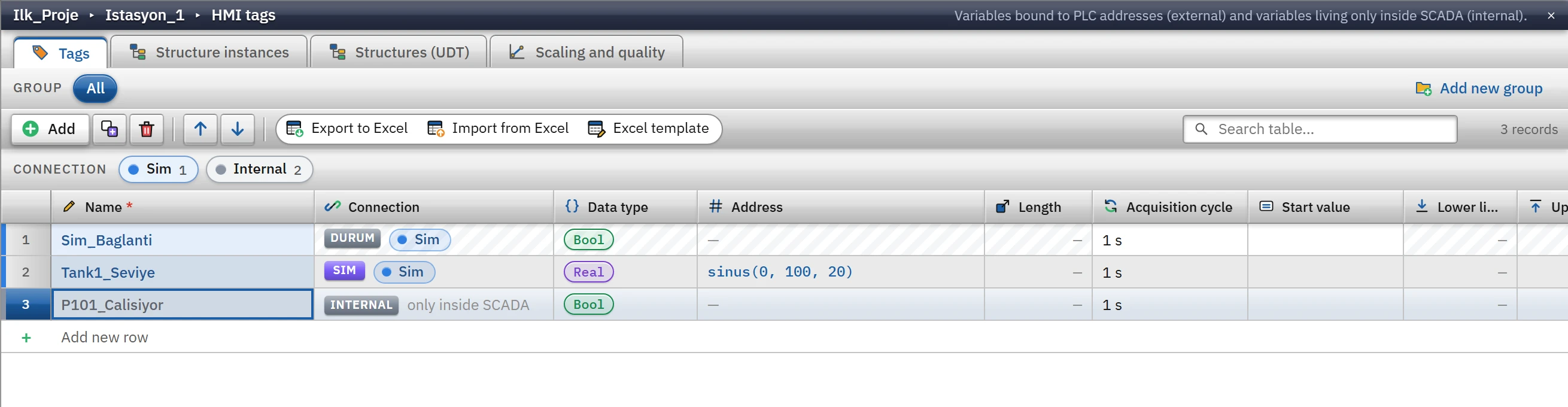 123
123HMI tags: two tags and the status tag generated automatically for the connection. - Sim_Baglanti — automatically generated state tag for the connection.
- Address — simulator signal.
- Internal tag — has no connection; it exists only inside Live.
Check: the table has three rows.
Sim_Baglantiis the STATE tag that is added automatically for every connection (it shows whether the connection has dropped); you do not need to delete it. - Name
- Place the objects on the screen
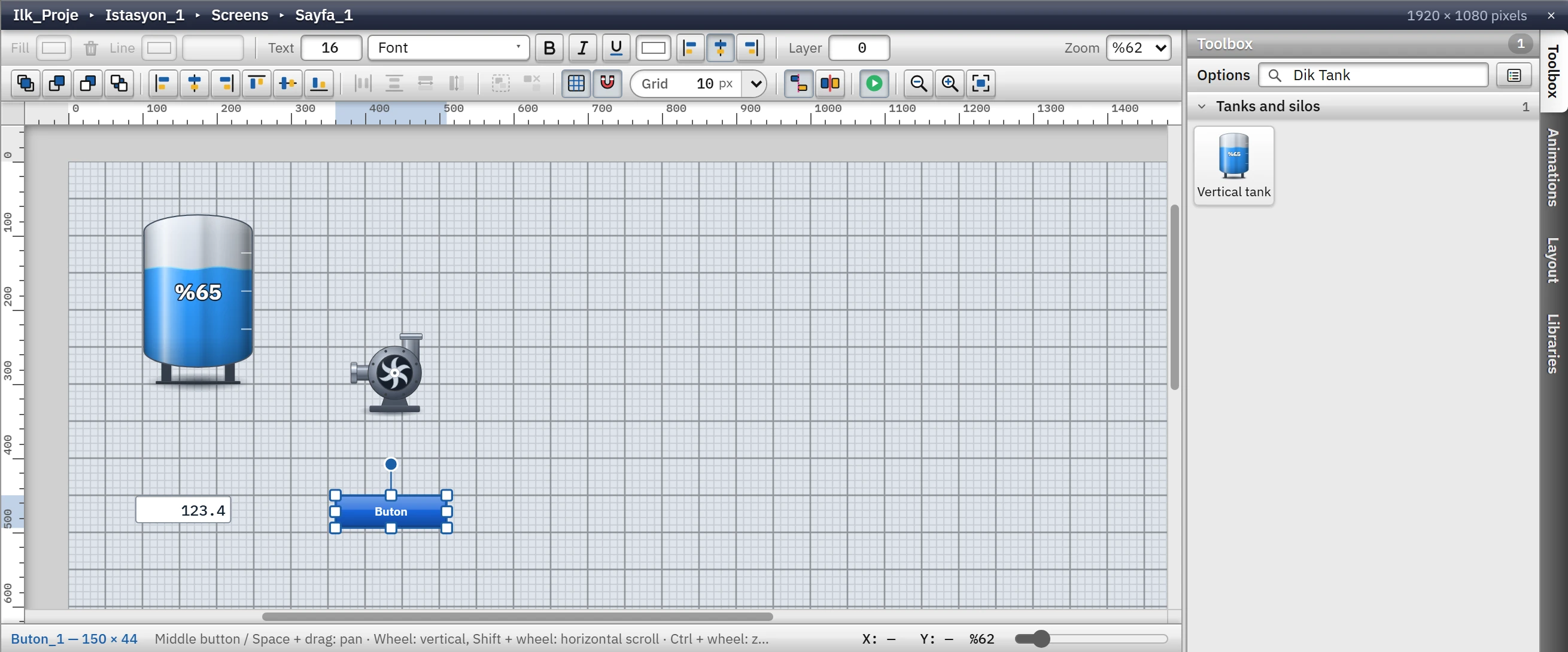
In the project tree, click 2D Screens under 2D Screens; the screen editor opens. In the Toolbox on the right, type the name of the object in the Search objects… box, click the object, then click on the screen (or drag it onto the screen). Place the following in order:
- Vertical tank — in the upper-left corner of the screen
- Pump — to the right of the tank
- I/O field — below the tank
- Button — below the pump
 123
123Four objects were placed; Vertical tank had been searched for in the toolbox. - Search object — type part of its name.
- Vertical tank — click, then click on the screen or drag.
- Screen — the objects are here.
Check: the objects are named
DikTank_1,Pompa_1,IOAlanı_1andButon_1. The Layout card on the right lists the objects on the screen. An object can be moved by dragging it and resized with its handles. For details of the editor, see 2D screen editor. - Bind the properties to tags
Select the tank. In the Inspector below, in the General category of the Properties tab, click the Level (%) button in the Dynamic — PLC tag cell of the Select tag… row and select
Tank1_Seviye. In the same way:Pompa_1› Running →P101_CalisiyorIOAlanı_1› Process value →Tank1_Seviye
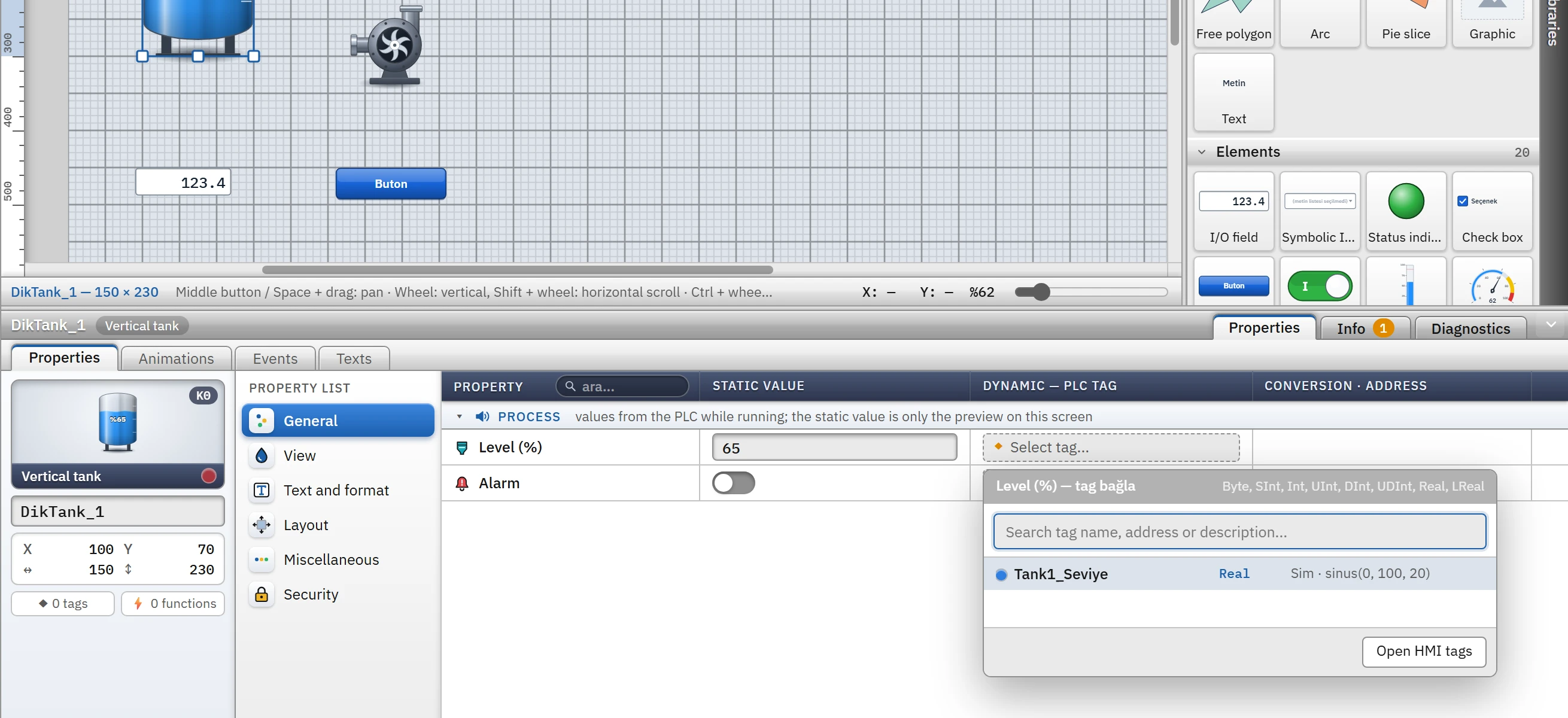 12
12The tag selector lists only tags of a type suitable for the property. - Select tag… — the tag to be bound to the property.
- Tag selector — only tags of a suitable type.
Shortcut: if you drag a tag from the Details view list and drop it on an object in the screen, the tag is bound to the first suitable process property of the object; if you drop it on an empty area, a new object bound to that tag is created.
Check: when you select the tank, the identity card of the Inspector reads ◆ 1 tag; the name of the tag is shown in the row of the connected property. For details of dynamization, see Dynamization.
- Link an event to the button
Select
Buton_1. In the Properties tab, open the Text and format category and enterPompa Aç / Kapatin the Text field. Then switch to the Events tab, select Click on the left, select Invert bit (InvertBit) from the Invert bit (InvertBit) list, and selectP101_Calisiyorin the Tag field.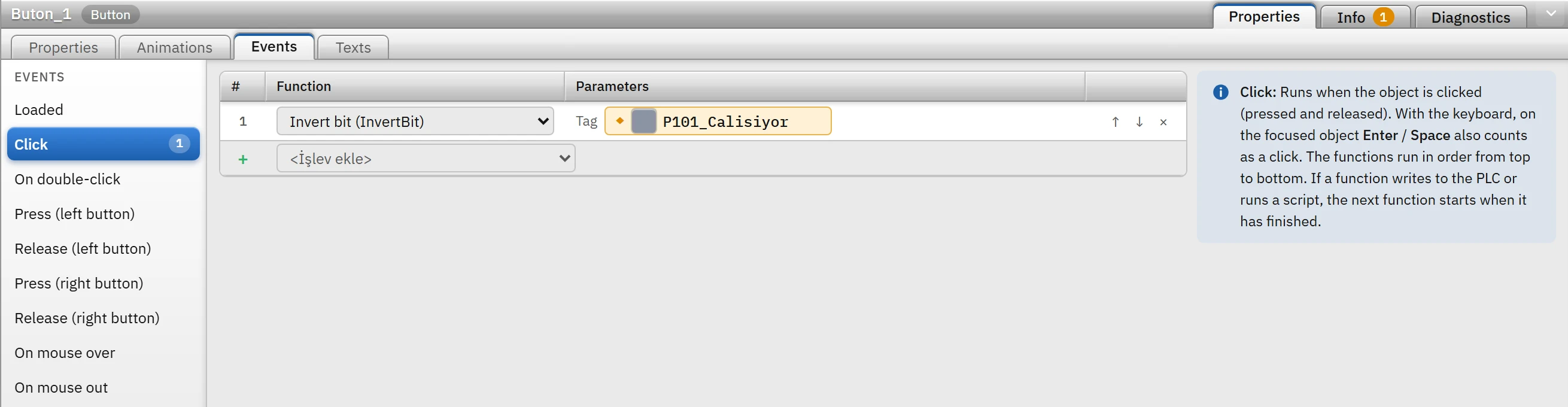 123
123Click event: inverts the value of P101_Calisiyor. - Click event.
- Function — Invert bit.
- Tag — P101_Calisiyor.
Check: a 1 badge appears next to the Click event; the identity card of the Inspector reads ⚡ 1 function. For the list of functions, see Events and functions.
- Add an animation
Select the tank and open the Animations tab in the Inspector; select Property connections from the list on the left. In the Alarm row, bind
Tank1_Seviyewith the Select tag… button. Because a numeric tag is bound to a Bool property, the conversion automatically becomes Range table: in the card on the right, click + Add range, set Tag min. to90, Tag max. to100and the Alarm value to On.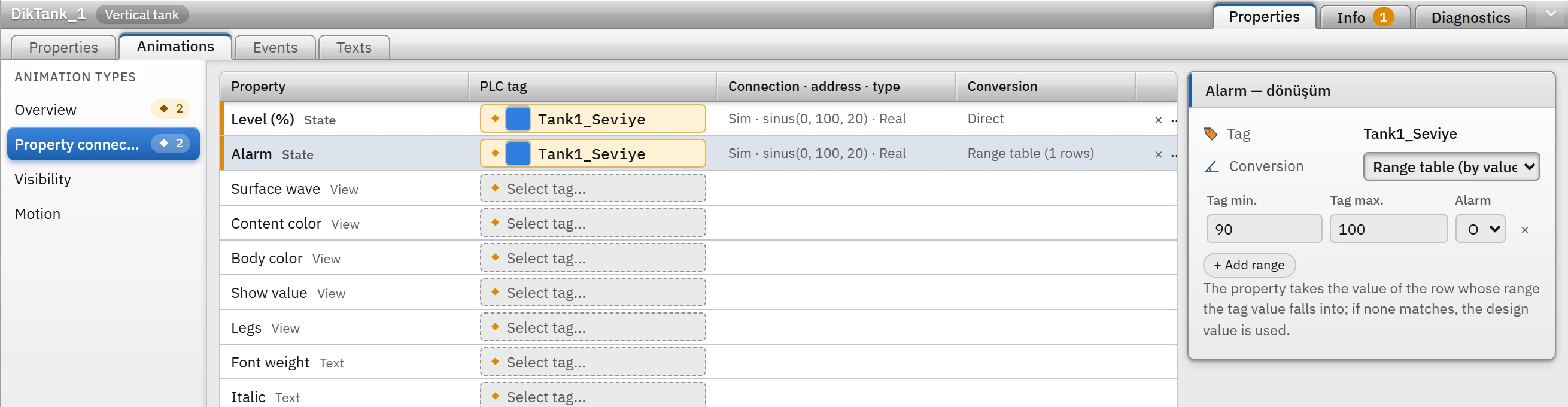 123
123While the level is between 90 and 100, the Alarm property of the tank is switched on. - Level (%) — direct binding.
- Alarm — range table.
- Range — 90 – 100: on.
Check: the Conversion cell of the Alarm row reads Range table (1 row). The rule of the range table: the property takes the value in the row of the range into which the tag value falls; if none matches, the design value is used. Details: Animations.
- Check and save the project
Run the Tools›Check project (F7) command. The result is listed in the Info tab of the Inspector at the bottom. Save the project with Ctrl+S.
 12
12Info tab: the warning that the user adminhas no password in a new project.- The Information tab — problem counts.
- Problem row — clicking goes to the relevant place.
Check: only one warning appears in this project: User administration › Users › admin: The user has no password. Every new project has this warning; in a production project, assign a password in the User administration section. You can ignore it for the trial project. Had there been an error (red), clicking the row would have led to the relevant record; for the problem messages, see Check the project.
As long as there are unsaved changes, a dot appears next to the project name in the top bar and
*appears in the window title. - Run in Live
Press Online›Start Live (F5) or the Start Live button in the toolbar. Studio saves the project and opens
FabyaVision_Live.exewith this project file.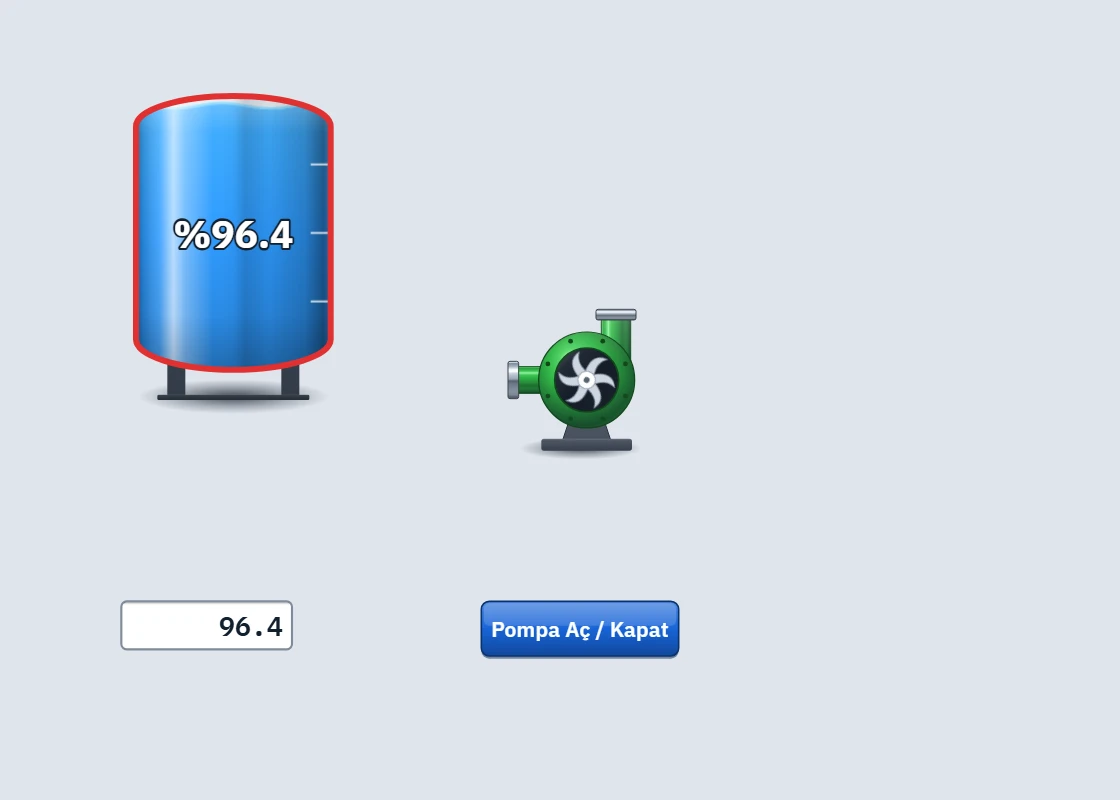
First project in Live: the tank fills and empties with a sine signal, and the pump has been started with the button. Check:
- The level of the tank and the number in the value field change between 0 and 100 with a period of 20 seconds. While the level is between 90 and 100, the frame of the tank turns red (the range table in step 7).
- Each time you click the Pompa Aç / Kapat button, it inverts the value of
P101_Calisiyor; the pump appears green while running and gray when stopped.
If the Live program is not found, Studio shows the message “Live program (FabyaVision_Live.exe) not found…”; Live must be in the same folder as Studio or in the
Livefolder next to it (Installation layout). - Upload the project to Live
In real use, the project is uploaded to the project folder of the computer on which Live runs. Run the command Project›Upload project to Live…. Studio first opens the Revision description window: enter what changed in this version (required) and press Upload. A folder selection window then opens; the default suggestion is the
Projelerfolder of Live.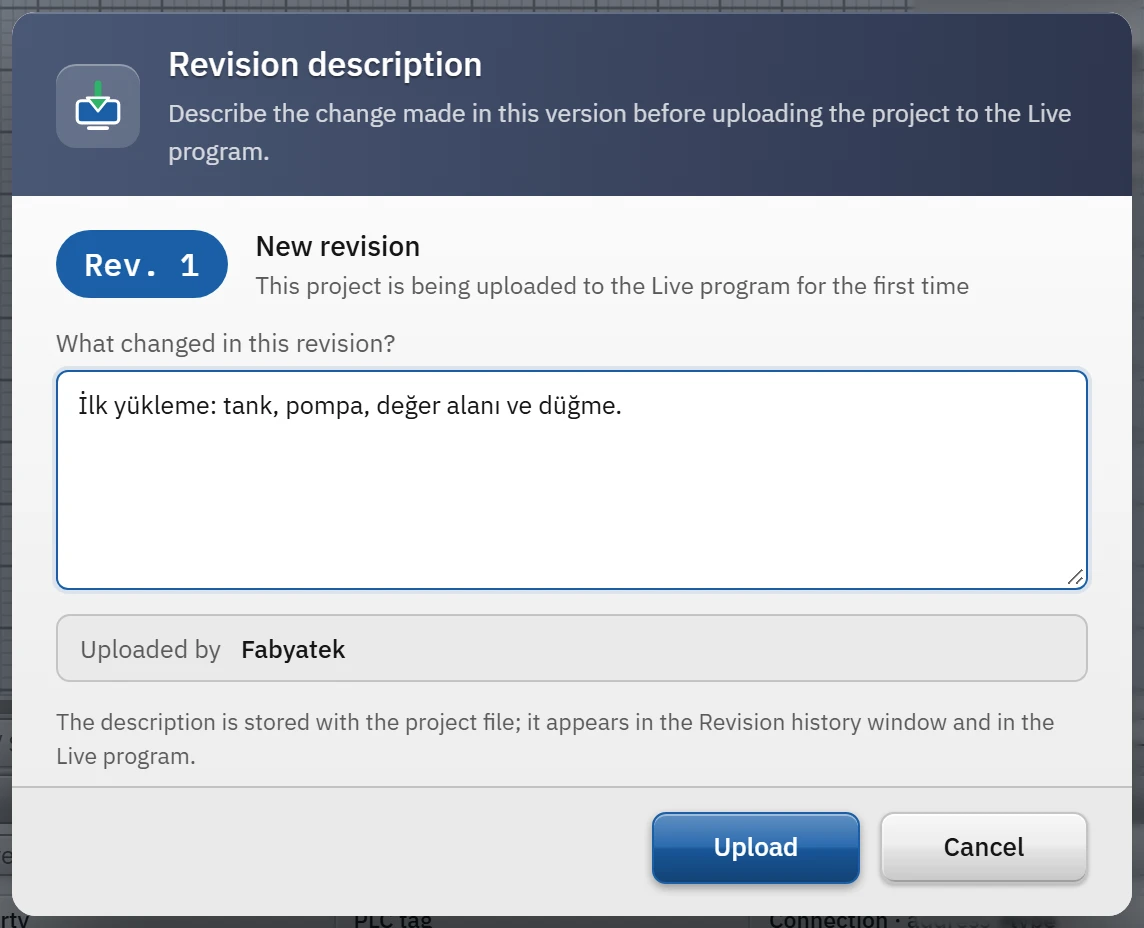 12
12Revision description: each upload is saved as a revision together with its description. - Description — required; stored together with the revision.
- Upload — then a folder is selected.
Check: the message “Project loaded (Rev. 1)” appears. If you open Live without a project, the
Ilk_Projecard appears on the Select project screen. Details: Uploading the project to Live, Revision and backup.