Sample projects
What the Tanitim_Tesisi and Ornek_Tesis sample projects show, how they are opened and where to find which feature.
FabyaVision comes with two sample projects. Neither requires a real PLC: the values flow from the Simulator connection. The easiest way to see what is possible while building your own project is to open these projects in Studio and browse through them.
| Tanitim_Tesisi | Ornek_Tesis | |
|---|---|---|
| Purpose | A fully populated plant that shows the power of the product: a food production line | Property test; small examples from every object and section |
| File | Tanitim_Tesisi.fvs | Ornek_Tesis.fvs |
| Screen | 22 screens: 15 full screens (2D), 5 3D scenes, 1 recipe and 1 report design screen | 13 screens: 9 full screens, 1 pop-up window, 1 3D scene, 1 recipe and 1 report design screen |
| Tag | 169 | 42 |
| Connection | 8 (1 Simulator, 7 passive instances) | 2 (1 Simulator, 1 passive instance) |
| How it is opened | Open directly | Select it as a template in the New project window |
Opening projects
Tanitim_Tesisi
If the Sample project (Tanitim_Tesisi) component is selected during installation, the file is placed at Ornekler\Tanitim_Tesisi.fvs in the installation folder; if Live is also selected, the same project is also copied to the folder Live\Projeler\Tanitim_Tesisi\, so that it appears on the Select project screen of Live.
- Open in Studio
Select the file
Tanitim_Tesisi.fvswith Project›Open… (Ctrl+O). - Navigate
Click screens and sections in the project tree. While a project is open, Online›Start Live (F5) runs it in Live.
Ornek_Tesis
This project is not meant to be opened directly but is offered as the template for a new project: in the Project›New project… window, select Sample plant as the Sample plant. Studio copies the content of Ornek_Tesis.fvs to a new file under the name you give. If the file is not found at the path Studio\Ornekler\Ornek_Tesis.fvs, the template card appears disabled and shows “Sample project file (Ornekler\Ornek_Tesis.fvs) not found.”
Tanitim_Tesisi: what is included
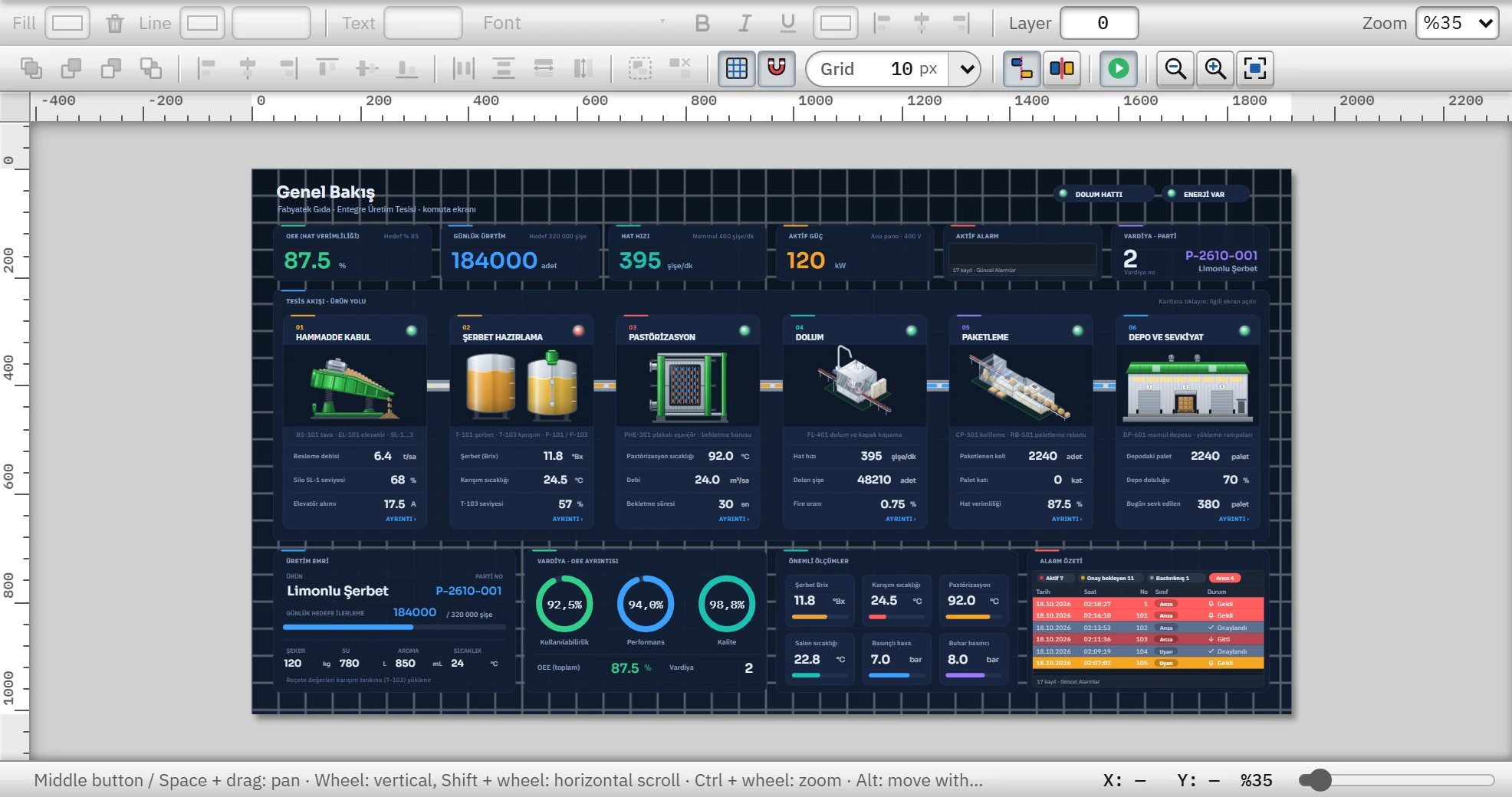
The project describes a food plant (syrup preparation, pasteurization, filling and packaging). The start screen is Genel_Bakis; the Ust_Serit screen is the fixed top area that stays on all screens (Screen management › Layout).
| What you are looking for | Where | Details |
|---|---|---|
| Process screens | Hammadde_Kabul, Hazirlama, Pastorizasyon, Dolum_Paketleme, Yardimci_Tesisler, Kazan_Kompresor, Enerji | Process objects |
| Alarms and trends | The Alarm_Trend screen (alarm view + two trend views); in the HMI alarms section, 1 digital and 16 analog alarms, 4 alarm classes | Alarm system, Trend |
| Historical data | Historical data: Tank_Seviye_Arsivi and Proses_Olcum_Arsivi | Historical data |
| Recipe | Recipes: Serbet (8 elements, 7 records); Receteler screen; Serbet_Recete_Formu recipe design screen | Recipes |
| Report | Reports: Parti; Raporlar screen; Parti_Dosyasi report design screen; two Event views on the Olaylar screen | Reports |
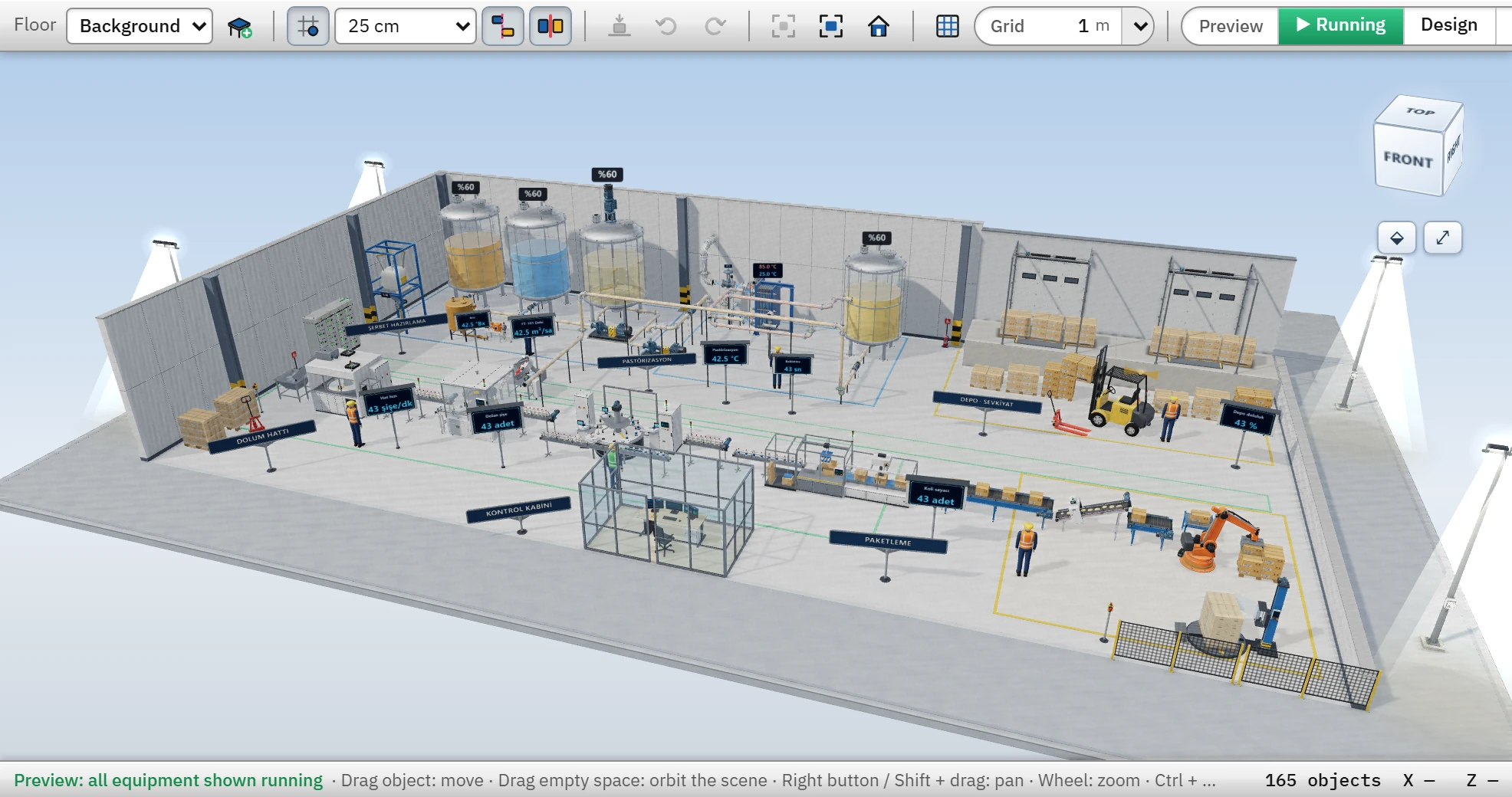
| 3D scenes | Tesis_3B, Hammadde_3B, Uretim_3B, Yardimci_3B, Pastorizasyon_3B | 3D screens |
| Camera | The Kamera screen: four IP Camera objects; no camera is required because the test image source is used | IP camera |
| Narrow-display screen | Mobil_Ozet (450 × 974 pixels) | Screen management |
| Scripts and tasks | Scripts: 8 JavaScript, 2 VBScript and 1 C scripts; Scheduled tasks: 15 tasks (cyclic, weekly, monthly, yearly, daily at a set time, tag change, tag condition, startup, shutdown) | Script examples, Tasks |
| Structure (UDT) | Pompa_Yapisi and its three instances (Pompa_P101, Pompa_P103, Pompa_P201) | Structures |
| User and authorization | User administration: 3 users, 3 groups, 7 authorizations | User administration |
| Different drivers | Connections: PLC_Proses (S7-1500), PLC_Hammadde (S7-1200), Enerji_Analizoru (Modbus TCP), Kazan_OPC (OPC UA), PLC_Paketleme (Allen-Bradley), PLC_Etiketleme (Mitsubishi MC), PLC_Kolileme (Omron FINS) | Drivers |
Ornek_Tesis: what it contains
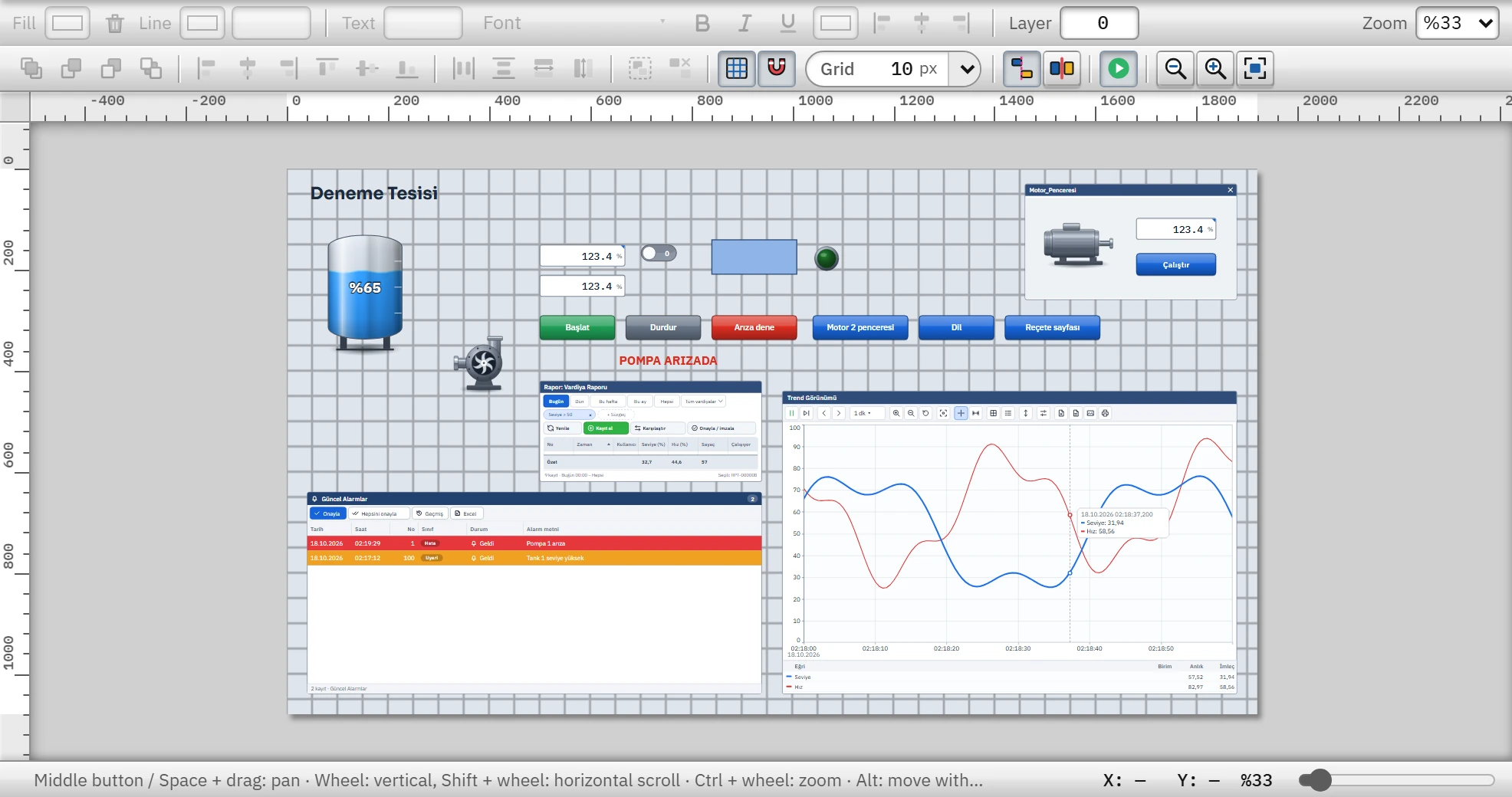
It is a small project; each screen is there to try out one feature:
Ana: tank, pump, buttons, Alarm view, Trend view, Report view, pop-up window (Motor_Penceresi).Receteler,Urun_Dizayn(recipe design screen),Raporlar,Vardiya_Dizayn(report design screen).Sahne: 3D scene.Kameralar: camera views.- Screens that demonstrate the screen properties:
Ozellikler(display name “Property samples”),Ayarlar(requires authorization to open; contains a Connection view),Bakim(“Maintenance notes”; closed to browser monitoring),Taslak(a draft screen that is not shown in Live). VBS: VBScript examples; in the Scripts section, VBS and C examples.- Two project languages: Turkish and English (Languages and texts).
Navigation suggestion
- See it in Live first
Open Tanitim_Tesisi and run it with F5; browse between the screens and watch the alarms and trends.
- Then look inside a screen in Studio
Open the
Pastorizasyonscreen, select a tank and look in the Animations tab of the Inspector to see which property is linked to which tag. - Browse the tags and alarms
In the HMI tags section, check the tag addresses (
sinus(...),kare(...)); in the HMI alarms section, check the limits and classes. - Move it to your own project
To copy a screen you like or to adapt the structure to your own tags, see the topics Project tree and Table editor.