Project tree
Reaching sections and screens in the project tree, creating groups (folders), searching, context menus, drag and drop, and editor tabs.
The project tree is the tree on the left of the main window: all sections and screens of the project are opened from here, and screens and table records are divided into groups.
Tree structure
At the top is the project node, below it the station node (with the note [FabyaVision Live]). Under the station, the sections appear in this order:
| Section | Content | Details |
|---|---|---|
| Device configuration | Station name and operating mode | Device configuration |
| Live settings | Live startup, appearance, session, window and keyboard settings | Live settings |
| Remote monitoring | Monitoring from the browser and TV | Remote monitoring |
| Screens | Two fixed branches: 2D Screens and 3D Scenes | Screen management |
| Screen management | Fixed top / bottom area, navigation menu; below it Menus and toolbars | Navigation menu |
| HMI tags, Connections | Tags, structures; communication connections | Tags, Connections |
| HMI alarms, Recipes, Historical data | Alarm definitions; recipes (with the recipe design screens below them); archives | Alarms, Recipes, Historical data |
| Scripts, Scheduled tasks, Cycles | Scripts, tasks, read cycles | Scripts, Tasks, Cycles |
| Reports | Report definitions (with the report design screens below them) | Reports |
| Text and graphic lists, Languages and texts, User administration | Value → text mappings; languages; users and authorizations | Lists, Languages, Users |
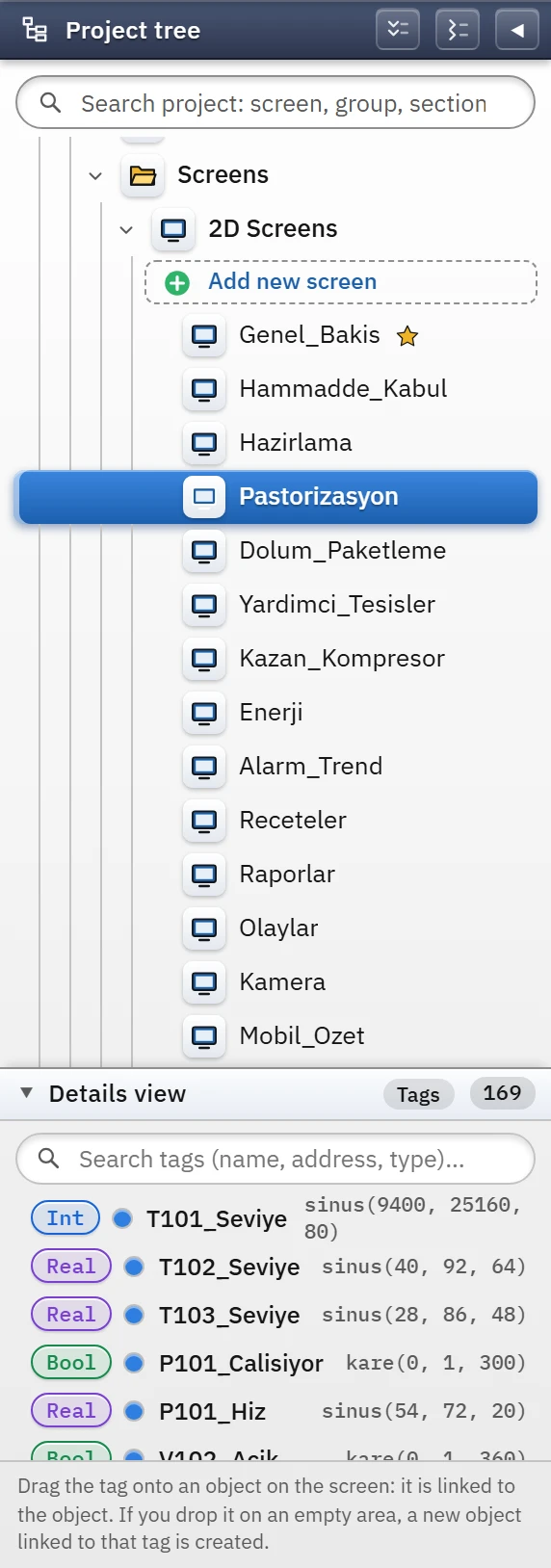 123456
- Search — screen, group or section name.
- Expand all
- Collapse the project tree
- 2D Screens — normal screen, window, template.
- Open screen — selected row.
- Add a new screen
Navigating the tree
- Opening: clicking a section or screen opens its editor in the workspace; if it is already open, it is brought to the front. The Station, Screens, 2D Screens and 3D Scenes nodes do not open an editor; they only expand and collapse the branch.
- Expanding / collapsing a branch: done with the arrow at the left of the row. The two buttons in the header (Expand all, Collapse all) expand or collapse all branches together; after collapsing, the project and station remain open.
- Indicators: ★ shows the start screen; the red ✖ or orange ⚠ at the end of a row shows that there is an error / warning in that section or in the screens; the colored dots on the Connections row show the connection colors (tags are displayed in this color); the badge next to Remote monitoring shows its state.
- On hover: small + buttons appear on the right of the row: they add a screen, a 3D screen or a subgroup.
Search
As you type in the Search project: screen, group, section… box above the tree, the tree turns into a flat list of matching sections, groups and screens; each row shows where the item is located (such as Sayfalar › Hat_1). Esc clears the search. If there is no match, a message saying so appears in the tree area. Clicking a row opens the corresponding editor; if you click a screen group, the search is cleared and the position of the group in the tree is shown.
Groups (folders)
A group is a folder that you create in the tree to organize screens and table records. It does not affect how Live runs; it only provides organization within the project.
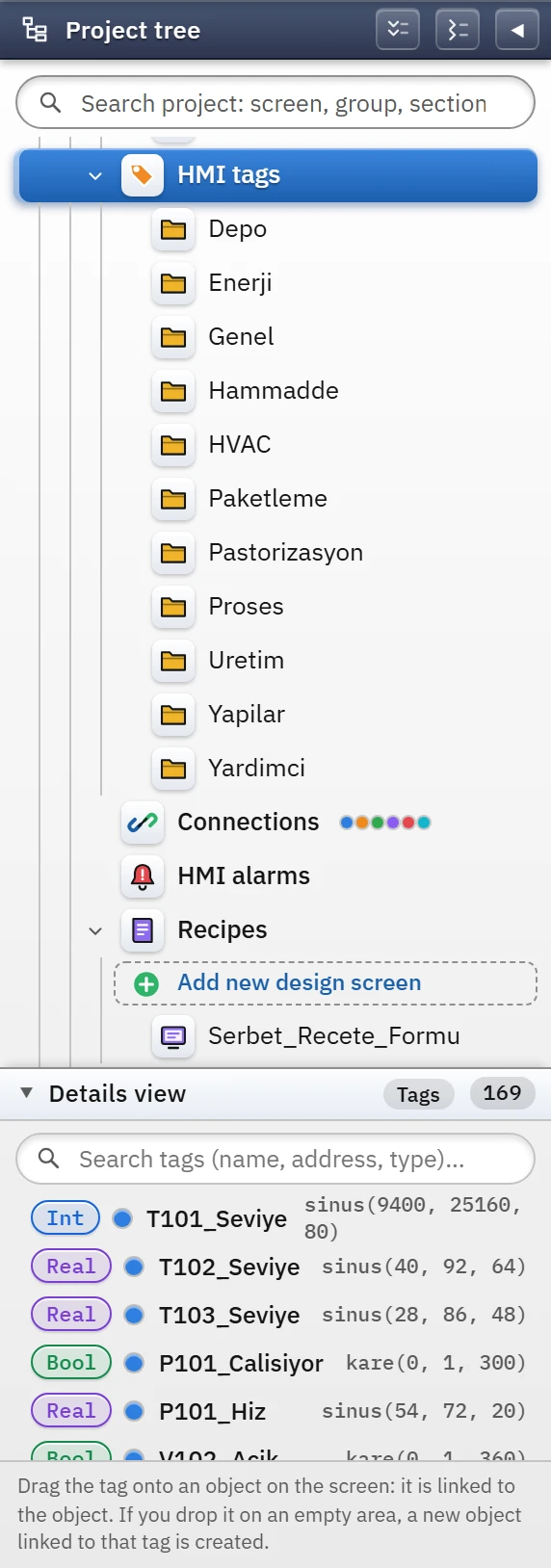 123
123- Section — clicking it opens the table.
- Group — the folder that organizes the records.
- Connection colors — tags are shown in this color.
- In which sections it occurs: Screens, HMI tags, Connections, HMI alarms, Recipes, Historical data, Scripts, Scheduled tasks, Reports and Text and graphic lists.
- Creating: the Add new group button in the section row, the right-click menu or the group bar above the table. The name may contain letters, digits, spaces,
_,-and.; the same name cannot be used twice at the same level. Groups can be nested. - In table sections: when you select a group, the table is filtered to the records of that group (and its subgroups), a Group column is added to the table and a Move to group button appears on the toolbar. A new row is created inside the selected group.
- For screens: the two branches (2D and 3D) share the groups: a group appears in the branch for whichever type of screen it contains; a group with no screens appears in both branches. Recipe and report design screens are not put in groups; they are listed under the section they belong to.
- Deleting: when you delete a group, its contents are not deleted but moved up one level.
Right-click menus
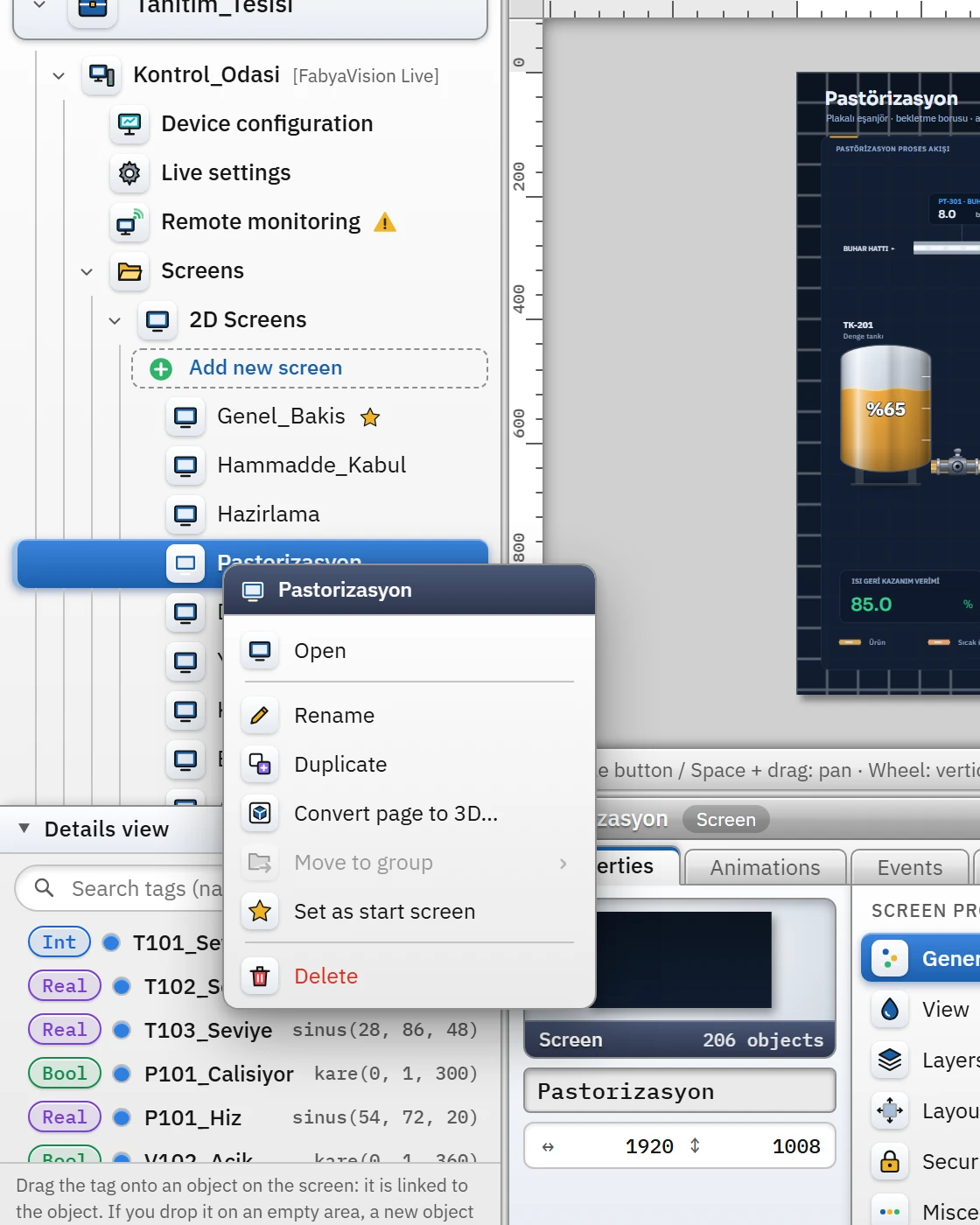
| Node | Commands |
|---|---|
| Screen | Open, Rename, Duplicate, Convert page to 3D… (on a 2D screen), Move to group ▸, Set as start screen, Delete |
| Group | Add a new screen to this group, Add a new 3D screen to this group, Add subgroup, Rename, Move to another group ▸, Delete group (in table sections the first command is Open) |
| Section | Open, Add new entry (in table sections), New design screen… (Recipes, Reports), Add new group |
| Project | Open, Project information…, Expand all, Collapse all |
| Empty area or Screens nodes | Add new screen, Add new 3D screen, Add new group; on an empty area, also expand / collapse |
Drag and drop
Move a screen or group by dragging and dropping it onto another group in the same section; dropping it onto the section node moves it to the root (no group). A group cannot be moved into itself or into its subgroup; if a group with the same name exists at the same level, the move is rejected.
Editor tabs
Open editors are kept in the tab bar at the bottom of the main window; the tab commands are described in Main window. The Show in project tree command in the tab's right-click menu opens the project tree, clears the search, expands the groups above the node and shows the row by briefly highlighting it.