Navigation menu
The table that determines the Screens list in the Live system menu: which screen appears under which title, to which user group it is visible, and in which order it is listed.
What the navigation menu is
The Navigation menu is the list the operator uses to switch between screens in Live. It appears as buttons under the Screens heading in Live's system menu in the corner of the display. Each row in the table is a button: its title, the screen it goes to, who sees it and whether it is visible are defined in the row.
The table is on the Screen management tab of the Navigation menu section (the first tab is Layout; see Screen management).
Adding a row
- Open the section.
In the project tree, select Screen management and switch to the Navigation menu tab.
- Add a row.
Click Add or the Add new row row at the bottom of the table. The Title of the new row is
Yeni öğe, its Visible setting is on, and its Target screen is the first screen of the project. - Give a title and a target.
Title is mandatory. Select the screen from the Target screen list; if no target is selected, the table marks the row with a warning (No target screen selected.).
- Select who sees it.
The Authorization group list contains (everyone) or a user group from User administration.
- Set the order.
Move the rows with the up / down arrows; in Live, the buttons are listed in the order of the table.
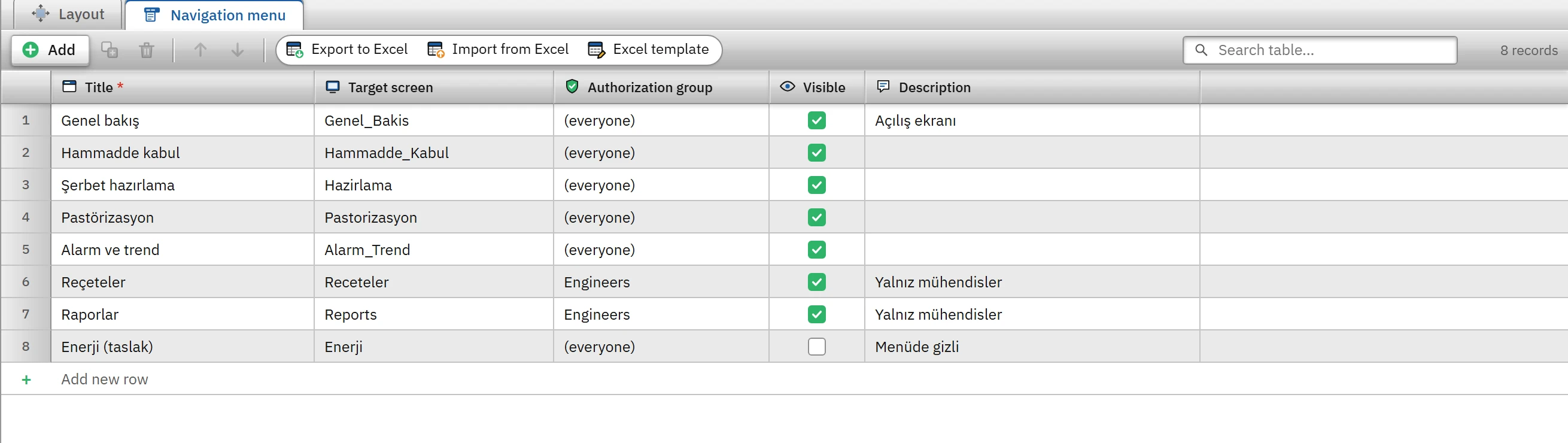
- Title
- The name shown on the button (required). The title is independent of the screen name and is a translatable text (Languages and texts).
- Target screen
- The screen that opens when the button is pressed. If you delete the screen, the target of this row becomes empty.
- Authorization group
- A user who is not a member of the selected group does not see the row, and does not see it when the session is closed either. If (everyone) is selected, the row is visible regardless of the session.
- Visible
- A disabled row is not included in the list; use it to hide a row temporarily without deleting it.
- Description
- Only in Studio; it is a designer's note.
Behavior in Live
When the operator opens the System menu, the list is shown; the button of the open screen is highlighted. The same menu also contains the user session, connection states, the interface language and font size, and the Alarms, Previous screen, Remote monitoring… and Exit Live buttons (Operator guide).
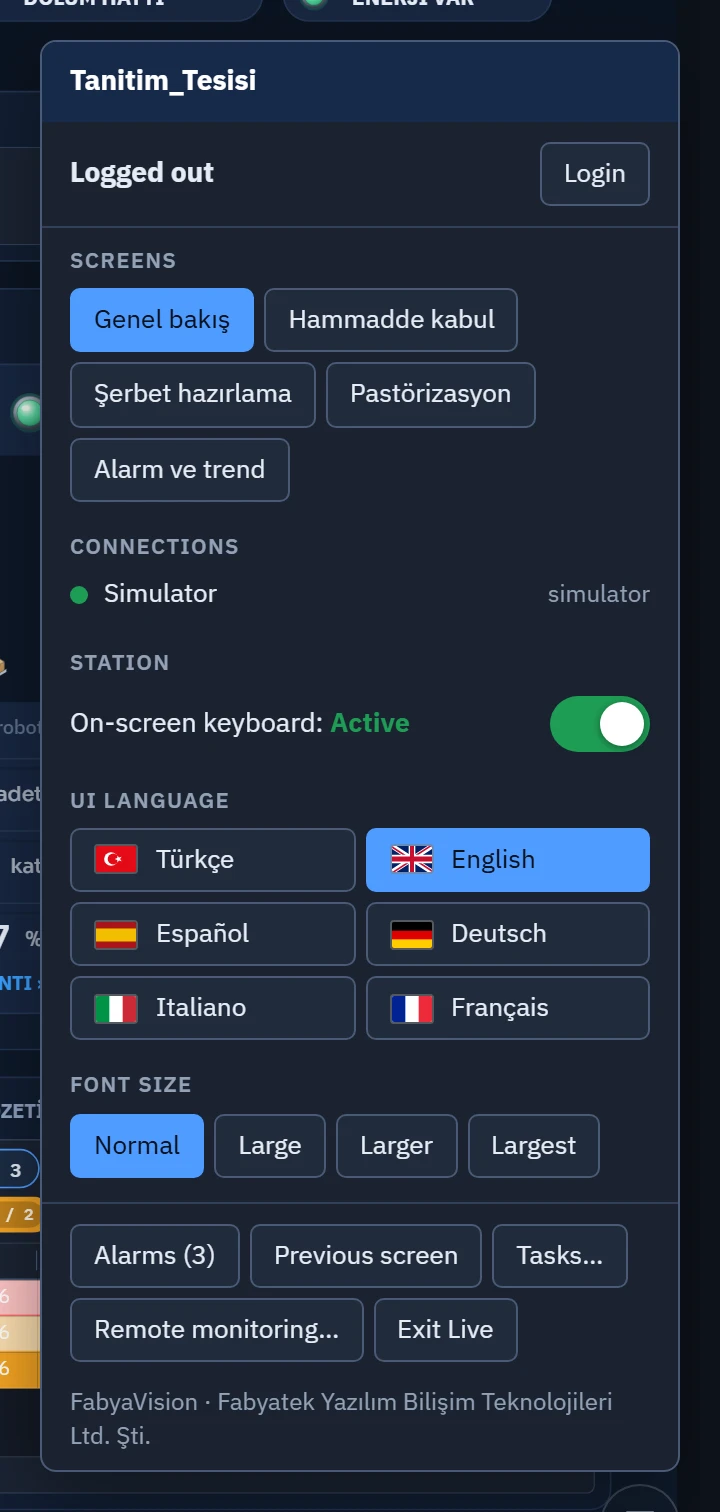
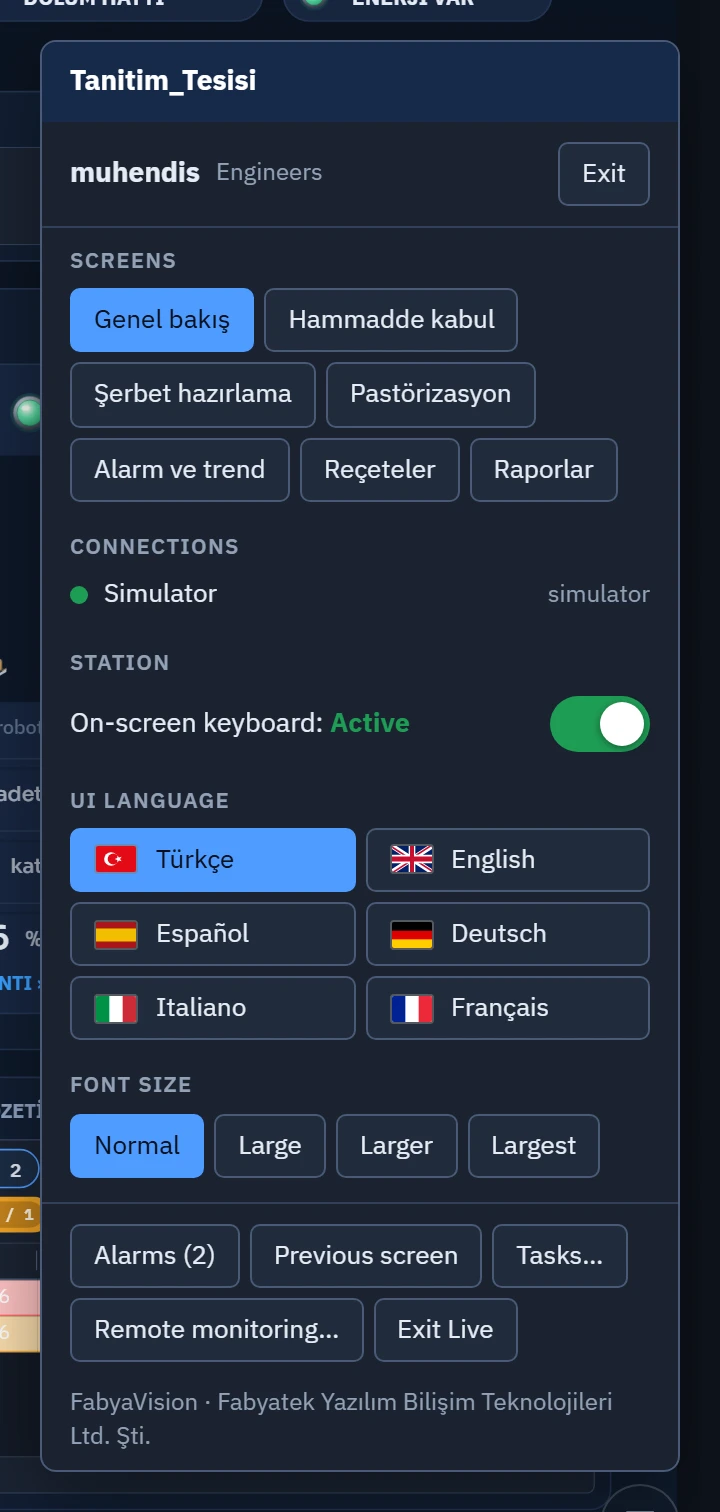
- Only screens that can be opened appear in the list: draft screens (Show is off in the screen properties) are never listed in Live; in remote monitoring, screens with Web access off are not listed either.
- If the screen itself requires Authorization, a lock icon appears on the button; when an unauthorized user clicks it, the log-on window or an authorization warning appears.
- Pressing the button is the same as Open screen: the previous screen is added to the return list, and the Previous screen button returns to it.
- On the TV display, if the screen has no Display name, the title in this table is used as the screen name.
Navigation menu, menu bar and buttons
The Navigation menu feeds Live's built-in system menu. For screen transitions that you want the operator to see at all times, you can set up a menu bar or toolbar, or assign a screen-opening function to the Click event of a button (Events). The three methods are independent of each other.