Designing reports
Defining reports that take records on a trigger: fields, trigger and feedback, record number and retention, period summary, print layout, approval and design screens.
A report is a definition that reads the values of a series of tags at a given moment and stores them as a record. For example, when a batch is finished, brix, temperature, flow rate and total quantity are written to a batch record. In Live, the records are listed, filtered, approved, exported and printed with the Report view or a report design screen (Using reports in Live). A report definition is prepared in the Reports section on four tabs: Report definitions, Trigger and record, Period, Print and Approval and Screen design.
Defining reports and fields
- Add the report
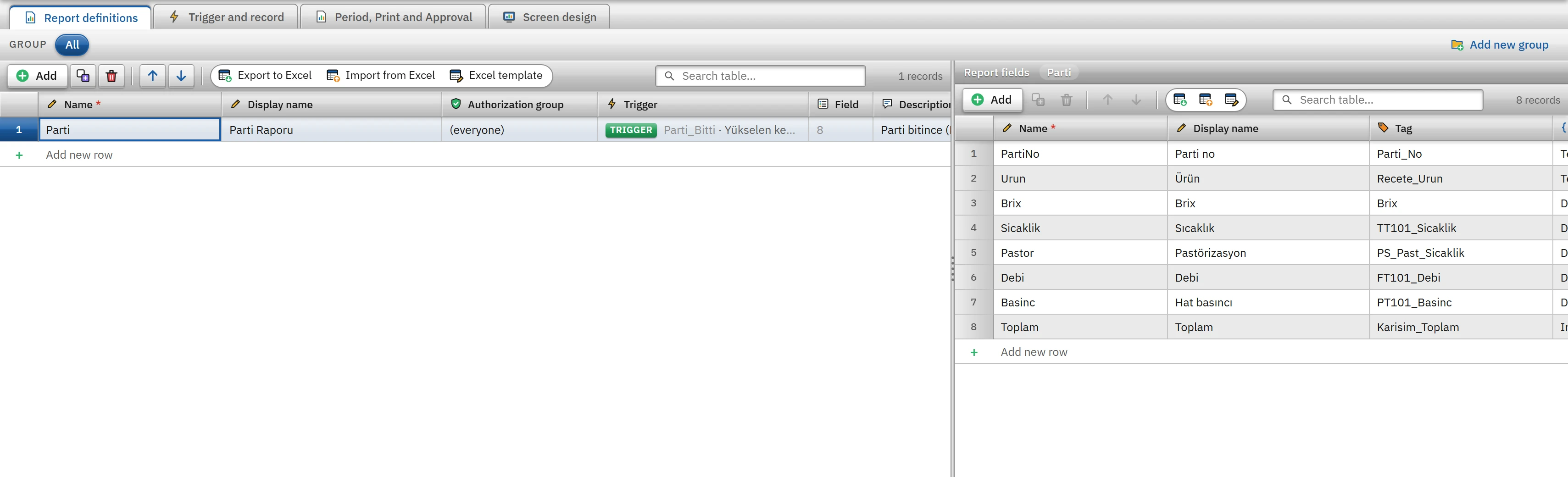
On the Report definitions tab, click Add; enter a Name (example:
Parti) and, optionally, a Display name. If an Authorization group is selected, deleting records and manual record creation are available only to users in that group. - Add the fields
With a report selected, add a row to the Report fields table for each value: Tag is the tag from which the value is read, and Data type (Integer, Decimal, Text, Bool (yes / no)) determines how the record is stored. A field with no tag selected remains empty in the record.
- Set the trigger and the record
On the Trigger and record tab, specify which condition starts the record (below).
- Set the period, printing and approval
Optional: period summary, paper layout, approval and retention.
 123
123- Authorization group — record deletion and manual record creation.
- Trigger — the tag and condition that start the record.
- Tag — the tag the field reads from.
| Field column | Meaning |
|---|---|
| Name, Display name | Definition name and the name shown in the table header, on the card and in print. |
| Tag, Data type | The tag to be read and the storage type. If the tag's value has not been read yet or its quality is bad, the field remains empty (—) in the record. |
| Decimal, Unit | Number of decimal places shown in the decimal field (0 – 6); the unit appears in the heading and next to the value. |
| Width (px) | Column width in the record table (40 – 600). |
| Format | How the value is written on screen and in print: Automatic (by data type), Number, Date / time, Text, Logical (Yes / No). |
| Period total | How a field is reduced from the records to a single value in the period summary: Last value, Total, Average, Min, Max, Difference (last − first), Count. For text fields, only the last value and the count are meaningful. |
| Min. limit, Max. limit | If the value falls below the minimum, an orange warning color appears; if it exceeds the maximum, a red one (in the table, on the card and in print). Empty = no limit. Numeric fields only. |
| Card group, Order | The heading under which the fields are grouped in the card of the selected record (example: Tartım, Proses) and the position in the table / card (smaller first; 0 = definition order). |
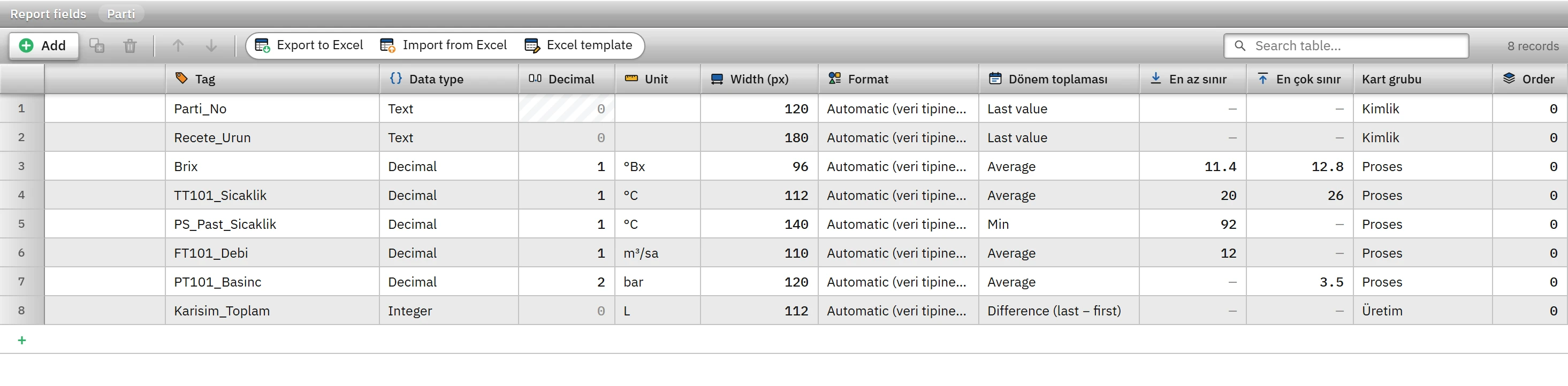
To see the field settings in a single window, use the Period, Print and Approval button of the Field formats and limits card on the Period, Print and Approval tab; the window shows a live preview.
Trigger and record
Trigger
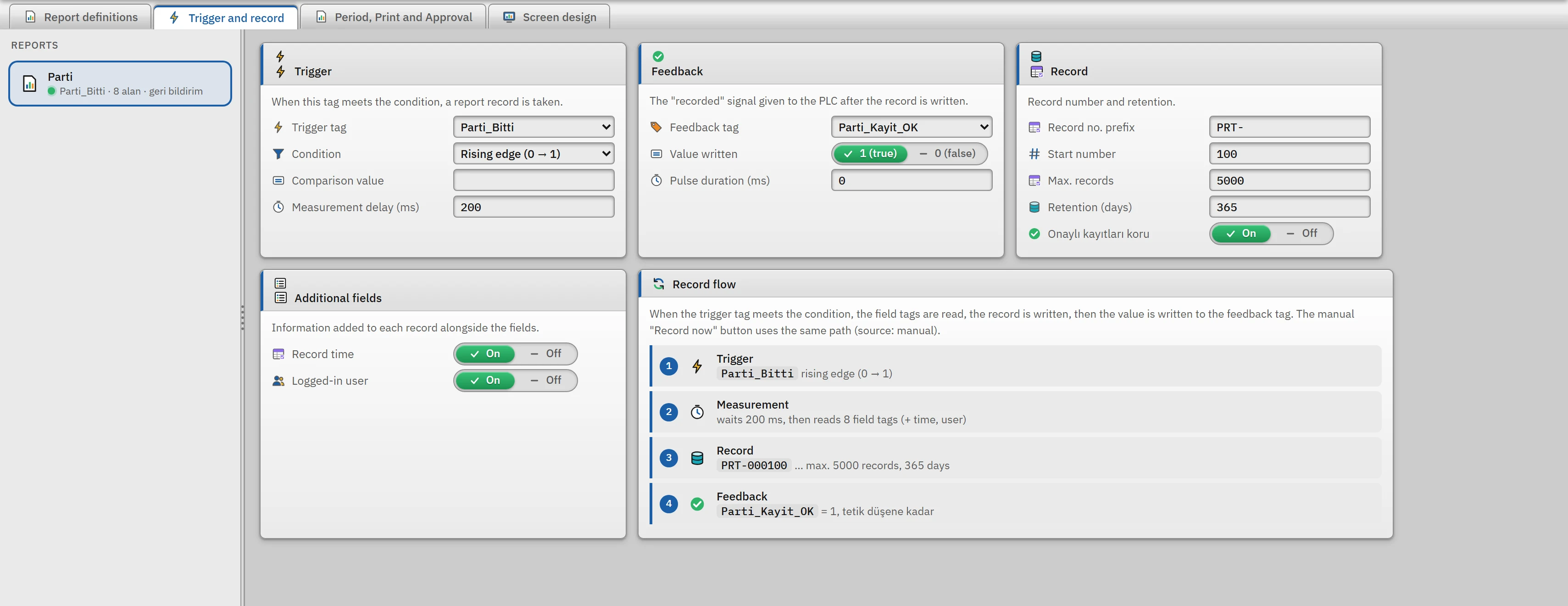
The condition that triggers the record is on a single tag:
| Condition | When a record is created |
|---|---|
| Rising edge (0 → 1) | When the tag becomes non-zero (true, if it is Bool). |
| Falling edge (1 → 0) | When the tag is reset to zero. |
| On change | Every time the value of the tag changes. |
| When value equals | When the tag reaches the value in the Comparison value field (while it was previously not equal). |
If the trigger tag is left empty, the report is saved only manually (with the Take record button). The first value of the tag read when Live starts is not counted as a trigger. If a new trigger arrives while a record is being taken, at most one trigger is put on hold; records are written in sequence. Measurement delay (ms) (0 – 60 000) is the time to wait after the trigger before the field tags are read; it gives the PLC time to place the values.
Feedback
When the record has been written successfully, a “saved” signal is given to the PLC: Feedback tag (must be Bool), Value written (1 (true) or 0 (false)) and Pulse duration (ms). If the pulse duration is 0, the value is held until the trigger drops (for a manually created record it is reset after 1 s); otherwise the value is reset at the end of this time. The feedback tag must not be the same as the trigger tag.
Record
- Record no. prefix and Start number: the record number is the prefix + a 6-digit number (example:
PRT-000100). The counter is kept in Live's storage; the start number takes effect only before the first record. - Max. records (default 10 000): the maximum number of records shown in the list. It also applies to storage.
- Retention (days) (default 365) and Keep approved records: deletion of old monthly files (below).
- Additional fields section: if Logged-in user is turned off, the user name is not written to the record.
Period, Print and Approval
- Period summary
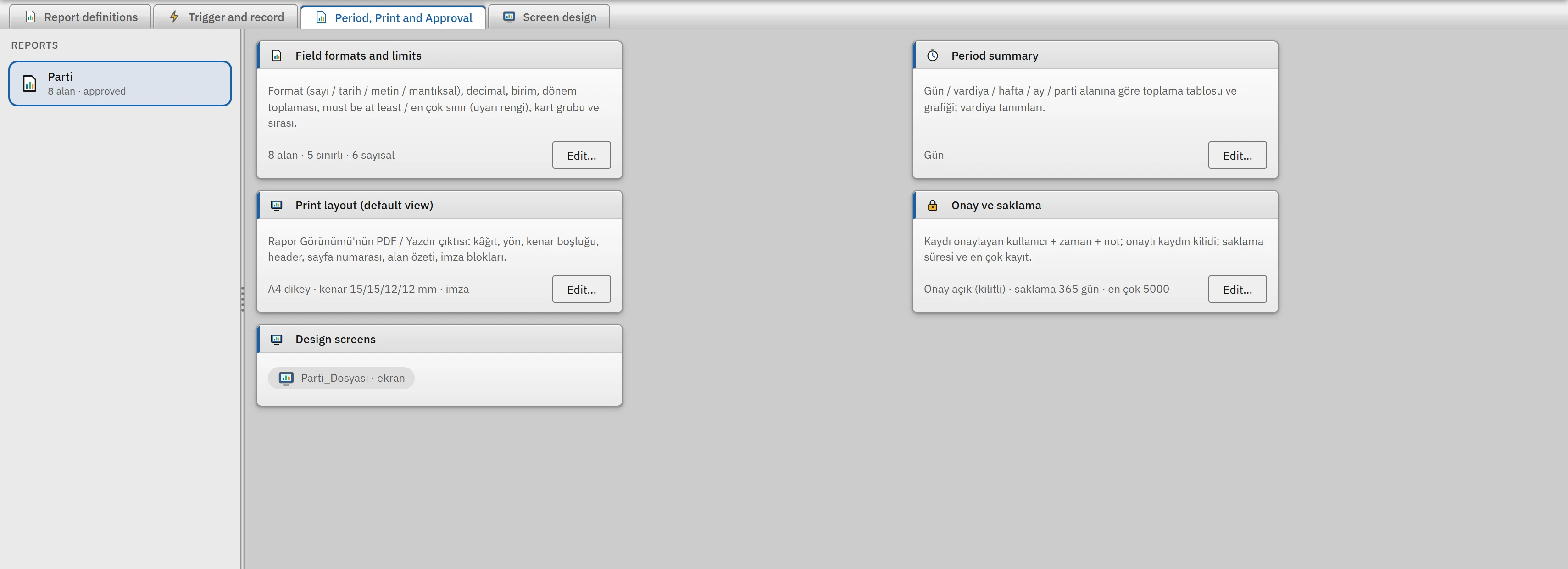
- Period summary criterion: Day, Shift, Week, Month or Batch field (records carrying the same value, for example the same batch number, form one period). The records are grouped by the criterion; the Period total of the fields is applied to each group. The shift definitions (name, start, end; may cross midnight) are located here. Default shifts: Shift 1 06:00 – 14:00, Shift 2 14:00 – 22:00, Shift 3 22:00 – 06:00.
- Print layout (default view)
- The PDF / print output of the Report view: Paper size (A4, A3, A5, Letter), Direction (portrait, landscape; landscape if the number of columns exceeds 8 and the setting was not selected manually), four margins (mm), Report title, Footer text, Project badge (first letter), Page number, Field summary table, Signature blocks (last page) and Record order (oldest to newest, newest to oldest, order on screen).
- Approval and retention
- Approval / signature enabled: Approve / sign works in Live. If Group that can approve is empty, the authorization group of the report approves; if that is empty too, everyone who is logged on can approve. If Lock approved record is on, an approved record cannot be deleted. Approval note required. Retention period (days), Max. records and Keep approved records are in this window.
How retention works
About 25 seconds after startup and then once a day, Live checks the old monthly record files of the report. A file is deleted if its entire month is older than the Retention (days) period, or if the records exceeding the Max. records count are in older months. Deletion is always a consecutive sequence starting from the oldest month; a month containing approved records (when Keep approved records is on) is where the sequence stops, and that month and later ones are not deleted. Safety: a period of at least 31 days is applied; this month, the previous month and the newest two existing monthly files are never deleted; if the system clock is outside 2020 – 2100, nothing is deleted. The deletion is written to the event log as a sistem entry.
Screen design
If the default Report view is not sufficient, you design a free-form screen for this report on the Screen design tab. The New design screen window offers these templates: Empty, Batch record, Daily / Period Report, Shift Report, Record Card / Certificate, Record List. The screen is opened from the navigation menu, or embedded in another screen with the Screen design property of the Report view. The Toolbox contains the objects of the Report group: Record table, Report field, Date filter, Report button, Report info, Record chart, Report Statistics, Signature Block, Record Comparison, Period Summary, Report Header.
If Print is on in a design screen, the screen becomes a paper layout: page header (every page), report header (first page), detail, report footer (last page), and page footer bands. If the detail band contains a table object, the rows are split across pages and the header row is repeated on every page; if it contains other objects, the band is repeated for each record. Button and filter objects are not drawn in print.
Limitations and points to note
- The records are kept on the Live computer in the monthly files
<Proje>.veri\gunluk\rapor_<rapor kimliği>_yyyyMM.log; deletion and approval are also appended to the same file as rows (record rows are never modified). - If Report recorder is switched off in the Startup sequence, the trigger is not monitored; manual and script-based record creation still works.
- Check project (F7) flags the following: a report without fields, a trigger tag that has been deleted, a text tag in an edge condition, a feedback tag that is not
Bool, the feedback tag and the trigger tag being the same, a retention period of 0 (the disk fills up) or shorter than 31 days, and a very low Max. records value (below 100). - A user monitoring from the browser cannot create records; trigger monitoring runs only on the main Live PC.