Simulator driver
Built-in driver whose address is a signal generator, for designing and trying out screens and giving presentations without a PLC: sine, ramp, square, random, counter and constant; also manually changed values.
When to use it
The simulator is a driver that runs inside Live; it requires no network address or port. The address of the tag is a signal generator: while Live is running, the tag value is updated with the value produced by this function. It is used to try out a new screen without connecting to a PLC, for training and presentations, and to see trend and alarm behavior. The quick start and the sample project use this driver (Your first project).
Setting up connections and tags
- Add a connection
In the Connections section: Add, driver Simulator. The IP address and port cells are locked; there is no driver parameter. In Live, the connection is always in the Simulator state.
- Add a tag
In the HMI tags section, create a tag bound to this connection and select its data type (
Bool,Byte,SInt,Int,UInt,DInt,UDInt,Real,LReal). - Enter the signal
Enter the function in the Address cell:
sinus(20, 80, 60). A description of the signal appears below the cell; an incorrect entry is not accepted.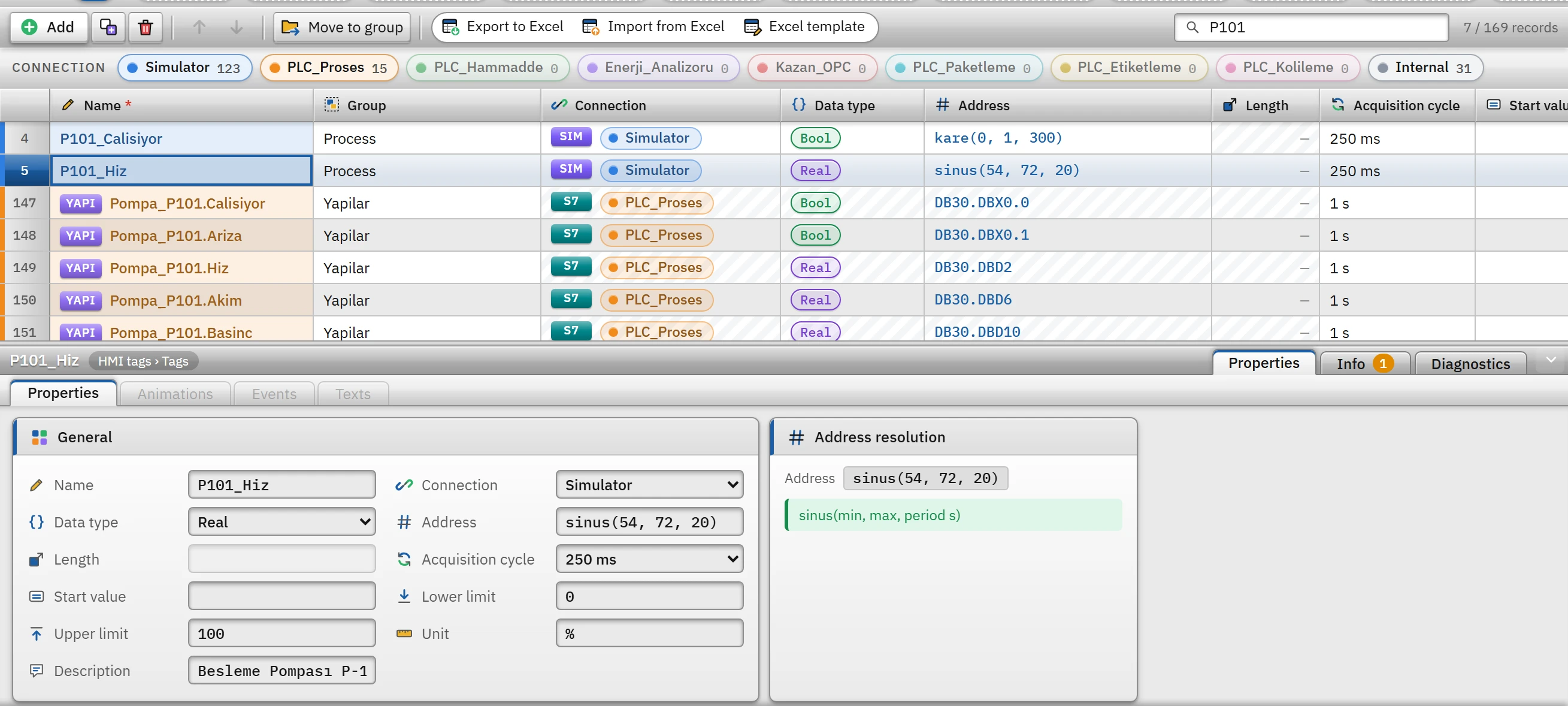 12
12Simulator tags: the functions in the address column define the signal; the address resolution of the selected tag appears in the Inspector. - Address — in the simulator, the address is a signal function.
- Address resolution — the description of the signal.
Signal functions
Numbers can be written with a decimal point (0.5); the function name is case-insensitive. Time is the number of seconds elapsed since Live started.
| Function | Generated value |
|---|---|
sinus(min, max, period s) | A sine wave oscillating between the minimum and the maximum; it starts at the middle of the range. |
rampa(min, max, period s) | A sawtooth that rises linearly from the minimum to the maximum in every period and then returns to the minimum. |
kare(min, max, period s) | A square wave that gives the maximum value in the first half of the period and the minimum value in the second half. On a Bool tag, if the maximum value is 1, it is on in the first half and off in the second half. |
rastgele(min, max) | A random value within the range on every update. |
sayac(min, max, step time s) | A counter that increases by 1 every step duration and returns to the minimum when it reaches the maximum. |
sabit(değer) | Always the same value. |
Rules: the min value must be less than the max value, and the period and step time must be greater than zero. The driver converts the number to the tag type: for Bool, 0.5 and above is on; for Real / LReal it is rounded to 3 decimal places; for integer types it is rounded to the nearest integer.
Manually changed value
If the address is left empty, the simulator tag does not generate a signal; its value starts with the Start value and is changed by being written by the operator or by a script while Live is running (control button, I/O field, script). If a simulator tag with a signal is written to, the signal stops from then on and the tag stays at the written value; the signal starts again when Live is reopened.
Tips and limits
- The signal is updated at the interval of the tag's read cycle; Live applies at least 100 ms. To put fast- and slow-changing signals in different cycles, use the Cycles table.
- The simulator value is treated as a raw value: if scaling is on in the tag, the generated value is scaled.
T101_Seviyein the sample project (sinus(9400, 25160, 80), raw 0 – 27648 → 0 – 100 %) works this way. - The quality of a simulator connection is always good; the substitute value setting is never used.
- When you move a ready-made project to a real PLC, you do not change the connection but the connection of the tags and their addresses: update the Connection and Address columns in the tag table; for many tags, export the table to Excel, edit these two columns and import it back (Transferring tags with Excel).