Project files
Project file (.fvs, formerly .fyscada): creating a new project, opening, saving, recent projects, the unsaved-changes warning and the structure of the file.
A whole project is a single file. Studio creates and edits this file; Live only reads it. This topic describes how the file is created, opened and saved, and what it contains.
File extensions
| Extension | Meaning |
|---|---|
.fvs | FabyaVision project. New projects and Save as write this extension. |
.fyscada | Old extension. Studio and Live open and list these files; the content format is the same. In a project with the old extension, Save writes the file to the same path (with the extension unchanged); to switch to the new extension, use Save as. |
If there are two files with the same name in the same folder, Live's project selector shows the .fvs one. The <Ad>.veri folder next to the project file holds the data that Live produces while running (File and folder locations).
Creating a new project
Project›New project… (Ctrl+N), the New button in the toolbar, or the New project… button in the Overview. If the open project has unsaved changes, the Unsaved changes question appears first.
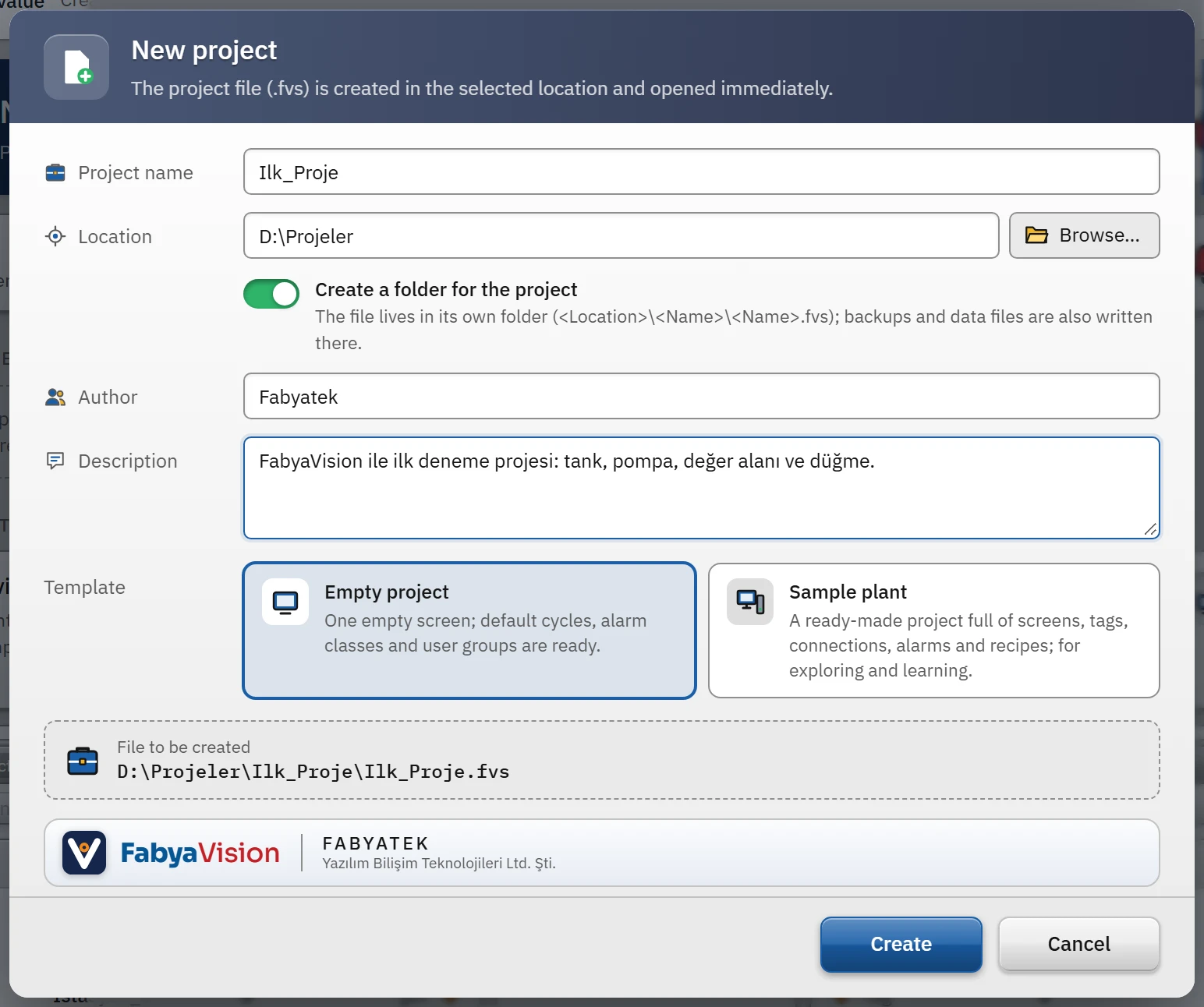 12345
12345- Project name — this also becomes the file name.
- Location — the folder in which the project will be saved.
- Template — leave Empty project selected.
- File to be created — the path is shown here.
- Create — writes the file immediately and opens it.
- Project name
- Required. Starts with a letter or digit; may contain letters, digits, spaces,
_,-and.; does not end with a dot or a space; at most 60 characters. If it is invalid, the reason is shown below the field and Create stays inactive. - Location
- The folder to which the file will be written. The default is the Studio settings in Project folder (if empty, Belgeler\FabyaVision Projeleri). Browse… selects a folder.
- Create a folder for the project
- When on, the file is written to the path
<Konum>\<Ad>\<Ad>.fvs: the backups and the Live data are also kept in the same folder. When off,<Konum>\<Ad>.fvs. The selected path is shown in the File to be created box. - Author, Description
- It is written to the file as project information; it can be changed later in the Project information window.
- Template
- Empty project: one empty screen; the default cycles, alarm classes and user groups are ready. Sample plant: a copy of the Ornek_Tesis sample project.
Create writes the file immediately and opens the project. If a file with the same name already exists, the File already exists question appears: “A project file with this name already exists. Overwrite it? The old file is kept as .bak.”
Opening a project
Project›Open… (Ctrl+O) opens a file window that filters for .fvs and .fyscada files; the window starts in the folder of the last project. When a file is selected:
- The file is read as JSON; it may be rejected with the message “The file is not a FabyaVision project (JSON could not be read).” or “… (no screen list).”
- Missing fields of projects saved in an older version are filled in with defaults; the project is written in the current format the next time it is saved.
- The project is moved to the top of the recent projects list.
Projects can also be opened from the Project›Recent projects submenu, from the cards in the Overview and from the start strip (see below).
Don't save
- Save (Ctrl+S): writes to the open file. On every save the last modified time is updated and the save count increases by one (shown in the Project information window).
- Save as… (Ctrl+Shift+S): opens a file window; the project name is suggested, and the extension is
.fvs. After saving, the open project is the new file. - Safe writing: the file is first written to a temporary file with the
.tmpextension and then replaces the actual file; no half-written project is left behind. The previous version is kept in the same folder under the name<dosya>.bak(for example,Ilk_Proje.fvs.bak); this single backup is renewed at every save. For more backups, see Revision and backup. - If saving fails, the Project could not be saved message gives the reason (for example, the folder is not writable); the save counter returns to its previous value and the project continues to count as modified.
Unsaved changes
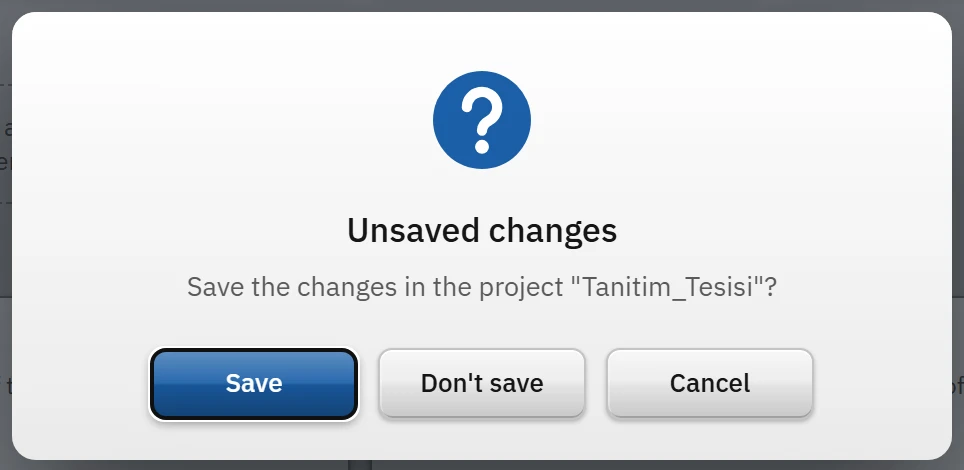
After a change, a dot appears next to the project name in the top bar and * appears in the window title. When you create a new project, open a project, open the last project, exit, or close the window, the Unsaved changes question appears: Save saves and continues, Don't save discards the changes, Cancel cancels the operation.
Recent projects and startup
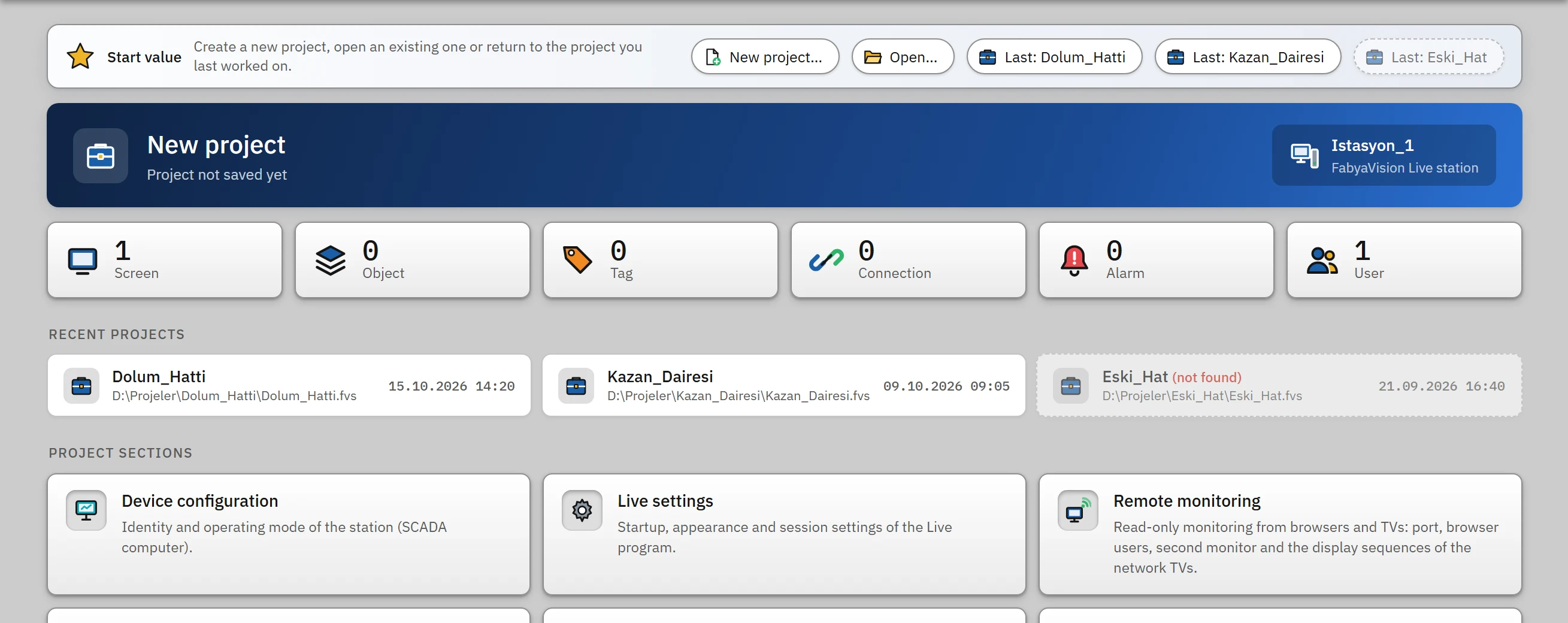 1234
1234- Start — new project, open, recent projects.
- Summary — screens, objects, tags, connections, alarms, users.
- Recent projects — clicking opens one.
- Project sections — each card opens a section.
- Studio remembers up to 10 of the most recently opened / saved / created projects (newest first). The list is stored in the Studio settings file.
- The Start strip appears only when the program is opened with a new, untouched project: New project…, Open… and the three most recent projects.
- The Recent projects card lists the projects together with the date and path; clicking one opens the project.
- If you click a project whose file can no longer be found, the Project not found question appears: Remove from list removes the entry from the list (the file is not deleted).
- Project›Recent projects›Clear list empties the list; the project files are not deleted.
- At startup, Studio automatically opens the project file you worked on last, if it still exists.
Project information
Project›Project information… (or the context menu of the project node in the project tree):
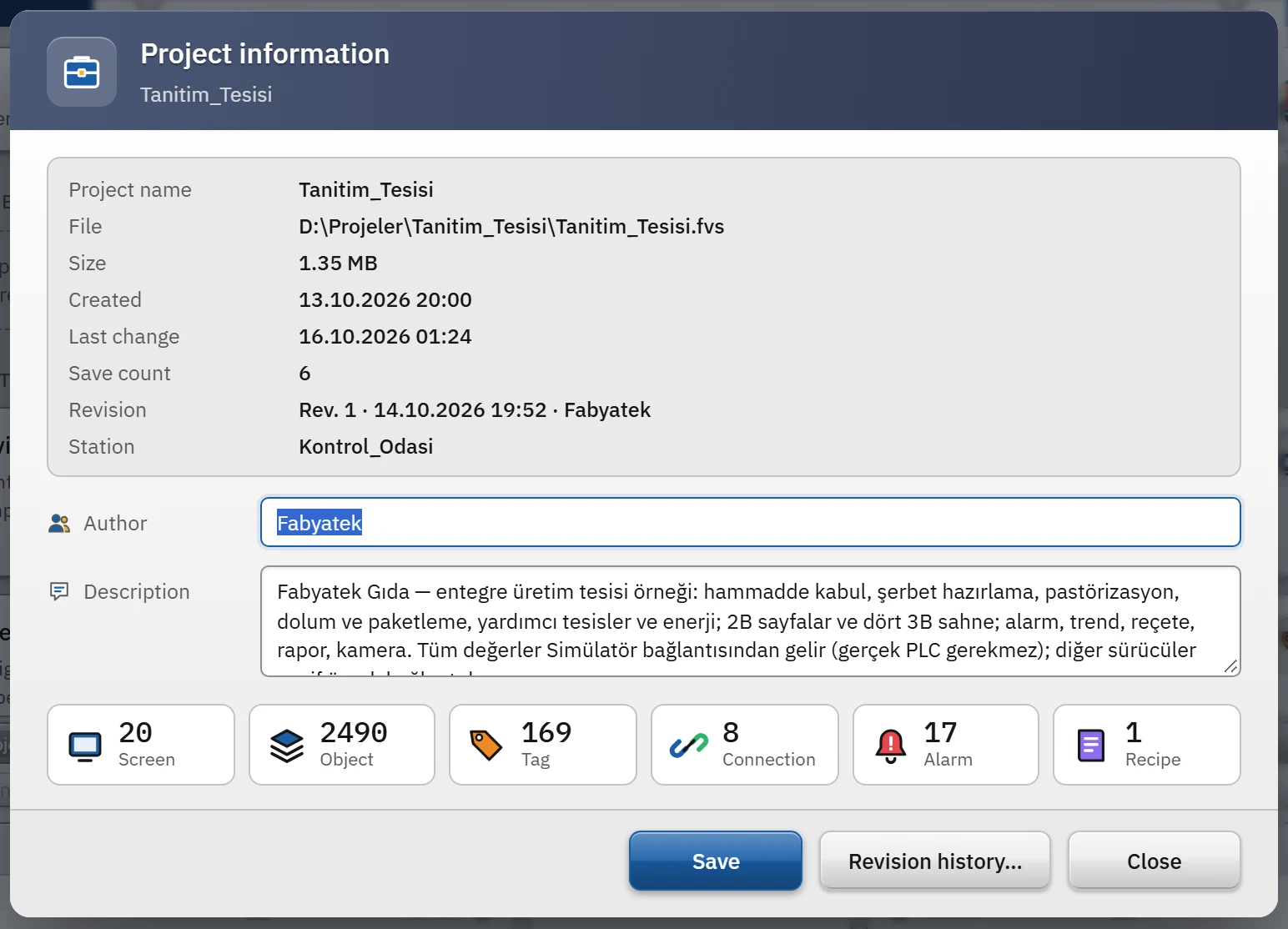 1234
1234- File information — read-only.
- Author and Description — editable.
- Content summary
- Version history…
- Read-only information: project name, file path and size, creation date and date of last modification, number of saves, last revision (
Rev. N · tarih · kişior “Not yet uploaded”), station. - Editable: Author and Description. Save writes them to the project (this counts as a change; the file is saved with Ctrl+S). The description also appears on the project selector card in Live.
- Content summary: number of screens, objects, tags, connections, alarms and recipes.
- Revision history… opens the revision list (Revision and backup).
Structure of the file
The file is an indented JSON text encoded in UTF-8 (without BOM); it can be opened in a text editor. Editing by hand is not recommended: the tables refer to each other by ID, and a corrupt file does not open and fails with the error “The file is not a FabyaVision project”. The main fields:
| Field | Content | Studio section |
|---|---|---|
ad, bilgi | Project name; author, description, creation / modification date, number of saves, revision number and its history | Project information |
cihaz, calisma, uzak, yerlesim | Station; Live settings; remote monitoring; fixed top / bottom area | Device configuration, Live settings, Remote monitoring, Screen management |
sayfalar, klasorler, kutuphane | Screens and their objects; project tree groups; project library | Screens |
baglantilar, taglar, donguler, yapilar, yapiOrnekleri | Connections, tags, cycles, structures and their instances | Connections, HMI tags, Cycles |
alarmlar, analogAlarmlar, alarmSiniflari | Alarm definitions and classes | HMI alarms |
receteler, raporlar, arsivler | Recipes and their records, reports, archives | Recipes, Reports, Historical data |
betikler, gorevler, ekUygulamalar | Scripts, scheduled tasks, additional applications that Live will start | Scripts, Scheduled tasks, Live settings |
kullanicilar, gruplar, yetkiler | Users, user groups, authorizations | User administration |
diller, metinler, metinListeleri, grafikListeleri | Project languages and text translations; text and graphic lists | Languages and texts, Lists |
menuler, aracCubuklari, menuYapilandirmalari, menu | Menu and toolbar designs; navigation menu | Screen management |
resimler | Image files embedded in the project | Image objects |