Skip to content

Demo release

Download the FabyaVision demo

Studio, Live, Convert and a sample project in one installer. You don’t need a PLC to try it.

  1. 1Sign up
  2. 2Download
  3. 3Install and open

FabyaVision Demo

0.1.0
  • Version0.1.0
  • Size740.6 MB
  • Release date19 October 2026

The installer is about 750 MB because the prerequisites (.NET Framework 4.8 and WebView2 Runtime) are bundled in it. Installing does not need an internet connection.

SHA-256 1f22381e7778fd79aa65fd194385373f2f59587ed248ab99287abd6dad01bd18

Compare the file you downloaded with this value to verify it is intact. Verification

In the package
  • Studio
  • Live
  • Convert
  • Sample project
Sign up

What you will see in the demo

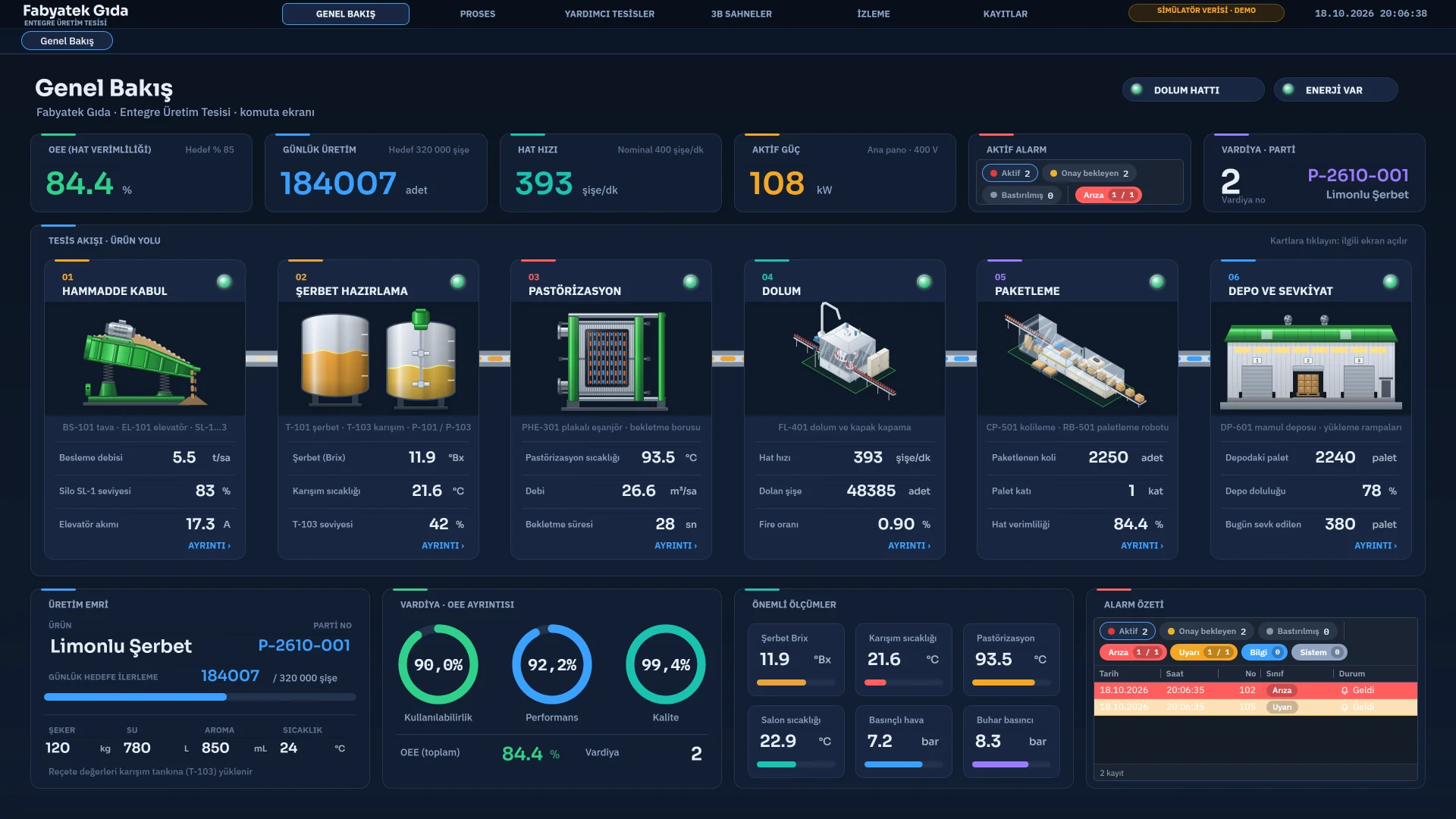
Plant flow with OEE and production indicators, the production order and the alarm list.
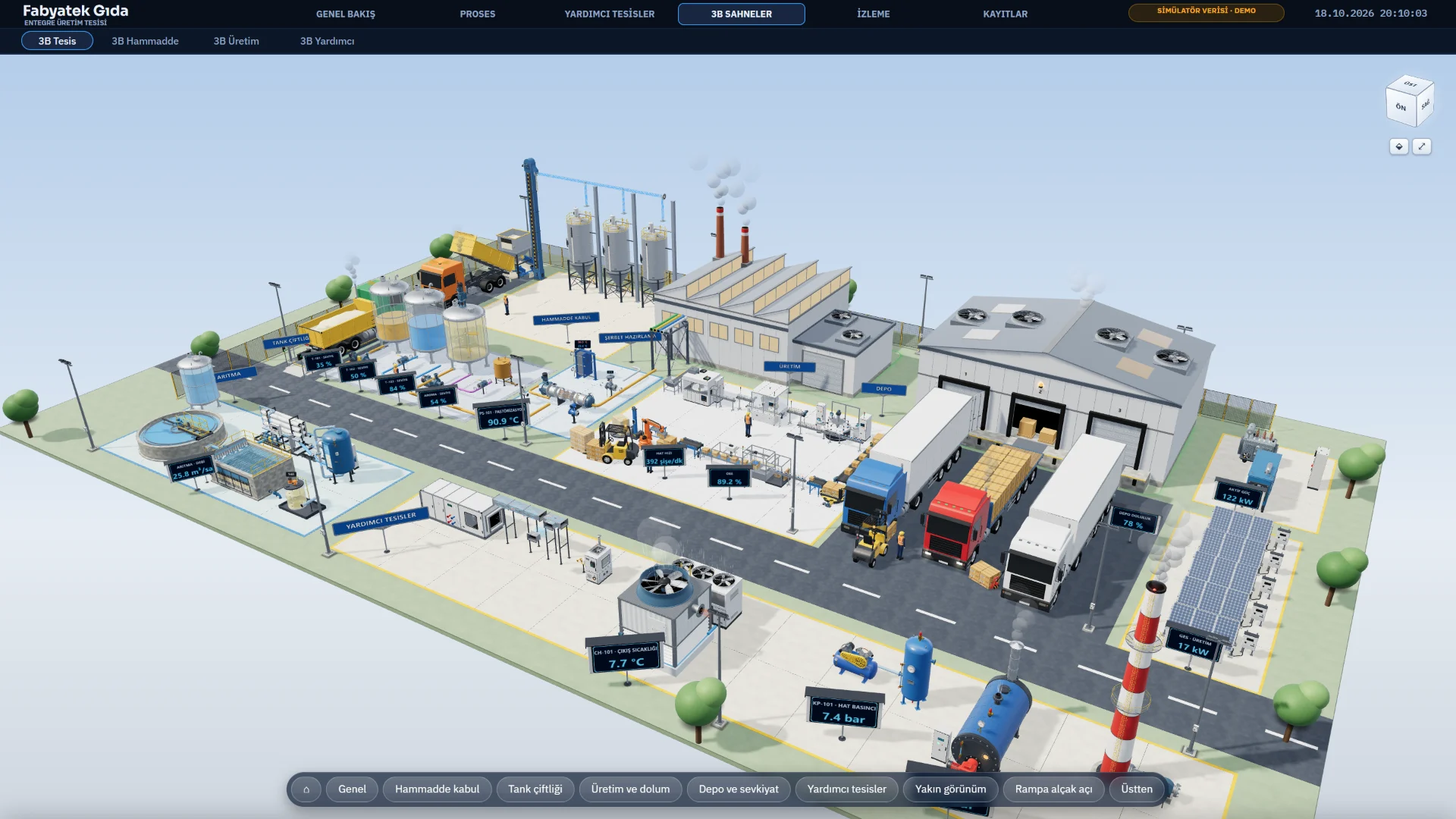
The 3D plant overview in Live, from raw material intake to the warehouse.

The demo

What’s in the package

The installer sets up three programs and a sample project together. The demo includes every feature; only the time is limited.

FabyaVision Studio

Design

You design the project here: 2D and 3D screens, tags, connections, alarms, scripts.

FabyaVision Live

Runtime

Runs the project: talks to drivers and runs alarms, trends, recipes, reports, tasks and scripts.

FabyaVision Convert

Conversion

Reads TIA Portal V20 HMI projects and turns them into a FabyaVision project (.fvs). Reading directly from TIA needs TIA Portal V20.

Sample project

Ready-made project

A food plant example; it runs on simulator data.

Demo limits

  • Time: 30 days by default. Studio, Live and Convert share the same period.
  • Sessions: each run lasts 15 minutes by default. Before it closes, it asks whether to save your changes; if you don’t answer, it saves and closes by itself.
  • These values depend on a setting in the license file; write to us for a different duration.
  • The demo is for evaluation; production use needs a license.

What the sample project contains

The sample project that comes with the demo (Fabyatek Gıda) is a fictional food plant and runs on simulator data.

  • 14 runtime screens
  • 5 3D scenes
  • 169 tags
  • 17 alarms (digital and analog)
  • 11 scripts (JavaScript, VBScript, C)
  • 15 scheduled tasks

System requirements

What your computer needs

The prerequisites are bundled in the installer for offline use; the program installs them if they are missing.

System requirements table
Component Requirement Note
Operating system Windows 10 / 11 There is no Linux or macOS version.
.NET Framework 4.8 Required The installer sets it up if it is missing, restarting the computer to continue if needed.
Microsoft Edge WebView2 Runtime Required The installer sets it up if it is missing.
3D screens A graphics driver with WebGL support Without WebGL, 3D is not drawn; 2D is not affected.
TIA Portal V20 Only for reading directly from TIA with Convert Not needed with a ready-made export package, or (for WinCC Professional) with the project folder.
PLC Not required The Simulator driver and the sample project run without a PLC.

System requirements. No other operating system is supported. The software is not a cloud service; it is installed on your own computer. If the automatic installation of the prerequisites fails, you can install .NET Framework 4.8 and the WebView2 Runtime from Microsoft yourself.

Setup

Try it in six steps

From downloading to running the sample project.

  1. Sign up or sign in

    We ask for your name, e-mail, password, company and sector; an account takes a few minutes.

  2. Download the package

    Download the installer; verify its SHA-256 value if you like.

  3. Run the installer

    Choose a setup type. If .NET Framework 4.8 or WebView2 is missing, the installer sets it up.

  4. Open Studio

    After setup, start FabyaVision Studio.

  5. Open the sample project

    Open the sample project that comes with the installation and browse its screens, tags and alarms.

  6. Load it to Live

    Run the project in Live from Studio (F5) or upload it to Live; it comes alive with simulator data.

Setup types

Four setup types

The installer asks which components to install.

Full

Studio, Live, Convert and the sample project.

Field

Live only: for operator and plant computers.

Engineering

Studio and Convert: for the computers that design or convert projects.

Custom

You pick the components one by one.

The installer also offers desktop shortcuts and a “Start Live when Windows starts” option; the latter is off by default.

Verification

Verify the file you downloaded

The SHA-256 value on the package card shows that the file arrived intact. Calculate the value with one of the commands below and compare; letter case does not matter.

Windows SmartScreen warning

The installer is not digitally signed, so Windows SmartScreen may show a “Windows protected your PC” window. If you have verified the SHA-256 value, choose “More info” › “Run anyway” to continue.

Command Prompt
REM replace the file path with your own file
certutil -hashfile "C:\Users\siz\Downloads\kurulum.exe" SHA256
PowerShell
# replace the file path with your own file
Get-FileHash "C:\Users\siz\Downloads\kurulum.exe" -Algorithm SHA256

Write to us for the full release and licensing

For licensing, pricing and production use, tell us what you need: type of plant, the PLCs to connect, roughly how many screens and tags.

Frequently asked

Before you download

How long does the demo run?

By default it runs for 30 days, and each session lasts 15 minutes; before closing it asks whether to save your changes and, if you don’t answer, saves and closes by itself. Studio, Live and Convert share the same number of days. Write to us if you need a different period.

Which Windows versions does it run on?

Windows 10 and 11. Windows 7 / 8, Linux and macOS are not supported.

Can I try it without a real PLC?

Yes. The simulator driver generates sine, ramp, square, random and counter signals and needs no network address. The sample project that comes with the demo also runs on the simulator. Before connecting real devices, we recommend a trial with your own PLC.

Do I need to install anything else? Why is the installer so large?

.NET Framework 4.8 and the Microsoft Edge WebView2 Runtime are required; the installer installs them if they are missing. Because the prerequisites are bundled so they can be installed offline, the file is several hundred megabytes (the current size is shown on the Download page). 3D needs a graphics driver with WebGL support. If the automatic installation causes trouble, you can install both from Microsoft by hand.

All questions