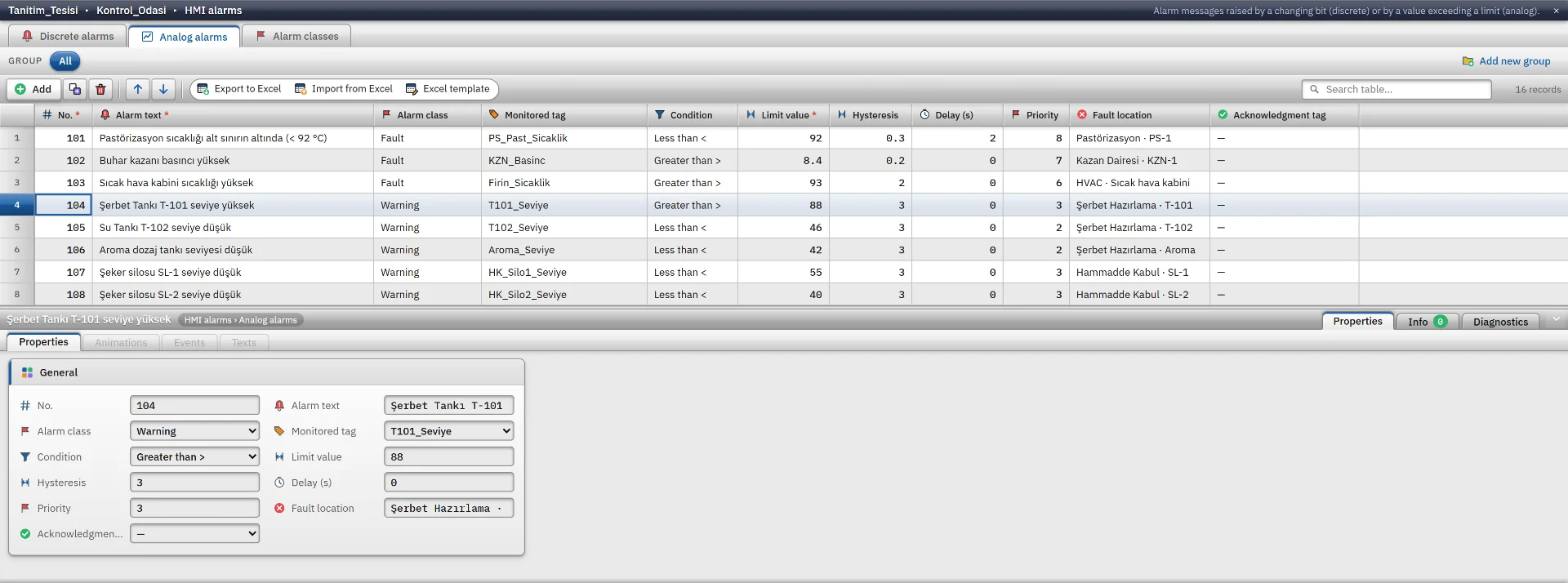
Alarm definitions
Digital (bit or value) and analog (>, ≥, <, ≤, =, ≠) alarms; hysteresis, delay and priority. Alarm classes set the colors, whether acknowledgment is required and archiving.
FabyaVision Studio · Design
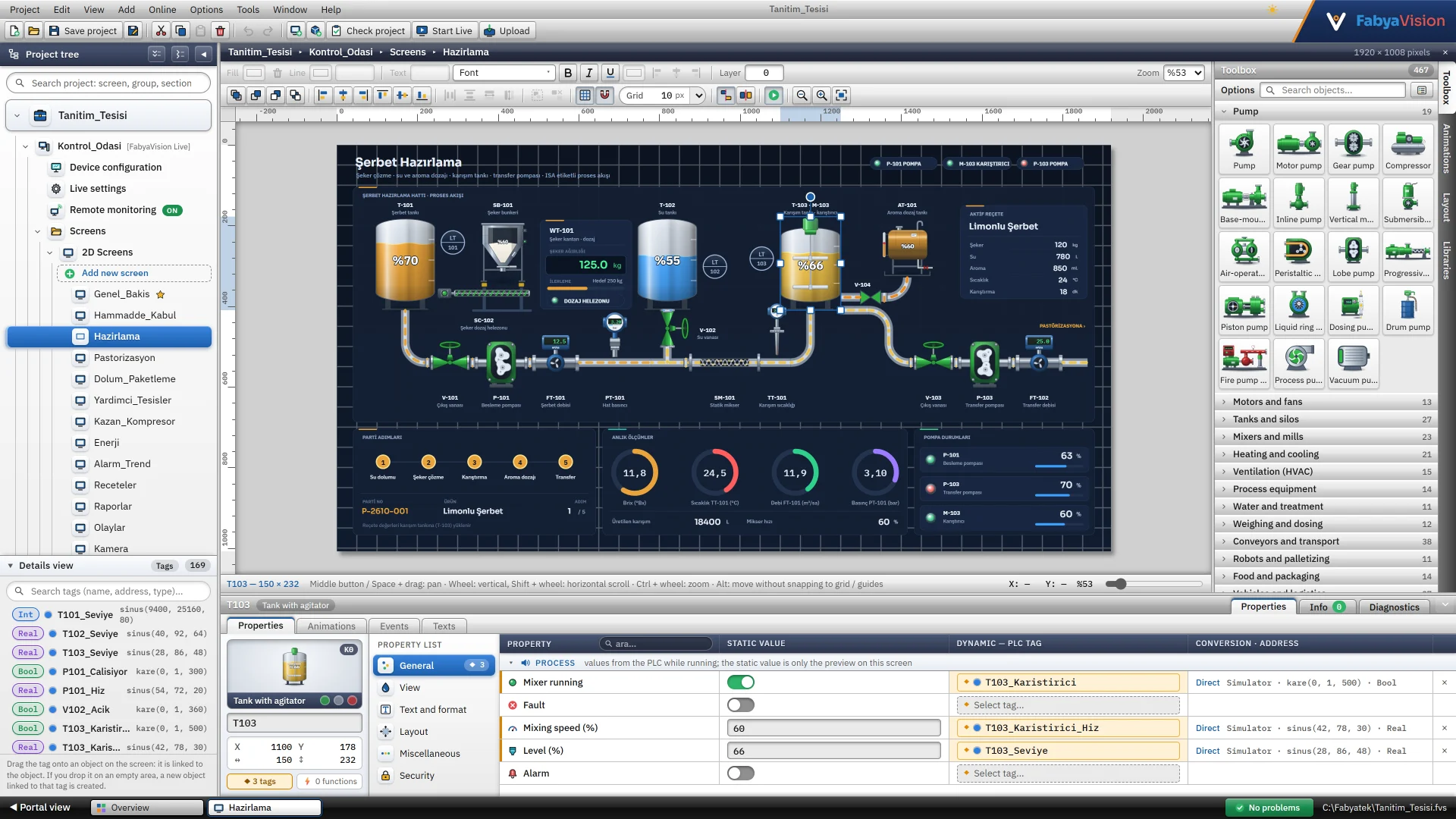
A project tree, a page editor and table editors cover the whole project in one workspace. The finished project runs in Live.
Overview
Tag, alarm, recipe and report definitions are edited in spreadsheet-like table editors.
Device and Live settings, pages (2D and 3D), tags, connections, alarms, recipes, history, scripts, tasks, reports, text lists, languages and users in a single tree.
2D and 3D pages are drawn with drag and drop.
The Properties, Animations, Events and Texts tabs of the selected object.
Every table imports from and exports to Excel (.xlsx); Excel does not need to be installed. Preview, one-step undo and a blank template are included.
Studio does not connect to PLCs. It can only test the TCP port of a connection address. Live values appear in Live.
Page editor
Almost any property of an object can be bound to a tag. There is no separate list of animation types.
Size, position, color, text and the settings specific to the object type.
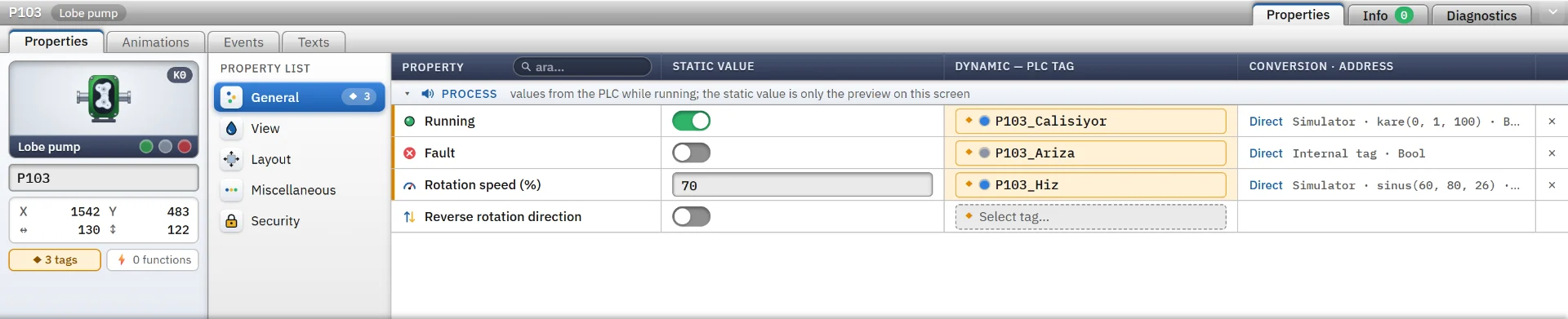
Color, text, visibility, position, size, angle, blink and opacity are bound to a tag. The conversion is direct or uses a range table.
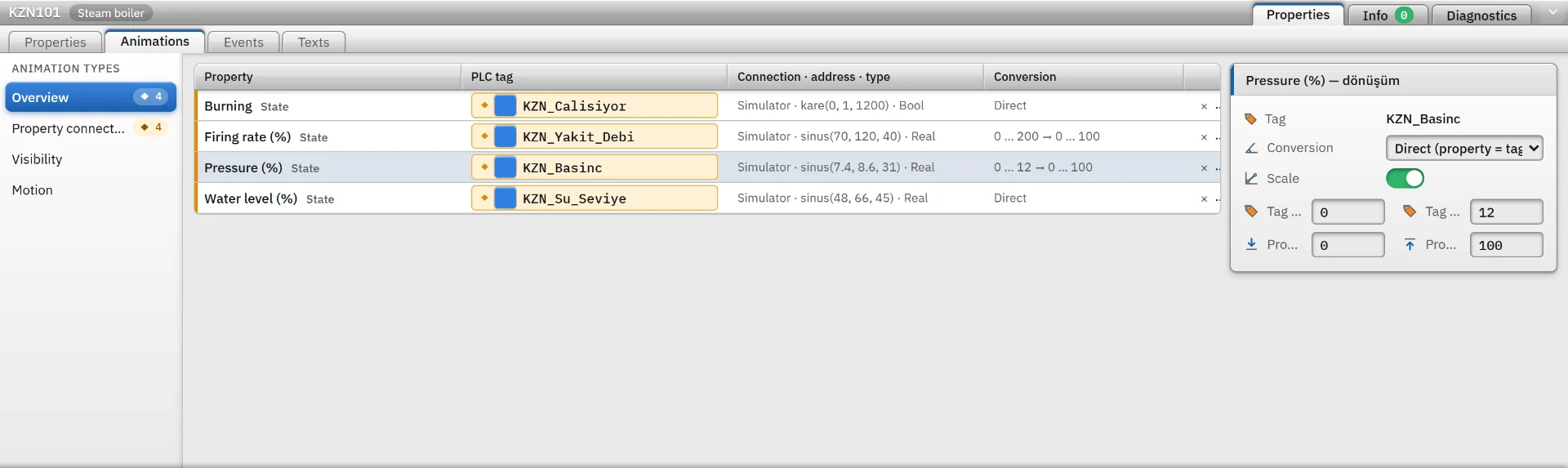
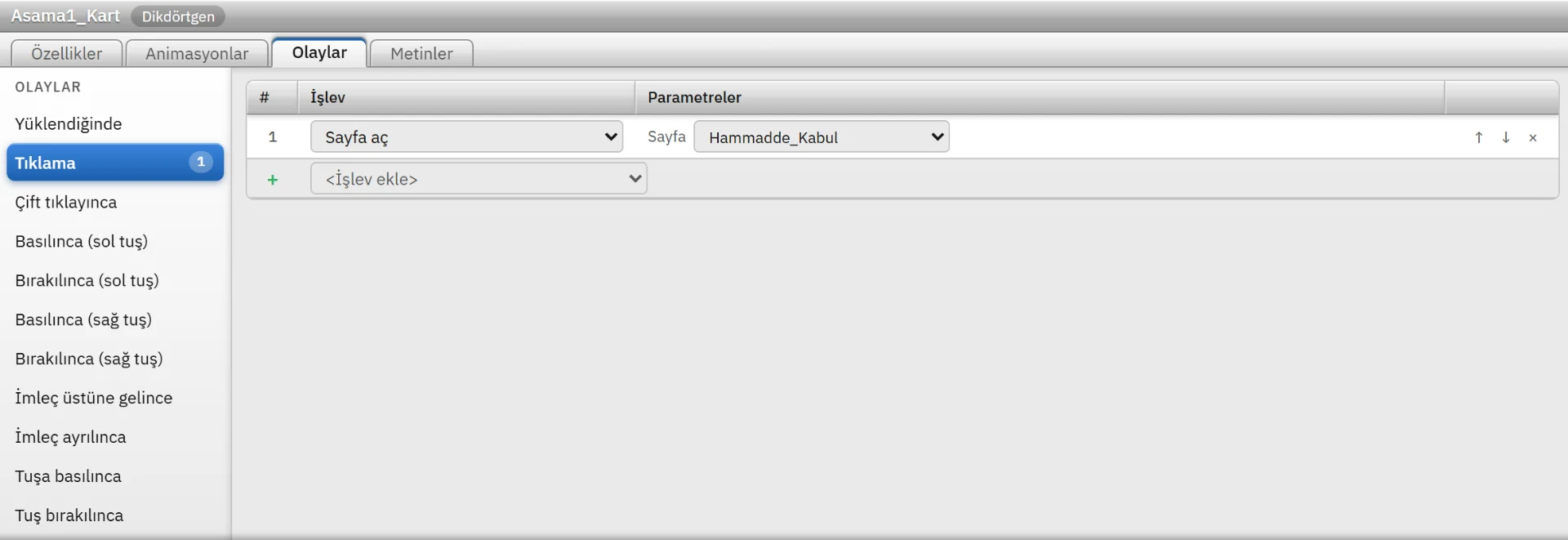
Every object offers 13 event types and more than 30 ready-made functions: load, click, press and release, pointer, key, change…
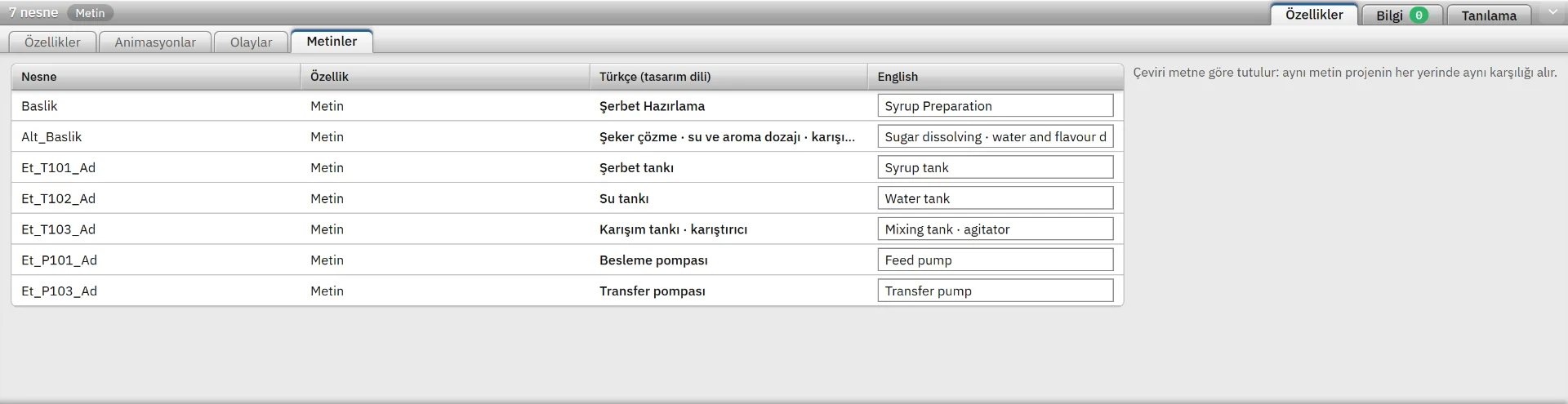
Texts on objects are collected automatically into the project text table.
A tag carrying a tank level is bound to the fill color of an object through a range table.
| Range | Fill color |
|---|---|
| 0 – 20 | Low |
| 20 – 85 | Normal |
| 85 – 100 | High |
Object library
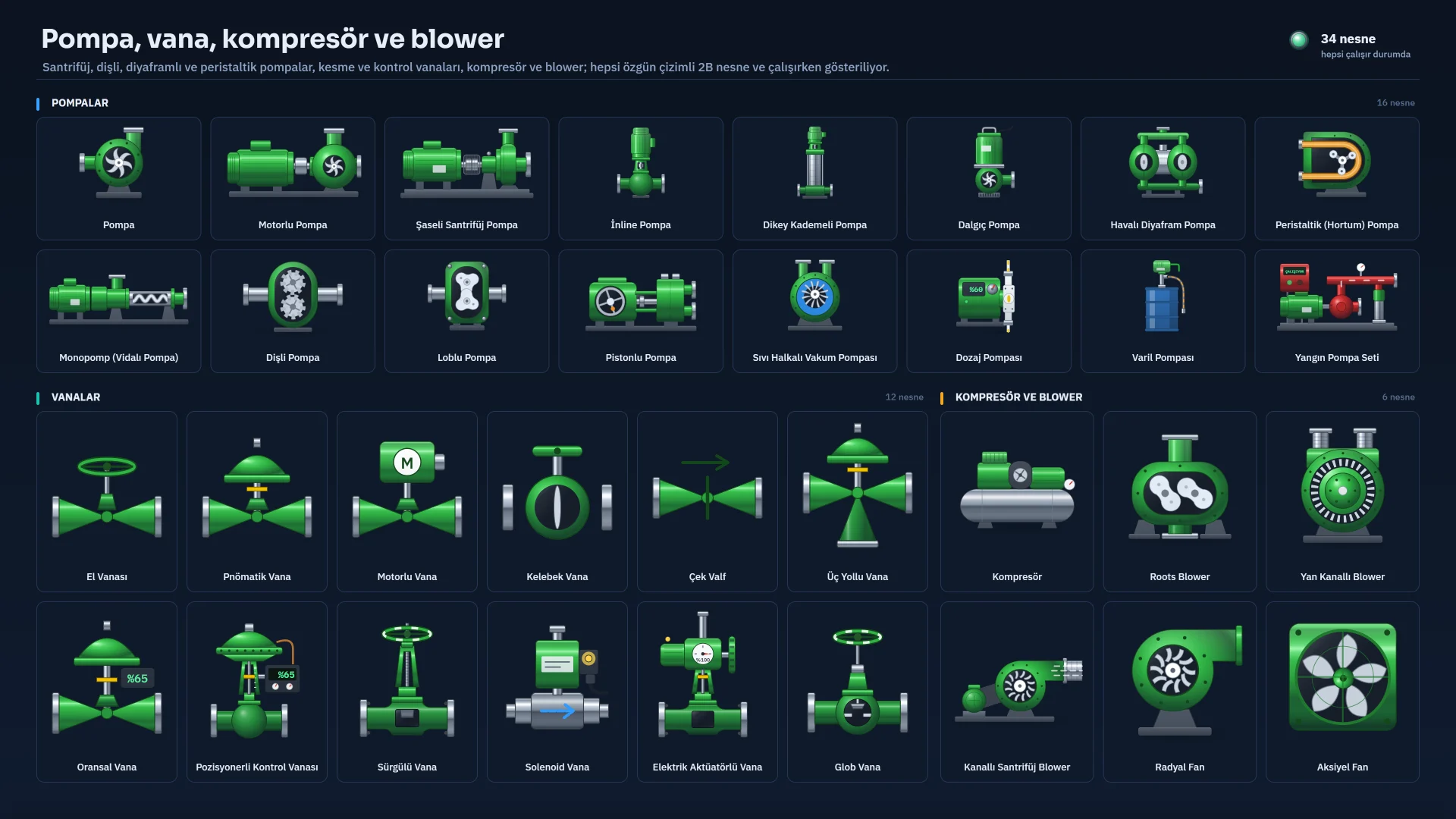
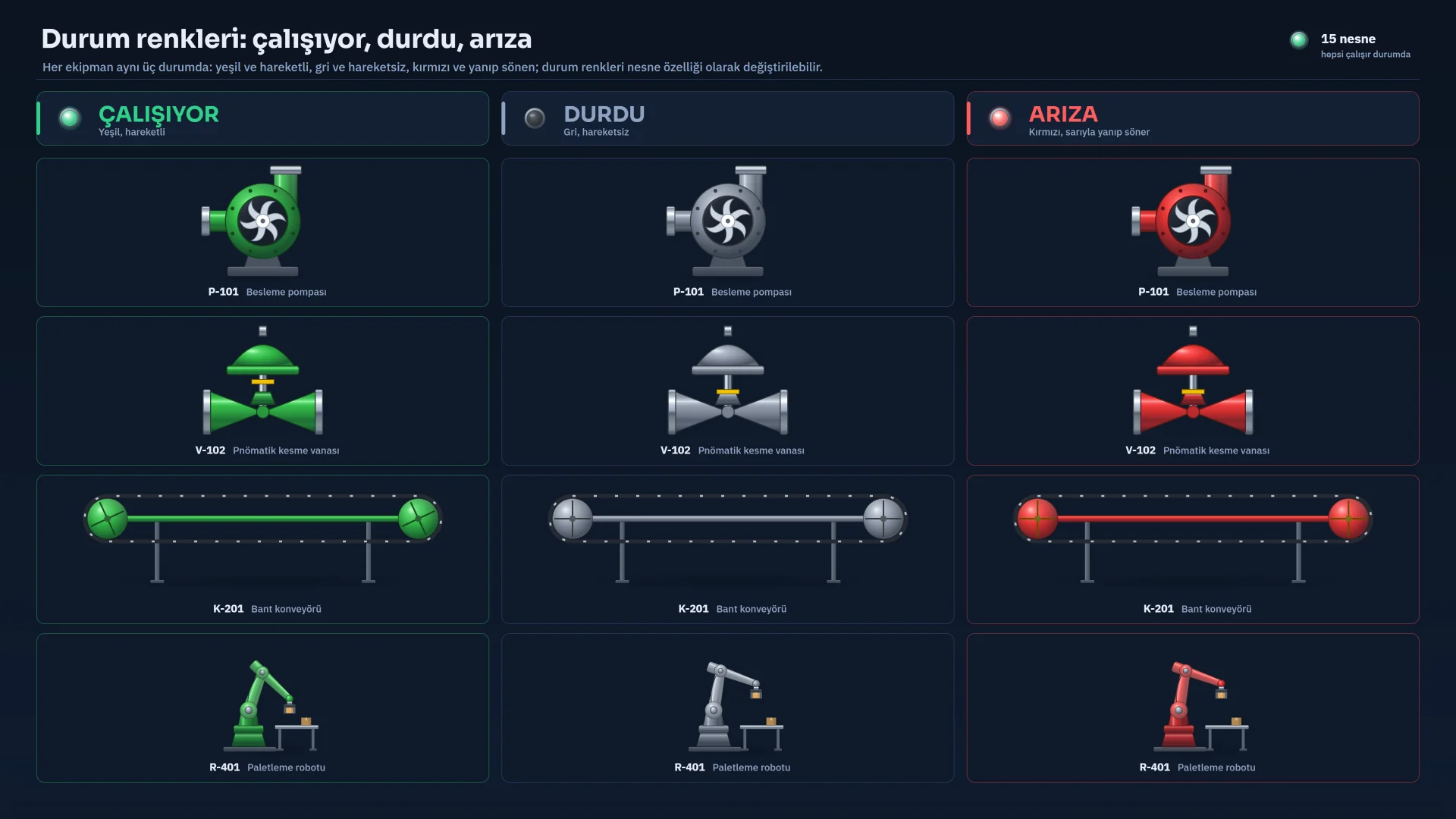
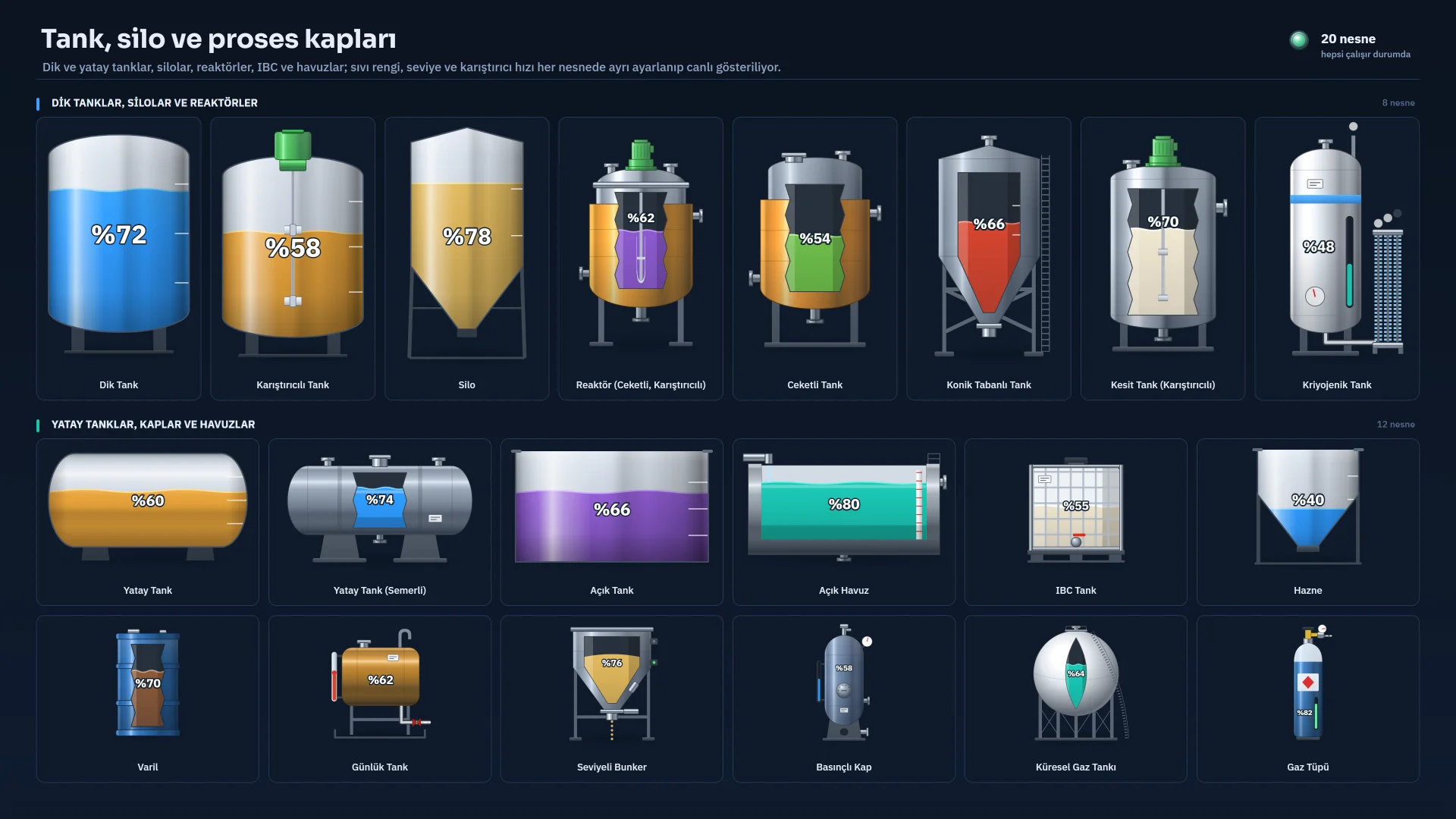
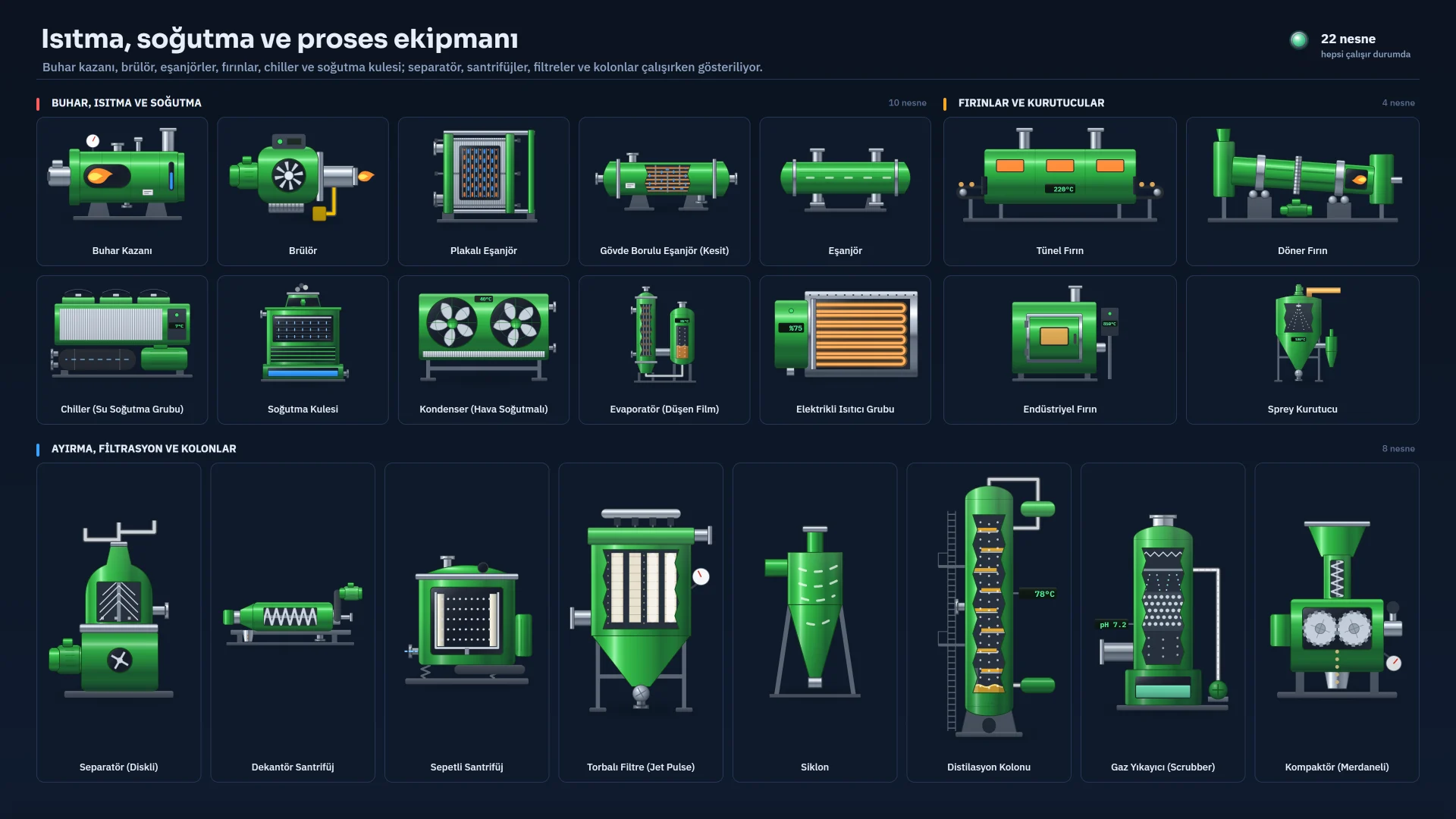
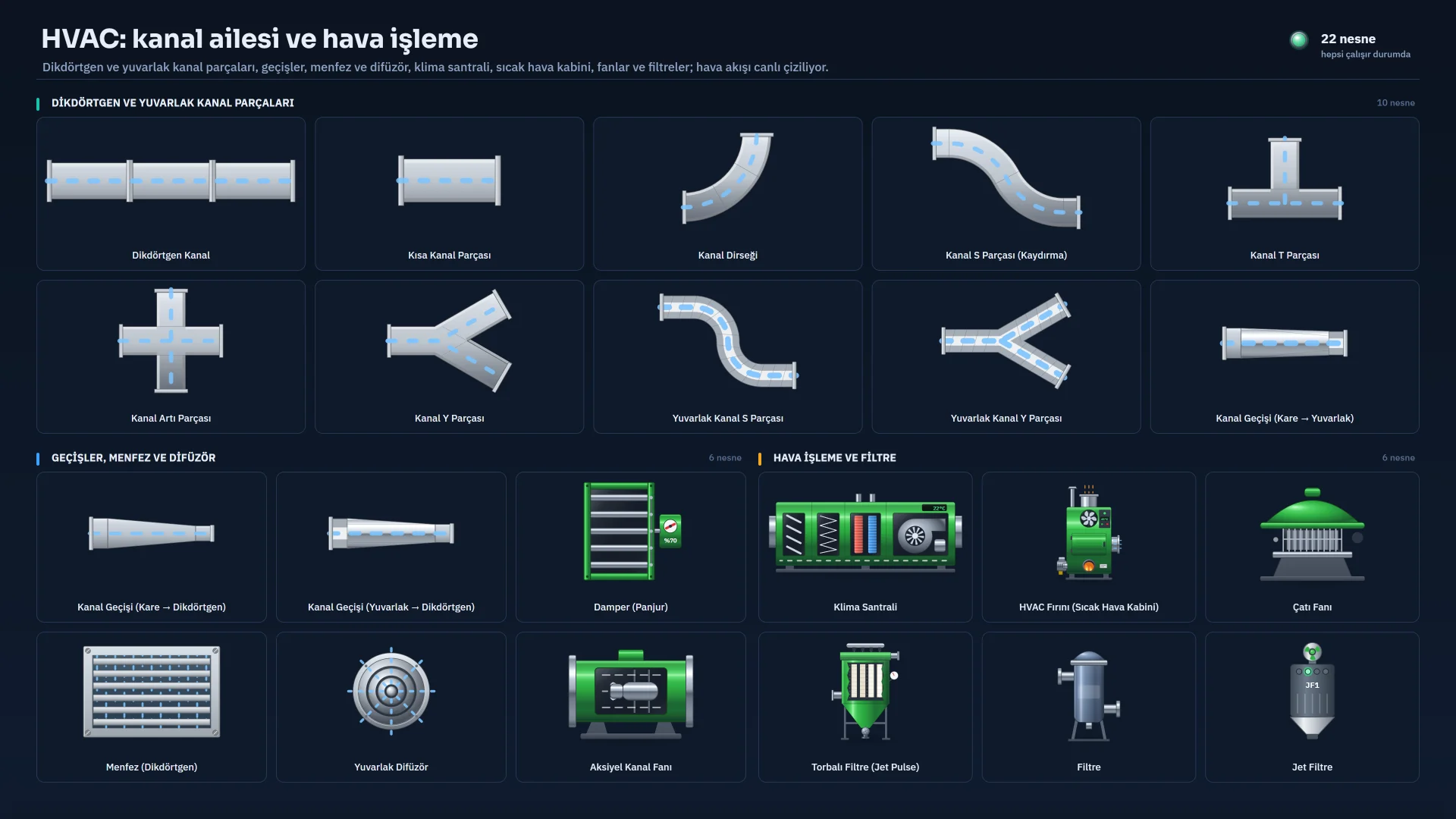
From pumps to HVAC ducts and from silos to robots, equipment drawings are vector objects generated in code. Their colors and motion bind to tags.
Many equipment objects carry a ready-made state model. They move while running and flash on a fault; all four colors can be changed.
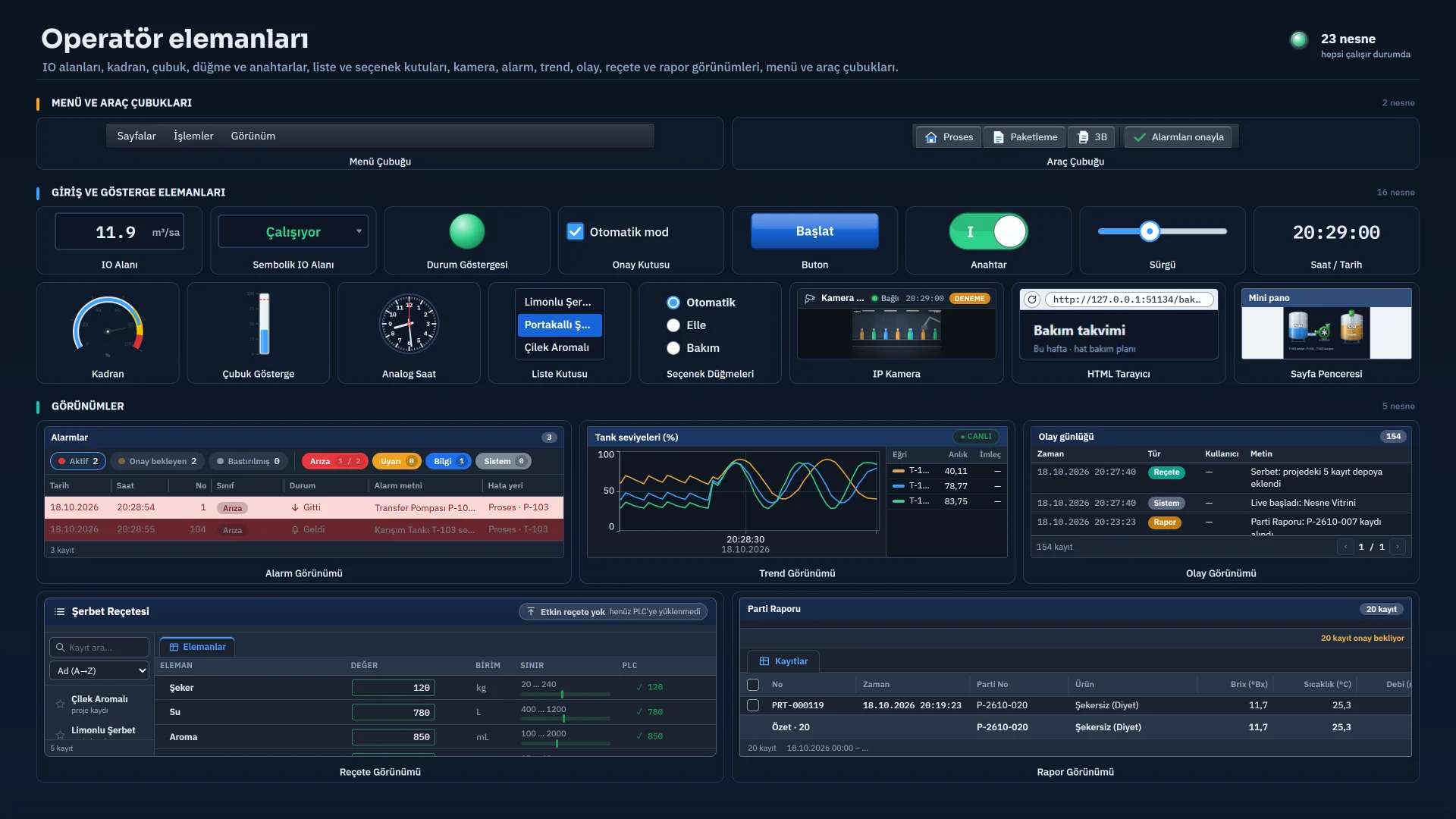
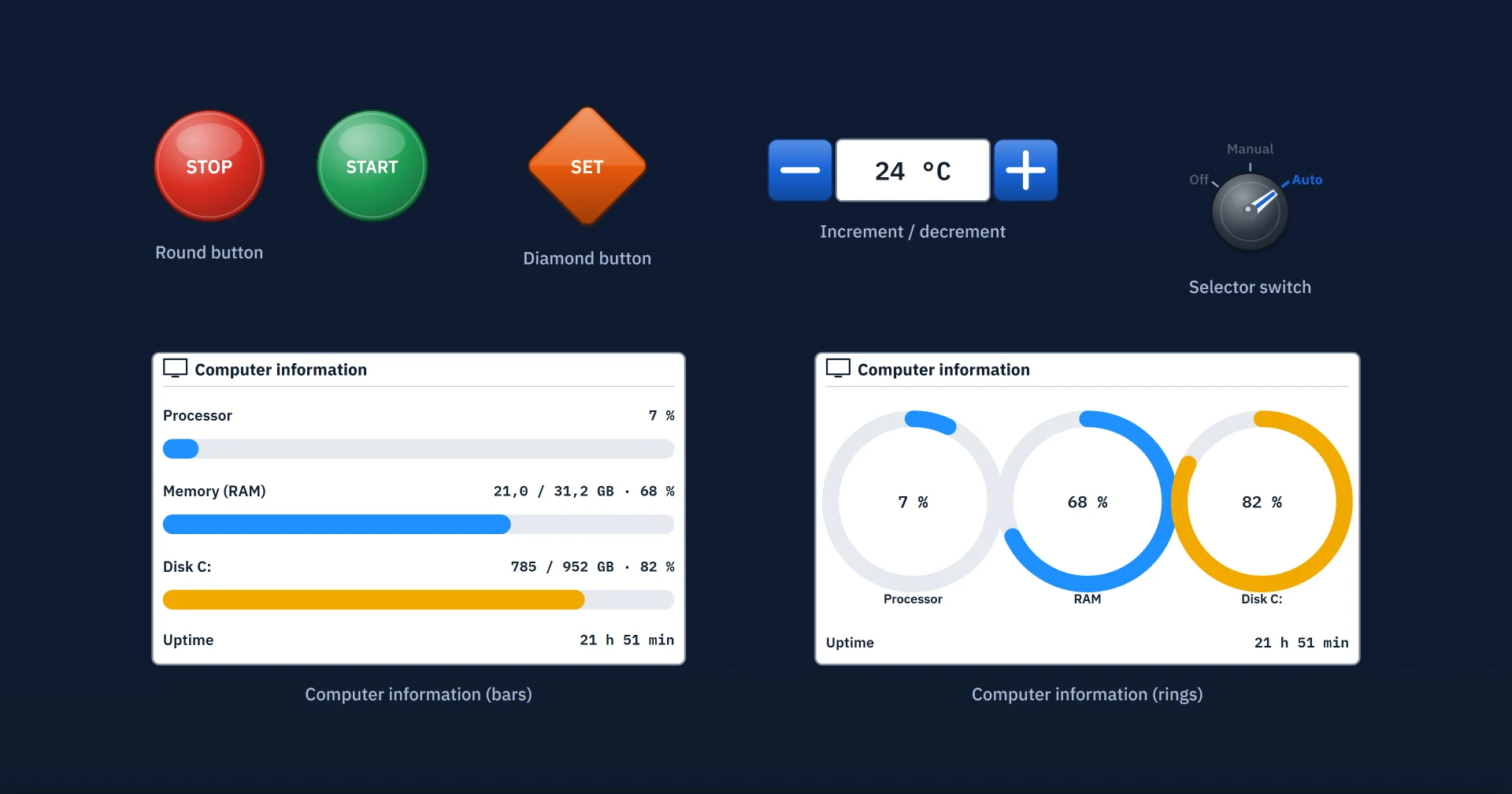
I/O field, symbolic I/O, status indicator, check box, button, round and diamond button, switch, selector switch, increment / decrement, bar, gauge, slider, clock, analog clock, list box, option buttons, HTML browser, PDF viewer, computer info.
Trend, alarm, recipe, report and event views; IP camera; page window; menu and toolbar; PLC connection status; user view.
Fields specific to the recipe and report design pages: record selector, transfer panel, record table, date filter, signature block, period summary.
3D scenes
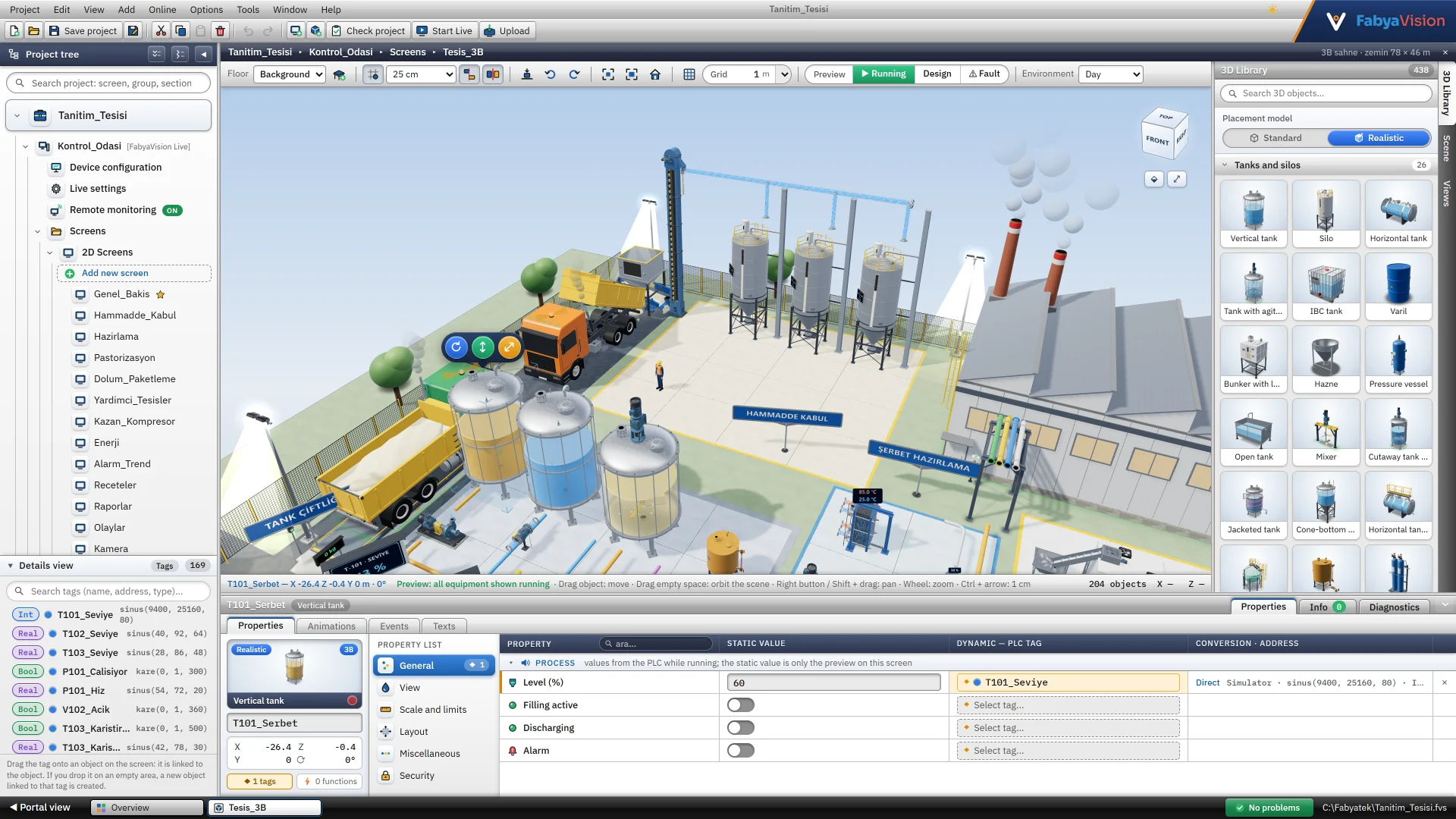
The scene is built in meters and equipment is placed with the Standard or the Realistic model. Tag binding, animation and events work as in 2D.
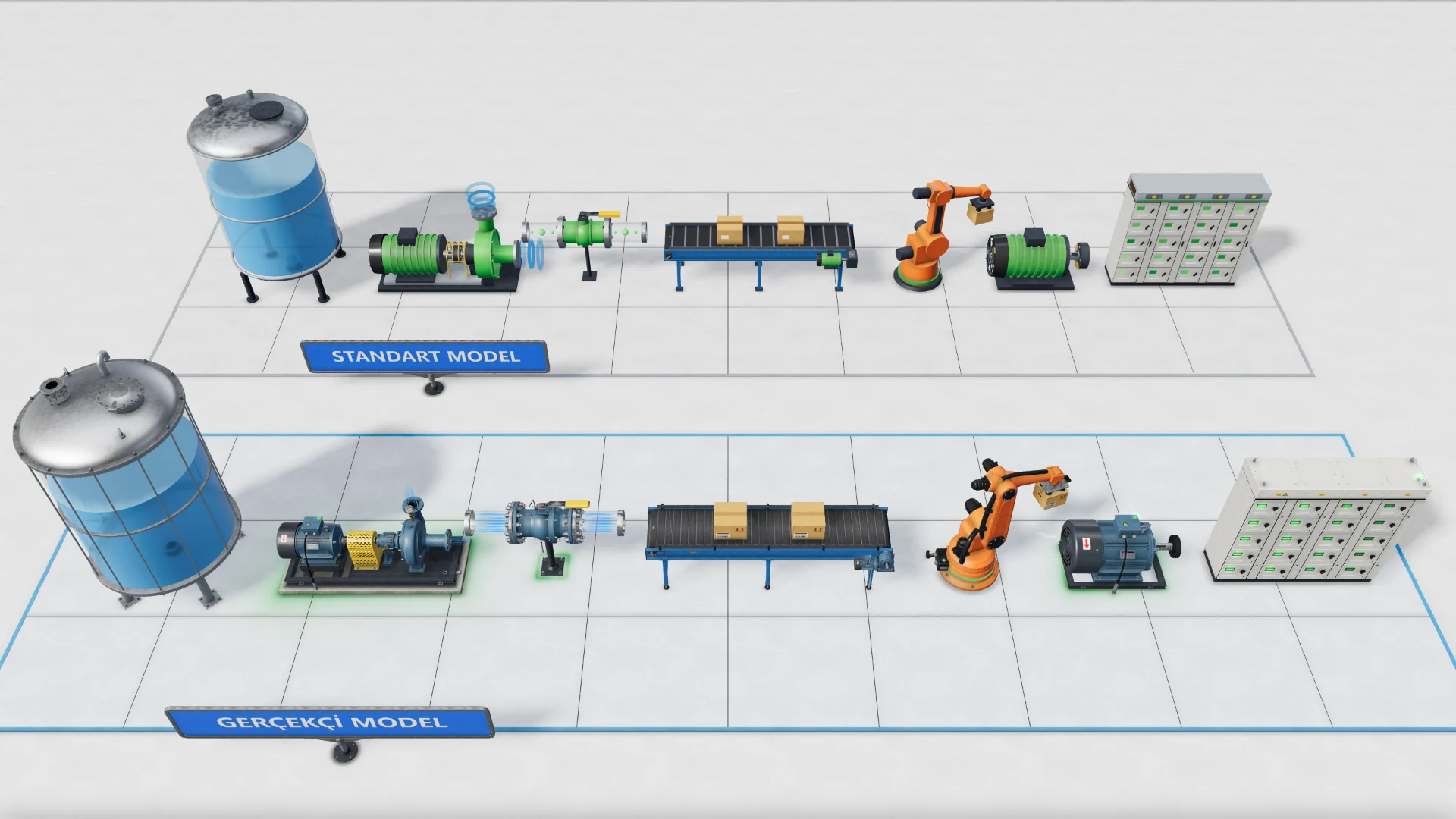
A simple model: the basic shape and color of the equipment.
A detailed model for 420+ objects: flanges, bolts, feet, nameplates; cast, painted and steel finishes.
The model is an object property and is not bound to a tag. From the page properties the whole scene can be switched to the Realistic or Standard model in one step, and switched back. Basic shapes, the flow arrow and the cloud have a single model.
Choose a ground size from 10 × 8 m up to 80 × 50 m.
Drag or click to place. Handles for moving, rotating (Q / E), raising and scaling; multi-select, copy and paste.
The alignment guide lines objects up; the collision check shows overlaps.
Platform floors with adjustable height, columns, railings and transparency.
Day, Evening, Night and Studio lighting, shadows and saved views.
A navigation cube and an automatic tour camera. The project-wide 3D quality is set to High or Fast.
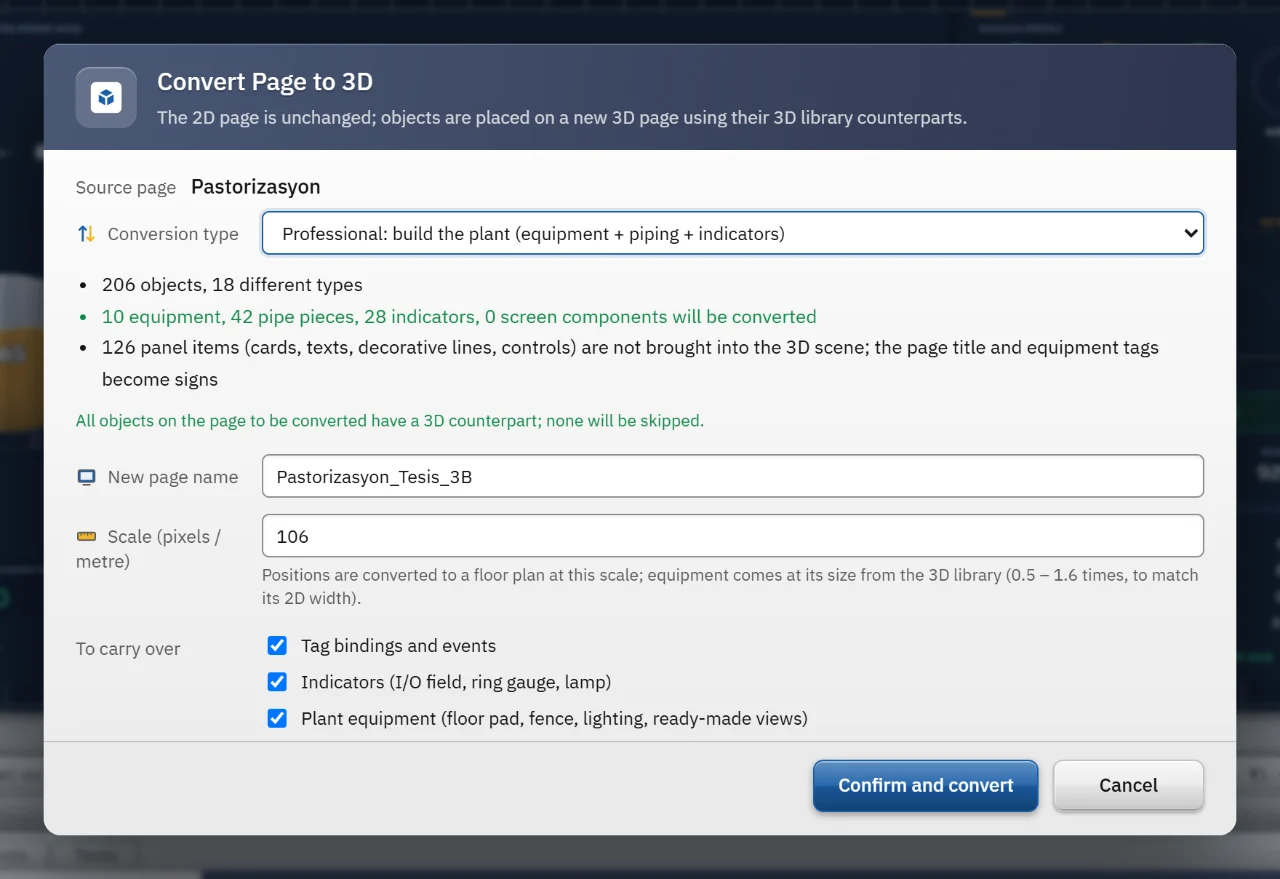
A new 3D page is derived from a 2D page’s right-click or Insert menu. The 2D page stays untouched; the result is added as “name_3B” and can be undone in one step.
Treats the page as a process diagram. Places equipment at real size, turns pipes into 3D pipes, elbows and tees and seats them on the equipment, and puts indicators as plates in front of their equipment. Adds a floor, fence, lighting and ready-made views.
Leaves every object where it is on the 2D page, laid out on the floor plan. Suits scenes you plan to shape by hand afterwards.
In both modes tag bindings and events carry over to the new page; those that cannot are listed.
3D needs a graphics driver with WebGL support. 2D objects cannot be placed on a 3D page.
Tags and data
External tags bind to PLC addresses; internal tags are kept in the project. Type, limits, scaling and quality are defined per tag.
Types from Bool to WString and DateTime; the chosen driver narrows the set. Unit, description, start value, group and folder are defined per tag.
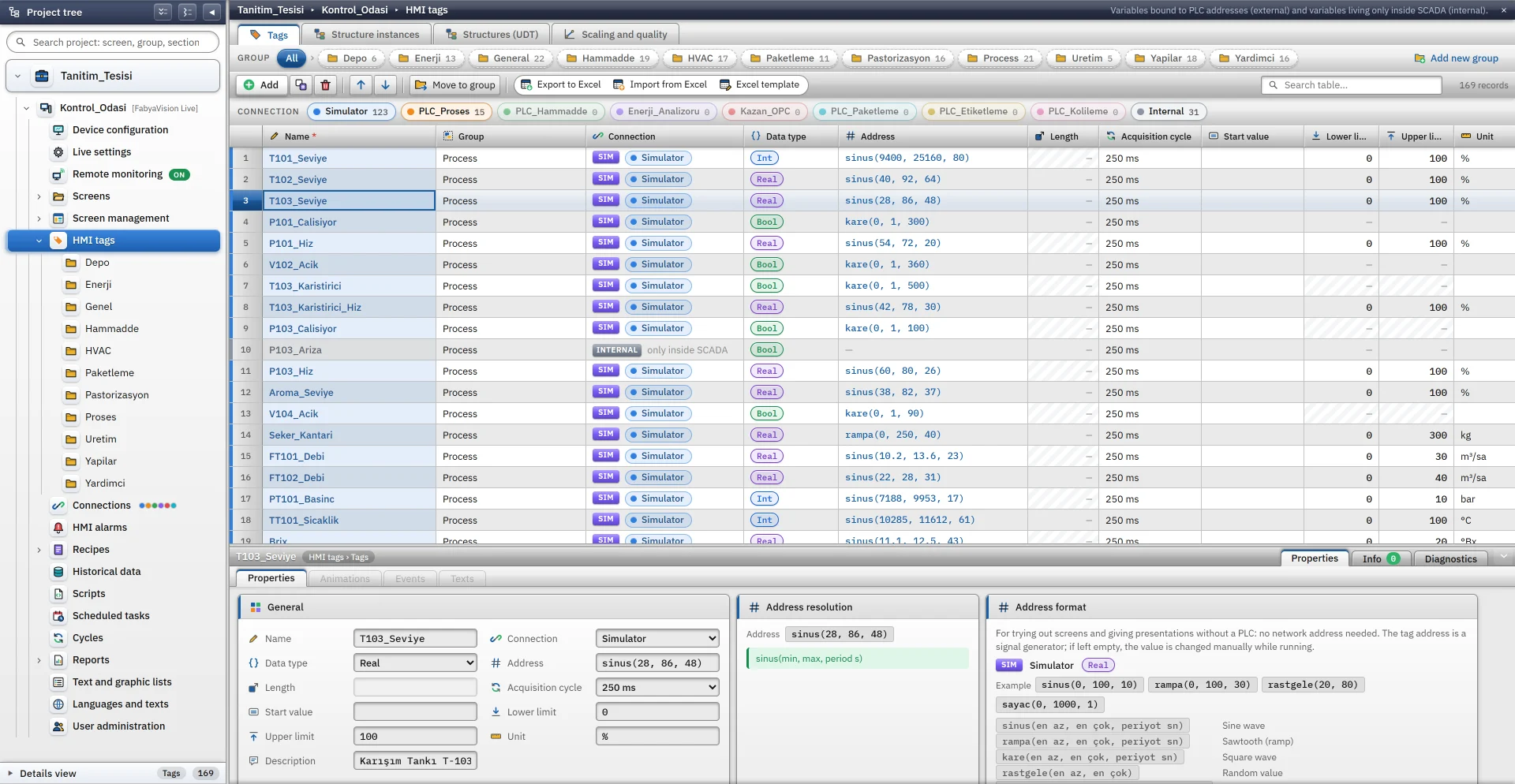
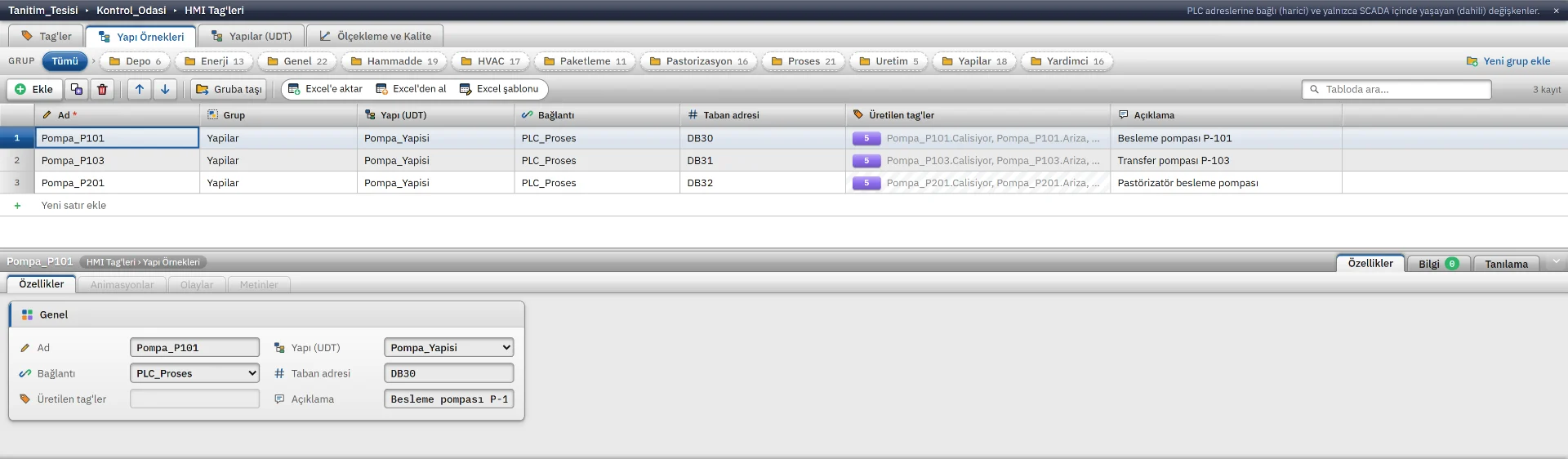
A structure is defined once and generates tags per instance, such as Pump_P101.Speed. For S7, Studio calculates the DB and byte / bit offsets; the device window (faceplate) opens with the instance prefix.

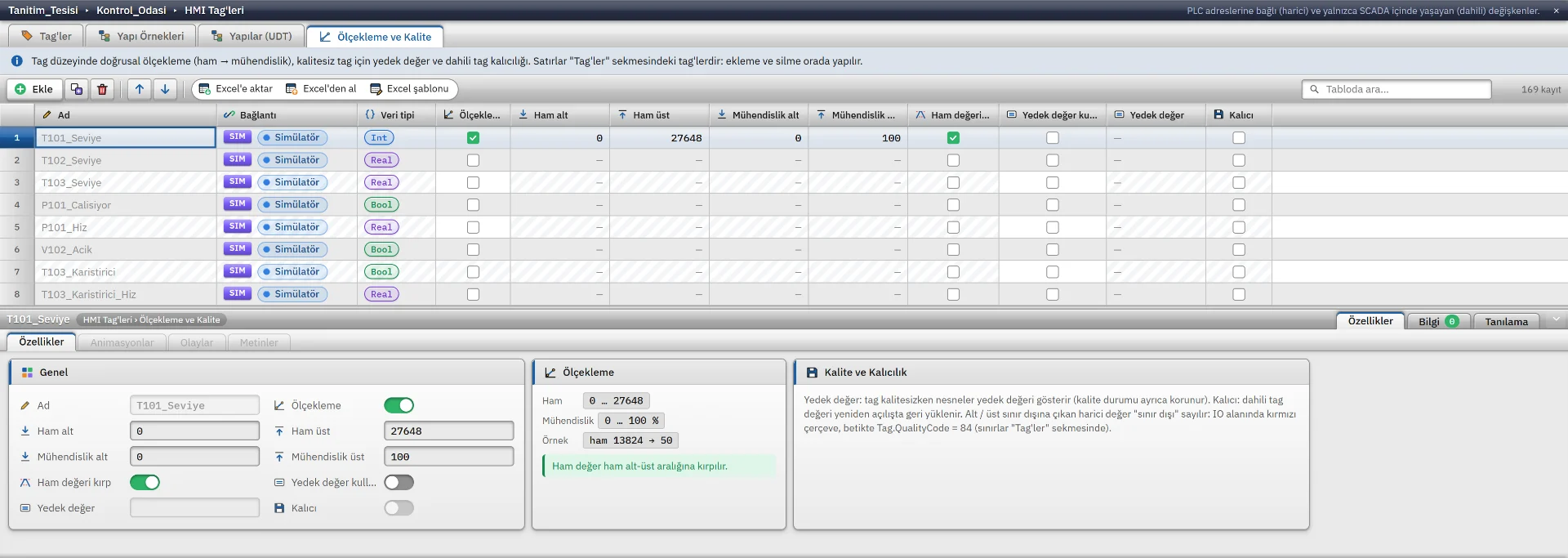
Linear scaling is set per tag: raw and engineering ends, clamping and reverse-direction writing. The quality code carries the connection and limit state (192 good, 84 out of limits, 8 no connection) and can be read from scripts. A fallback value can be used while the connection is down.
Siemens S7, Modbus TCP, OPC UA (client), EtherNet/IP, Mitsubishi MC, Omron FINS, OPC DA, MQTT, and a built-in simulator for working without a PLC.
Connectivity page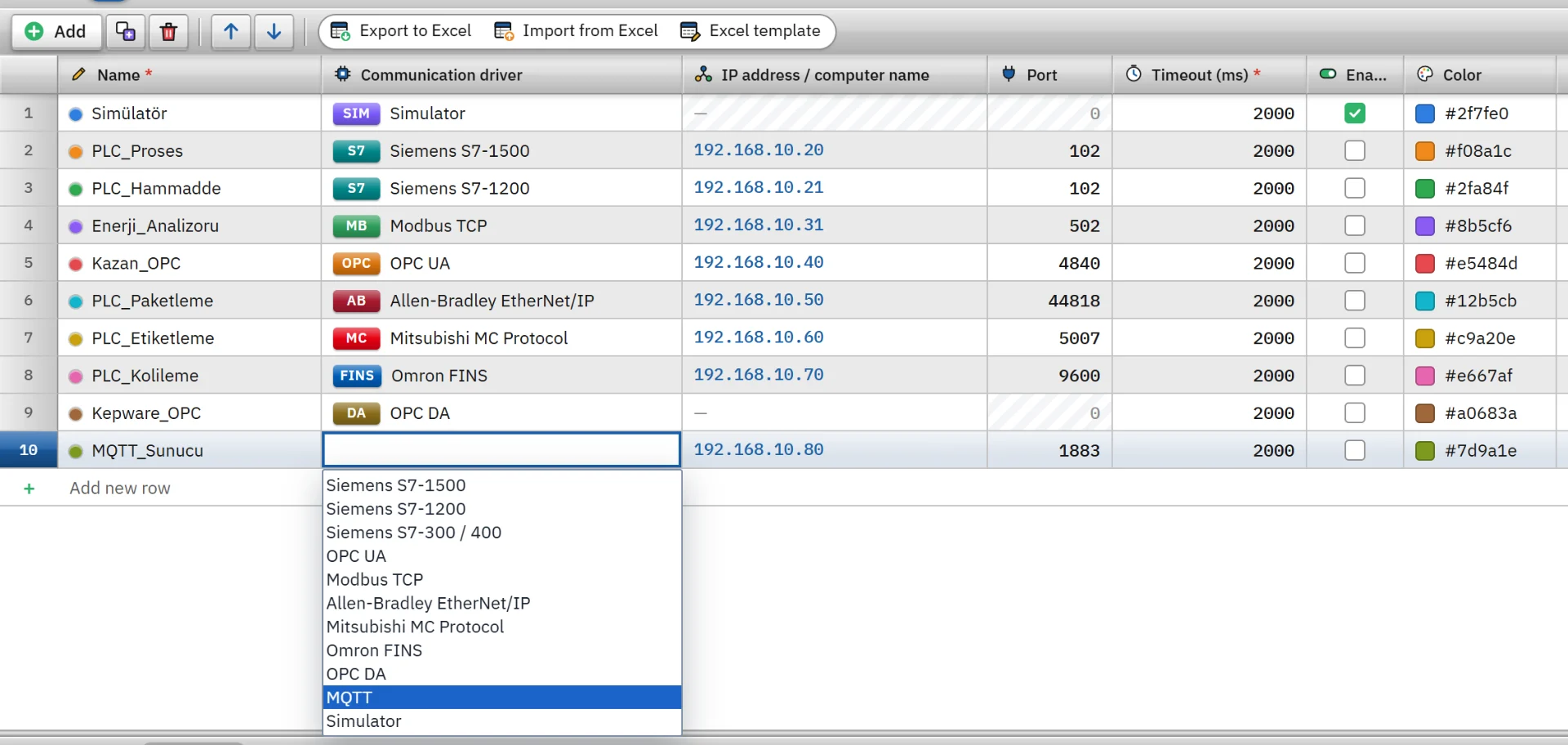
Named time settings: tags, archives, tasks and pages use them.
Lists that turn a numeric value into text or a graphic; used by symbolic I/O fields and status indicators.
Design tables
These definitions are entered in tables; recipes and reports also have their own design pages.
Digital (bit or value) and analog (>, ≥, <, ≤, =, ≠) alarms; hysteresis, delay and priority. Alarm classes set the colors, whether acknowledgment is required and archiving.
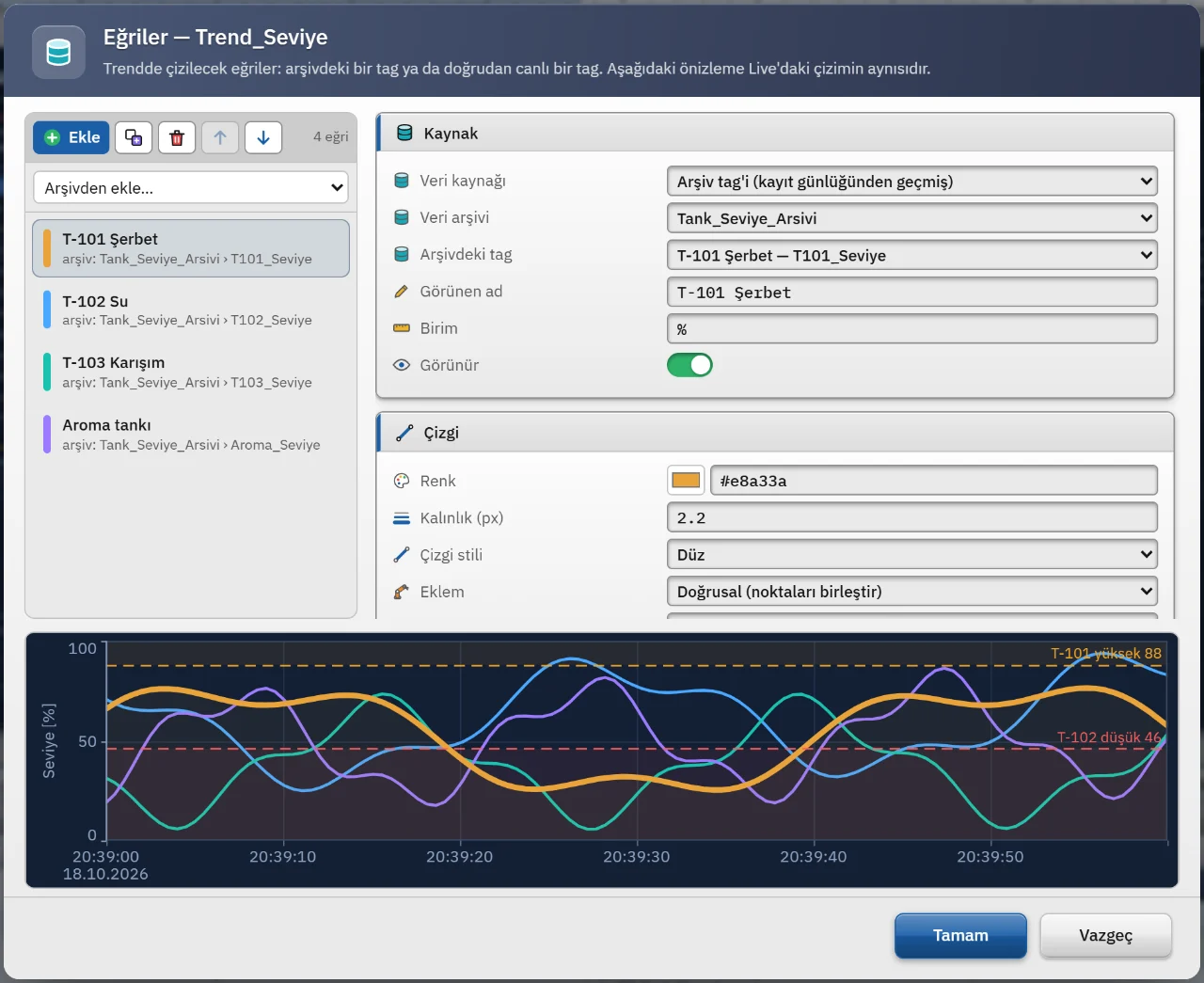
The trend view reads from the archive or straight from live tags: many curves, multiple Y axes, limit lines.
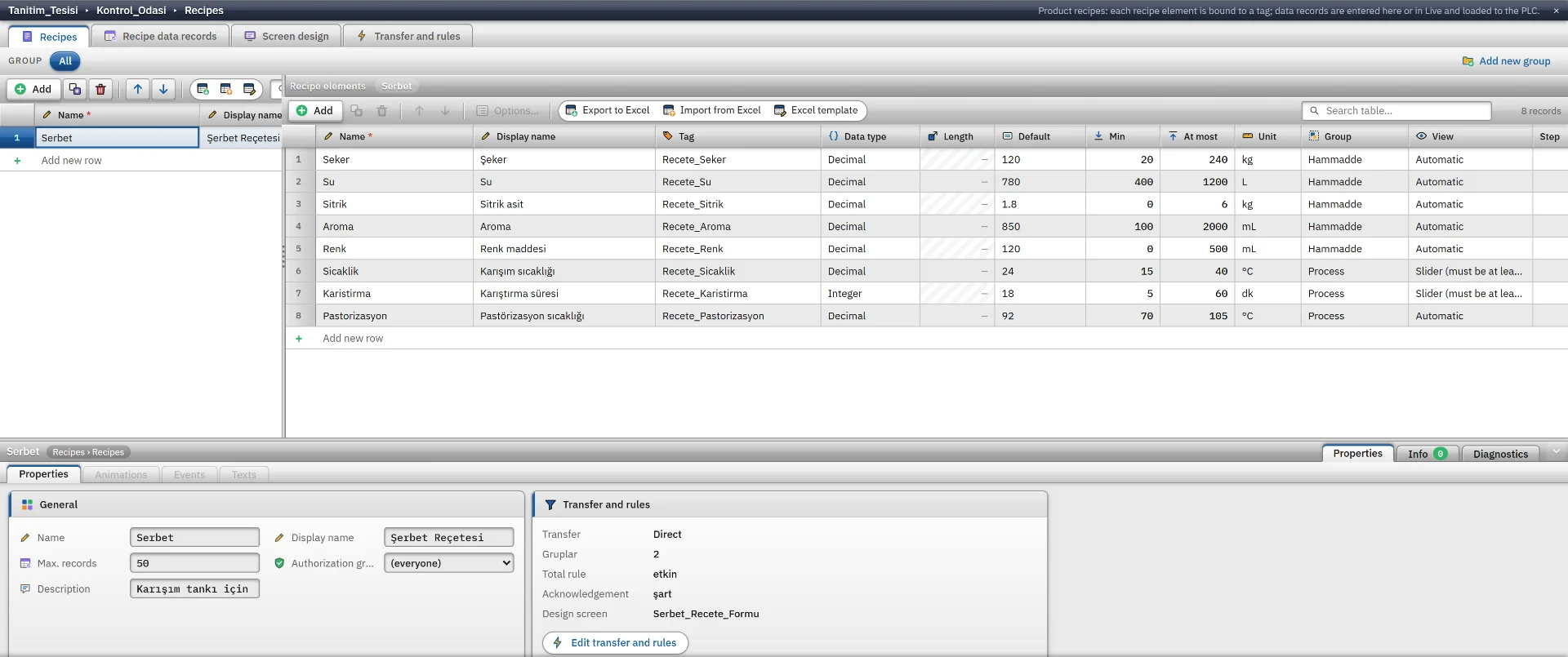
Element definition (type, limits, tolerance, unit), draft and approved records, transfer to the PLC (direct or handshaked, with read-back), and a script before and after the transfer.
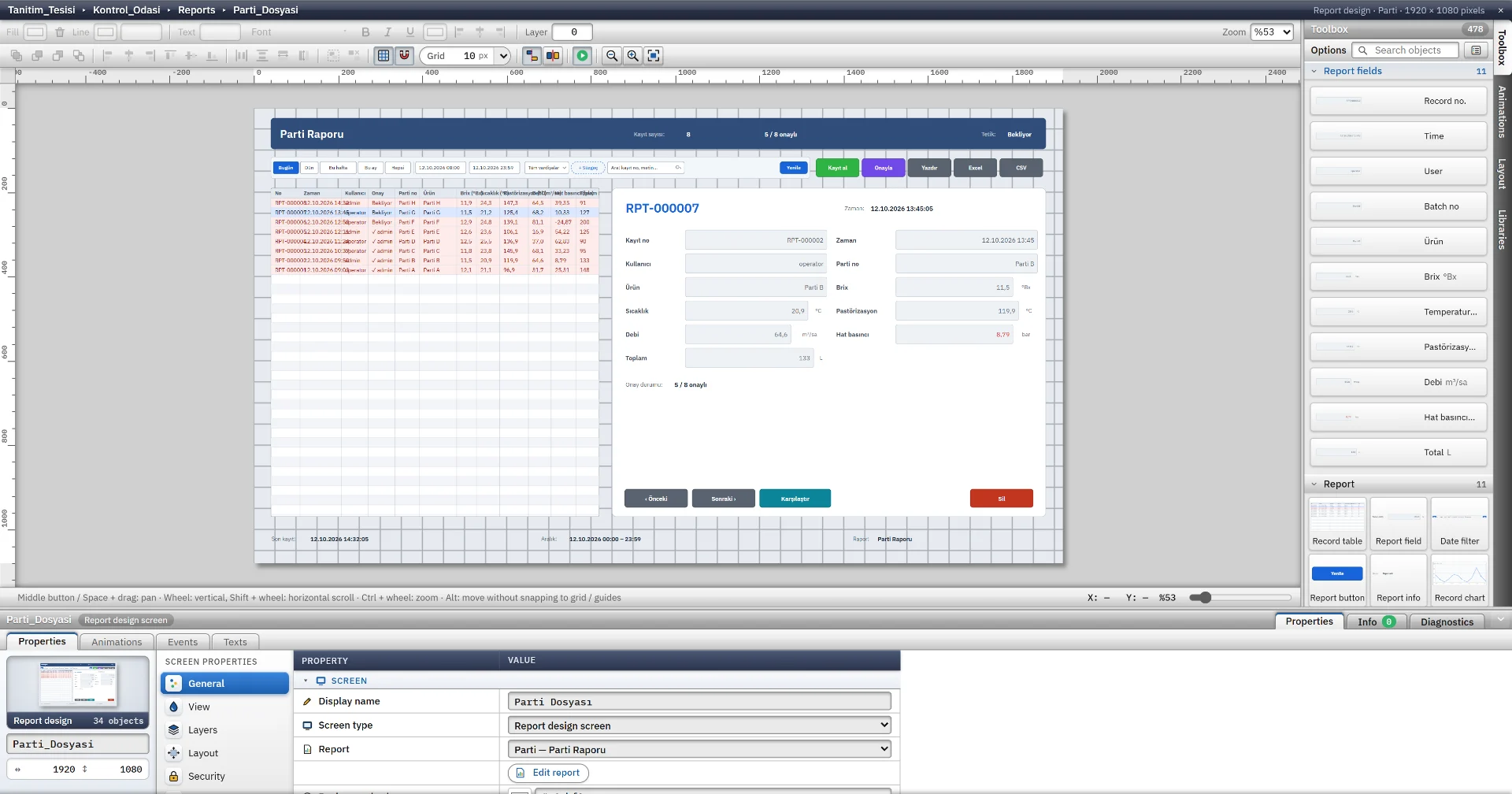
Triggered or manual records; daily, shift, weekly, monthly and batch summaries; approval and signature block. Output as Excel, CSV and PDF.
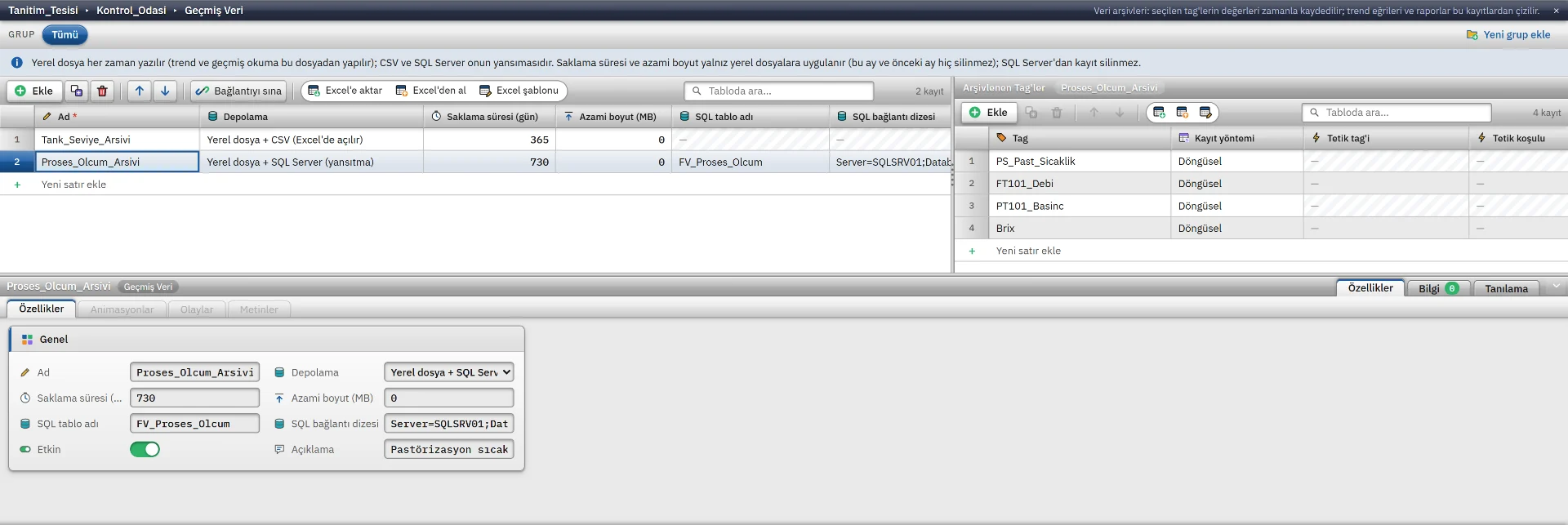
Cyclic, on-change or triggered recording. A local file is always written; CSV and SQL Server mirroring are optional. Retention time and automatic cleanup are configurable.
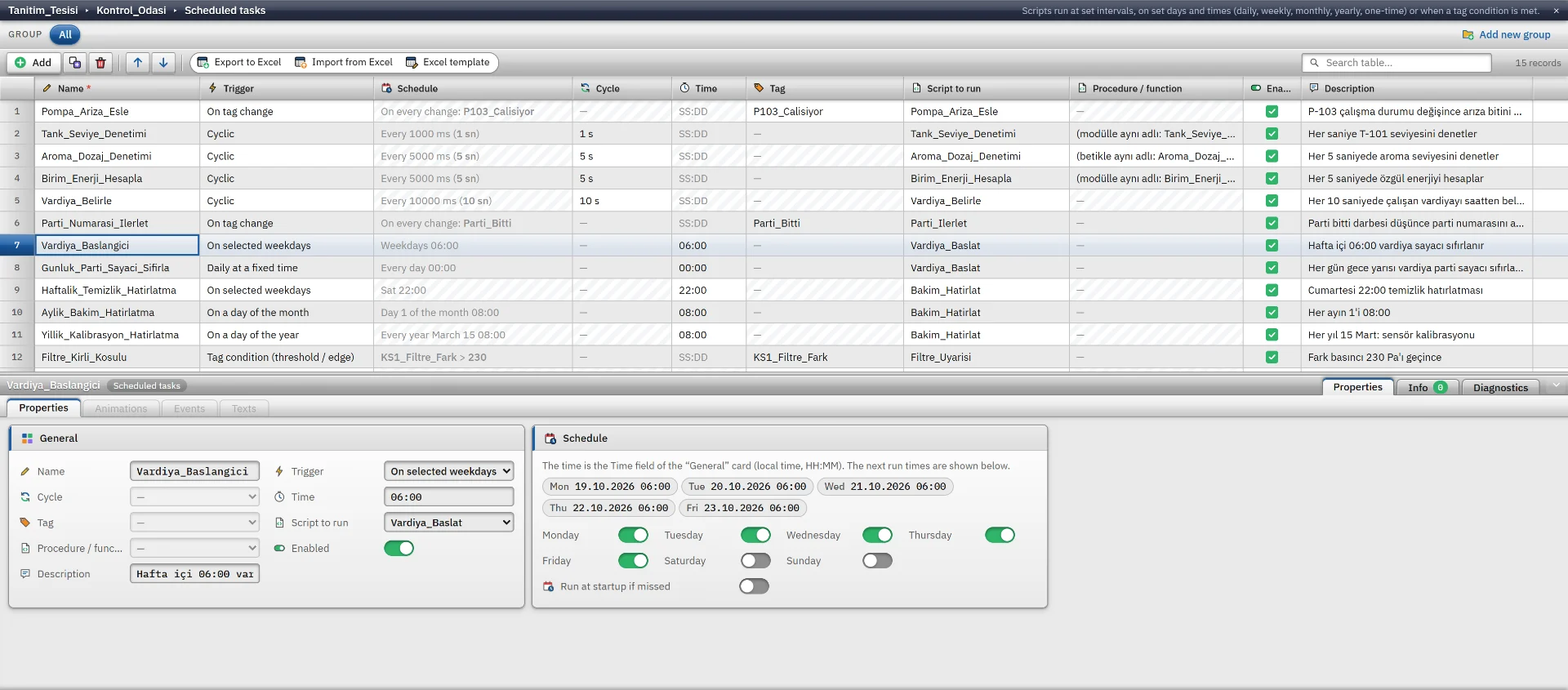
10 trigger types: cyclic, daily, weekly, monthly, yearly, one-time, tag change, tag condition, Live start and Live shutdown.
Scripting
VBScript, JavaScript, C and Python are written and checked in the same editor. The VBScript, C and Python engines ship with the product; no Windows Script Host, C compiler or Python installation is needed.
A subset of Windows VBScript: Dim, Const, Class, On Error Resume Next and many built-in functions. CreateObject gives dictionary, regular expression, ADODB (ODBC) and file system objects.
' 80% and above: status text “High”
Option Explicit
Function Action()
    If SmartTags("Tank1_Seviye") >= 80 Then
        SmartTags("Tank1_Durum") = "High"
    Else
        SmartTags("Tank1_Durum") = "Normal"
    End If
    Action = 0
End FunctionThe WebView2 JavaScript environment itself; there is no separate engine. The Tag.oku, Tag.yaz, Sayfa.ac, Bildir and Kullanici objects are ready to use.
// 80% and above: status text “High”
var seviye = Tag.oku('Tank1_Seviye');
Tag.yaz('Tank1_Durum', seviye >= 80
  ? 'High'
: 'Normal');An ANSI-C interpreter: struct, union, enum, typedef, pointers and macros. Besides the standard headers, more than 350 Live functions are ready (GetTag*, SetTag*, OpenPicture…).
#include "apdefap.h"

// 80% and above: status text “High”
int gscAction(void)
{
    float seviye = GetTagFloat("Tank1_Seviye");
    SetTagChar("Tank1_Durum", seviye >= 80.0f
        ? "High"
        : "Normal");
    return 0;
}A subset of Python 3.12: classes, generators, match / case, f-strings and a ready-made part of the standard library (math, datetime, json, re, csv…).
# 80% and above: status text “High”
def action():
    seviye = scada.read("Tank1_Seviye")
    scada.write("Tank1_Durum",
                "High" if seviye >= 80 else "Normal")
return 0There are no breakpoints, step-by-step execution or auto-completion.
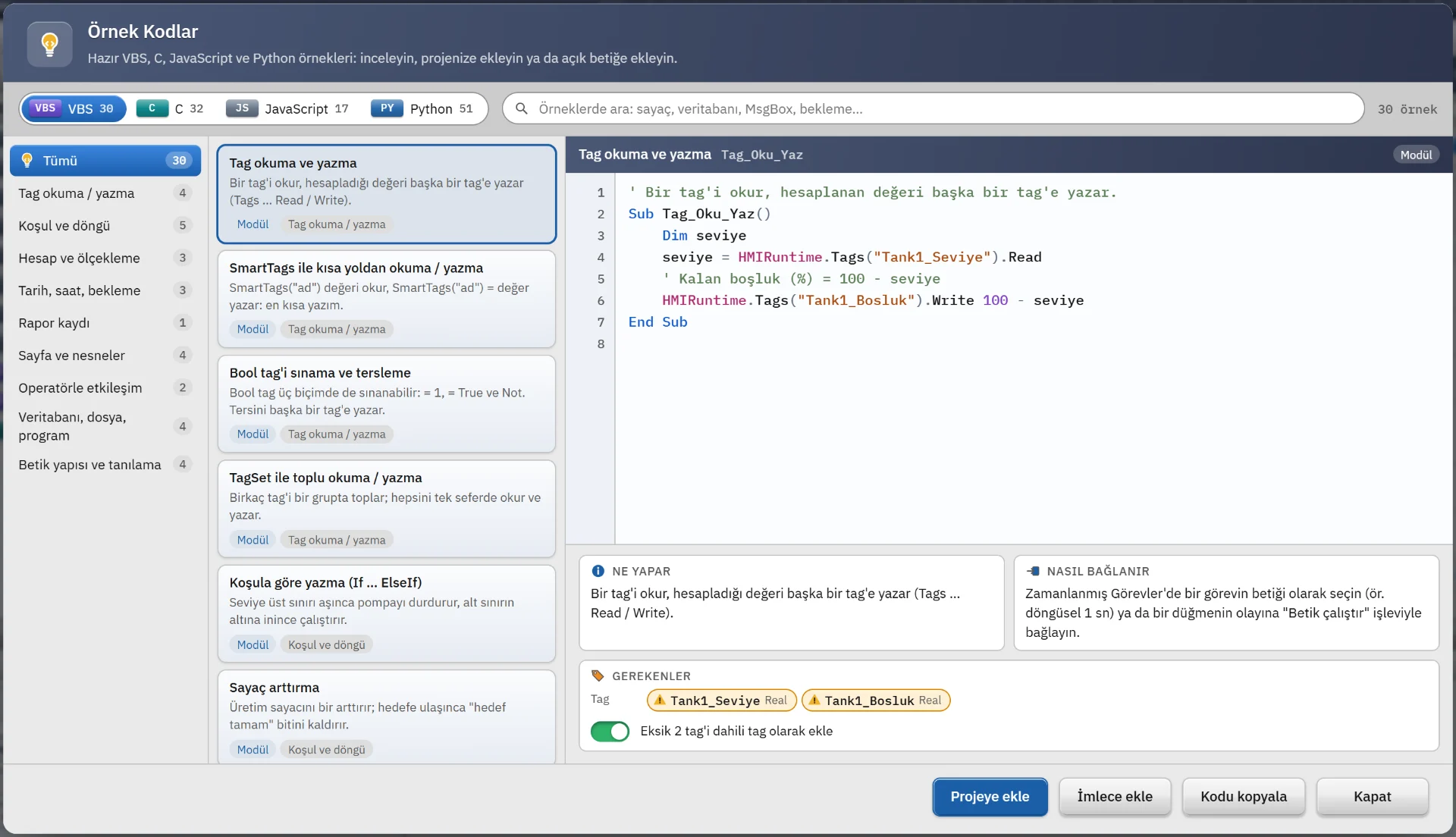
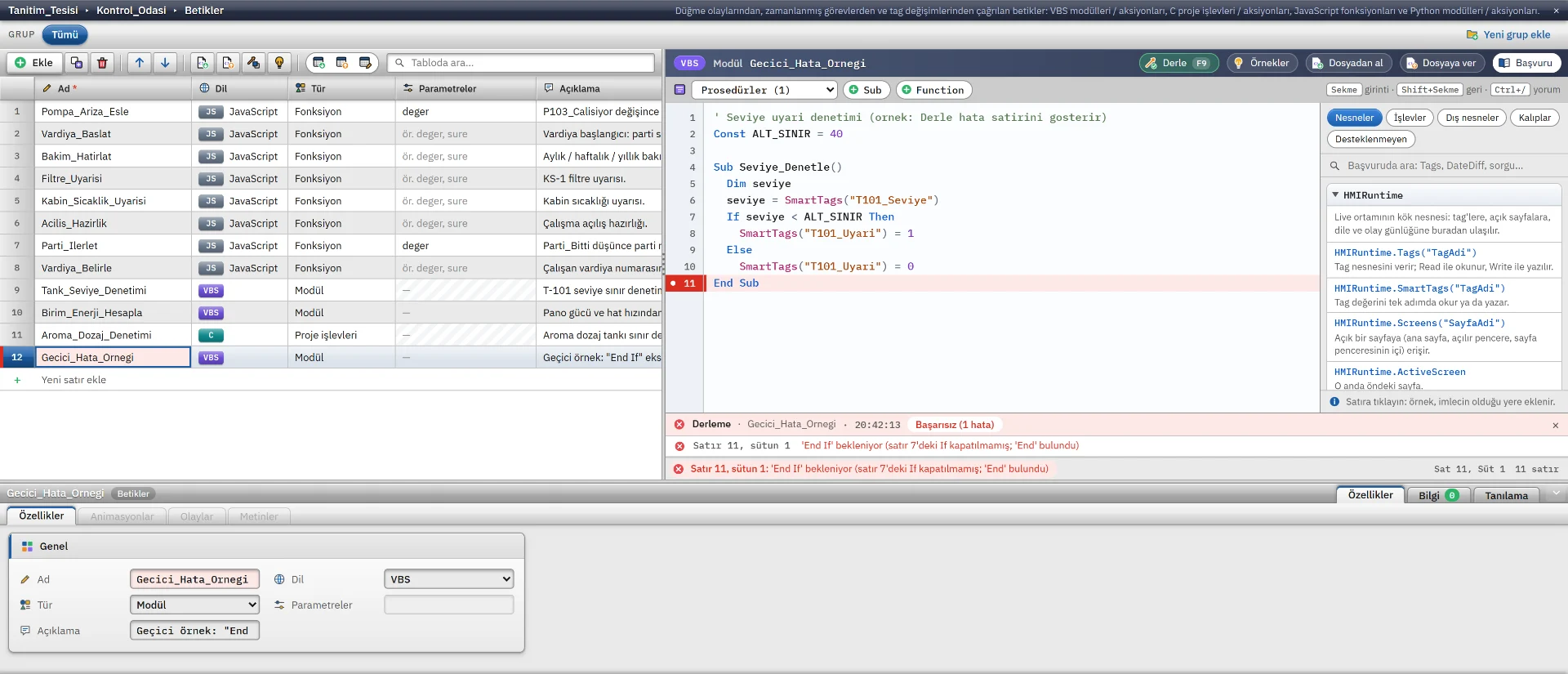
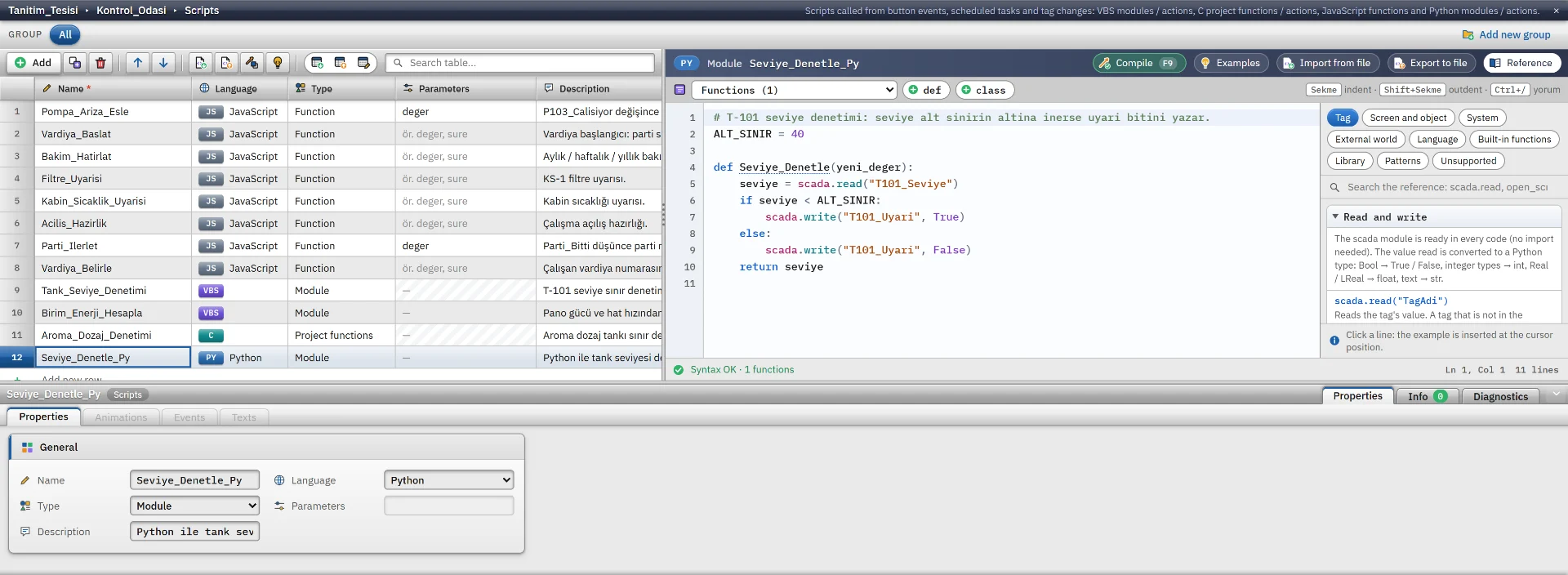
A script’s access to the outside is tied to three permissions. All three are off by default and are turned on in the General tab of the Live Settings.
VBScript, C and Python calls are limited to 30 seconds; a second call that arrives while the same trigger is still running is skipped.
WinCC scripts. Some object names in VBScript and C resemble WinCC’s scripting environment, but only a subset is implemented. Compile and check scripts brought in with Convert in Studio.
Project management
Collects tags with a missing or unresolvable address and unknown connection addresses in the Problems list. For scripts there is also Compile (F9).
Every upload to Live creates a revision and asks for a short description. The revision history is kept in the project file, and automatic backups are made.
Copies the project into Live’s project folder. To move it to another computer, copy the .fvs file; Live offers a project selection screen at startup.

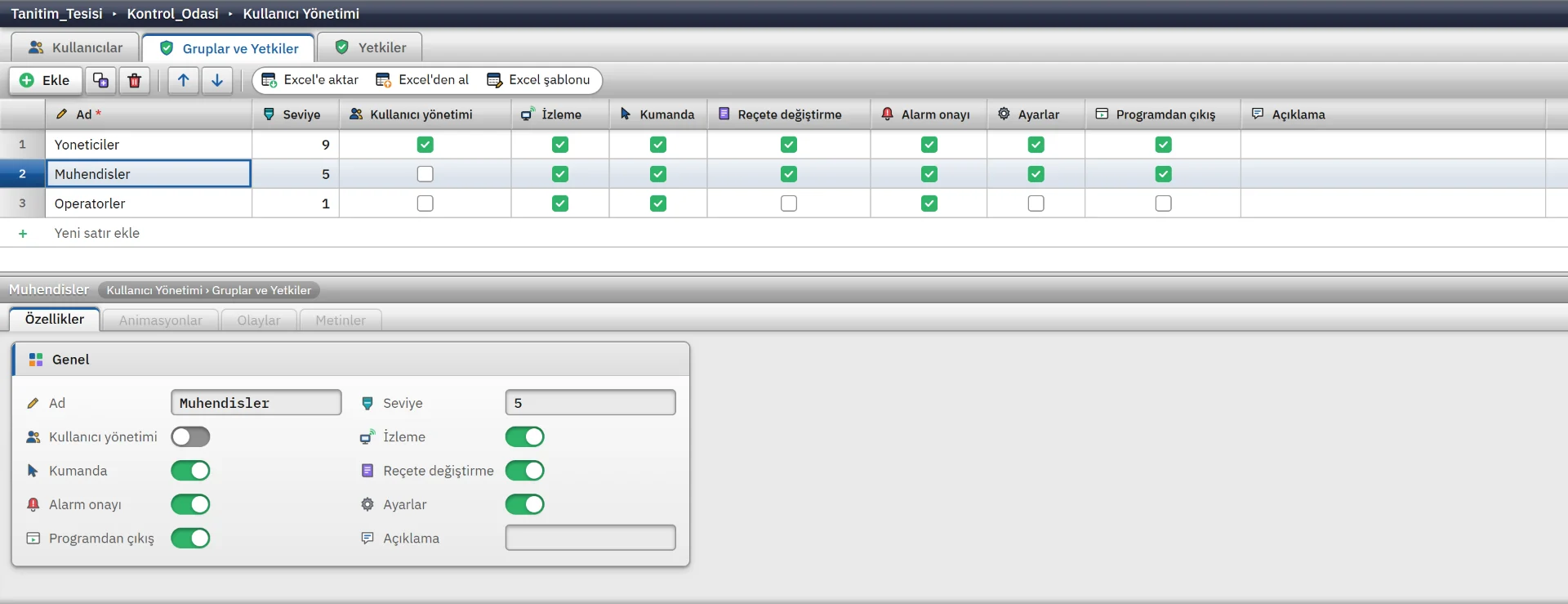
Users, groups and numbered permissions are defined; permissions apply at object, page and menu level. A new project comes with three groups and seven ready permissions; passwords are stored as salted hashes.
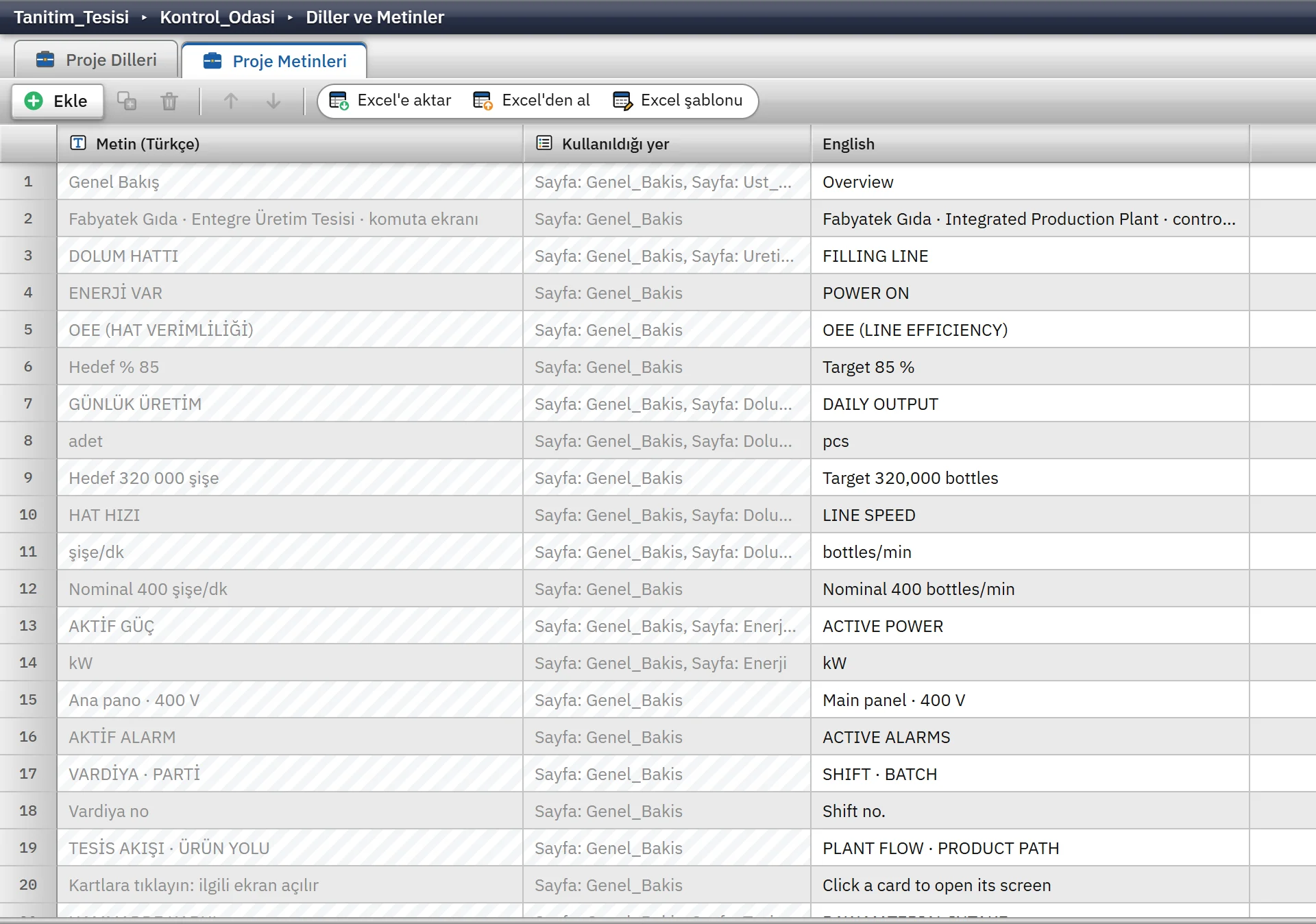
Studio’s interface runs in 6 languages and the choice is remembered.
The top bar switches between a light and a dark theme. The interface scale can be set between 80% and 150%.
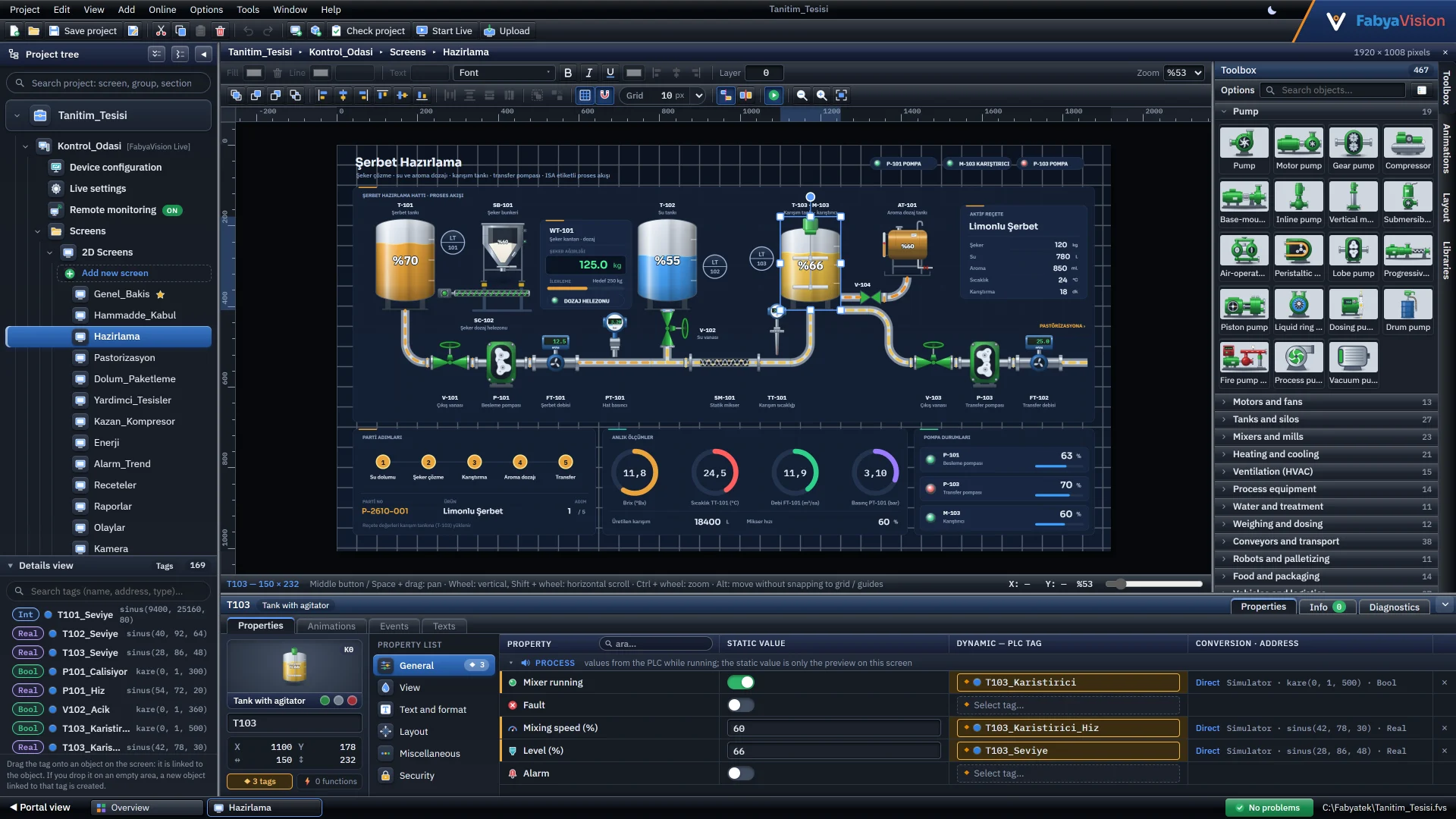
With the demo, open the sample project, change a page and run it in Live with the simulator.