FabyaVision Live · Runtime
Run your project in the plant
Live opens the project you prepared in Studio, connects to the PLCs and shows the pages to the operator. Alarms, trends, recipes, reports and tasks also run inside Live.

Video
Live at work
Operator
Operator screens
Pages and navigation
Operators move around with menus and toolbars, pop-up windows and fixed top and bottom areas. User, pages, connection states, language and station preferences are in the system menu.
- Object, page and menu access by permission
- Four text sizes (Normal to Largest), per station
- The theme comes from the project: Light, Dark or Automatic
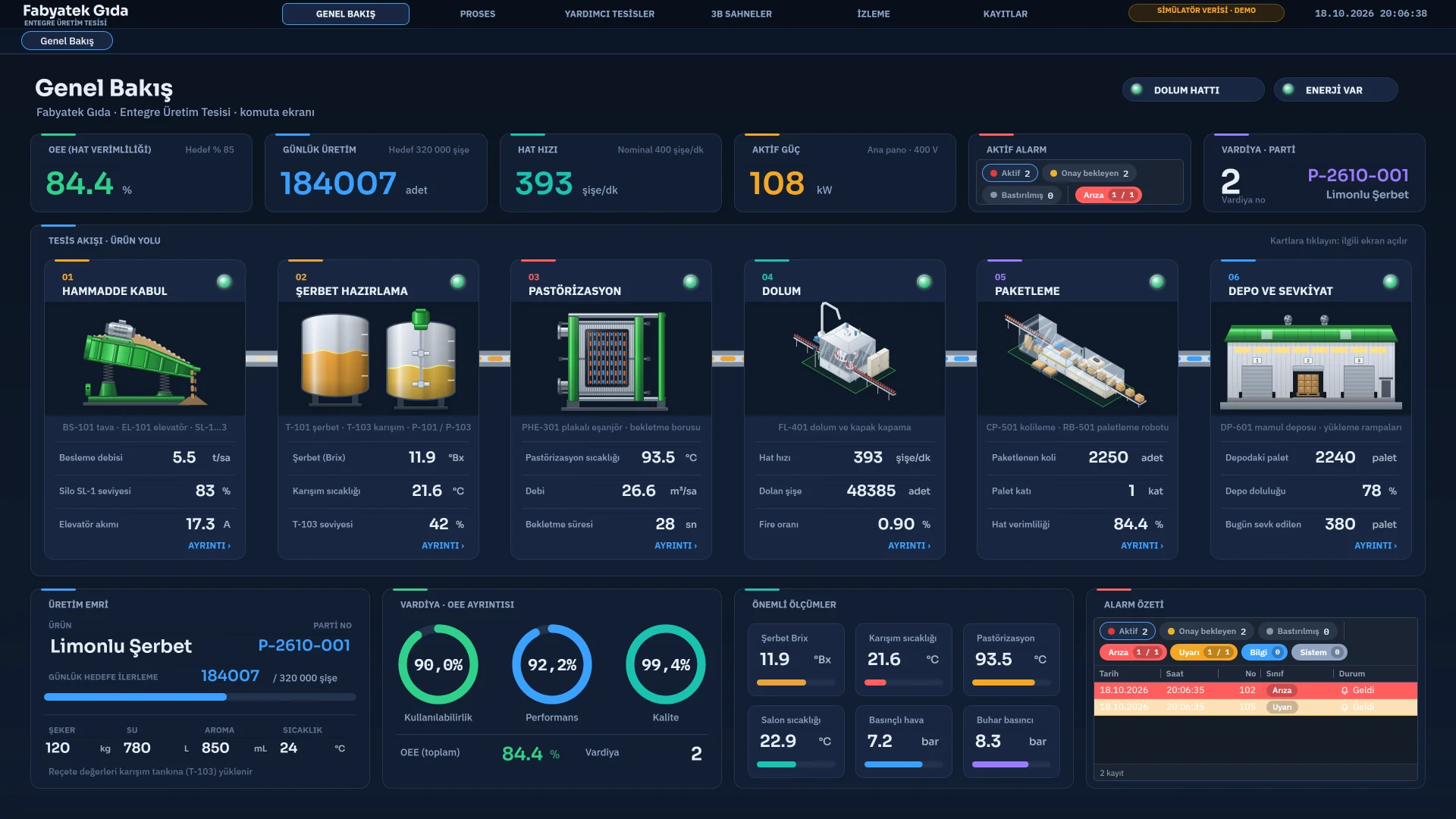
Alarm and trend views
The alarm view and alarm bar show the incoming, outgoing, acknowledged and suppressed states. Trends are drawn from the archive or straight from live tags.
- Acknowledge, suppress and comment; audible warning (siren or beep)
- Many curves, multiple Y axes, scrolling back in time
- Digital and analog alarms; color, acknowledgment requirement and priority by class
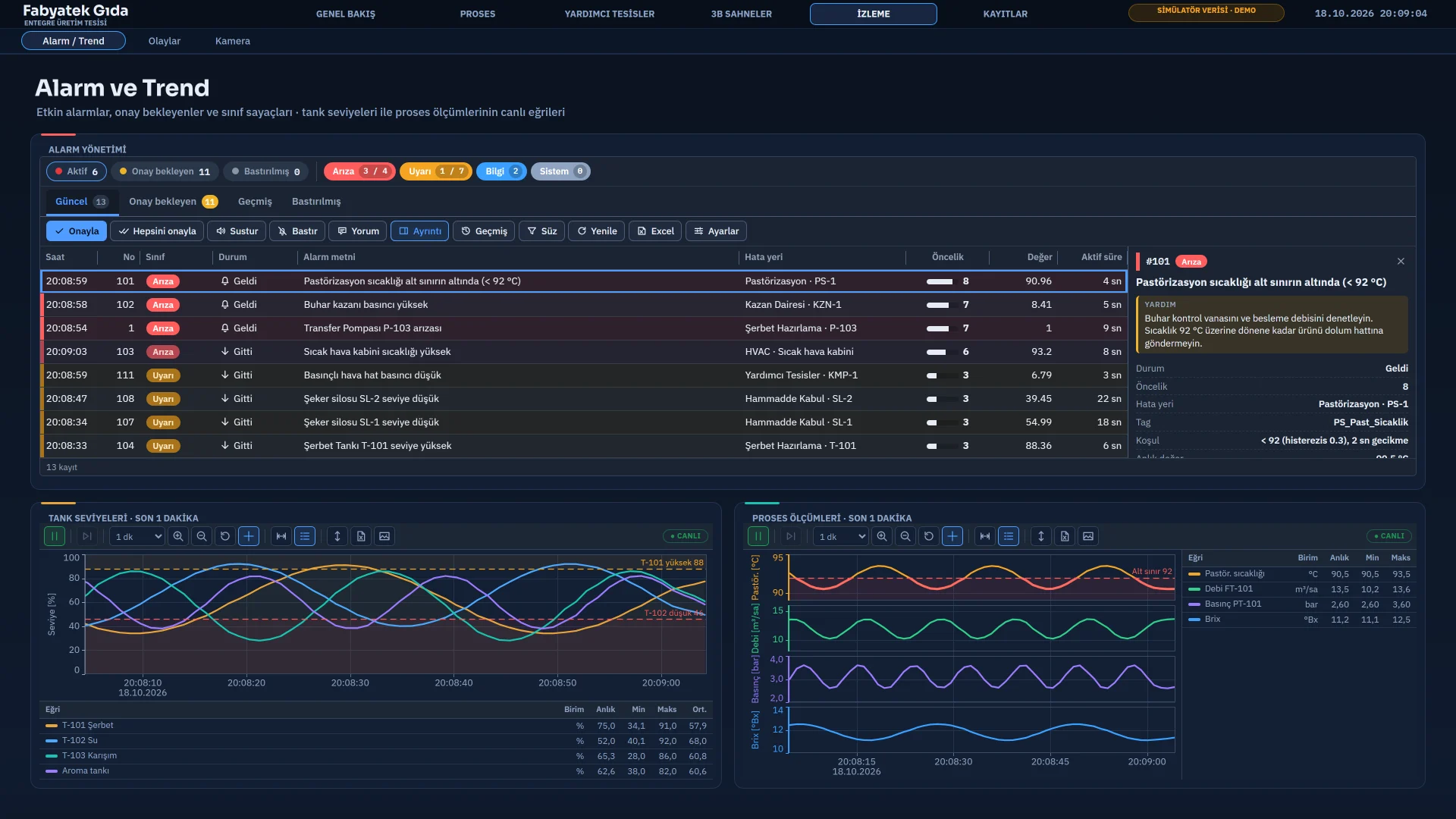
Recipe transfer
An approved recipe record is transferred to the PLC directly or with a handshake and verified by reading it back.
- Draft and approved records; approval requirement
- Restriction by permission group
- A script before and after the transfer
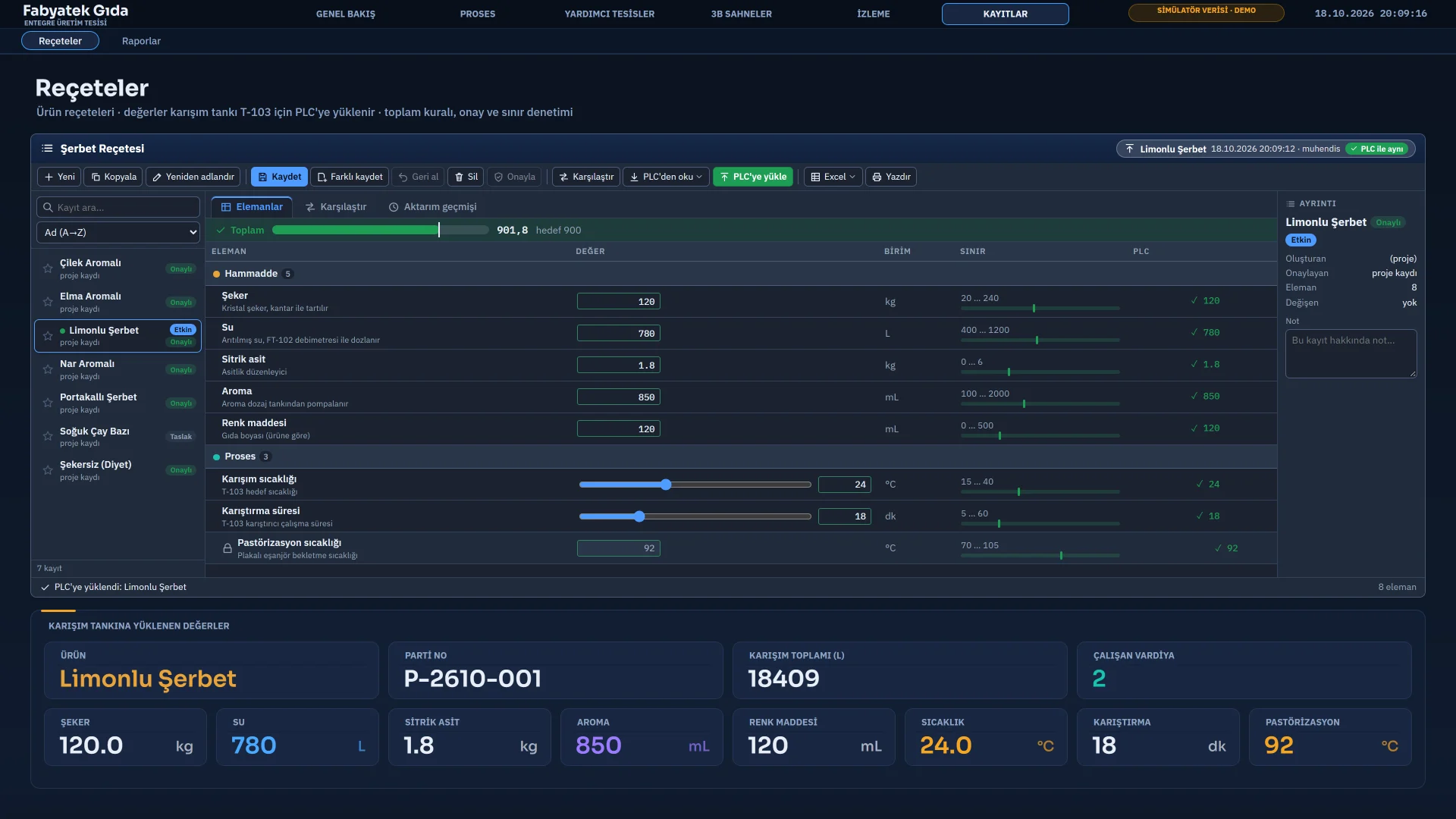
Report records
Reports are recorded on a tag event or manually and come out as Excel, CSV and PDF.
- Records are append-only and cannot be edited afterwards
- Daily, shift, weekly, monthly and batch summaries; approval and signature block
- PDF output with a print preview
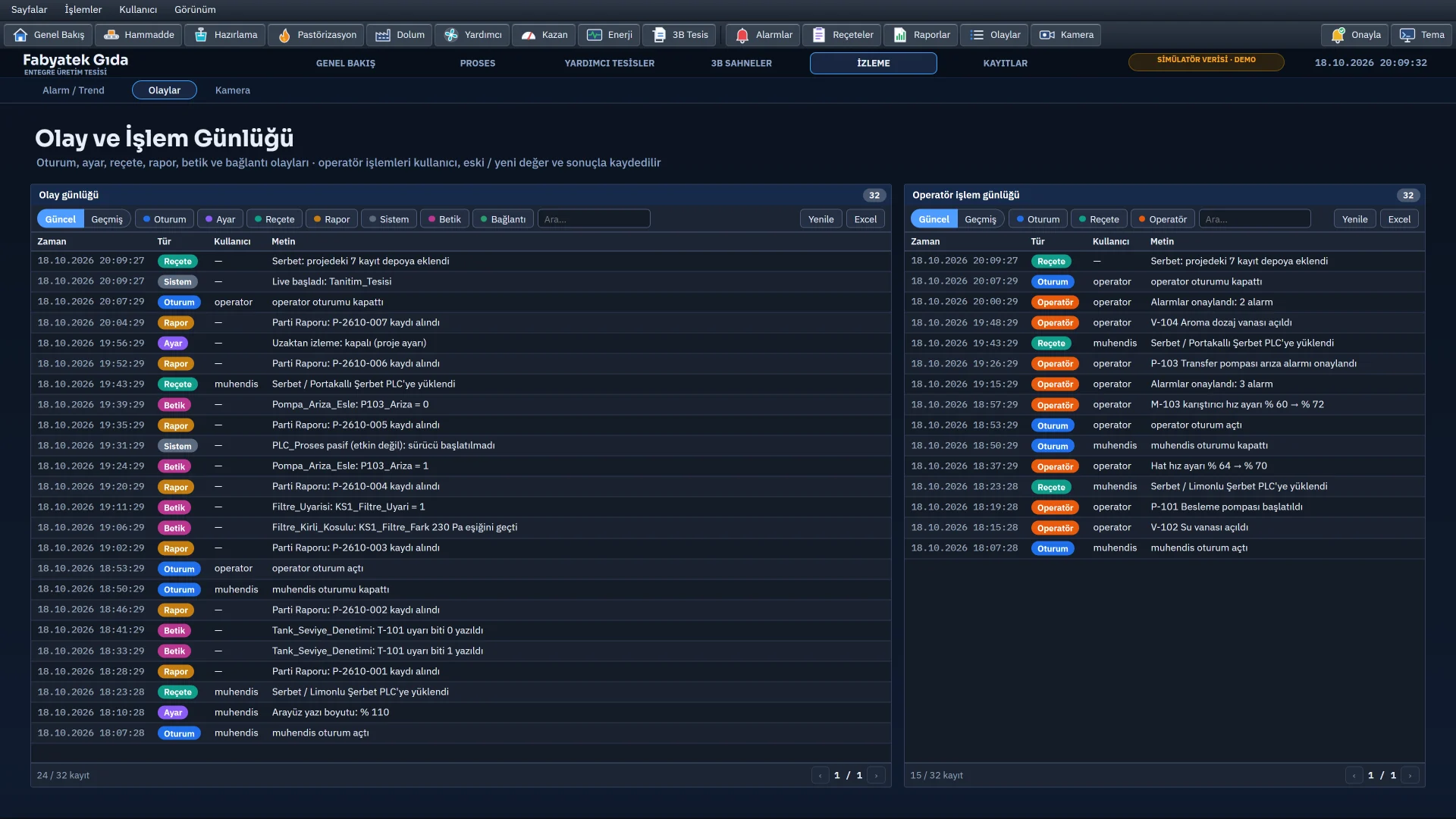
Operator action log
Which user changed which tag and when, the old and new values and the outcome are recorded. The Event View object shows the log on screen.
- On by default
- Written to monthly files
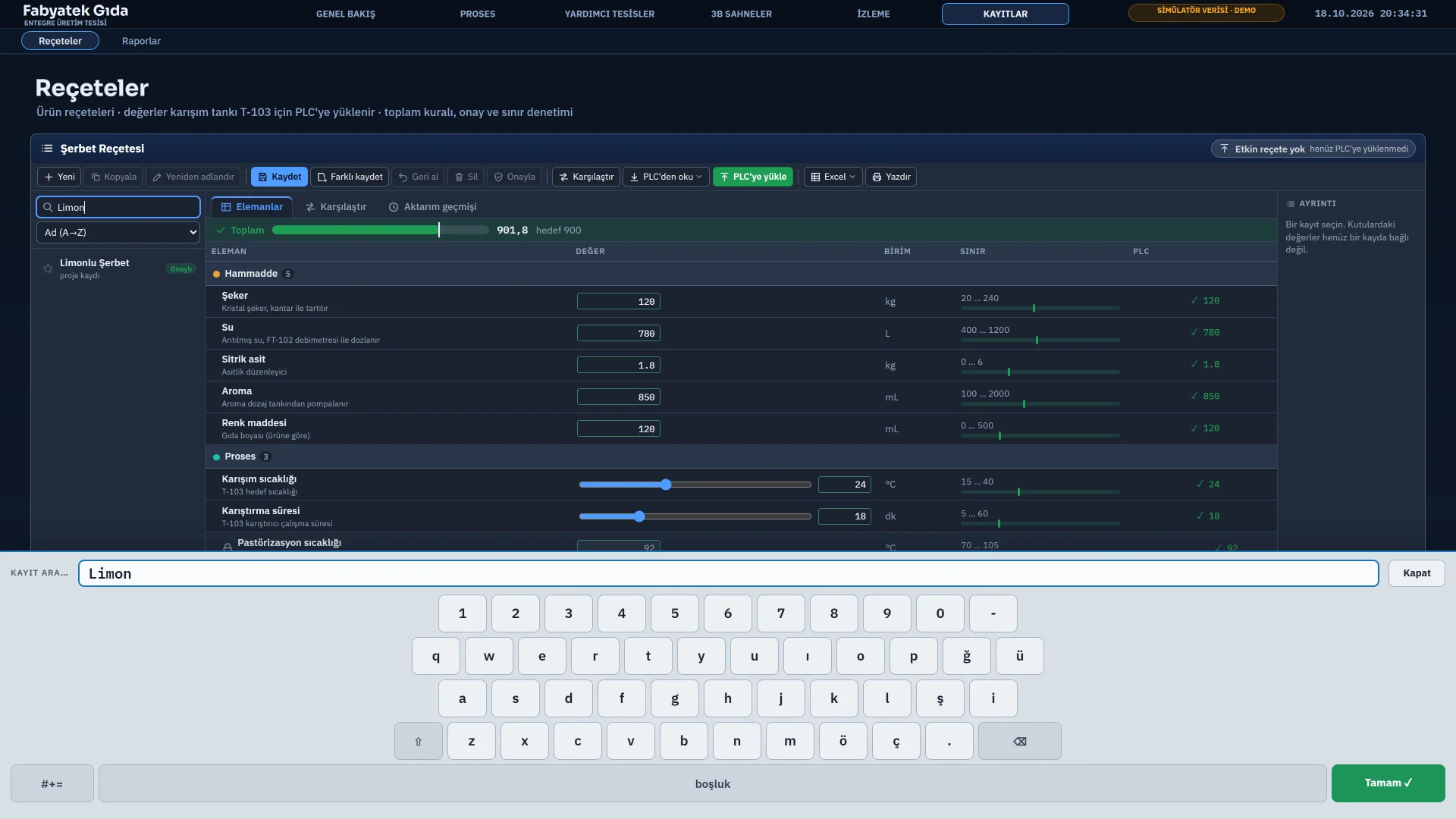
On-screen keyboard for touch screens
Touching a field opens the on-screen keyboard; if the field would end up under the keyboard, the page scrolls up. Number fields get a numeric keypad. Only the Turkish Q layout is available, and it works only in the local Live window, not in the browser or on TVs.
Screens and TVs
Multiple monitors and TV display
Monitor layouts
In full screen Live spans 1, 2, 3, 4, 6 or 8 monitors: side by side, stacked or in a grid.
- 1 monitors
- 2 monitors
- 3 monitors
- 4 monitors
- 6 monitors
- 8 monitors
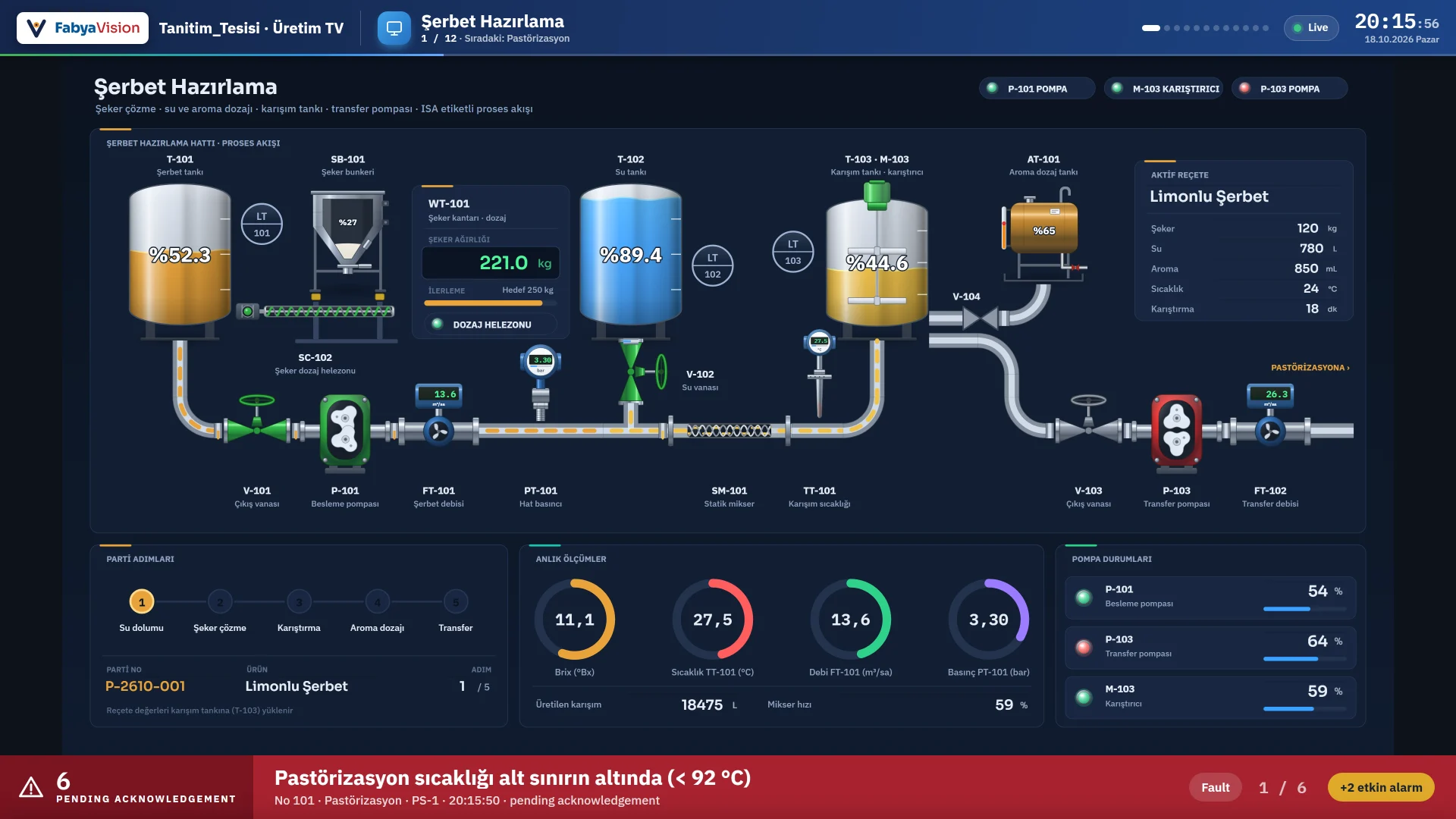
Local TV display
A second screen (automatic, or screen 1–4) cycles through a display sequence: one page and a duration per row. Transitions: Fade, Slide left, Slide up, Blur, Zoom, Curtain or Random.
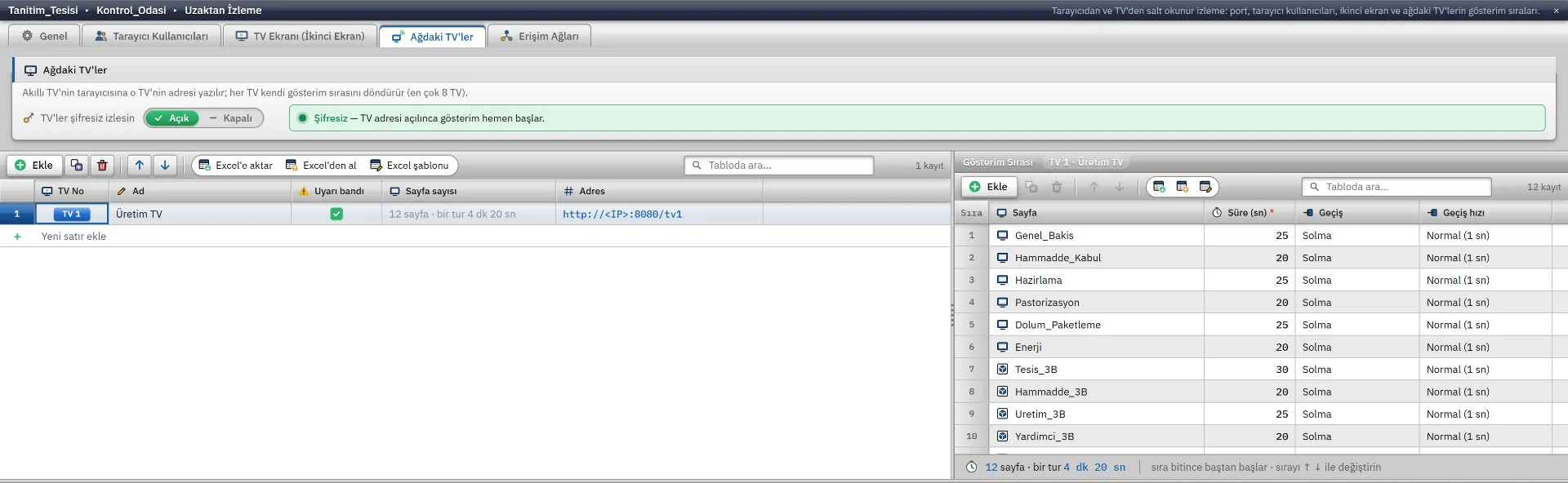
Network TVs
Up to eight TVs open their own address in their browser. A display sequence has up to 40 rows, and durations run from 5 to 3600 seconds. An alarm banner can be shown.
Remote monitoring
Monitoring from a browser
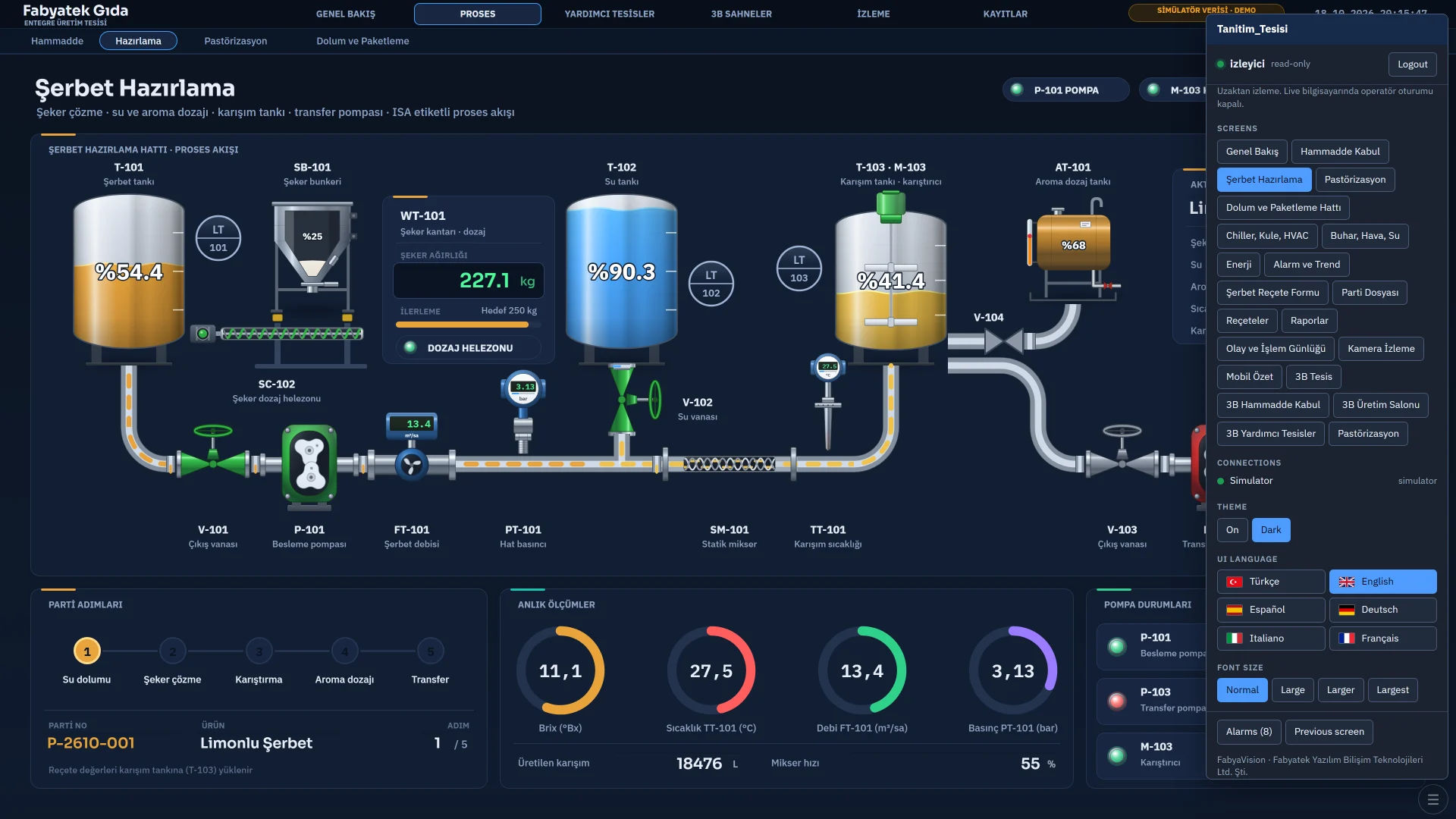
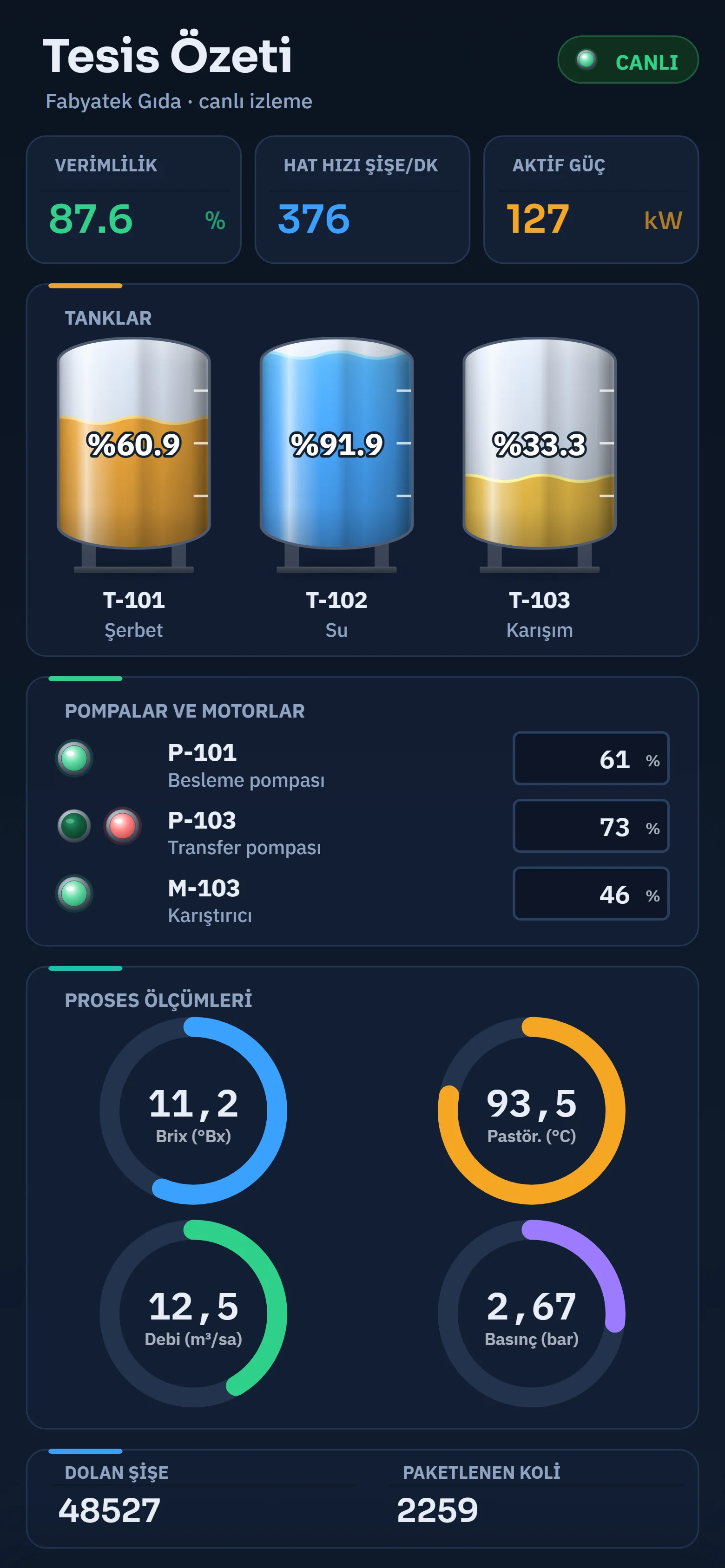
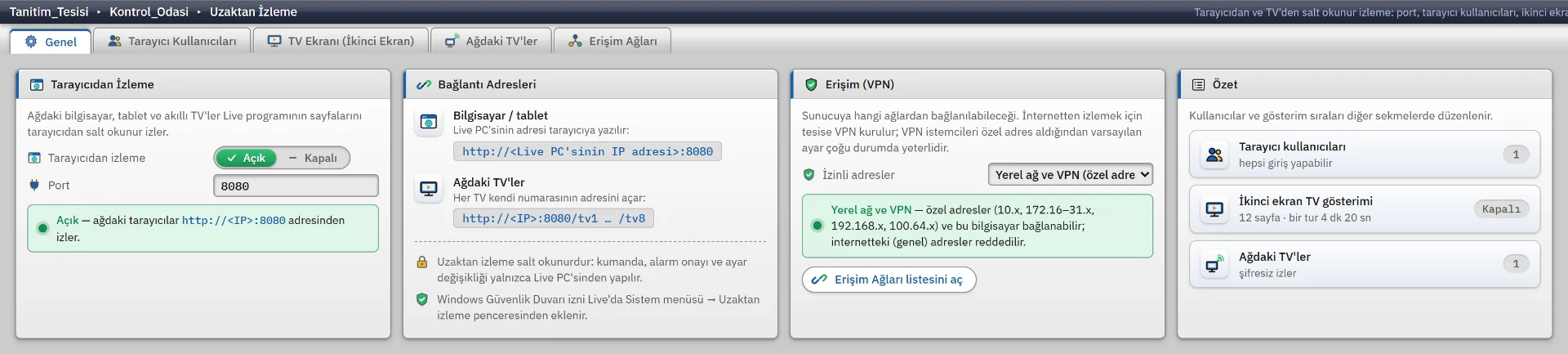
The Live computer opens a small web server. From a computer, tablet or smart-TV browser you watch the project in read-only mode.
What you can do in the browser
- Watch pages, alarm and trend views live
- Read the logs
- See pages according to the user’s permissions
- See camera images and PDFs once logged in
What you cannot do in the browser
- Write tags, control the plant
- Acknowledge alarms
- Recipe and report actions
- Change settings; run scripts, tasks and drivers
User name and password
Browser users are defined separately and passwords are stored as hashes. The session cookie is HttpOnly and SameSite=Strict; a session lasts 12 hours, or 30 days with “remember me”.
Network access rule
By default only private / local network and VPN addresses are accepted. It can be limited to a list of addresses or opened to everyone (not recommended).
Failed-login protection
An address with 5 failed logins within 10 minutes is locked out for 60 seconds; the request origin (Origin) is checked.
Firewall
The Windows Firewall rule is added with a button; it asks for administrator approval.
There is no HTTPS. Connections use plain HTTP. Do not expose the server directly to the internet; use it inside the plant network or over a VPN. TV addresses (/tv1 … /tv8) have no password by default; that setting can be changed.
Live Settings
Five settings tabs
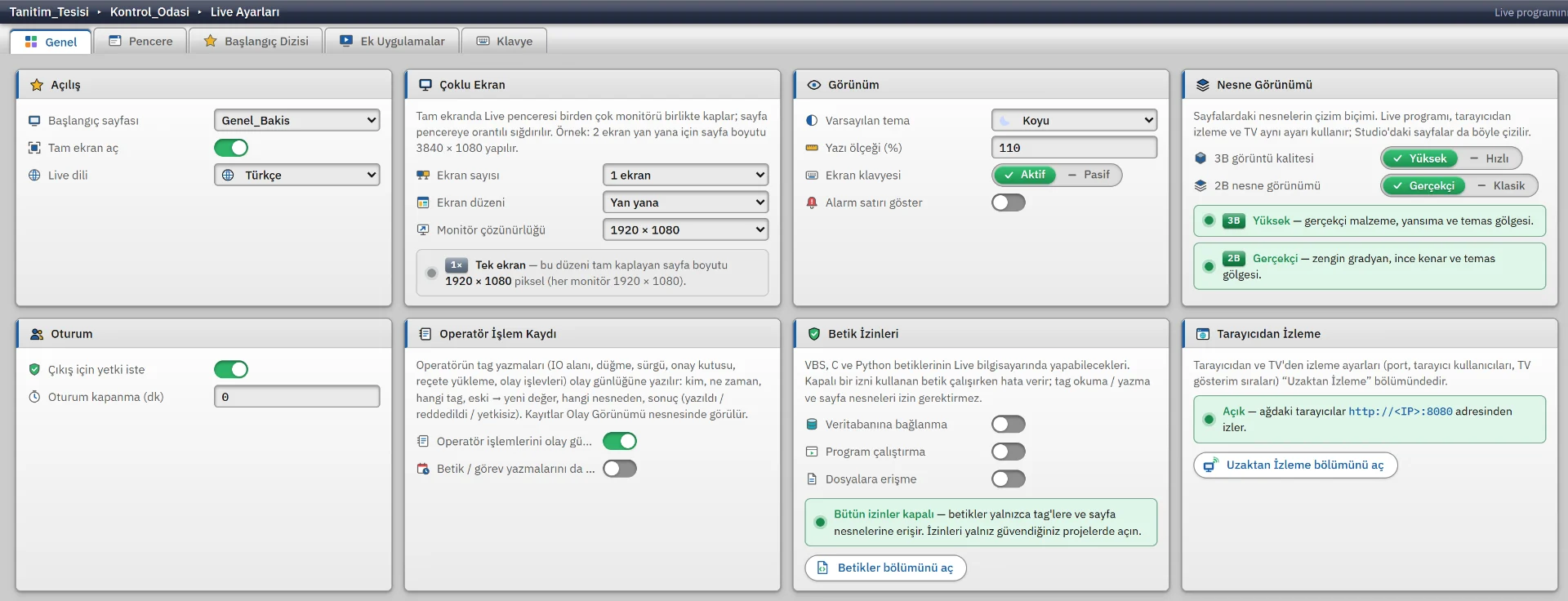
Settings are kept in the project file and edited in Studio. The on-screen keyboard, interface language and text size are chosen at each station from the system menu.
General
Start page, full screen, Live language, multiple screens, default theme, on-screen keyboard, alarm bar, 2D and 3D display quality, session timeout, operator action log and script permissions.
Window
Full screen or window; title bar, border, maximize and minimize buttons, always on top, cursor hiding and preventing the screen from sleeping.
Startup sequence
The task, report, alarm, data logging and recipe services can be switched on or off at startup, one by one.
Additional applications
Programs that start and close together with Live. They depend on the run-programs permission.
Keyboard
Key assignments for ten actions: log in and out, screenshot, acknowledge alarm, switch window, forward and back, store and recall page, start screen. Windows keys can be blocked; Ctrl+Shift+Esc and Ctrl+Alt+Del are not.
Start to shutdown
Startup, running and shutdown
Startup
Settings and the project are loaded. The services in the startup sequence and the additional applications start, “on Live start” tasks run and the start page opens.
Running
Drivers connect to the PLCs; if a connection drops, Live retries by itself. Alarms, archiving, tasks and scripts keep running. If the interface process crashes, the page is reloaded.
Shutdown
“On Live shutdown” tasks run, additional applications set to “close with Live” are closed and persistent tags are written.
If no project is specified, a project selection screen appears at startup. There is an option to start automatically with the last project (off on a fresh install).
What is kept where
The program log and settings file sit in the Live folder. Project data and logs sit in the data folder next to the project. Event and alarm logs are not deleted automatically.
Live\
  logs\Live_yyyyMMdd.log        # program log
  live_ayarlar.json             # Live settings
  Projeler\

Proje.fvs                       # project file
Proje.veri\
  depo\*.json                   # tags, recipes, connection passwords
  gunluk\*_yyyyMM.log           # event, alarm, archive, report logs
Data and connections
Connections, archive and tasks
All of this runs inside Live; no separate service is installed.
Driver connections
8 protocols and a simulator. Writes are queued and verified by reading back.
Connectivity pageHistory archive
A local monthly file is always written; CSV and SQL Server mirroring are optional. A disk buffer is kept if the connection drops. Old data is cleaned up automatically by retention time and maximum size.
Tasks
Scheduled or event-driven jobs with 10 trigger types; a missed task can run at startup.
Scripts
VBScript, JavaScript, C and Python scripts run in Live; database, program and file permissions are off by default.
Task triggers
- Cyclic
- Daily at a set time
- Days of the week
- Day of the month
- Day of the year
- One-time
- Tag change
- Tag condition
- On Live start
- On Live shutdown
Scope and limits
What Live does not include
Not a Windows service
If it closes, it does not restart by itself. The “start Live when Windows starts” option in the installer (off by default) only adds a startup shortcut.
One station, one project
One Live instance runs one project on one station; to switch projects, use “Change project” in the system menu. There is no multi-station architecture and no hot standby.
No OPC UA server
There is an OPC UA client; Live does not publish its own data as an OPC UA or OPC DA server.
Not a cloud or mobile app
It is Windows software installed on premises, with no mobile app.
Open the sample project in Live
Open the sample project with the demo. The simulator connection works without a PLC, so alarms, trends and 3D scenes run live.