Skip to content

FabyaVision

Features

Design environment

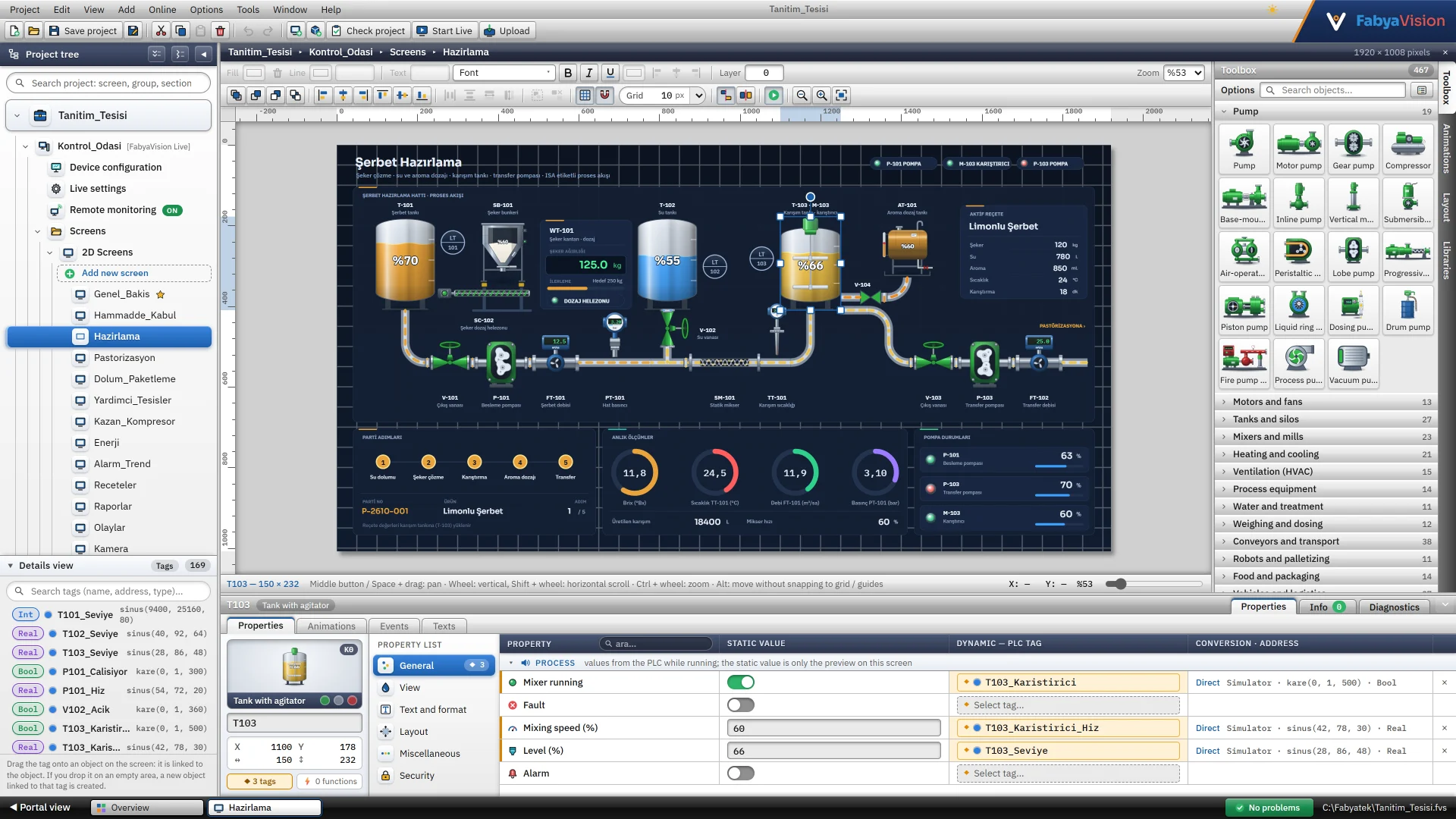
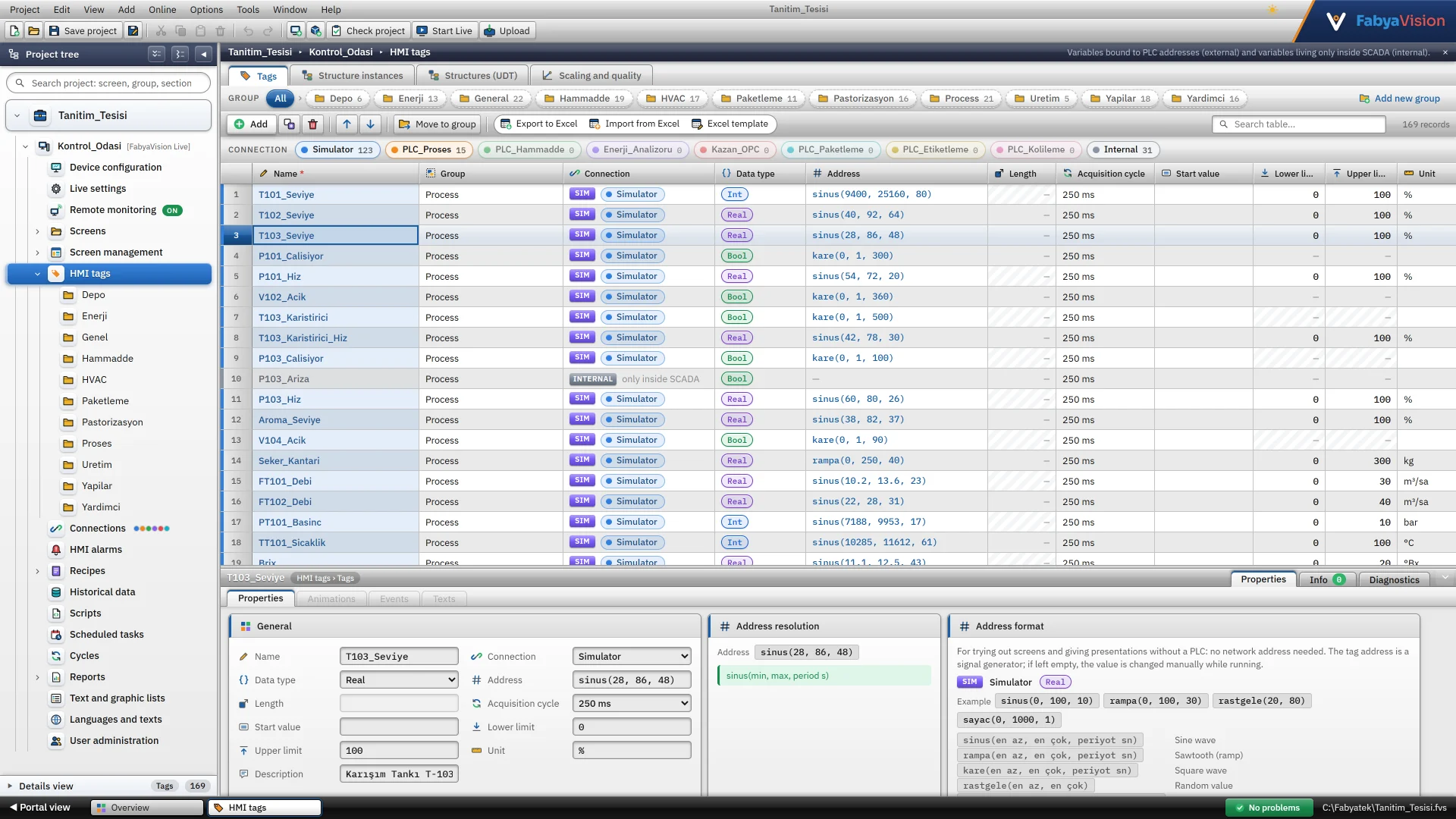
The project tree holds pages, 3D scenes, tags, connections, alarms, recipes, reports, scripts, tasks, users and languages in one place.

Where:Studio
  • Page editor: drag-and-drop placement, layers, pop-up windows, fixed top and bottom areas
  • Inspector with Properties, Animations, Events and Texts tabs
  • Templates: a group of objects is saved as a template; a device window (faceplate) opens with a structure instance’s prefix
  • Table editors: every table exports to Excel and imports back (Excel does not need to be installed)
  • Check project (F7): inconsistent connections, tag addresses and cross-table references are listed
  • Revision log, automatic backups, light and dark interface themes
  • Studio does not connect to a PLC; load the project into Live to see live values

Object library

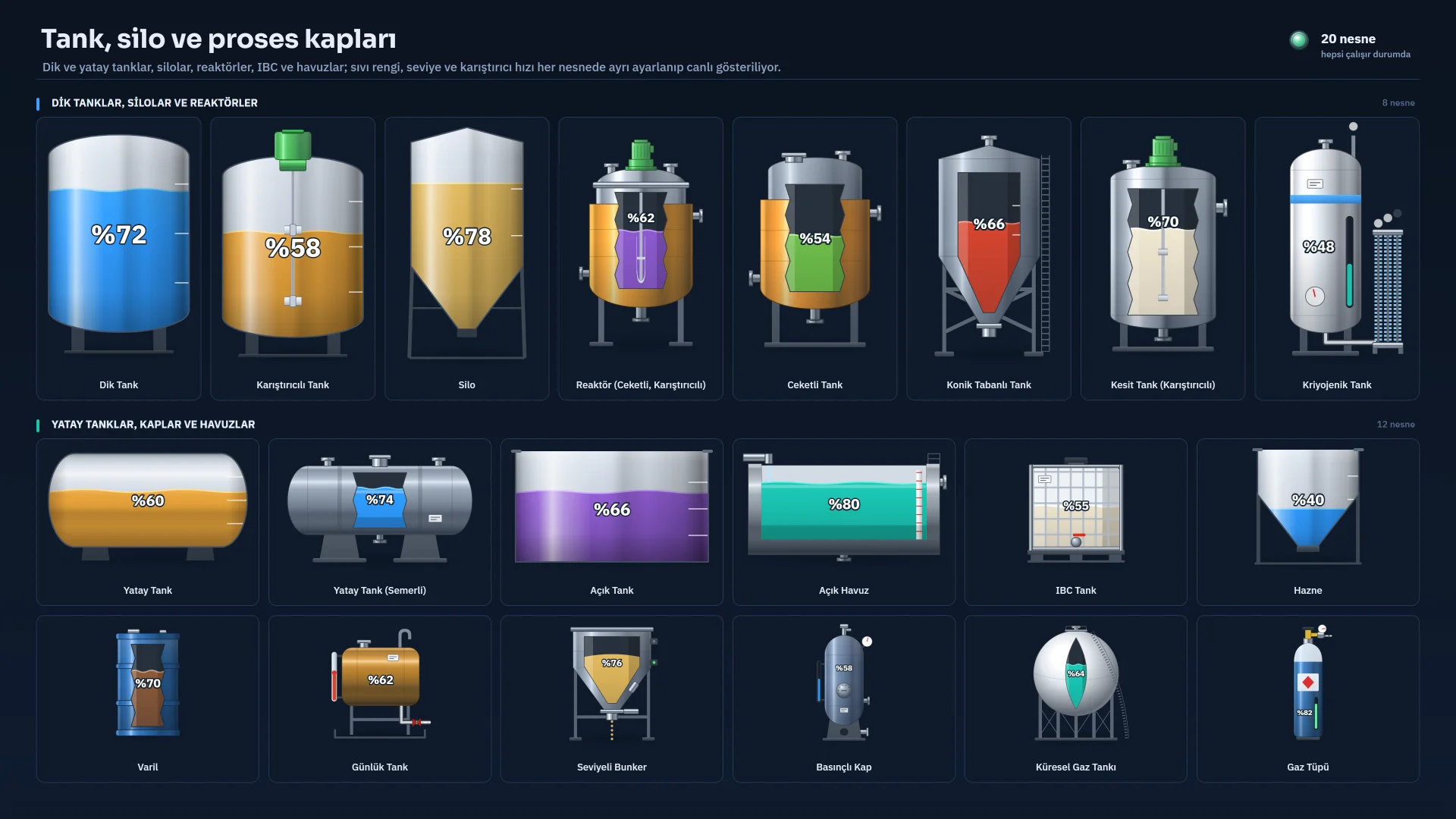
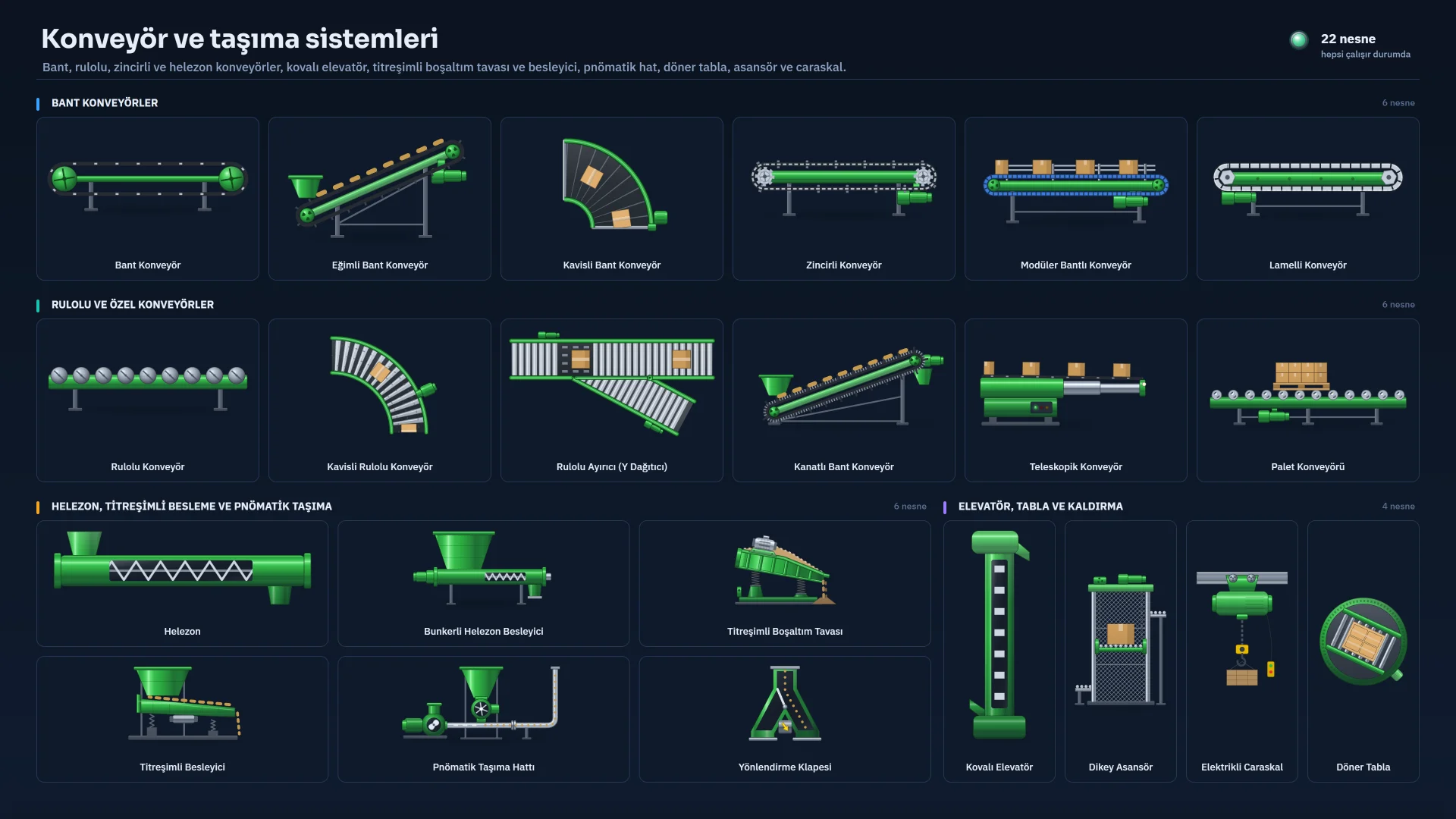
480+ 2D object types in 28 groups; 420+ of them are equipment and process drawings such as pumps, valves, tanks, conveyors, ovens and panels. Drawings are vectors and stay sharp at any zoom.

Where:StudioLive
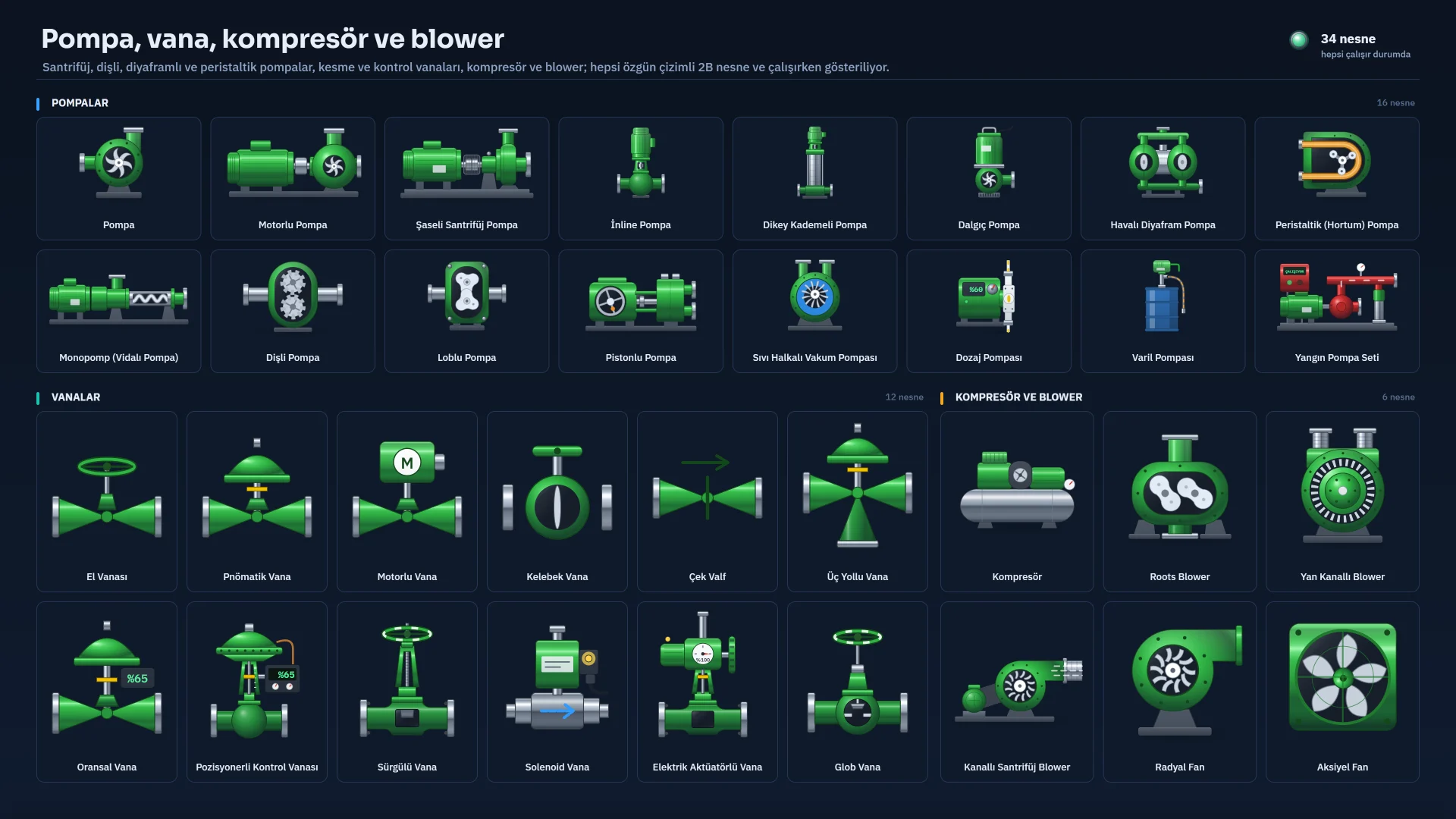
  • Appearance settings such as liquid colour, level and agitator speed are set per object
  • The 2D style, Realistic or Classic, is chosen in the Live settings

A few examples from the groups

Pipes and valves

  • Elbow
  • Flanged pipe
  • Expansion joint
  • Ball valve
  • Butterfly valve
  • Pneumatic valve
  • Safety valve

Pumps, motors and fans

  • Gear pump
  • Submersible pump
  • Peristaltic pump
  • Compressor
  • Roots blower
  • Servo motor
  • Radial fan

Tanks and silos

  • Vertical tank
  • Silo
  • IBC
  • Cryogenic tank
  • Reactor

Mixing and milling

  • Ribbon mixer
  • Ball mill
  • Extruder
  • Banbury

Heating, cooling and HVAC

  • Heat exchanger
  • Steam boiler
  • Tunnel oven
  • Cooling tower
  • Duct
  • Grille
  • Diffuser

Conveying and handling

  • Belt conveyor
  • Bucket elevator
  • Screw conveyor
  • Overhead crane

Robots, packaging and logistics

  • 6-axis robot
  • SCARA
  • Stretch wrapper
  • AGV / AMR
  • Bottle sorter
  • Forklift
  • Bulk tanker

Instruments and electrical

  • Coriolis flow meter
  • Radar level
  • Load cell
  • Transformer
  • UPS
  • Frequency drive
  • Solar panel

Water, safety, lab and buildings

  • Reverse osmosis
  • UV
  • Light curtain
  • Smoke detector
  • Beaker
  • Factory building
  • Chimney

State model

More than 260 objects have a running and fault state: stopped is grey, running is green and moving, a fault flashes red and yellow. All four colours can be changed.
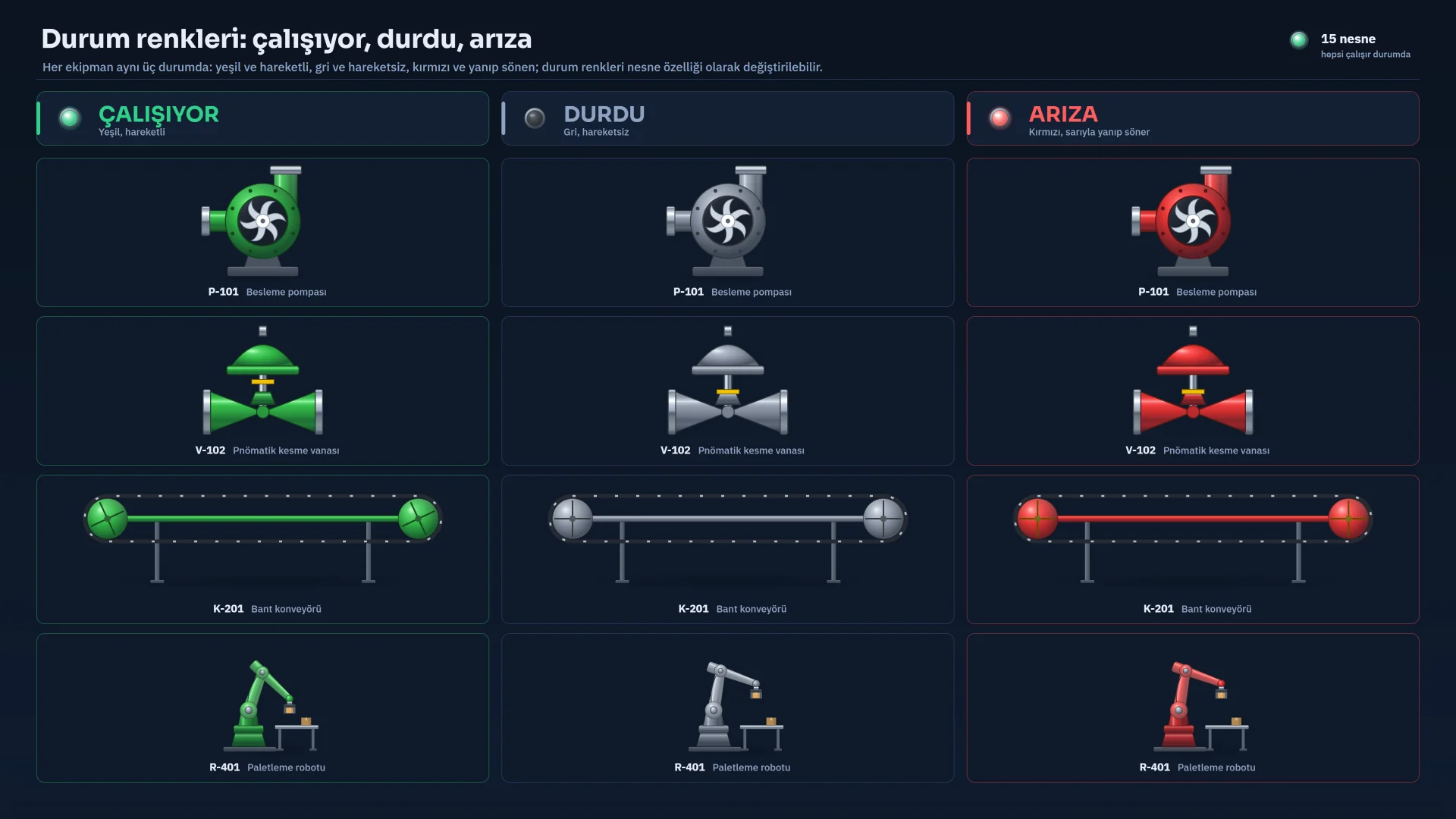
  • Basic shapes, controls and views have no state model

3D scenes

430+ 3D object types and a scene editor that works in metres. 420+ of the types also have a detailed Realistic model.

Where:StudioLive
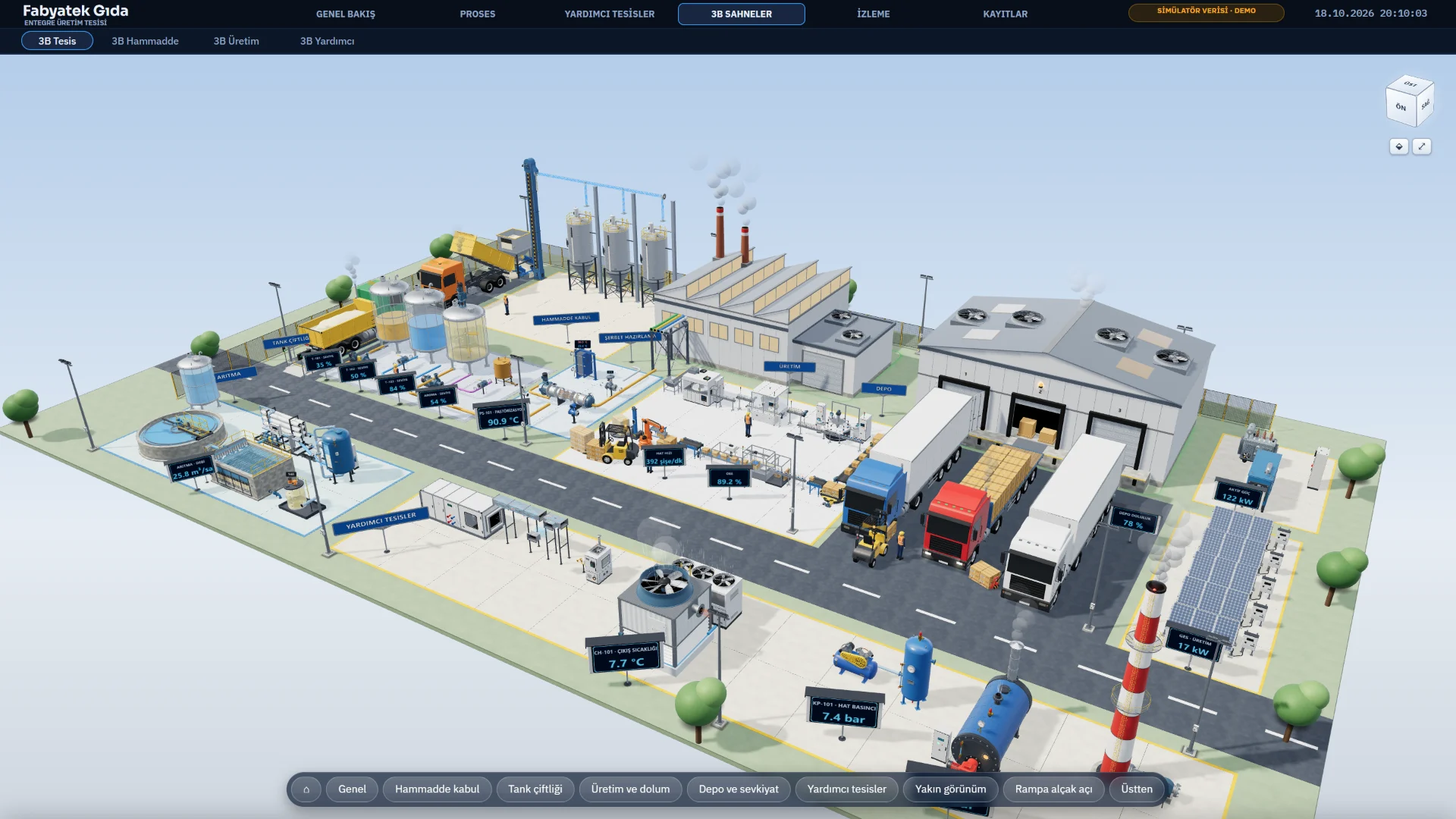
  • Day, Evening, Night and Studio lighting; shadows
  • In Live: a navigation cube and an automatic tour camera; render quality High or Fast
  • 2D objects cannot be placed on a 3D page

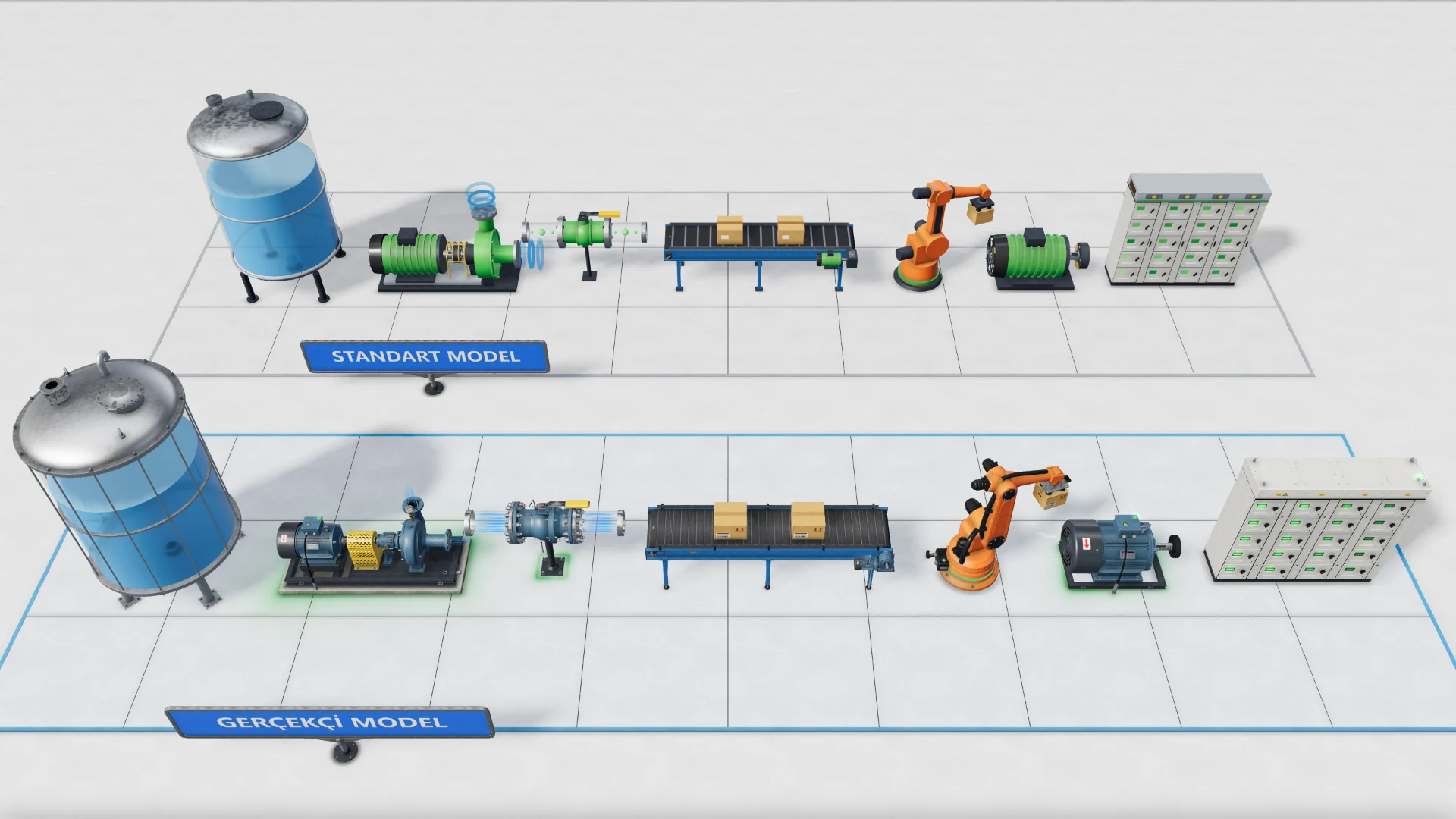
Standard and Realistic models

The Standard model is plain; the Realistic model has flanges, bolts, feet, nameplates and separate cast, paint and steel materials. The model is chosen per object, or every object on a page is converted in one step.
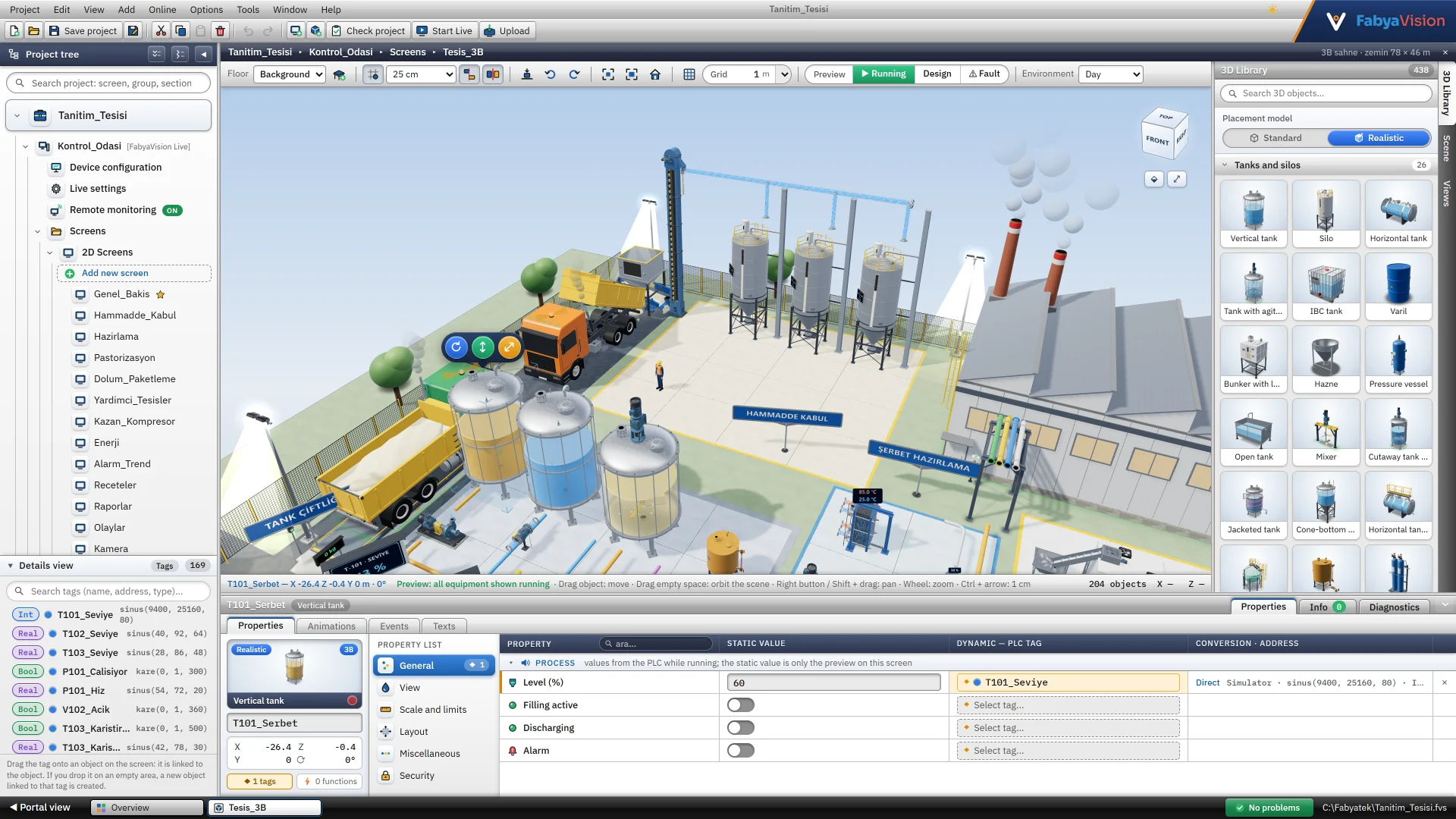
Scene editor

The ground is in metres; objects are moved, rotated, raised and scaled. Alignment guides, collision checks, multi-select, floors (platform, columns, railings) and saved views are included.
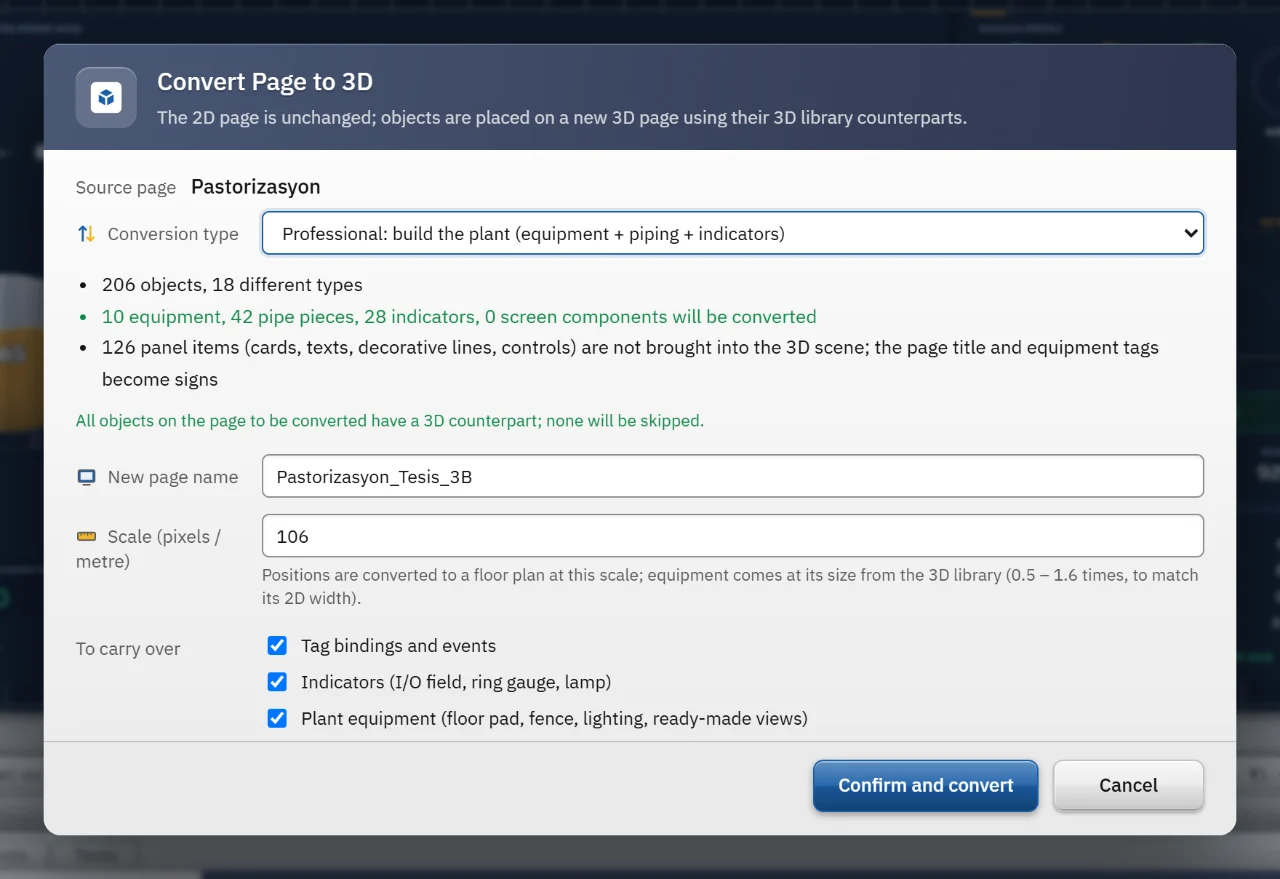
Convert page to 3D

A 2D page becomes a new 3D page. The 2D page stays unchanged, and the operation undoes in a single step.

Conversion modes

Professional mode (default)

Treats the page as a process diagram. Places equipment at real size, turns pipes into 3D pipe, elbow and tee parts, puts indicators on boards in front of their equipment, and adds ground, fence, lighting and ready-made views.

1:1 mode

Every object stays where it is on the 2D page, laid out on the ground plan.

Tag bindings and events are carried over; anything that cannot be carried is listed. The conversion is one-way and sizes are approximate; floors, heights and layers are not carried over, and the result is refined in the 3D editor. 2D interface components such as recipe and report components, menu and tool bars have no 3D counterpart and are skipped or become placeholder boxes.

Operator controls and views

Controls bind to tags; objects, pages and menus can be restricted by permission.

Where:StudioLive
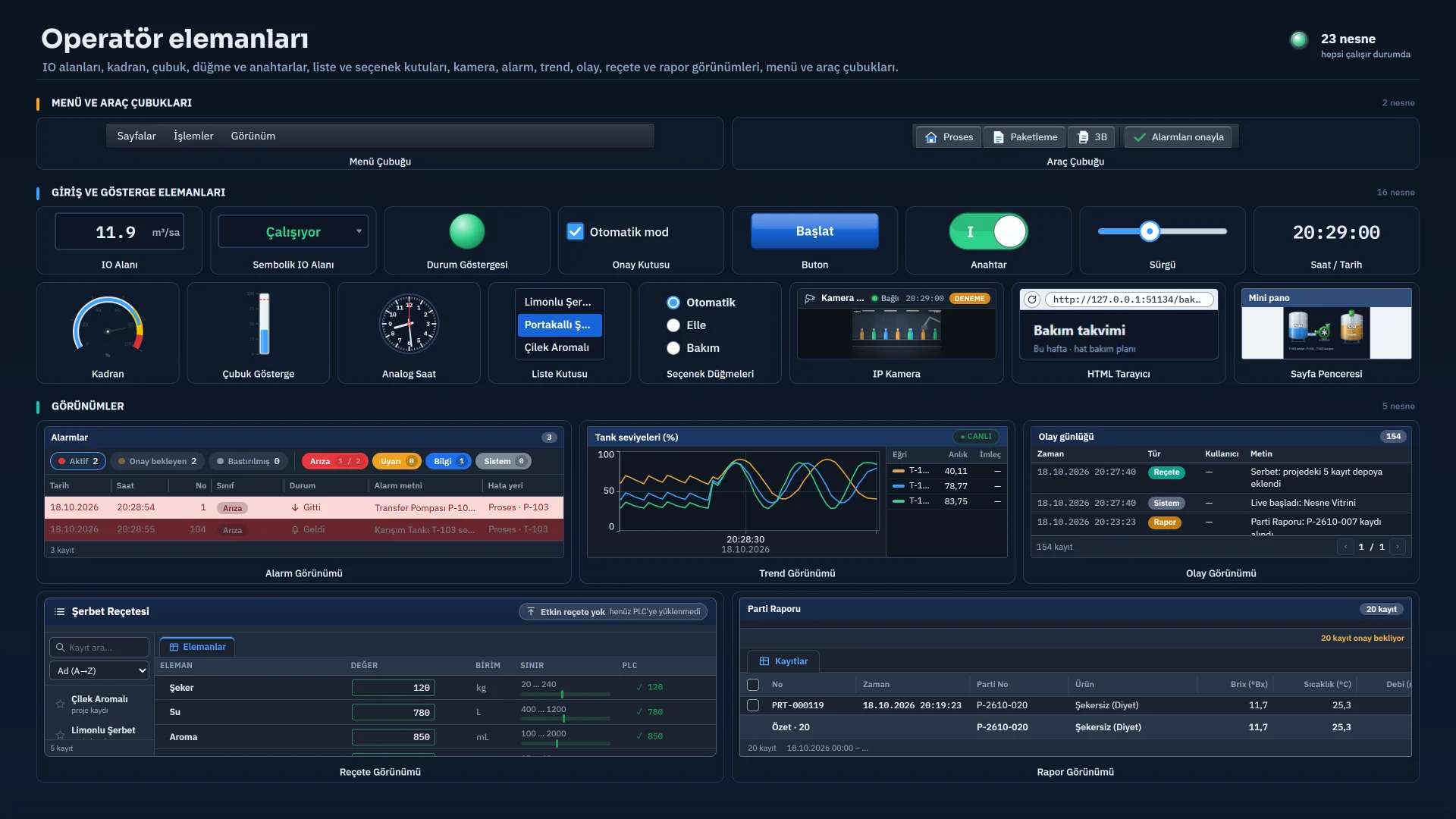
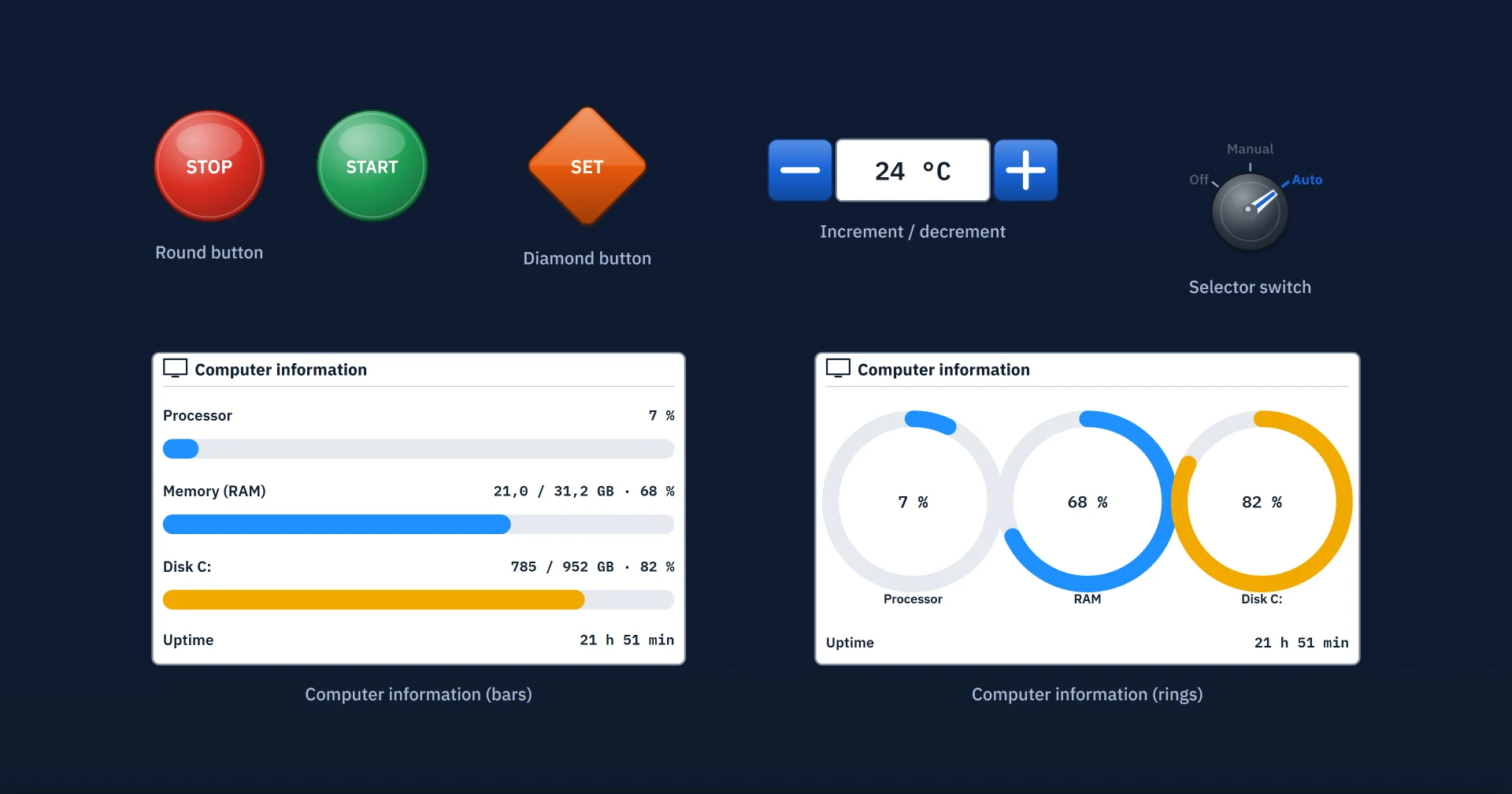
20 controls

  • I/O field
  • Symbolic I/O field
  • Status indicator
  • Check box
  • Button
  • Switch
  • Bar display
  • Gauge
  • Slider
  • Clock / date
  • List box
  • Option buttons
  • Analog clock
  • HTML browser
  • Round button
  • Rhombus button
  • PDF viewer
  • Computer info
  • Increase / decrease
  • Selector switch

11 views

  • Trend view
  • Alarm view
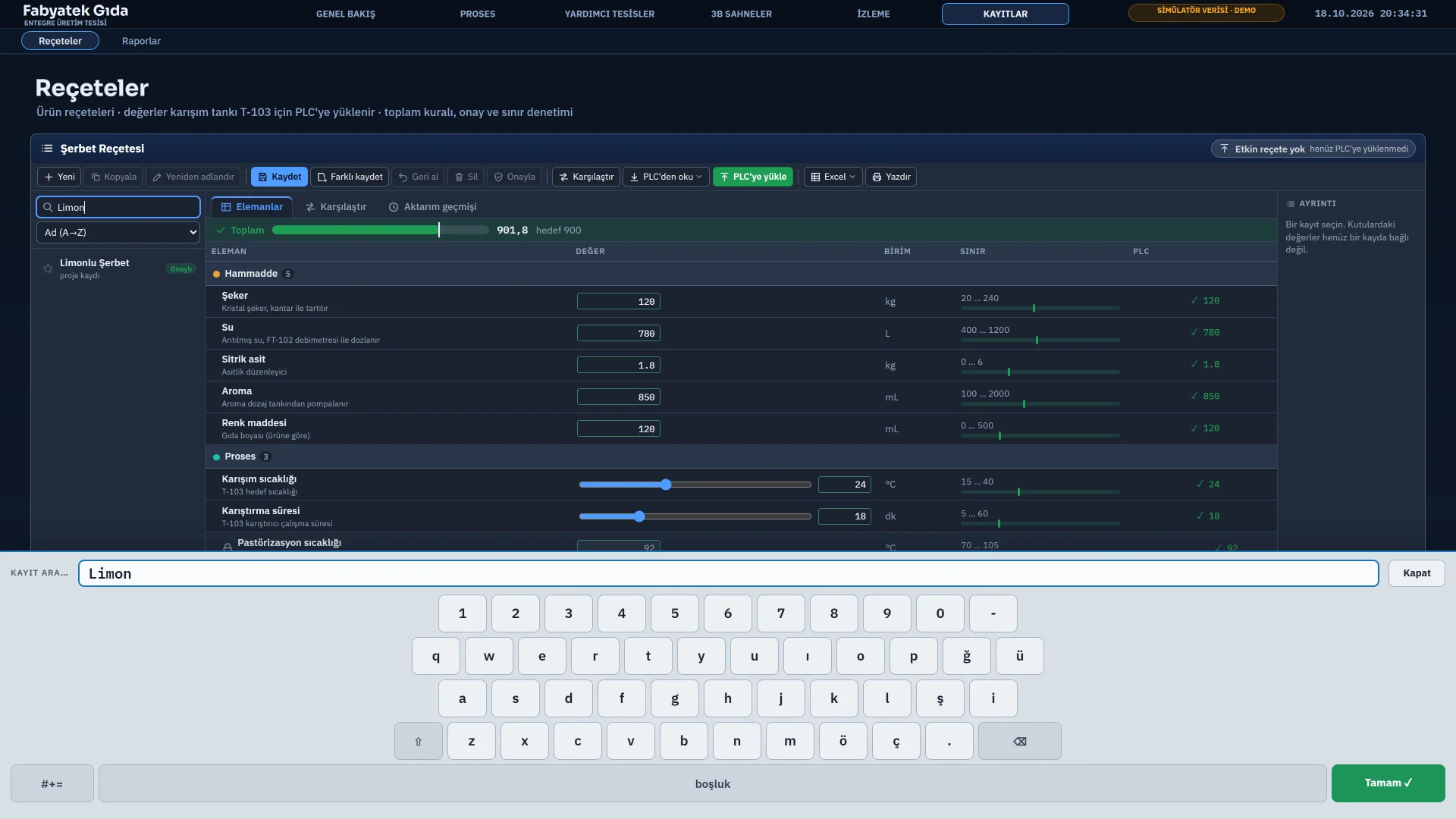
  • Recipe view
  • Report view
  • Event view
  • IP camera
  • Menu bar
  • Toolbar
  • Page window
  • PLC connection status
  • User view
  • On-screen keyboard: Turkish Q layout and a numeric keypad, in the local Live window only; the page slides up if a field would sit behind the keyboard
  • The PDF viewer opens files from a folder defined in the project
  • Computer info shows CPU, RAM and disk; temperature cannot be read on most industrial PCs

Dynamics and events

Colour, text, visibility, position, size, angle and every other property of an object can follow a tag without a script.

Where:StudioLive
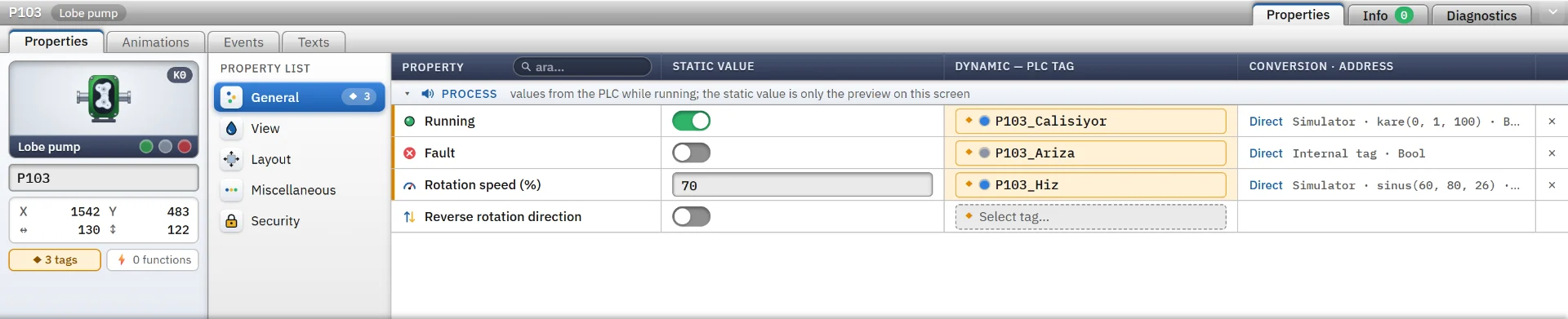
  • Conversion is direct (bit select, invert, scaling) or through a range table
  • Common to every object: visibility, blinking, opacity, position, size and angle
  • 13 event types (on load, click, double-click, press and release, cursor, key, object change…) and more than 30 ready-made event functions
  • Event functions write bits and values, scale, open pages and windows, and run scripts
  • The same logic applies to 3D objects; 3D has no focus, key, double-click or cursor events
  • On view objects such as trend, alarm, recipe, report, camera and page window, Live applies only visibility, position and size bindings

A pump’s running, fault and speed values bind to PLC tags.
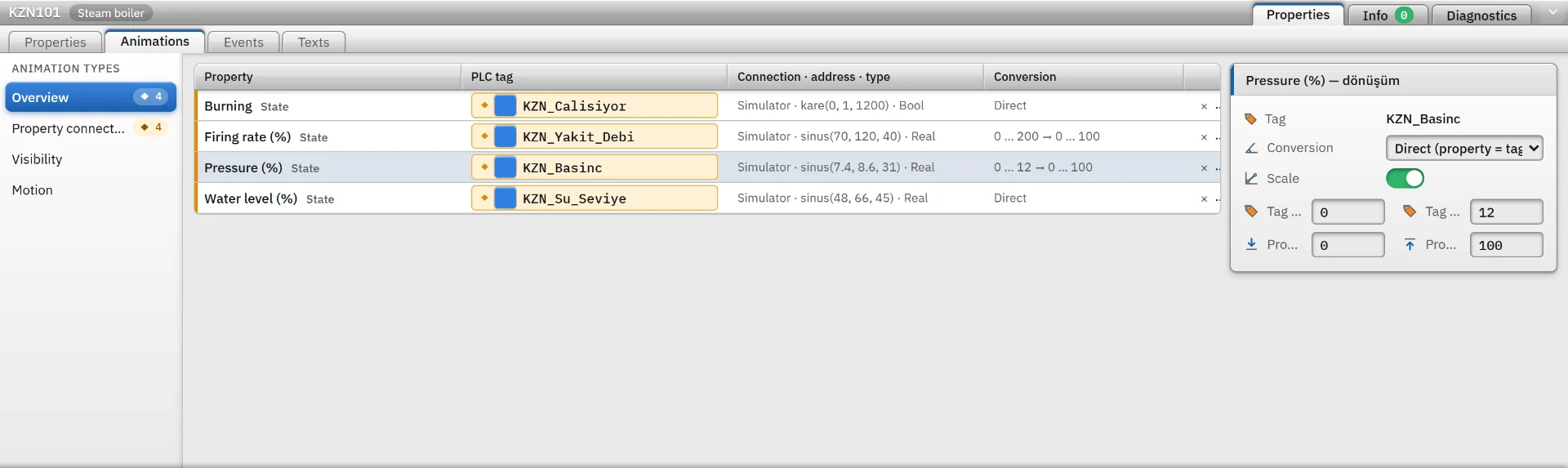
A hopper’s level binds to a tag; the raw value is scaled to the real range.
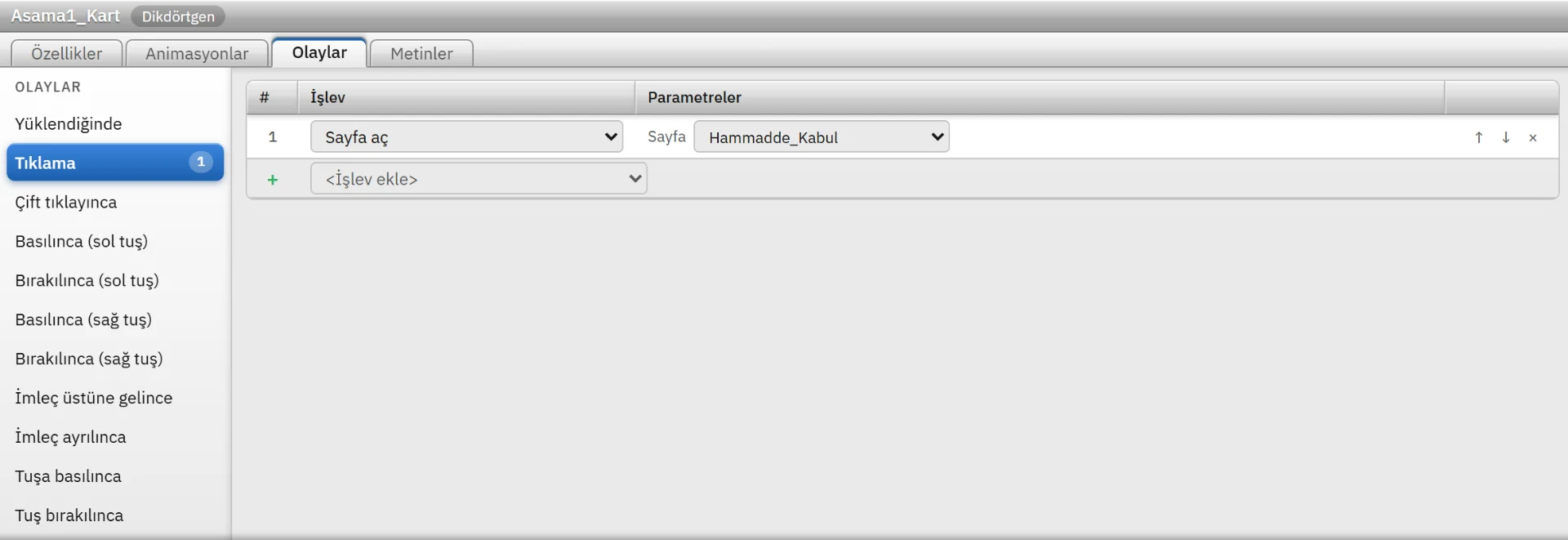
Clicking the card opens a page; functions attached to the event run in order.

Tags and data

A tag is a value read from a PLC or kept inside the project. Scaling, limits, quality and a fallback value are defined on the tag, so pages, alarms and reports use the same definition.

Where:StudioLive
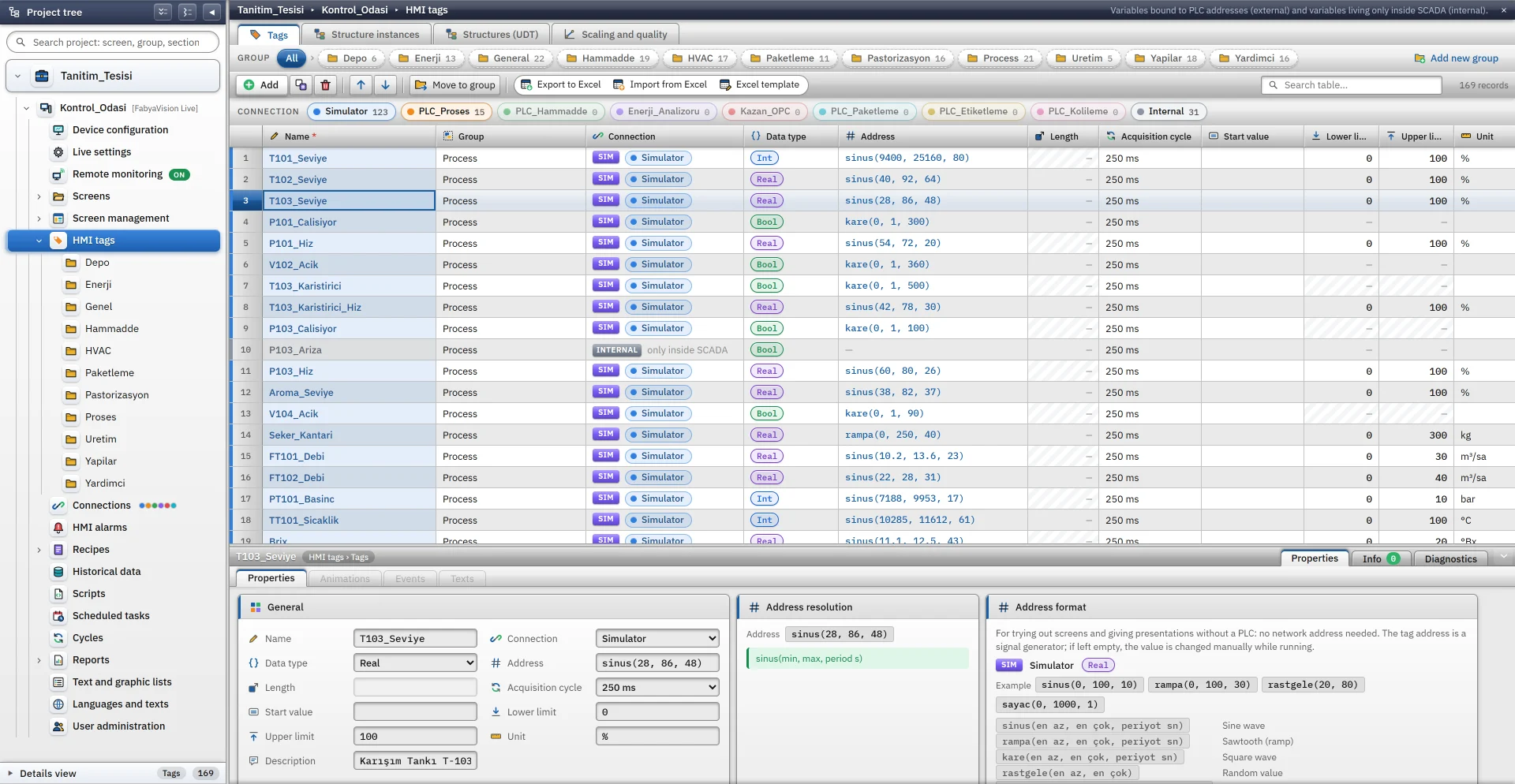
  • Types: Bool, Byte, SInt, Int, UInt, DInt, UDInt, Real, LReal, String, WString, DateTime (each driver narrows them to what it supports)
  • A scan cycle is a named time record; tags, archives, tasks and pages share the same cycle

Tag table

External (connected) and internal tags with data type, address, scan cycle, low and high limits and unit. Operators cannot write outside the limits.
Scaling and quality

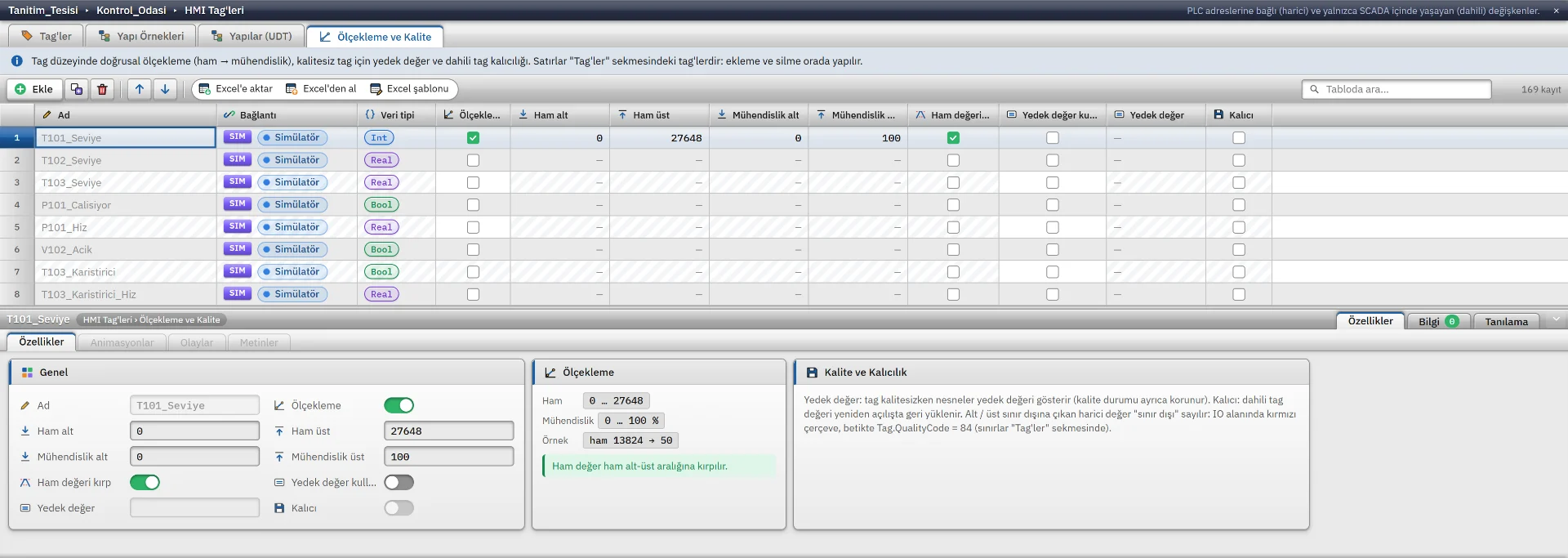
A raw PLC value (e.g. 0–27648) is scaled linearly to engineering units, with clipping and reverse-direction writes. Quality and a fallback value are defined in the same place; an object bound to a bad-quality tag is drawn faded and grey.
Structures (UDT)

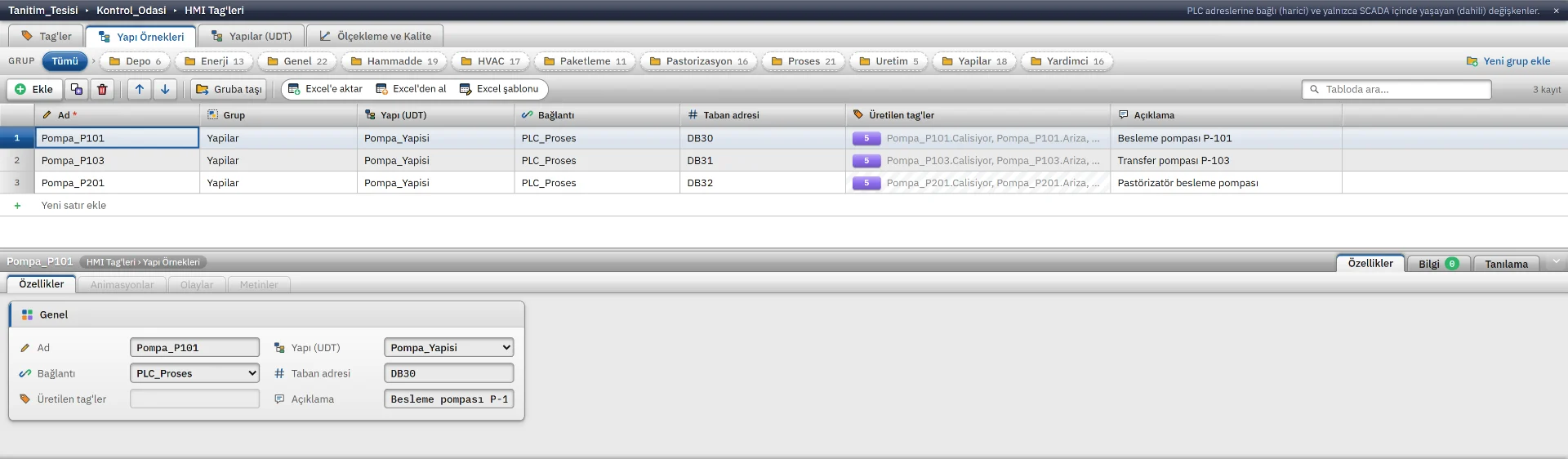
A structure is defined once; tags and PLC addresses (DB30, DB31, DB32…) are generated for every instance.

Also

  • Persistent internal tags (written on exit, read on start)
  • Tag groups and folders
  • Initial values
  • Excel (.xlsx) import and export
  • CSV for tags
  • Connection status tag

Alarm system

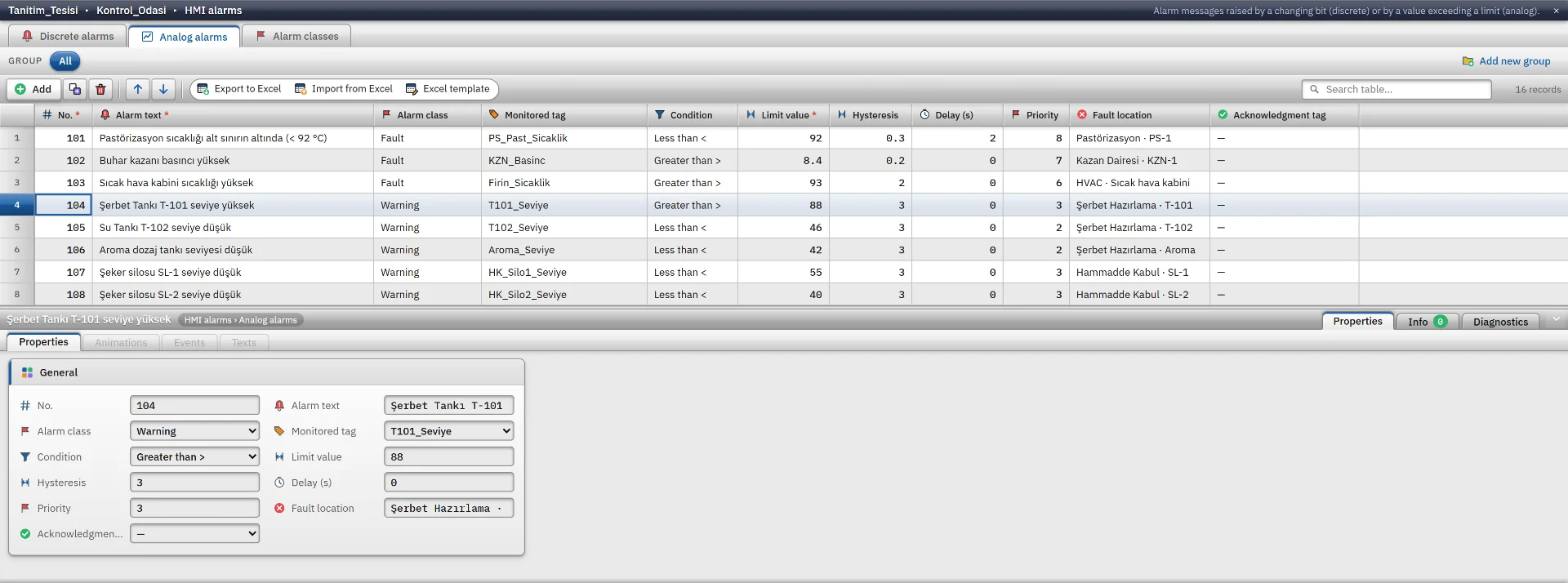
Digital and analog alarms are defined, grouped into classes and tied to operator acknowledgement. History goes into monthly log files.

Where:StudioLive
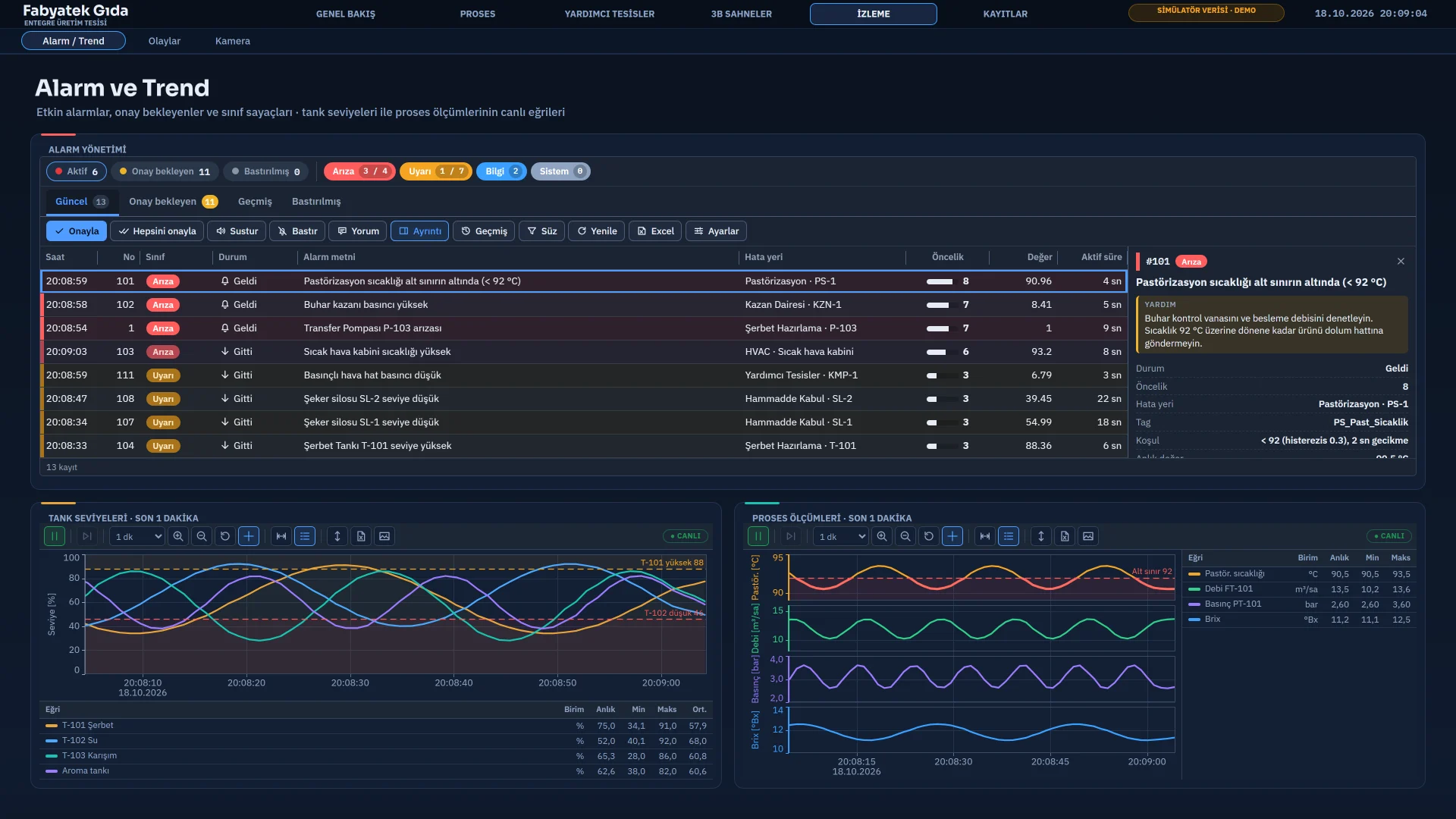
  • Digital (bit or value) and analog alarms: comparison operator, hysteresis and delay (up to 3600 s)
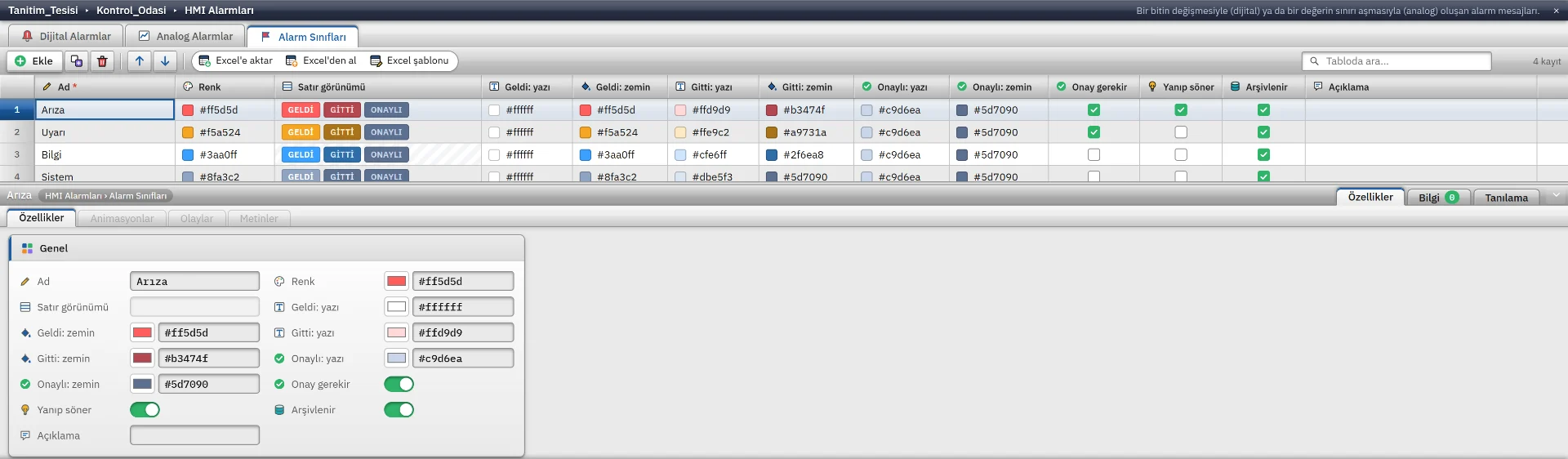
  • Alarm classes: came, went and acknowledged colours, mandatory acknowledgement, blinking, archiving
  • Priority (0–16) and states: Came, Went, Acknowledged, Suppressed
  • Operator acknowledgement, suppression and comments; the acknowledge tag writes 1 to the PLC; audible alert (siren or beep)
  • Alarm line and Alarm view: a list in class colours and details of the selected alarm
  • When Live restarts, the current alarm state is reset; log files are not deleted automatically

Trends and history

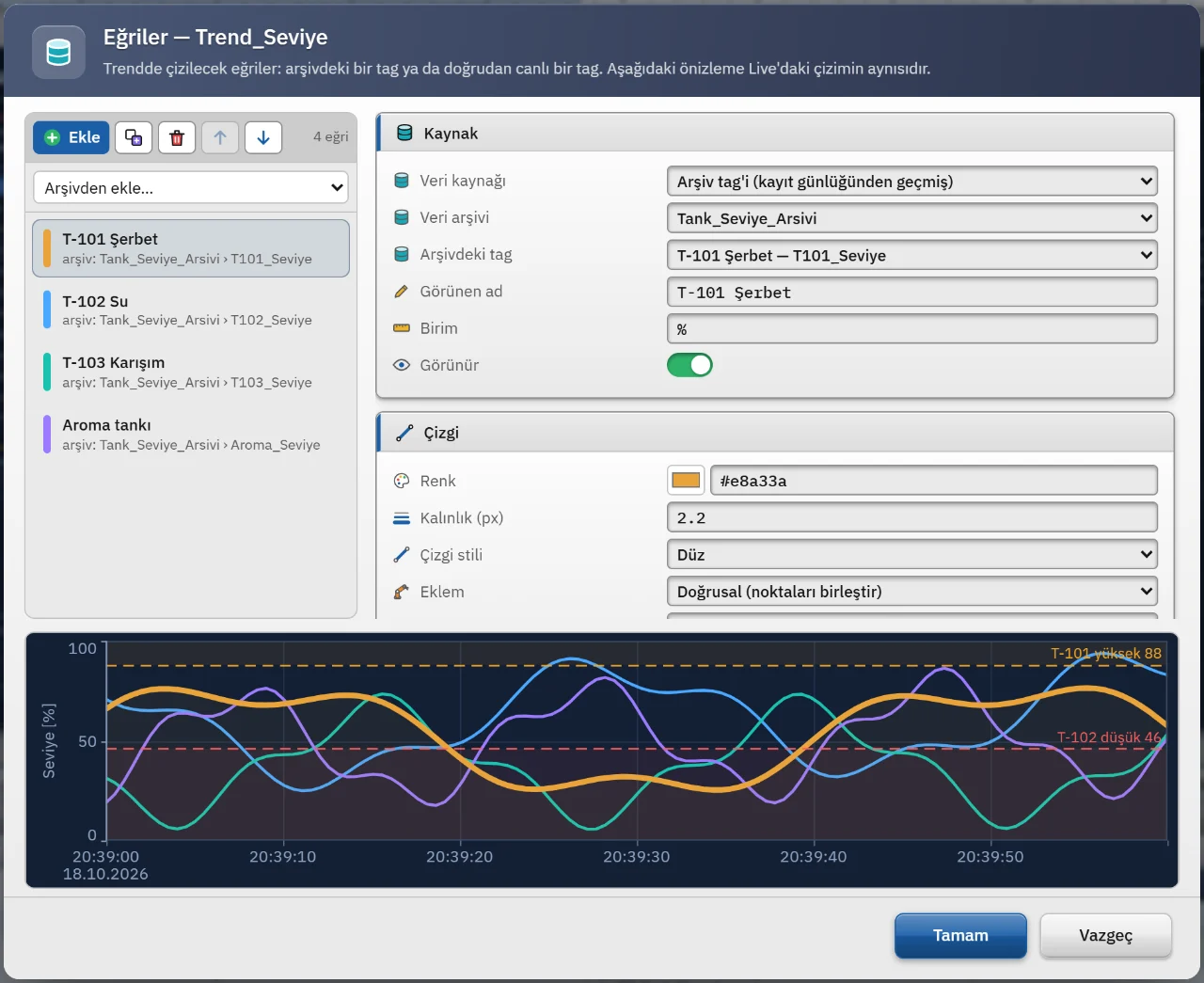
Archives record the tags you choose. The Trend view draws curves from an archive or straight from a live tag, and you can scroll from the live stream back into history.

Where:StudioLive
  • Recording method: cyclic, on change (with dead band) or by trigger tag
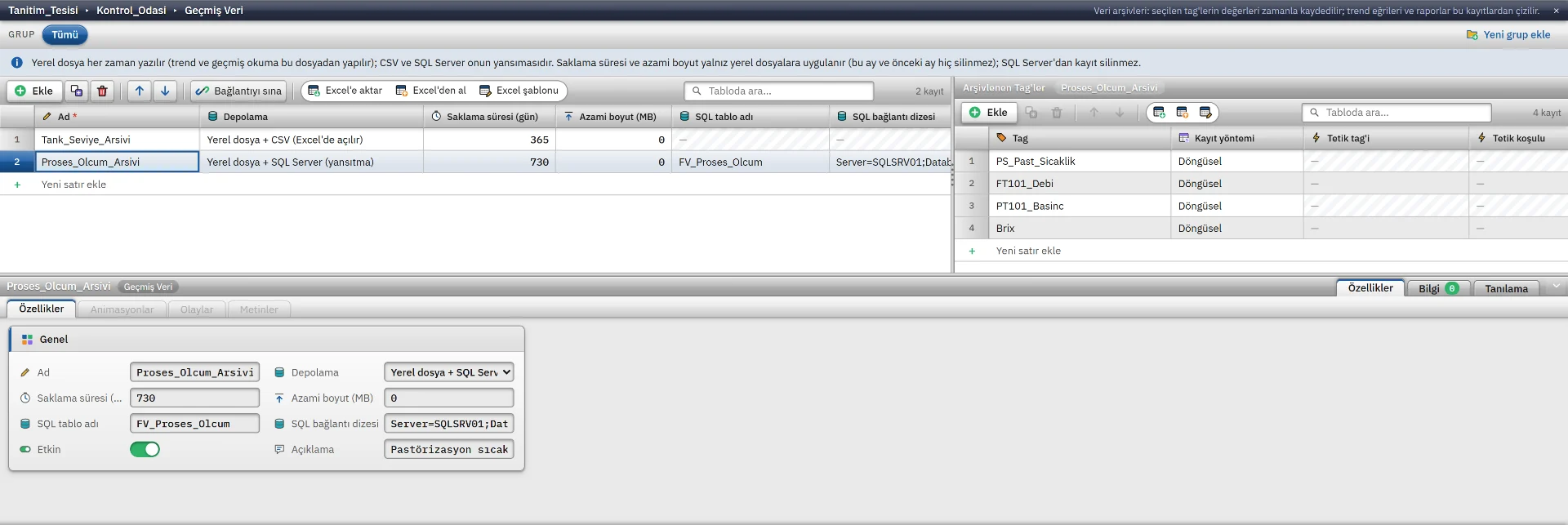
  • Storage: a local monthly file is always written; CSV and SQL Server mirroring are optional (the table is created automatically)
  • If the SQL Server connection drops, records are buffered on disk (up to 200 MB)
  • Retention and maximum size: old records are cleaned up automatically, with at least 31 days kept
  • Trend: many curves, multiple Y axes (left, right, log, inverted), limit lines, linear, step and smooth joins
  • There is no ODBC archive target; ODBC is only for queries from scripts

Recipes and reports

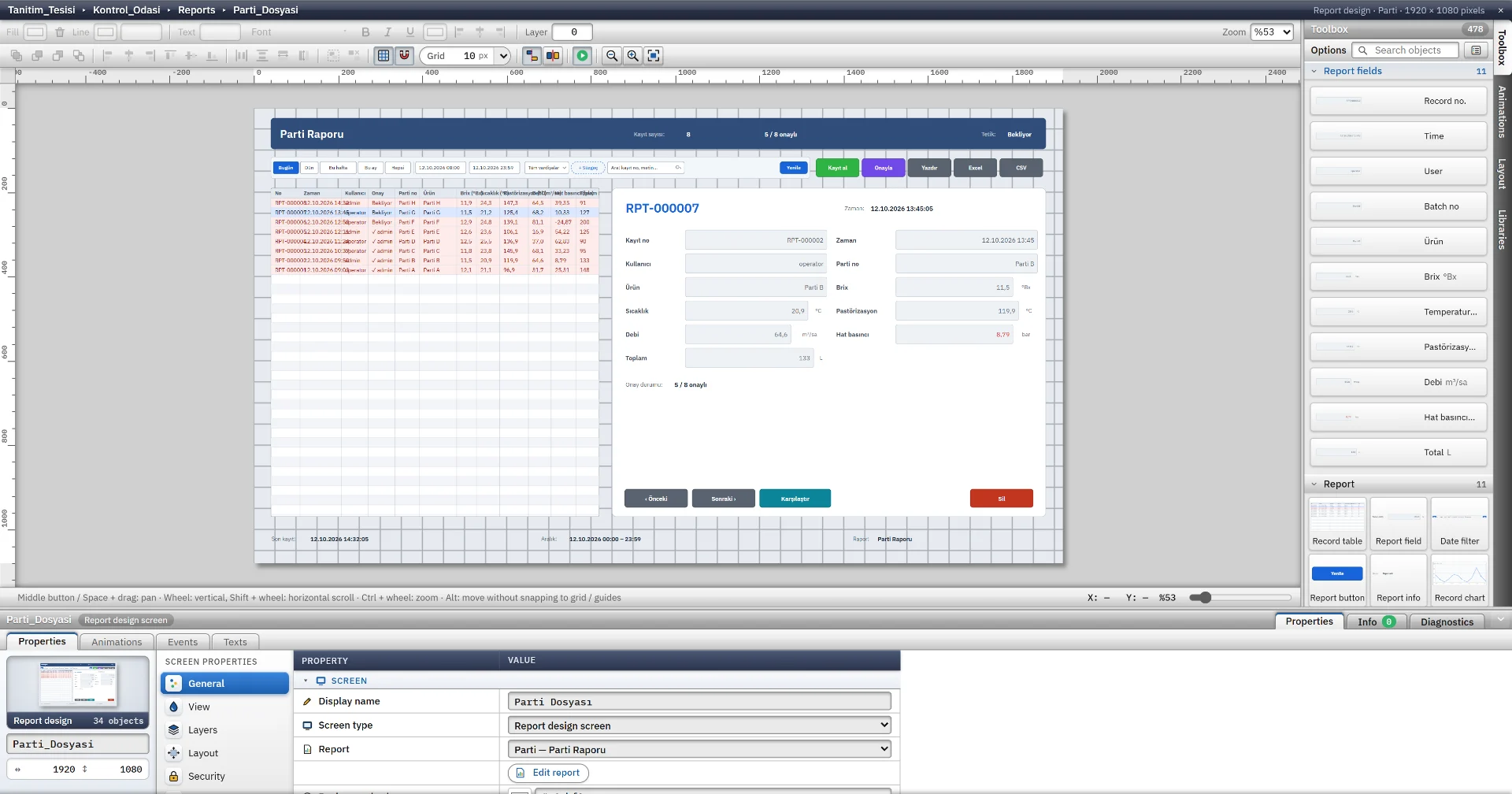
A recipe sends product-specific values to the PLC; a report records the production result. Both share tags, the permission system and Excel.

Where:StudioLive
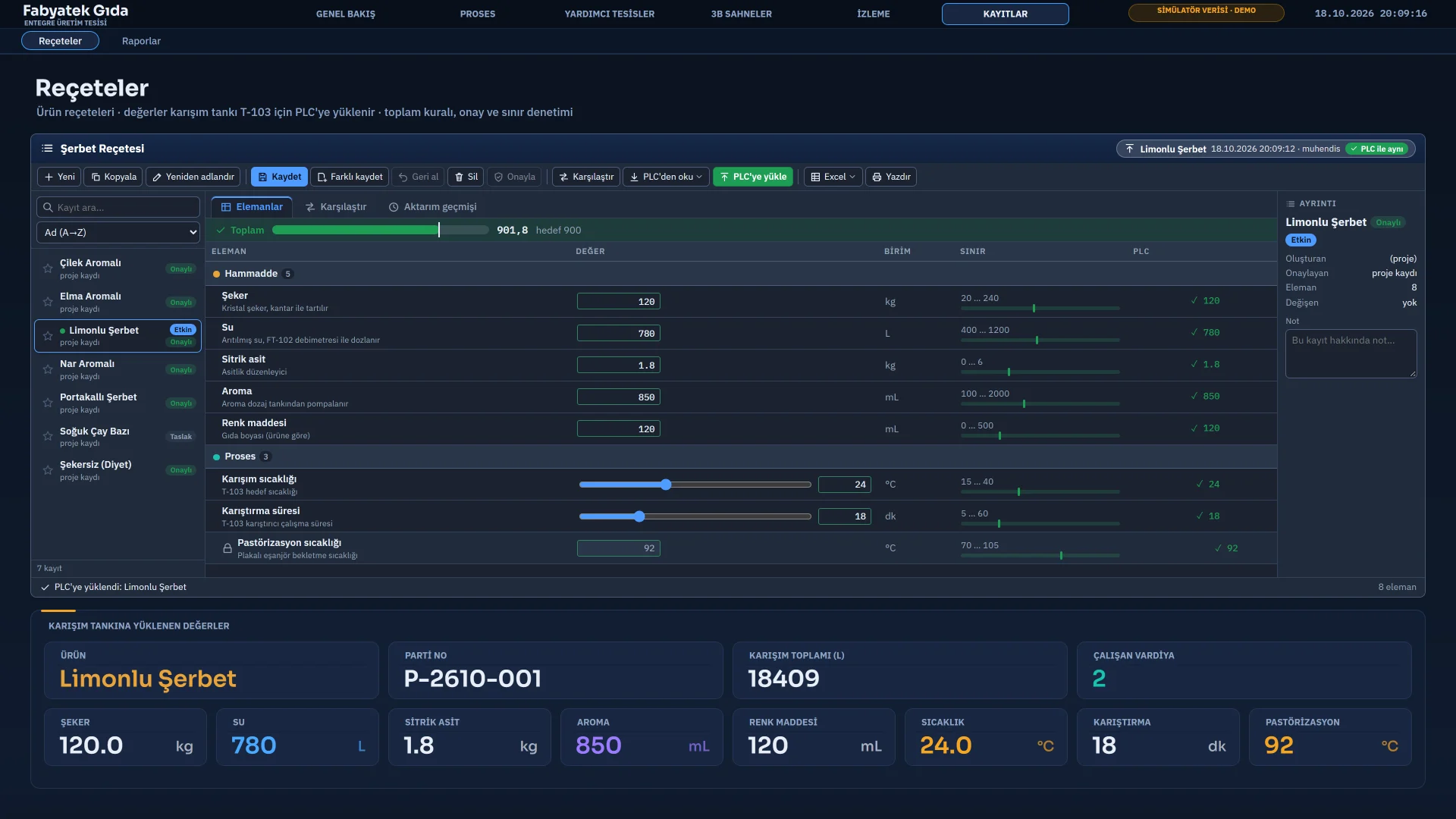
Recipes

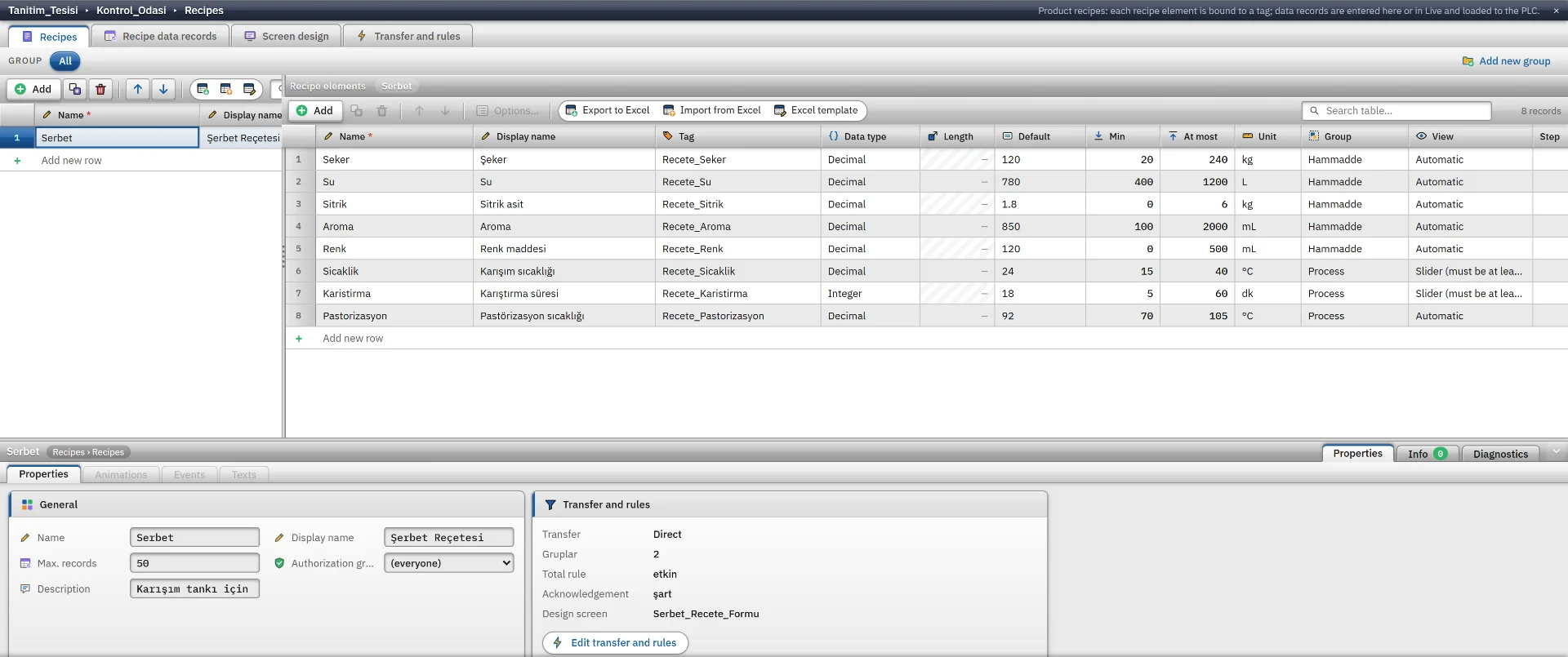
  • Item definition: tag binding, type, low and high limits, tolerance, unit, group; shown as a box, slider, switch or list
  • Records are Approved or Draft; approval rule, total rule and permission group can be set
  • Download to the PLC is direct or handshaked, with read-back and optional before and after scripts
  • Import and export with Excel

Reports

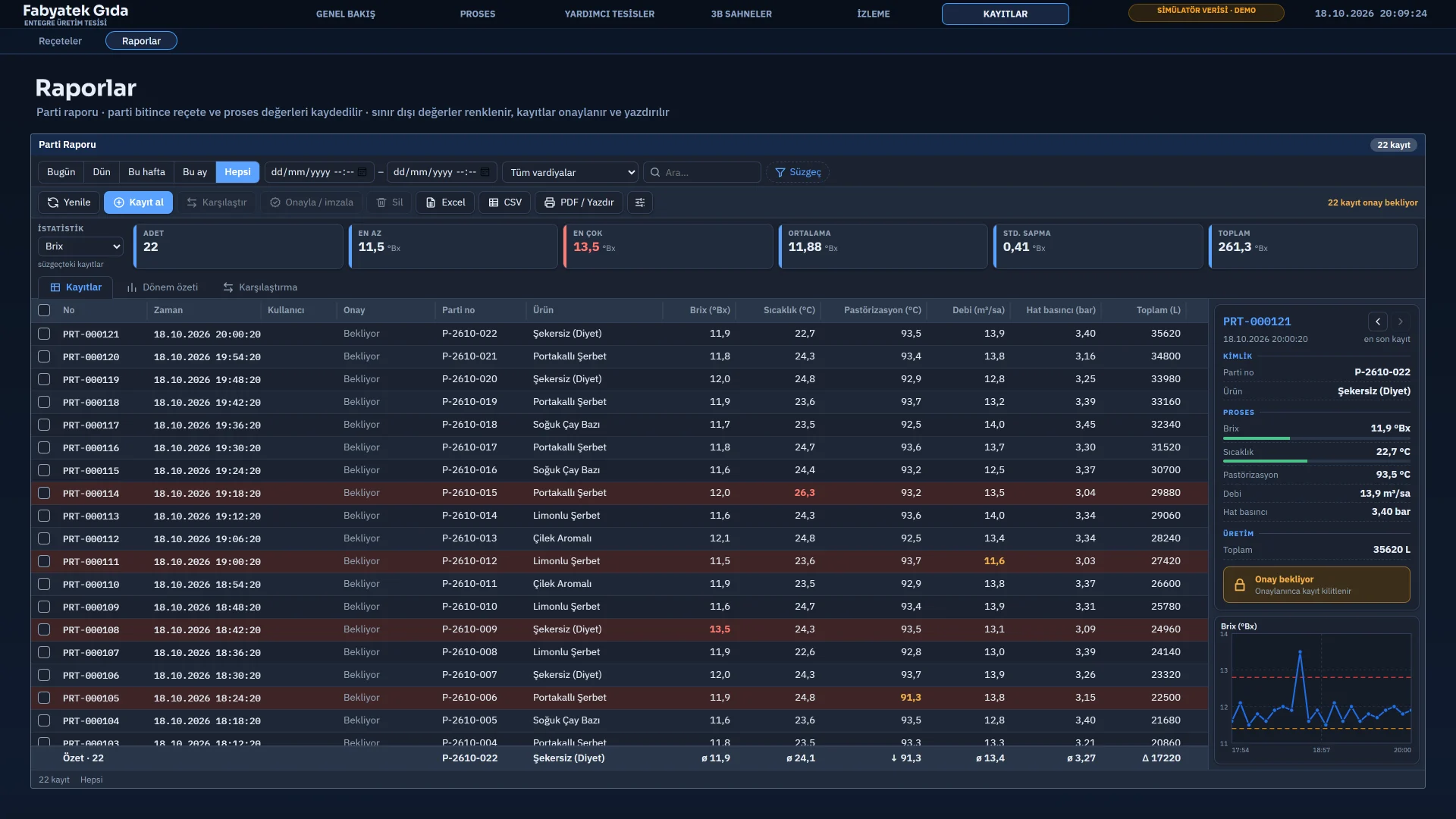
  • A report page takes a table, filters, a chart and a signature block by drag and drop
  • Trigger: rising or falling edge, on change, when equal; or manual recording
  • Period summary (day, shift, week, month, batch), approval and signature, filters, comparison
  • Output: Excel (.xlsx), CSV and PDF / print (with print preview)
  • Records are append-only and cannot be edited afterwards
  • There is no time-of-day trigger; use a scheduled task

Tasks and permissions

Where:StudioLive

Scheduled tasks

10 trigger types: cyclic, daily at a set time, days of the week, day of the month (with a last-day option), day of the year, one-off, tag change, tag condition, Live start and Live shutdown.
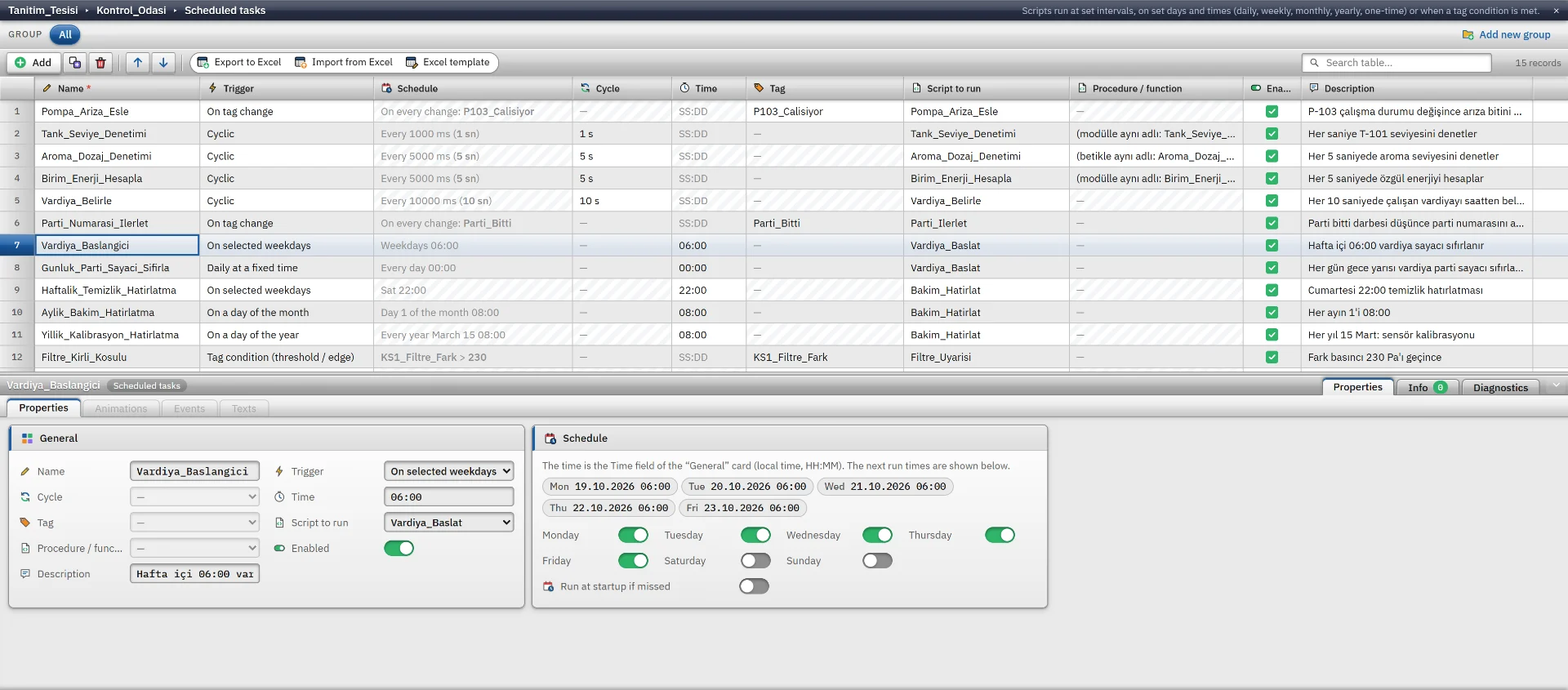
  • A task runs a script in the project; on a tag-change task the tag’s new value reaches the script as a parameter
  • A weekly task previews its next five run times
  • A task missed while Live was off can run at startup

Users, permissions, action log

Users, groups and numbered permissions are defined; objects, pages and menus can be restricted by permission.
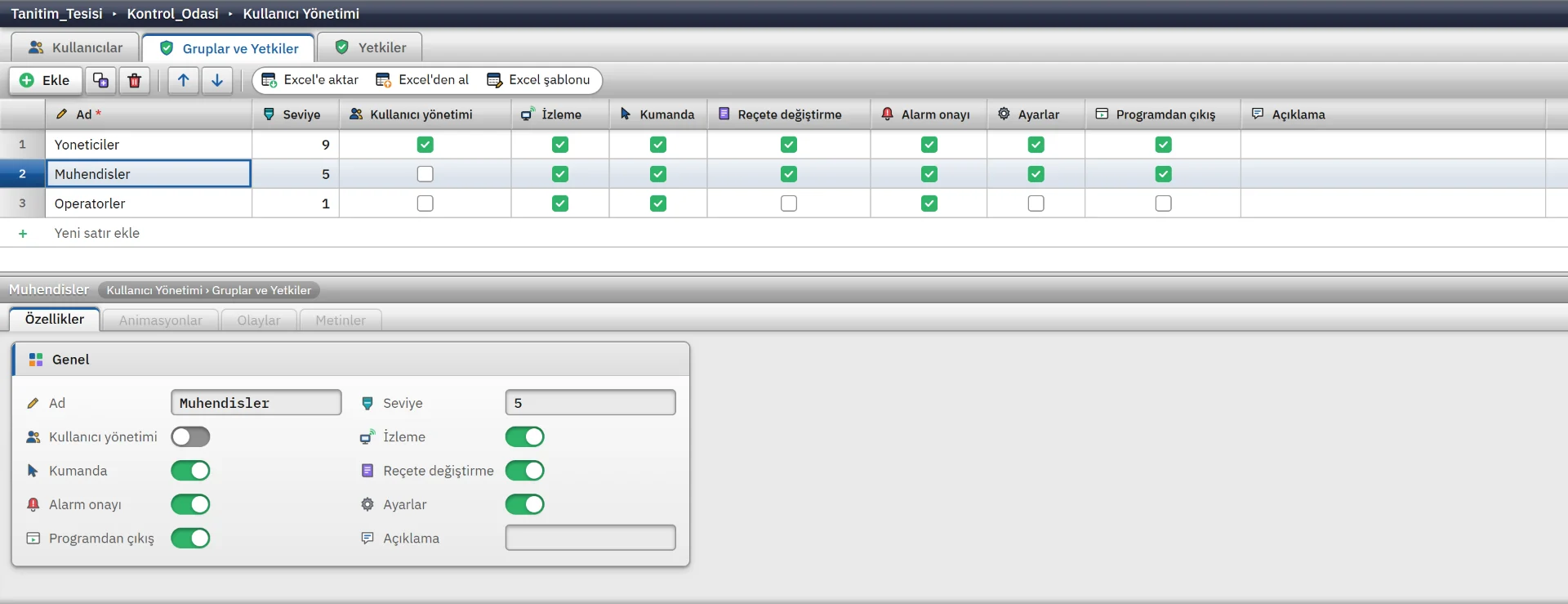
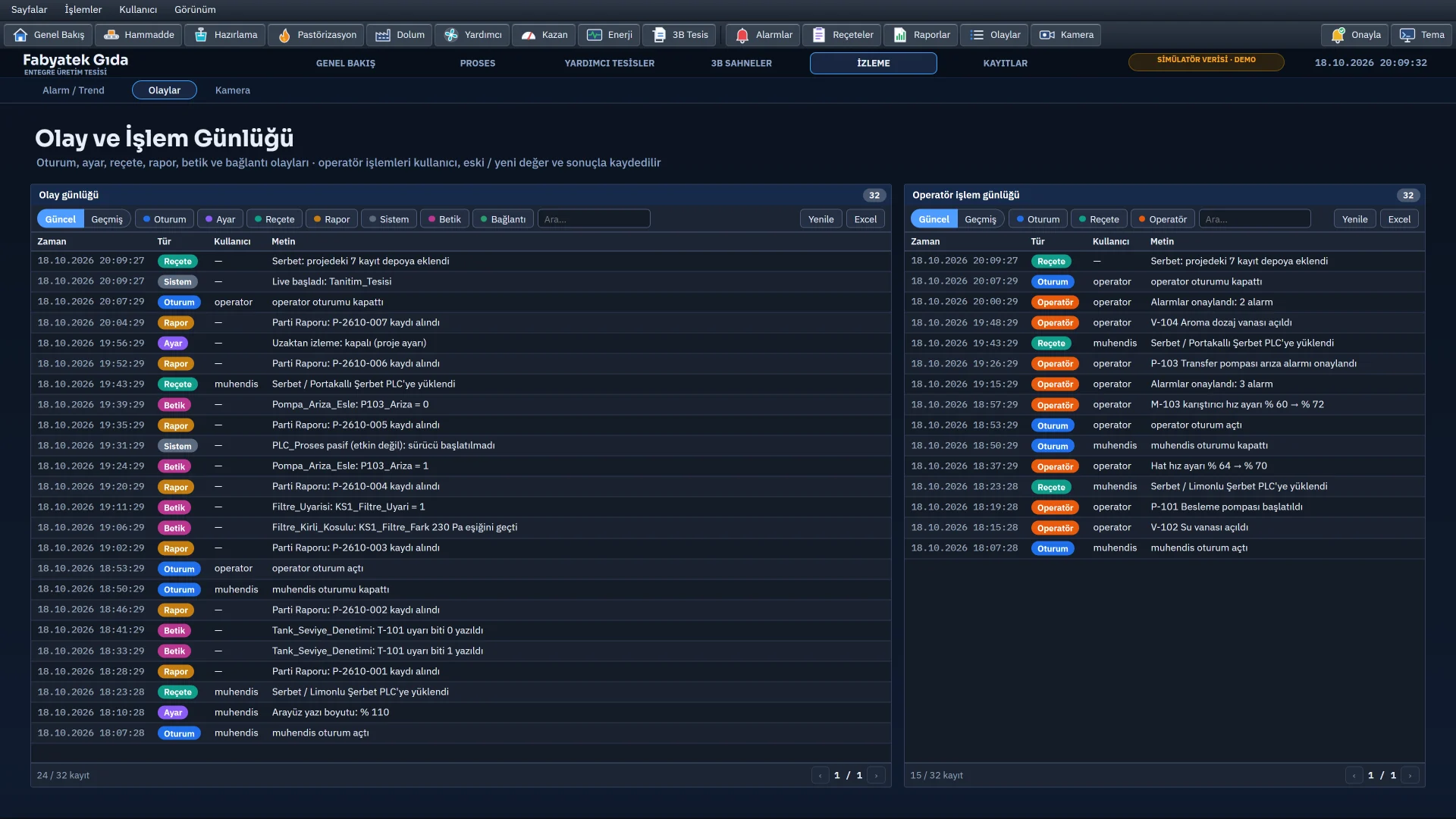
  • The action log is on by default: who, when, which tag, old and new value, result; follow it on screen with the Event view
  • Passwords are stored as salted SHA-256 hashes; session timeout and permission to exit are configurable
  • There is no central directory (AD / LDAP) integration; users are defined in the project

Scripting languages

4 languages, 120+ ready examples: VBScript, JavaScript, C and Python bind to the same tags, events and tasks. The product’s own engines run VBScript, C and Python, so Windows Script Host, a C compiler or CPython are not needed.

Where:StudioLive

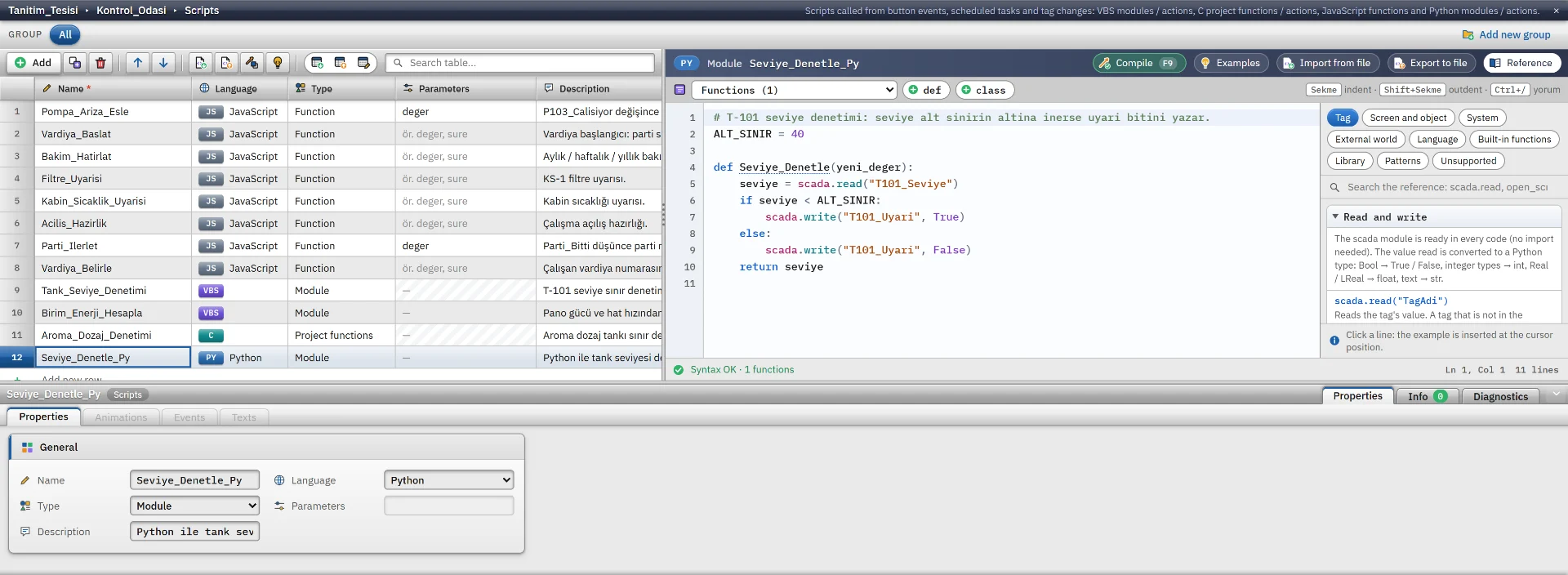
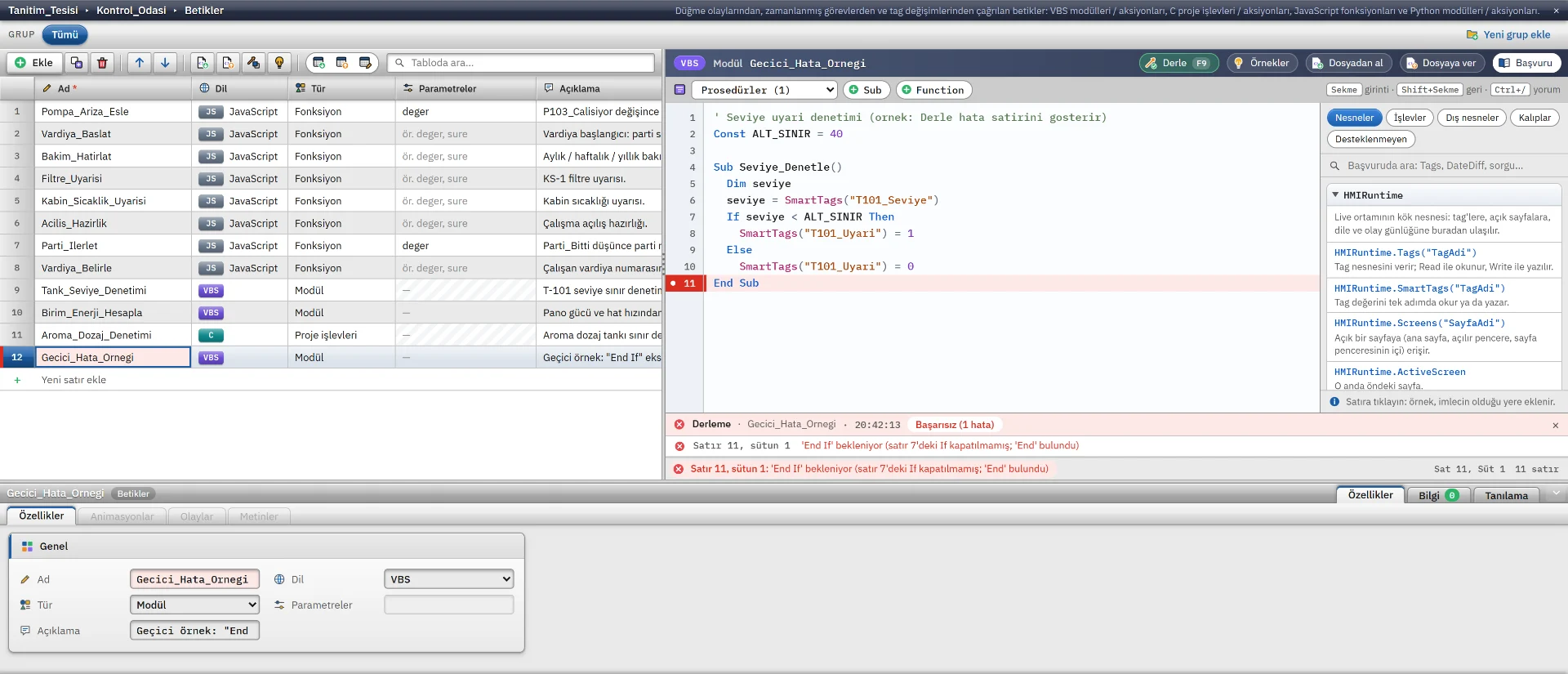
  • Compile (F9): syntax and project-aware rules (a missing tag, a call whose permission is off) are listed with line numbers
  • Editor: syntax colouring, line numbers, live syntax checking; a reference panel for VBScript, C and Python
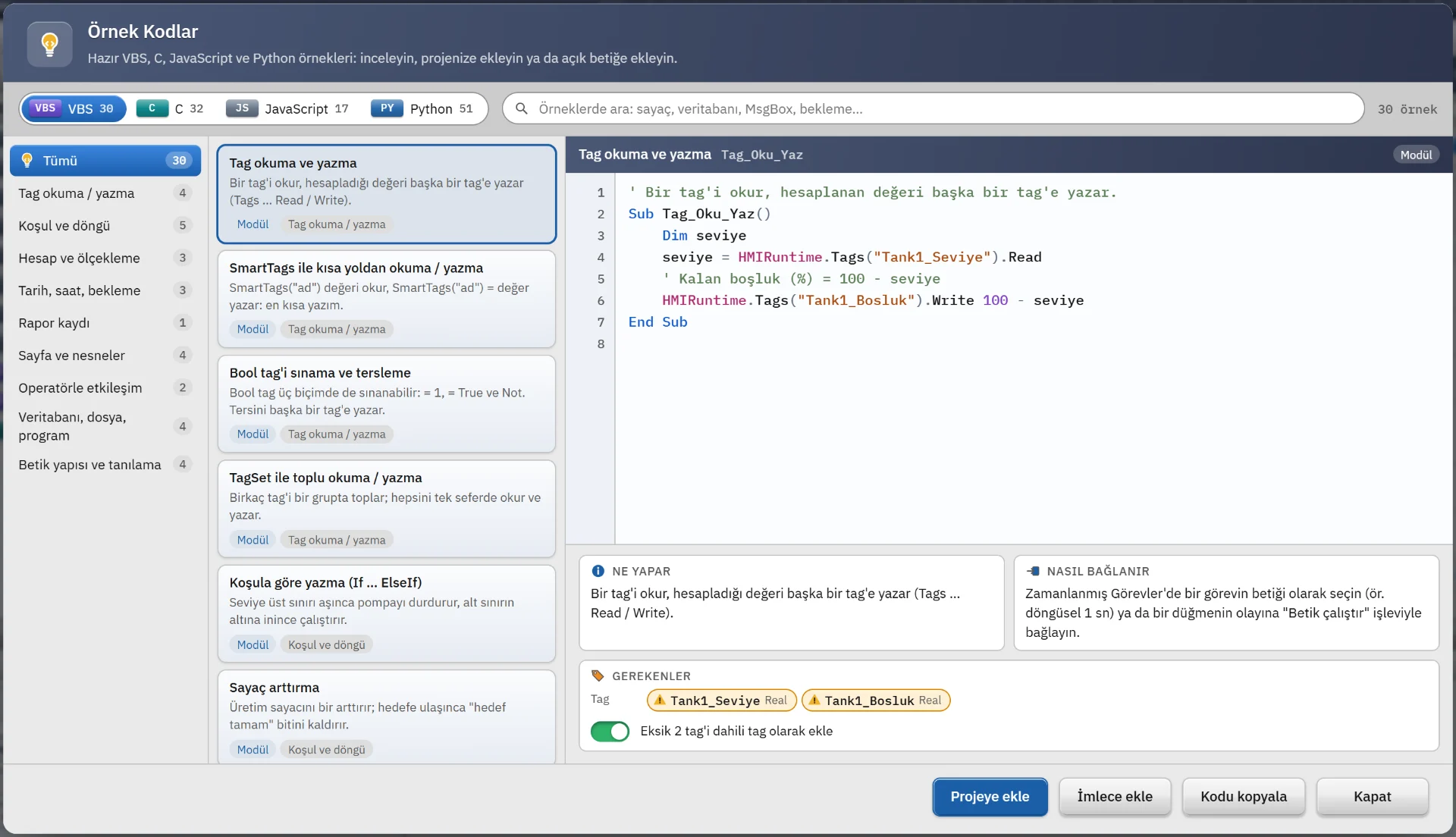
  • Example gallery: an example is added to the project or pasted at the cursor
  • Permissions to connect to databases, run programs and access files are off by default
  • JavaScript runs in WebView2’s own environment and provides only the Tag, Sayfa, Bildir and Kullanici objects; for databases, files and object properties use VBScript, C or Python
  • There are no breakpoints or single-stepping

The same job, in four languages

Tag_Oku_Yaz.vbs
' Reads a tag and writes the calculated value to another tag.
Sub Tag_Oku_Yaz()
    Dim seviye
    seviye = HMIRuntime.Tags("Tank1_Seviye").Read
    ' Remaining headroom (%) = 100 - level
    HMIRuntime.Tags("Tank1_Bosluk").Write 100 - seviye
End Sub
Js_Tag_Oku_Yaz.js
// Reads a tag and writes the calculated value to another tag.
var seviye = Tag.oku('Tank1_Seviye');
// Remaining headroom (%) = 100 - level
Tag.yaz('Tank1_Bosluk', 100 - seviye);
C_Tag_Oku_Yaz.c
#include "apdefap.h"

// Reads a tag and writes the calculated value to another tag.
void C_Tag_Oku_Yaz(void)
{
    float seviye;

    seviye = GetTagFloat("Tank1_Seviye");
    // Remaining headroom (%) = 100 - level
    SetTagFloat("Tank1_Bosluk", 100.0f - seviye);
}
Py_Tag_Oku_Yaz.py
# Reads a tag and writes the calculated value to another tag.
def Py_Tag_Oku_Yaz():
    seviye = scada.read("Tank1_Seviye")
    # Remaining headroom (%) = 100 - level
    scada.write("Tank1_Bosluk", 100 - seviye)
Example gallery
Compile errors
A Python script

Multiple languages

The programs’ interface comes in 6 languages. Project texts can be translated into any number of languages and switch with a language button in Live.

Where:StudioLiveConvert
  • Türkçe
  • English
  • Español
  • Deutsch
  • Italiano
  • Français
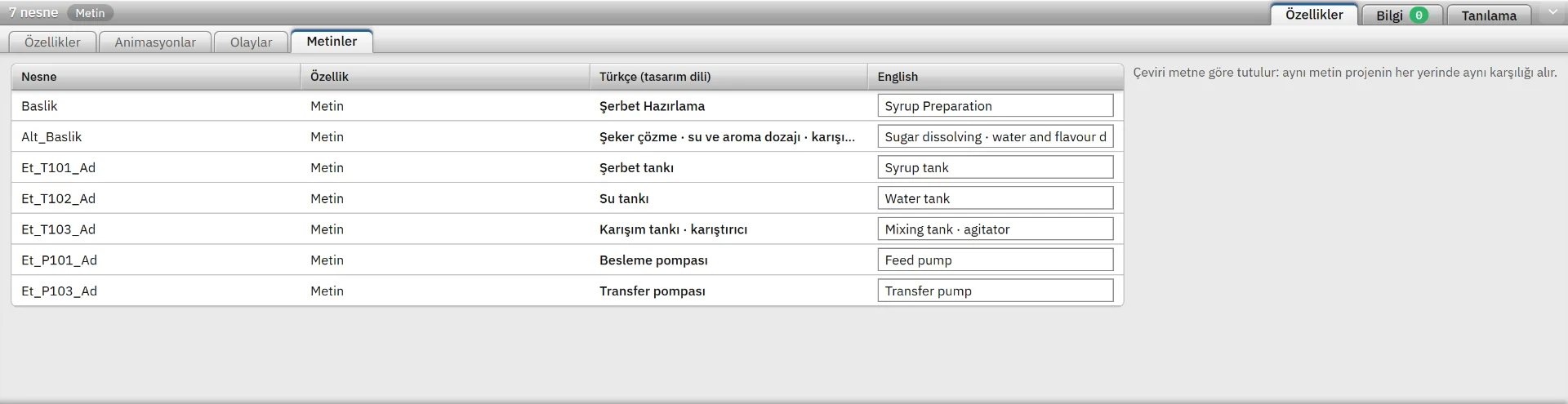
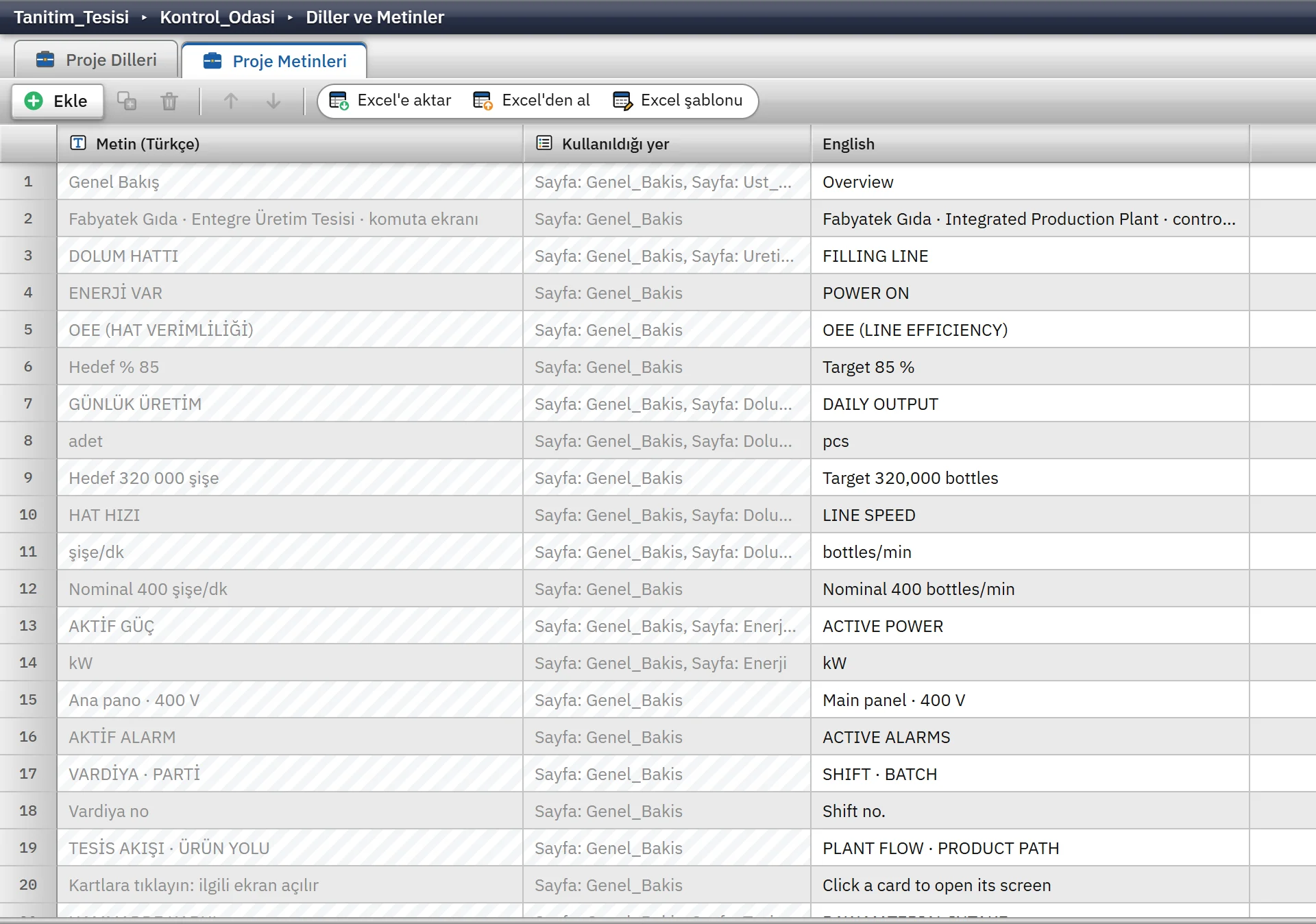
  • Project texts are collected automatically in one table; translate them in Excel and bring them back
  • A font can be chosen per language
  • The offline manual comes in the same six languages: 100+ topics, with screenshots
  • Project data such as page and tag names is not translated

Monitoring, TV and camera

A web server on the Live computer opens the same project to browsers and TVs on your network. Browser monitoring is read-only: no writes, no alarm acknowledgement, no setting changes.

Where:Live
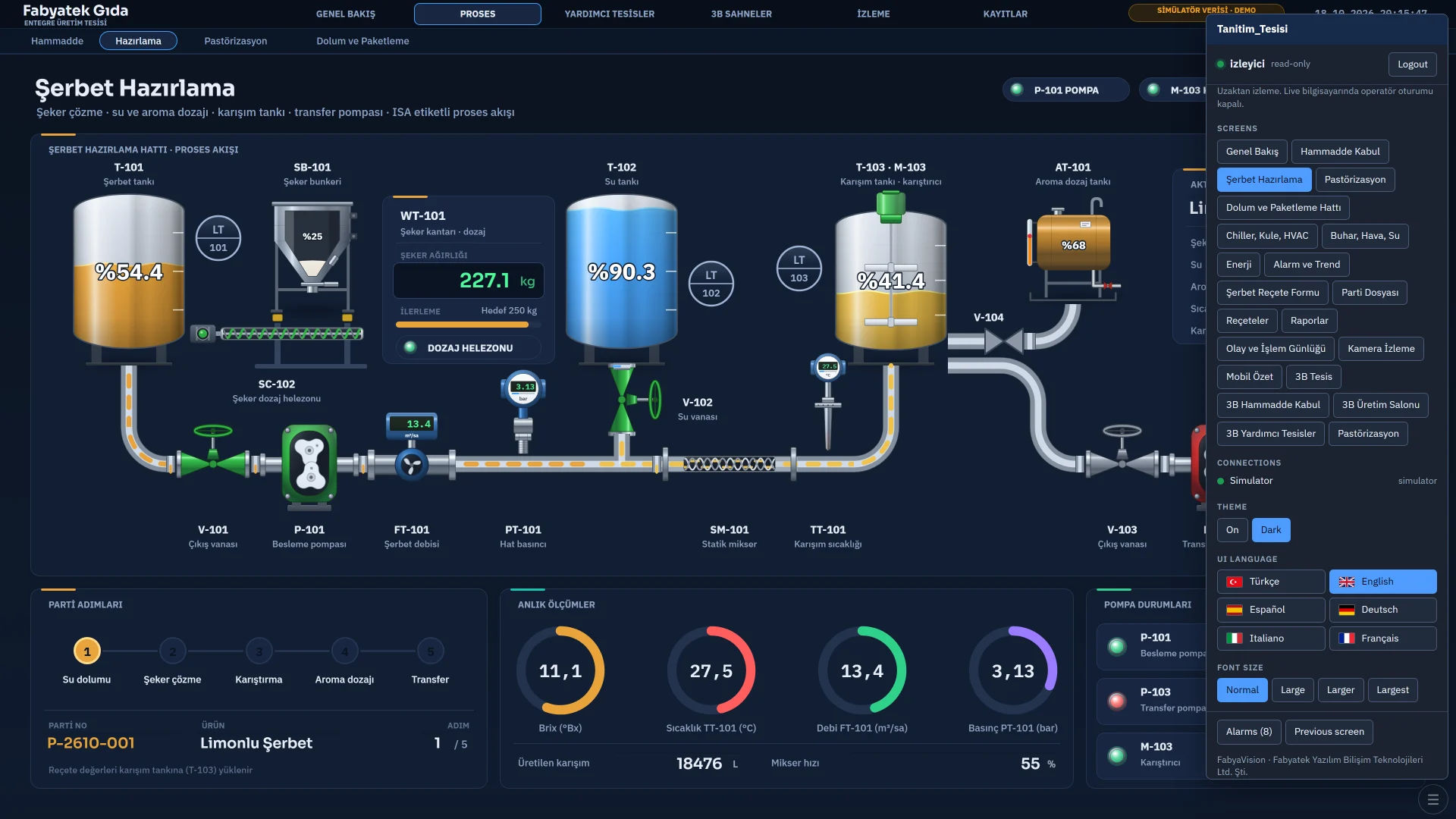
  • Username and password, a session cookie and a network access rule; by default only local network and VPN addresses are allowed
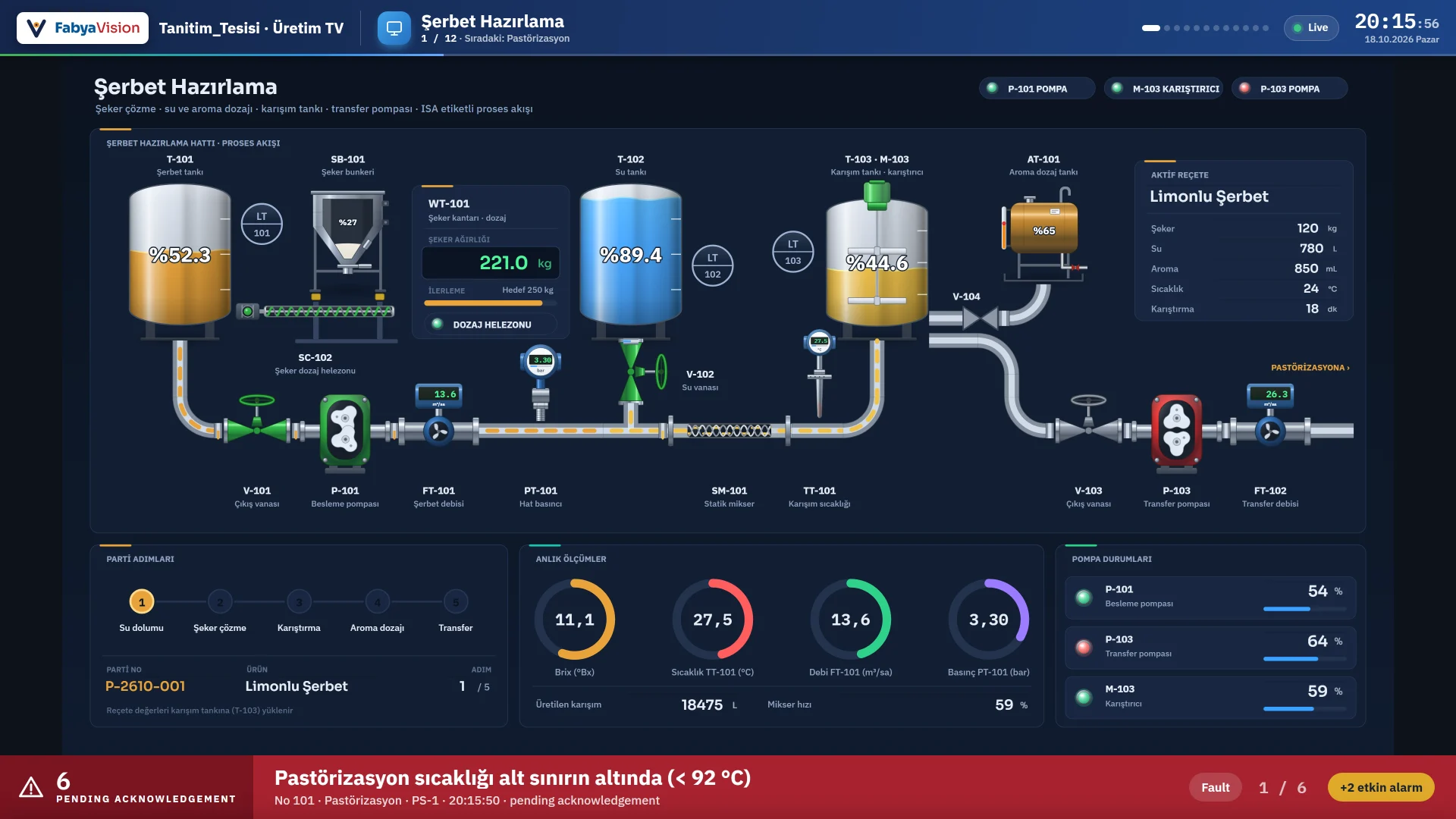
  • TV display: up to 8 network TVs; page order, duration and transition are set per TV, and an alarm banner is added
  • Multi-monitor: 1, 2, 3, 4, 6 or 8 monitors in full screen (side by side, stacked, grid), and TV display on a second screen
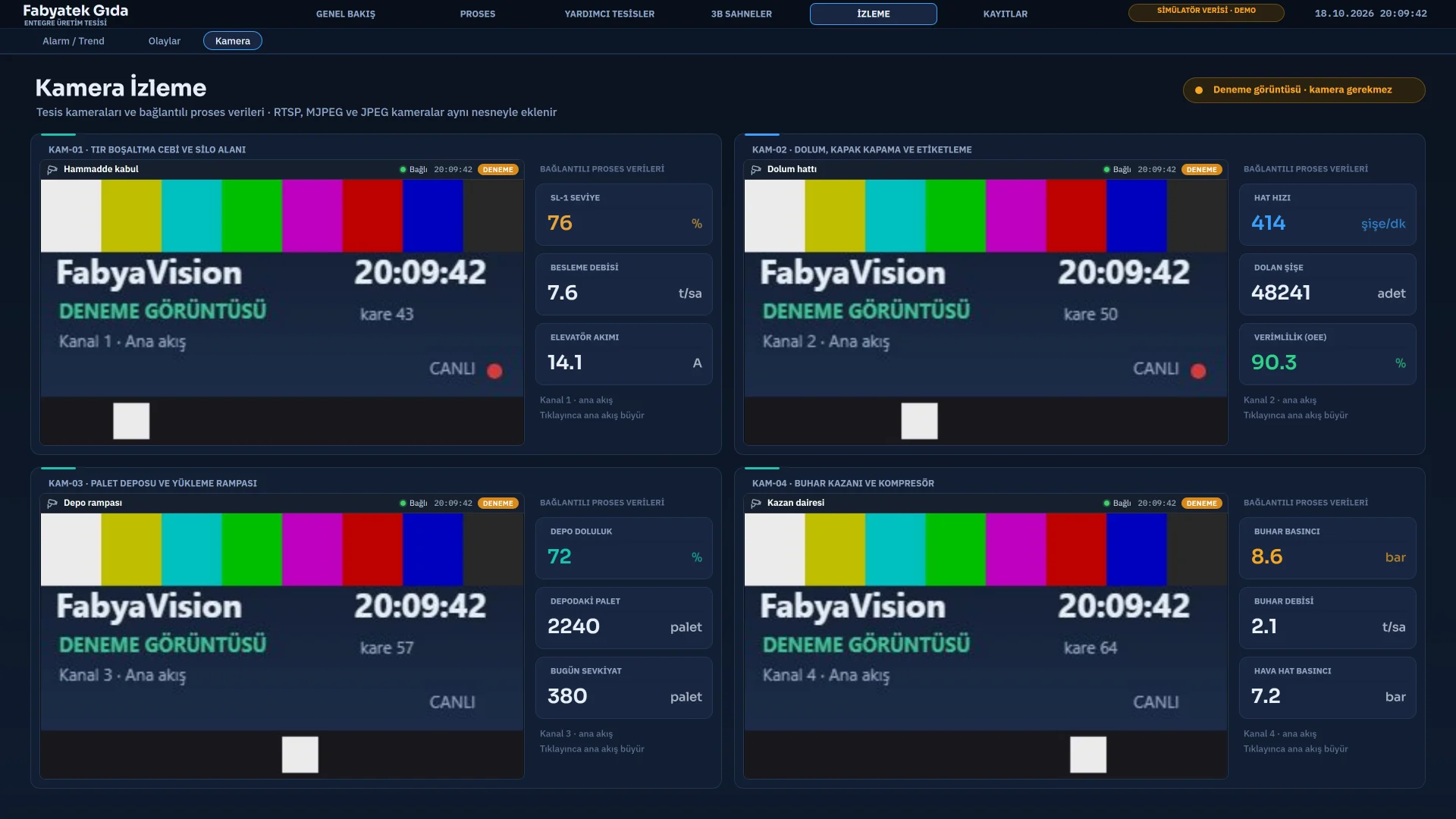
  • IP camera: RTSP (H.264), MJPEG and JPEG snapshots; the camera address and password never reach the browser
  • Scripts, tasks and drivers do not run in the browser; pages open according to the signed-in user’s permissions
Desktop browser
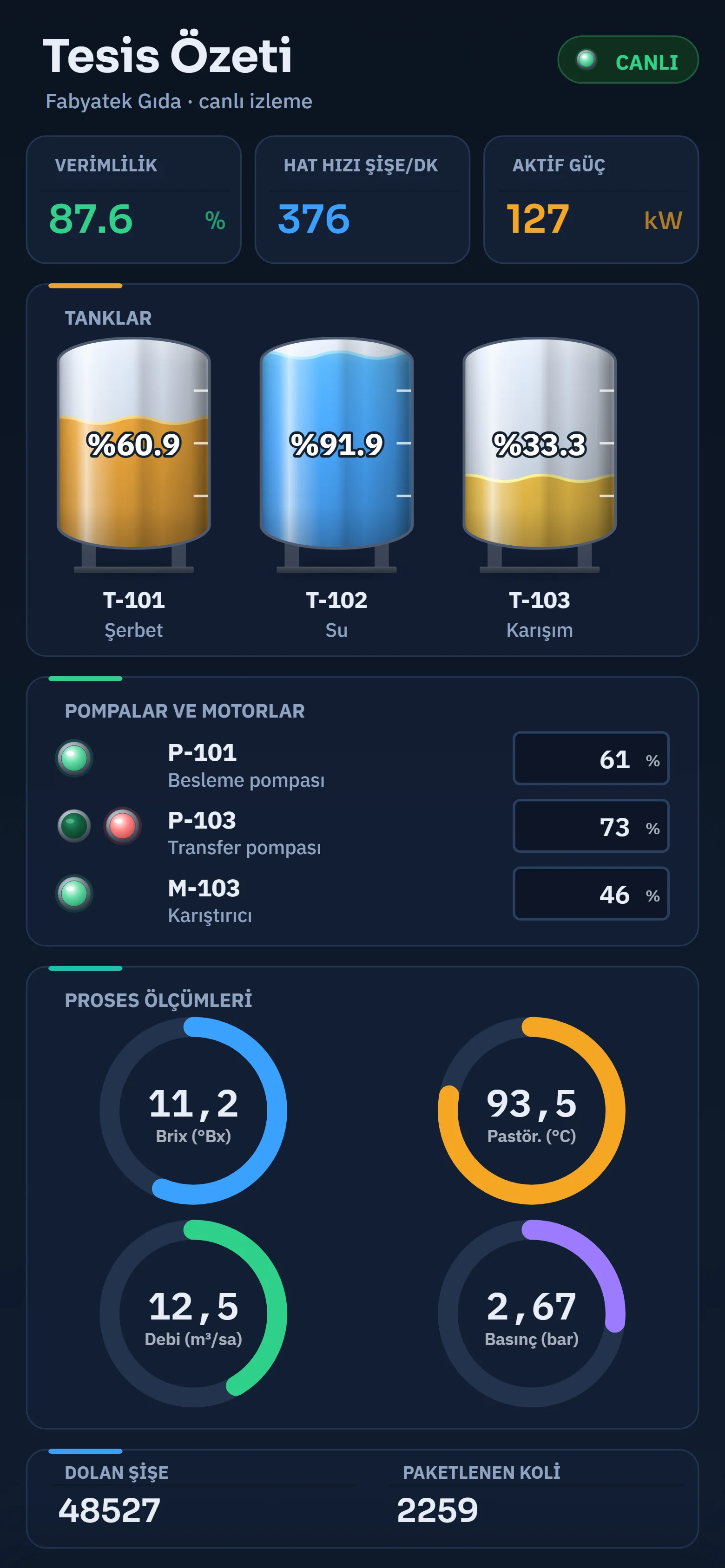
A portrait page in a phone browser showing efficiency, tank levels and pump states.
Phone browser
Production TV
IP camera page

Remote monitoring is served over plain HTTP; there is no HTTPS. Do not expose it directly to the internet; use a VPN. TV addresses have no password by default; this can be turned off.

Setup and requirements

FabyaVision is Windows software installed on your own PC. Your project and data stay in your own environment.

Where:StudioLiveConvert

  • A graphics driver with WebGL for 3D
  • The installer carries .NET Framework 4.8 and the WebView2 Runtime offline and installs them if they are missing
  • Setup types: Full, Field (Live only), Engineering (Studio and Convert) and Custom

Requirements

  • Windows 10 / 11
  • .NET Framework 4.8
  • Microsoft Edge WebView2 Runtime

Try the sample project

The sample project runs on the built-in simulator; no PLC is needed.