Connect to a running TIA Portal
Reads the project that is open. TIA may ask you to approve the connection.
- Needs TIA Portal V20
FabyaVision Convert · Conversion
Convert reads the WinCC HMI devices in your TIA Portal V20 project (classic Basic / Comfort / Advanced, WinCC Unified and WinCC Professional). It turns screens, tags and connections into a FabyaVision project (.fvs), which you open and edit in Studio.
Usage
Each HMI device becomes its own .fvs project.
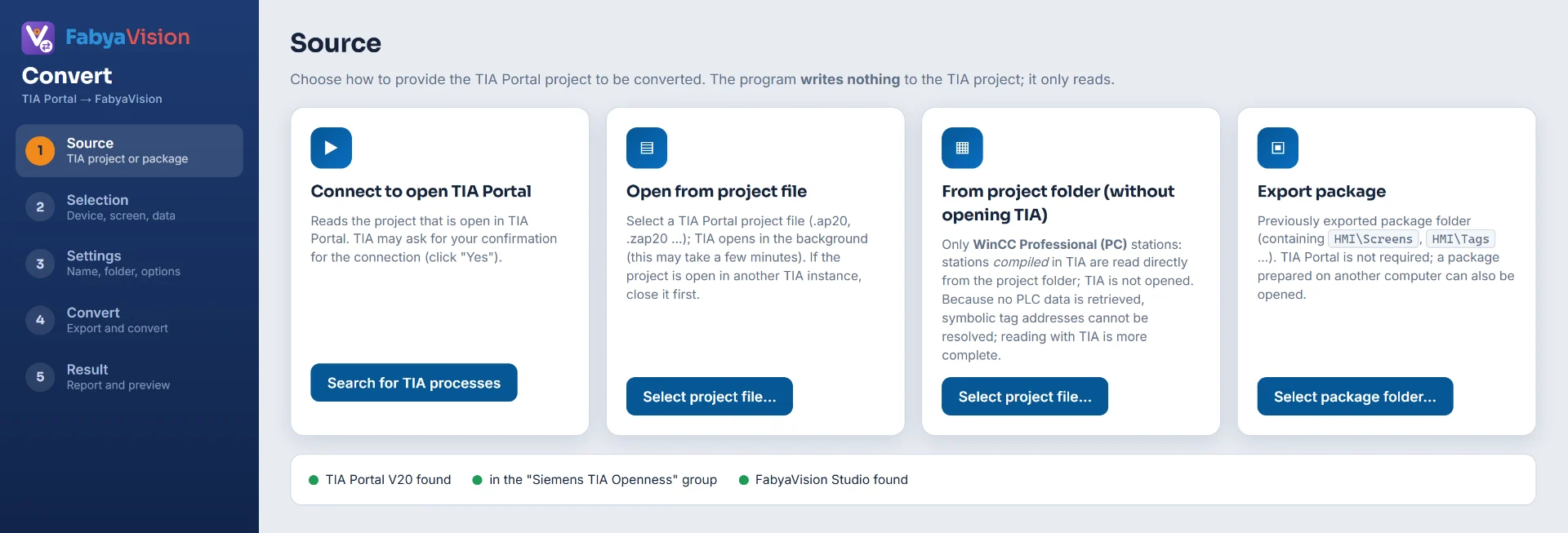
You choose where the project is read from.
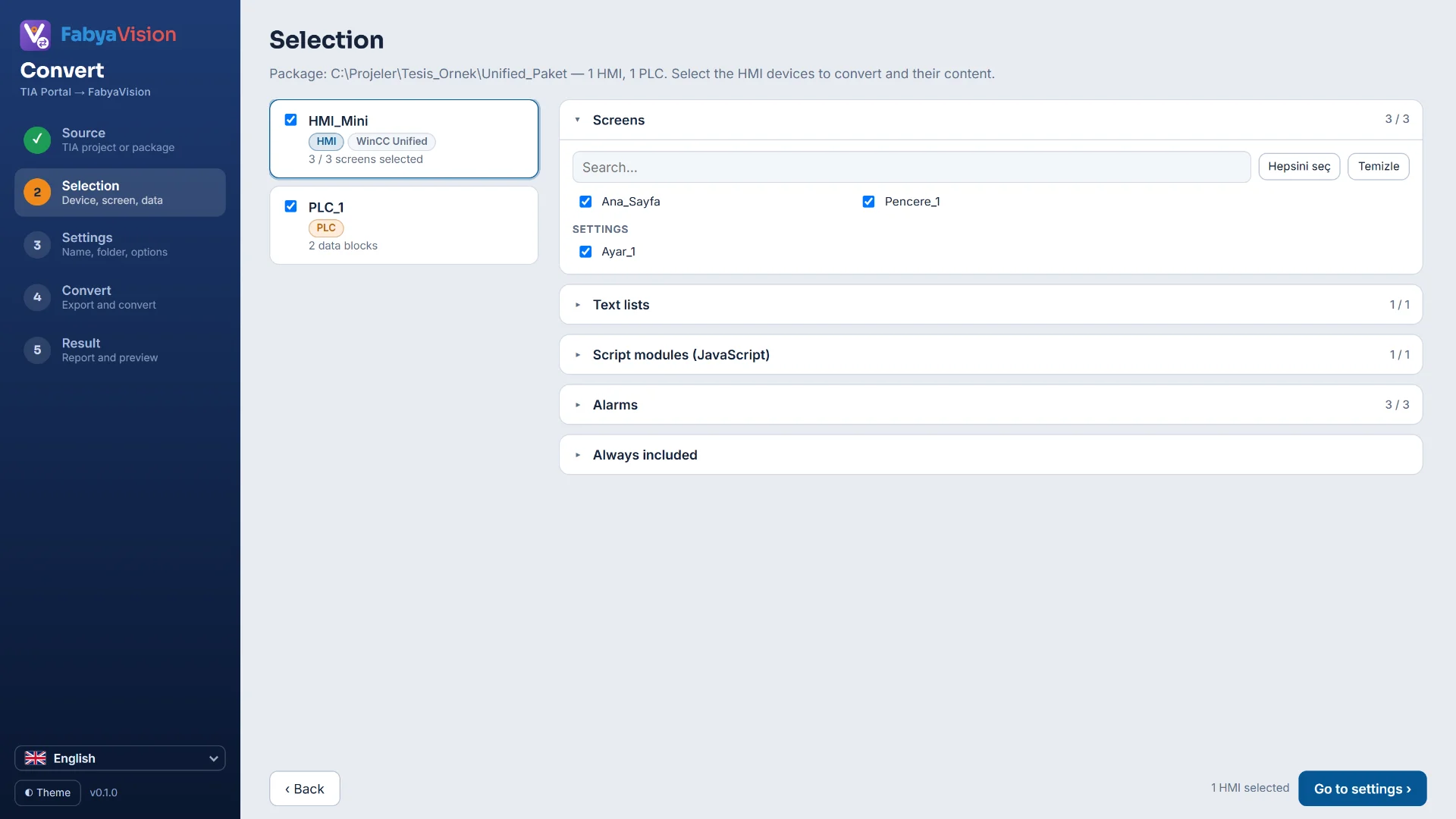
You choose the devices, screens and data types to convert.
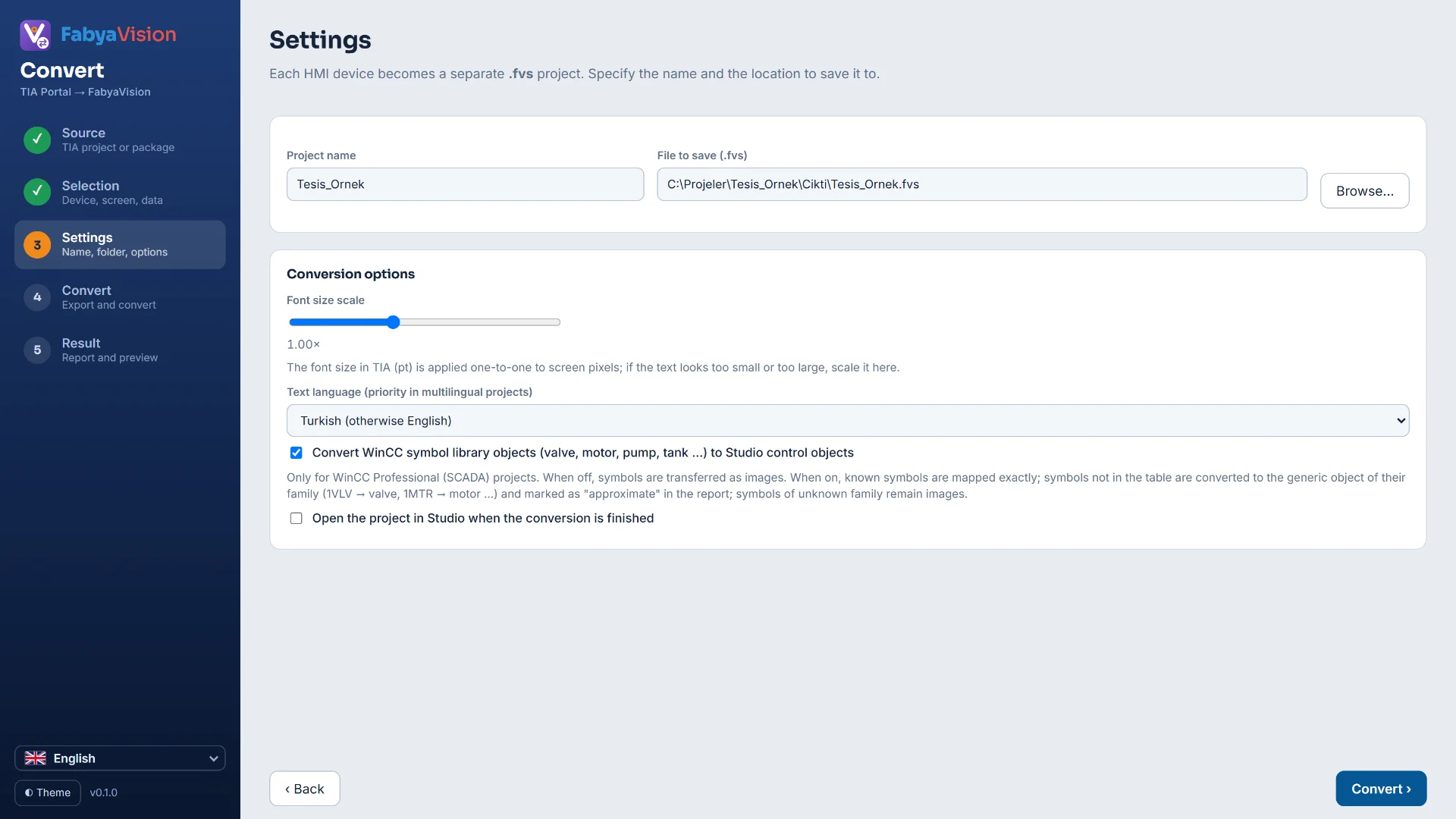
You set the project name and folder, the text-size scale, the text-language priority and whether WinCC symbols are mapped.
The data is exported and converted, and progress shows in the log. For WinCC symbols with no known match, you pick the Studio object yourself.
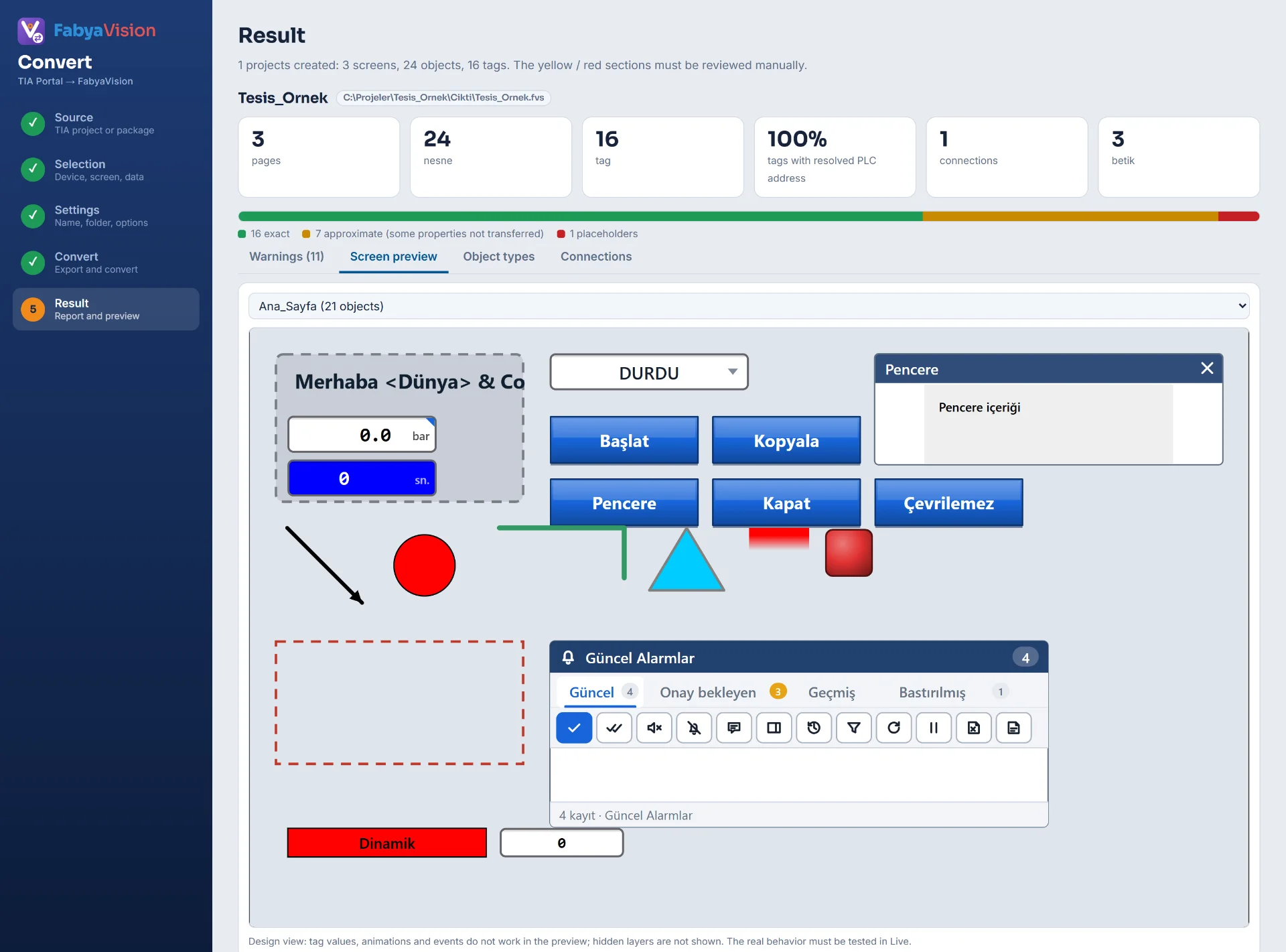
A report and a page preview appear. “Open in Studio” opens the project directly.
Scope
Convert uses a separate reader for each family.
| Family | Converts | Does not convert, or approximates |
|---|---|---|
| Classic HMIBasic, Comfort and Advanced panels |
|
|
| WinCC UnifiedUnified panels and PC |
|
|
| WinCC ProfessionalPC / SCADA stations |
|
|
Input
Reads the project that is open. TIA may ask you to approve the connection.
Opens the project file (.ap20, .zap20…) in an invisible TIA instance in the background; this can take a few minutes. If the project is open in another TIA, close it first.
Opens a package folder that was exported earlier. The package may have been prepared on another computer.
A compiled station is read straight from the project folder. Without PLC data, symbolic tag addresses cannot be resolved. If the WinCC database (SQL) cannot be reached, screens still come across but the tag and connection lists stay empty.
Access and requirements
Convert opens the TIA project read-only and does not write to it: it attaches to a running TIA, or opens the project in an invisible instance and closes it without saving.
Result
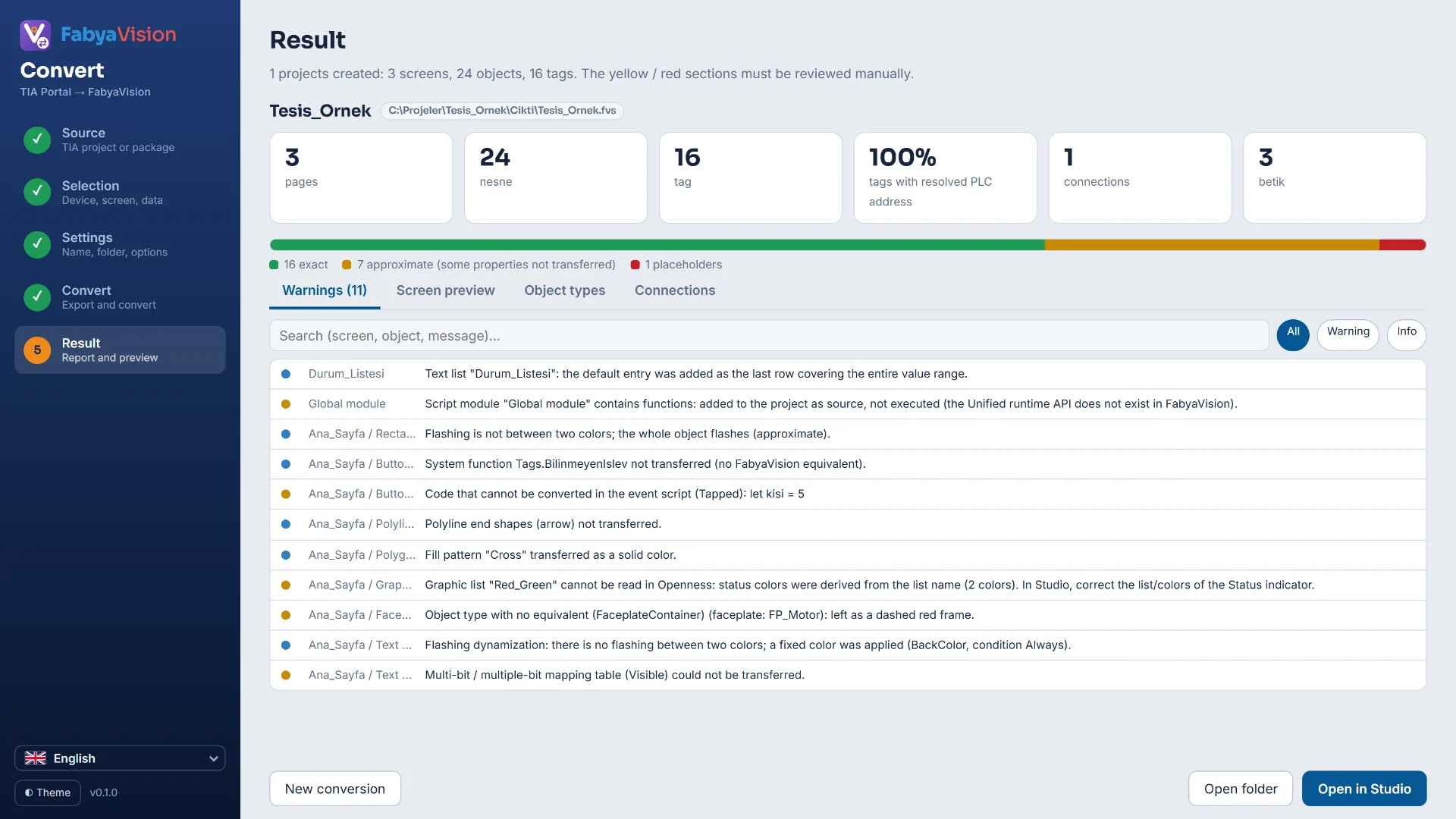
Every object is marked in the report with one of three states.
A counterpart exists: the object was converted to its equivalent in the Studio library.
Some properties were not transferred or were estimated.
No counterpart: it appears in Studio as a box with a dashed red outline, and you put an object in its place by hand.
Everything that could not be transferred is listed with its reason.
Symbolic tag addresses are converted to absolute addresses from the offset information of the data block (standard-layout blocks only). In optimized blocks there is no absolute address, so the tag stays without an address and Studio warns “Address not entered”. Indirect addressing is not supported.
The fix: turn off “Optimized block access” on the block and convert again, or use OPC UA. Studio’s “Check project” (F7) lists unresolved addresses and unknown IPs.
Limits
The conversion is a starting point; you review the result in Studio and finish it there.
The demo installs Convert together with Studio and Live; convert a TIA Portal project and open the result in Studio.