Overview
The driver talks to Mitsubishi PLCs over Ethernet using the MC Protocol 3E frame: TCP, default port 5007. An address consists of a device letter and a number.
Serial (FX / A protocol) connections and 1E / 4E frames are not supported.
- MELSEC-Q / L
- MELSEC iQ-R
- MELSEC iQ-F (FX5U)
What to set up in the PLC
-
Open the MC Protocol connection
In the Ethernet settings of the PLC, open a TCP connection for MC Protocol (SLMP). The port number in the connection must be the same as the Port in Studio.
-
Match the data code
In the PLC, Communication Data Code is set to Binary or ASCII. The Data code in Studio must be the same. If they do not match, the driver reports it with a message.
-
Allow online change
To write while the PLC is in RUN state, Enable online change must be turned on in the Ethernet setting. If it is off, the write is rejected.
-
Check the remote password
A PLC locked with a remote password cannot be accessed; the driver does not send a password.
Setting up the connection in Studio
-
Add a connection
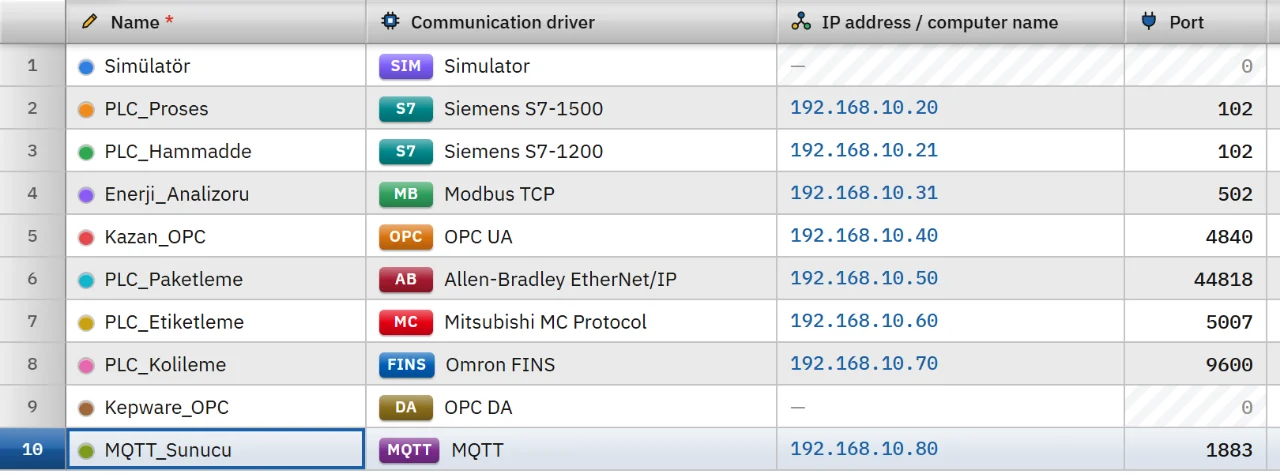
In the Connections section click Add and choose Mitsubishi MC Protocol as the communication driver. Enter the IP address and match the port to the connection in the PLC (default 5007).
-
Enter the parameters
In the inspector fill in PLC series (MELSEC-Q / L default, MELSEC iQ-R, MELSEC iQ-F), Data code (Binary default, or ASCII), Network number (0 – 239, 0 = directly connected PLC) and PC number (0 – 255, 255 = directly connected PLC).
-
Add tags
In the HMI Tags section create tags and type the device and the number in the Address cell. See the HMI tags page for details.
-
Test the connection
Online › Test connections only shows that the TCP port is open. The MC Protocol response and the data code are tried in Live when a tag is read.
Address format
M100 // Internal relay, Bool X1F // Input, Bool (hexadecimal number) Y20 // Output, Bool D100 // Data register, word D100.5 // Bit of a word device, Bool W1F // Link register (hexadecimal number) R200 // File register ZR1000 // Continuous file register | Devices | Type | Number notation |
|---|---|---|
| X input, Y output, B link relay, SB special link relay | Bit | Hexadecimal (X1F); on iQ-F, X / Y are octal
|
| M internal relay, L latch relay, F annunciator, V edge relay, S step relay, SM special relay, TS / TC timer contact / coil, CS / CC counter contact / coil | Bit | Decimal (M100)
|
| D data register, R file register, ZR continuous file register, SD special register, TN / CN timer / counter value, Z index register | Word | Decimal (D100)
|
| W link register, SW special link register | Word | Hexadecimal (W1F)
|
- A Bool tag is bound to a bit device (M, X, Y …) or to a word-bit address. A word bit is written as
D100.5(bit 0 – F, hexadecimal). No separate bit number is written for bit devices. - Numeric types require a word device. For ambiguous notations such as
SB10, the two-letter device (SB) is tried first. - The upper limit of the device number varies with the series and the data code; a number that is too large is rejected in Studio.
- On the iQ-F series the X and Y numbers are octal (only digits 0 – 7):
X18is invalid.
Data types
- Bool
- Int
- UInt
- DInt
- UDInt
- Real
- LReal
- String
| Type | Space occupied |
|---|---|
| Int, UInt | 1 word |
| DInt, UDInt, Real | 2 words, low word first |
| LReal | 4 words |
| String | 2 characters per word, and the low byte of the word is the first character. Default length 32, maximum 254. |
The Byte, SInt, WString and DateTime types do not exist.
Read and write behavior
- Nearby tags on the same device are read in one request: at most 960 points in word units and at most 3584 points in bit units (half of that in ASCII code). Gaps of at most 32 words (256 for bits) between them are merged.
- If the PLC rejects a block (device out of range), the block is read tag by tag; only the problematic tag gets an error.
- When a bit of a word is written, the word is read, the bit is changed and the word is written back.
- A read always goes to the own CPU of the target station.
- A written tag is read back at once. If the connection drops, the driver retries after 1 s, 2 s and 5 s, then every 10 s. For the behavior common to all drivers see the communication drivers page.
Limits
- Only the MC Protocol 3E frame over Ethernet is supported. The PLC password is not sent.
- There is no authentication or encryption.
Common errors
Connection messages appear in the Connections section of the system menu in Live. For tag errors during reading no message is shown; the tag only gets bad quality.
| Message | Cause and fix |
|---|---|
| The PLC did not respond to the MC protocol request (timeout) | No response came from the PLC. Check the port, the connection opened in the PLC (MC Protocol / SLMP, TCP) and the data code. |
| The PLC responds with Binary code · The PLC responds with ASCII code | The data code does not match the PLC setting. Set Data code to the code named in the message. |
| Device number outside the range in the PLC (MC end code C056) | The address is outside the device range defined in the PLC. |
| The PLC cannot access this device (MC end code C05B) | The device does not exist in this CPU model. |
| The PLC does not support this command (MC end code C059) | The wrong PLC series is selected. The Q / L and iQ-R frames are different. |
| The request cannot be executed in the target station (MC end code C05F) | The network or PC number is wrong. For a directly connected PLC use 0 and 255. |
| The PLC does not allow writing while running (RUN) (MC end code 0055) | Enable online change must be turned on in the Ethernet setting. |
| The PLC is locked with a remote password (MC end code C200) | The remote password must be released; the driver does not send a password. |
Frequently asked
Why are X and Y numbers written in octal?
On the iQ-F series the X and Y numbers are octal; on the other series they are hexadecimal. Choose the PLC series field of the connection to match your PLC.
Related pages
Connections
The Connections table, driver selection, connection test, diagnostics, reconnection and password storage.
StudioHMI tags
External and internal tags, scaling, quality, structures (UDT) and bulk transfer with Excel.
ConnectivityOmron FINS
Connects to Omron CJ, CS, CP and NJ PLCs with FINS/TCP or FINS/UDP.
ConnectivitySimulator
The built-in driver that generates signals for trials, demos and training without a PLC.