
How an alarm arises
Alarms are defined in Studio in alarm design and evaluated by Live while it runs. There are two types:
- A digital alarm comes in when the selected bit of the trigger tag reaches the trigger value (1 or 0) and goes when the bit leaves the trigger value.
- An analog alarm comes in when the value of the monitored tag meets the condition and the limit value. If a delay is defined, the condition must hold without interruption for that time. The alarm goes when the value moves back from the limit by the hysteresis.
An alarm is re-evaluated only when the value of the tag changes and the value is valid. If the tag has not been read yet or its quality is bad (connection lost), the state of the alarm does not change: the alarm does not come in and, if it has, it does not go.
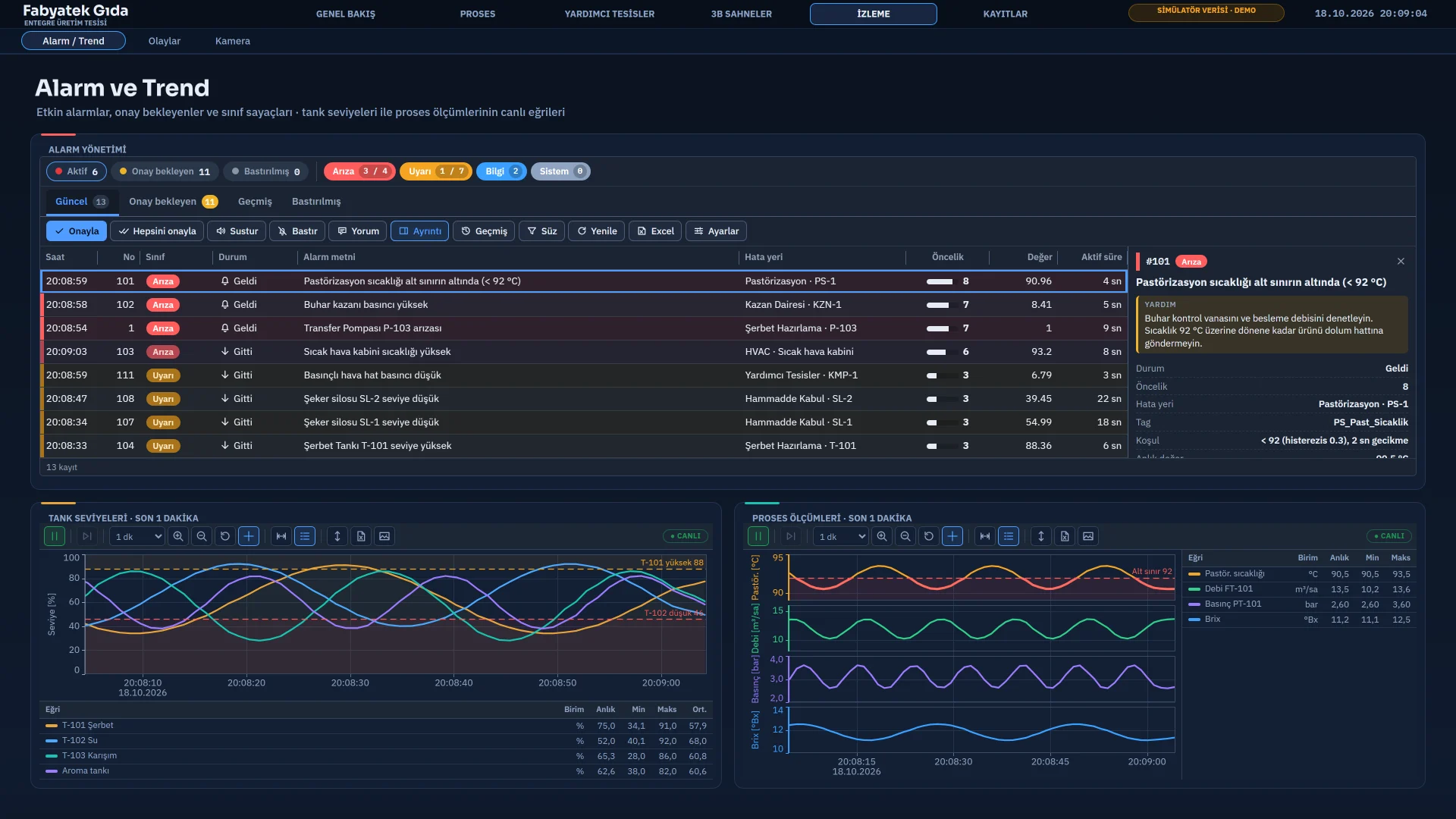
Alarm states
| State | Meaning |
|---|---|
| Incoming | The alarm condition persists. If its class is Acknowledgment required, it is waiting for acknowledgment. |
| Outgoing | The condition has cleared but the alarm is not acknowledged; it stays in the list. Seen only in classes with Acknowledgment required checked. |
| Acknowledged | The operator acknowledged the alarm. If the condition persists the alarm stays in the list; if it has cleared, the alarm leaves it. |
| Shelved | The operator removed the alarm from the list for a set time. It comes back when the time ends or when it is unshelved. |
The alarm class sets the Incoming, Outgoing and Acknowledged colors, whether acknowledgment is required, flashing, and whether the alarm is logged. In classes where acknowledgment is not required, the alarm leaves the list by itself when the condition clears.
Alarm view and alarm line
Alarms are seen in three places:
- The Alarm view is the full-featured list placed on a page. It shows the current, awaiting-acknowledgment and shelved alarms and the alarm history in one object.
- The alarm line at the bottom of the display shows the number, text and fault location of the first alarm in priority order. Clicking it opens the Alarms window. It is switched on and off with Show alarm line.
- The Alarms button in the system menu opens the same window, with the number of active alarms.
The summary strip above the Alarm view shows the Active, Awaiting ack. and Shelved counters and the counter of each class. The tabs open the Current, Awaiting ack., History and Shelved lists. Clicking a row opens the detail panel: alarm and help text, state, priority, fault location, tag, condition, current and trigger value, incoming, outgoing and acknowledgment times, who acknowledged, the comment and the recent events of the alarm. The row takes the colors of its class. The designer chooses which of 18 columns and 14 buttons are shown. For alarm monitoring in a browser and on a TV, see the browser monitoring page.
Acknowledging, shelving and comments
-
Log on
To acknowledge, the group of the user must have the Alarm acknowledgment authorization. If there is no session, Live opens the log-on window.
-
Select the alarm
Click a row. Ctrl selects individual rows, Shift a range, and Ctrl+A all visible rows.
-
Acknowledge
Click Acknowledge or press Enter; if selected in the design, double-clicking the row also acknowledges. Acknowledge all acknowledges all alarms in the filter that are waiting, in one operation.
-
Follow the result
The acknowledgment is written to the alarm log with the user who made it. If the alarm has an Acknowledgment tag, 1 is written to that tag.
Shelving removes an alarm that keeps coming and is unimportant at the moment from the list for a set time. Select the alarm in the current list, click Shelve, and enter the time and the reason. The default time options are 5 minutes, 15 minutes, 1 hour, 4 hours and 8 hours (1 hour is preselected), and 0 means “Until removed manually”. A shelved alarm leaves the list and the counters and moves to the Shelved tab; Unshelve brings it back. Shelving is written to the log with the user who shelved the alarm and the reason.
The Comment button writes a note of up to 500 characters to a single alarm. The latest comment appears in the detail panel and in the Comment column.
The Alarm acknowledgment authorization is required for acknowledging, acknowledging all, shelving, unshelving and writing comments. Silencing the audible alert, filtering, sorting, viewing the history and exporting need no authorization.
Filtering, history and export
| Tool | What it does |
|---|---|
| Search box | Requires every word separated by a space to occur in the alarm number, class, text, fault location, comment, tag name, acknowledging user or state text. |
| Class, State, Priority, Fault location | Filters in the filter bar. The selected ones appear as removable chips. |
| Column header | Click to sort; a second click reverses the order, a third returns to the default order. Shift+click sorts by several columns. |
| Freeze, Mute | Freeze holds the list so new alarms do not shift the rows. Mute silences the sound until the next new alarm. |
| Excel, CSV, Print | Excel and CSV export all rows in the filter to a file. Print prints the page. |
The History tab reads the alarm log: choose Today, Yesterday, Last 7 days, This month, Last 30 days or a custom range. Depending on the designer’s choice, each state change is a separate row, or each alarm is shown in a single row with its incoming, outgoing, acknowledgment and active time. With the Settings button, columns are shown, hidden and reordered; the layout is saved for this station or for the user.
Audible alert
With the audible alert on, a short sound is played for a new alarm that is waiting for acknowledgment. The sound is generated on the speaker of the Live computer; no sound file is needed. If the sound type is By priority, low priority plays a single beep, medium priority a double beep, and high priority (7 and above) a siren. With Repeat until acknowledged on, the sound repeats every 8 seconds as long as an alarm is waiting for acknowledgment.
Alarm log
Every state change (incoming, outgoing, acknowledged, shelved, shelving ended, comment) of alarms whose class has Logged checked is written as one row to the alarm log. The log is in the .veri\gunluk folder of the project, in monthly alarm_yyyyMM.log files. Each row is a single-line JSON and carries the alarm number, class name, text, fault location and the acknowledging user. The history list is read from this log, and Live also keeps the last 2000 events in memory during the session.
- The log is not deleted automatically: there is no retention period or size limit. To keep the disk from filling up, archive or delete old monthly files yourself.
- The current state of alarms is kept in memory. When Live opens again, alarms whose condition persists become Incoming again and acknowledgment is requested again; shelving is cleared. The history is kept in the log.
- If Alarm system is switched off on the Startup sequence tab of Live settings, no alarm is evaluated. This option is for testing and maintenance.
Related pages
Alarms
Discrete and analog alarms, alarm classes, priority, hysteresis, delay, acknowledgment tag and the Alarm view.
LiveTrend and archive
Live trend, scrolling back, zoom, measurement cursors, export and archive logging.
LiveOperator actions
System menu, login and authorization, the action log, Event view and closing the program.
StudioUsers and authorizations
Users, groups and numbered authorizations; object, screen and menu authorization; session time and action log.