
Screen editor
Double-clicking a 2D screen in the project tree opens it in the central work area. The Toolbox, Animations, Layout and Libraries cards are on the right and the Inspector is below.
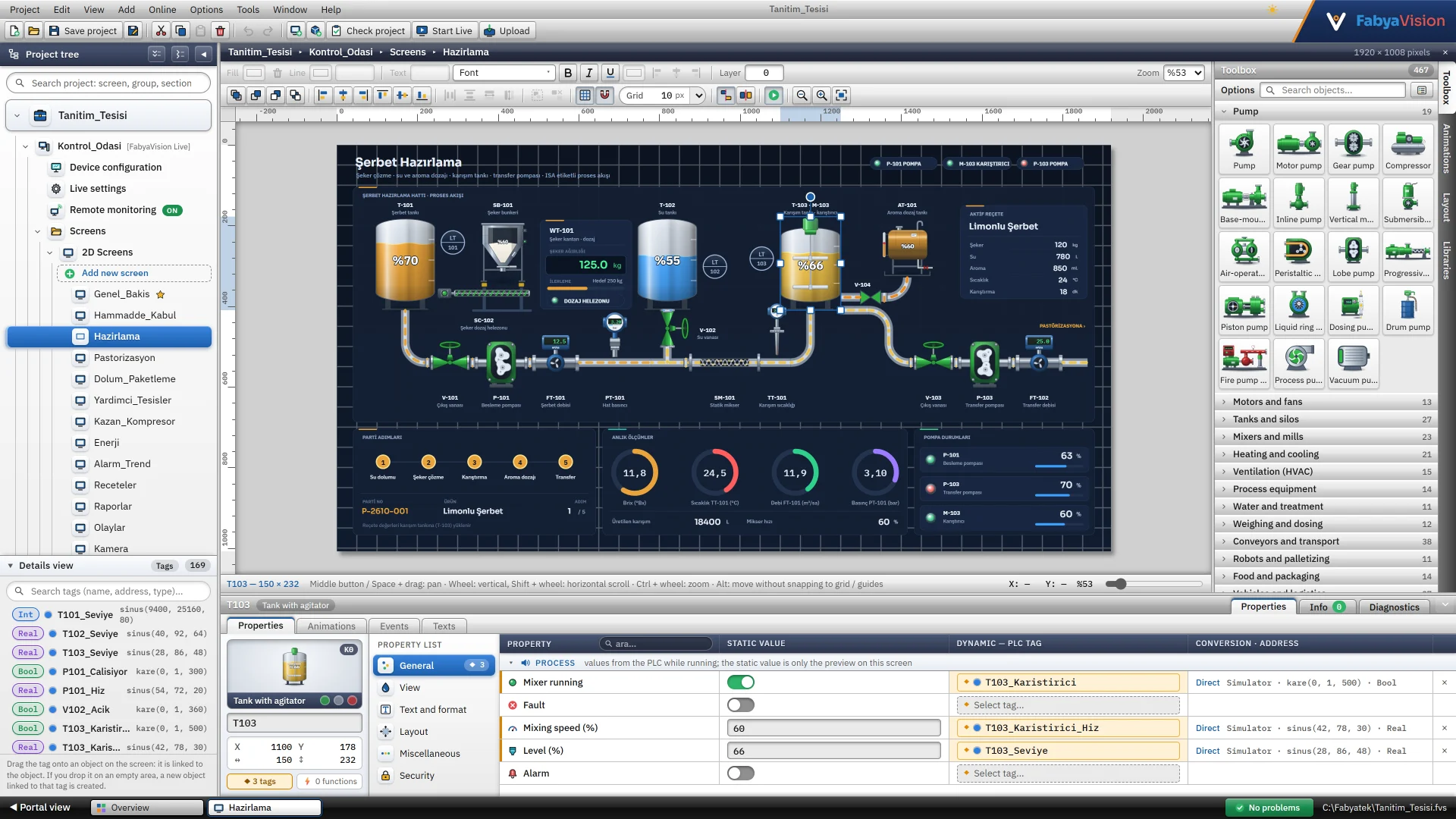
- You click an object in the toolbox and draw it, drag it onto the canvas, or place it from the Add menu or the right-click menu.
- Snap to grid (square 2 – 200 pixels), alignment guides and overlap prevention work while you drag. The Alt key turns all three off temporarily.
- There are commands for aligning, equal spacing, equal size, grouping, locking, copying and duplicating. Undo keeps up to 100 steps.
- Ctrl + wheel zooms between 10% – 800%.
Screen types and management
| Screen type | Used for |
|---|---|
| Screen | The normal 2D screen the operator navigates. |
| 3D screen (scene) | A 3D scene. See the 3D scenes page. |
| Pop-up window / faceplate | Opens above other screens or is embedded in a screen. |
| Template (fixed area) | The screen shown in the fixed top or bottom area; hidden from lists. |
| Recipe / Report design screen | A form screen bound to a recipe or report. |
A new screen opens as Sayfa_1, Sayfa_2 … at 1920 × 1080 pixels with a 10-pixel grid. The size can be changed between 20 – 20000 pixels in Screen properties.
- You can divide screens into groups (folders). Groups are for organization only and have no effect in Live.
- The Set as start screen command specifies the screen Live shows at startup.
- The fixed top and bottom areas show the selected screen above or below all screens (height 0 – 600 pixels). Buttons that open screens, placed here, make a navigation strip on every screen.
Object library
The toolbox shows 480+ 2D objects in groups. The Search objects... box filters by object name and group name.
- Basic objects: rectangle, ellipse, line, polygon, arc, text and image.
- Equipment: 420+ drawings. They are in groups such as pipes, valves, pumps, motors and fans, tanks and silos, mixers, heating and cooling, HVAC, conveyors, robots, instruments, electrical and power, buildings and facilities.
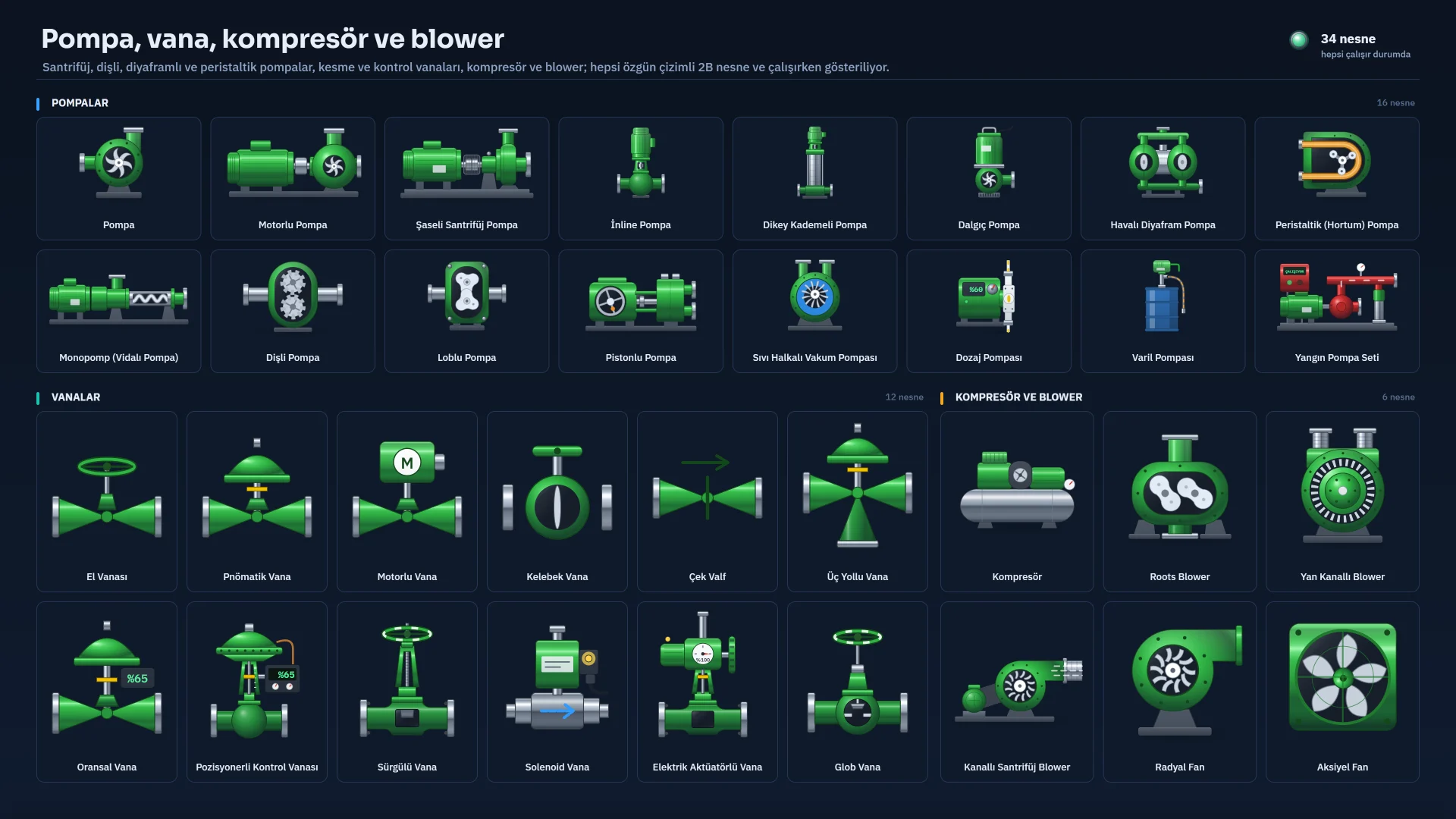
260+ objects come alive with a running and fault state. You bind the Running and Fault properties to tags: stopped is gray, running is green with motion, and a fault flashes between red and yellow. The four colors are changed in the State colors group. Properties such as tank level and pipe flow are also driven by tags.
Equipment drawings are drawn in the Realistic (lit, volumetric) or the Classic (flat) appearance. The default is chosen in the Object appearance card of Live settings; a single screen can be set separately in Screen properties.
Elements and controls
Elements are the objects with which the operator reads values, enters values and issues commands. You bind the main value property to a tag: it is read by display elements and written by input elements.
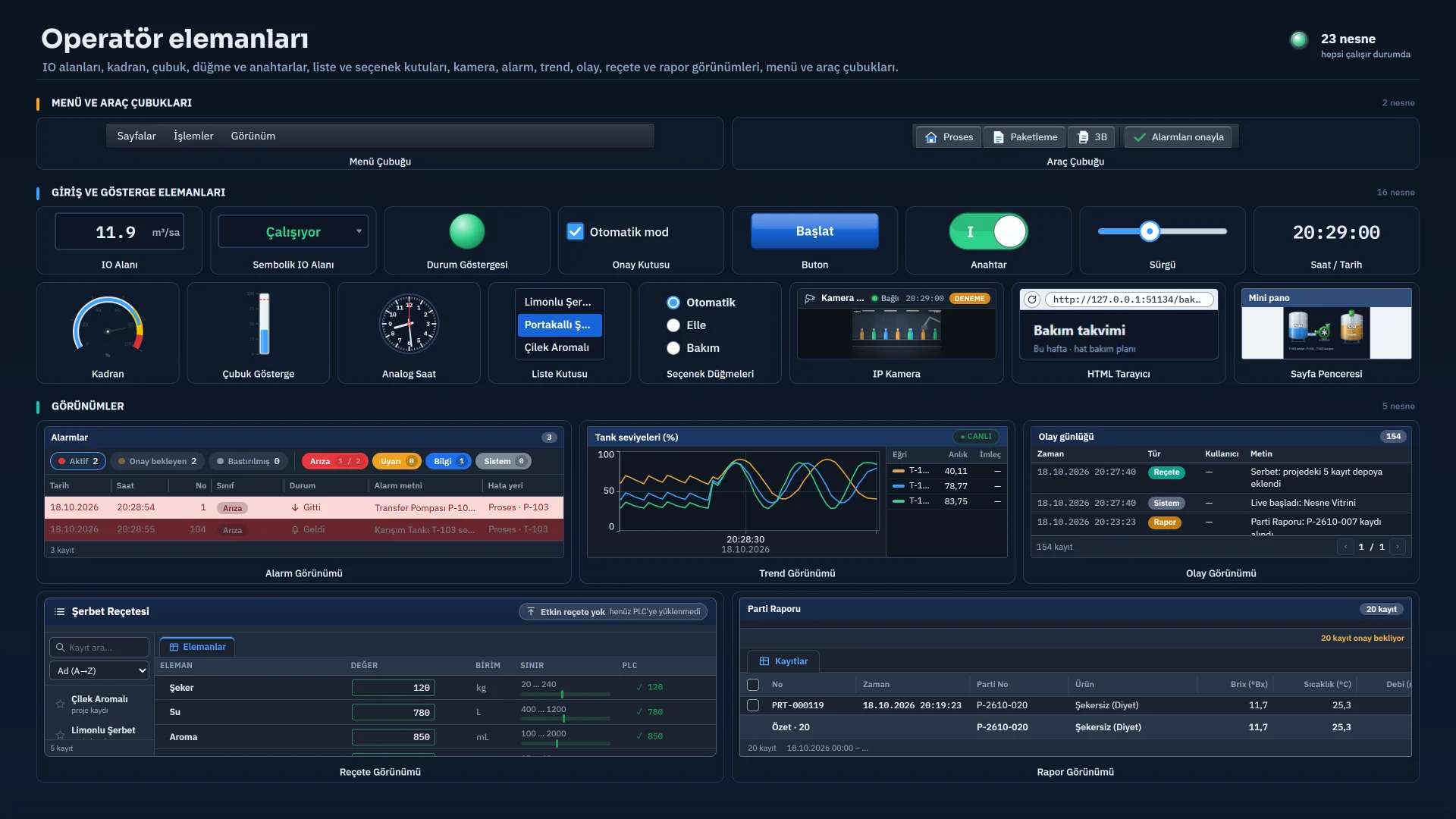
| Element | What it does |
|---|---|
| I/O field | Shows the tag value. Mode: Output, Input or Input / Output. In input mode a click opens the value window; a value outside the lower and upper limits of the tag is not written. |
| Button, Switch, Check box | What a button does is set on the Events tab. A switch or check box inverts the bound tag when clicked. |
| Bar, Gauge | Draws the value within the scale range. The bar changes to the alarm color when the alarm limit is exceeded; the gauge draws the warning and alarm limits as bands. |
| Slider, Increase / decrease, Selector switch, List box | The operator writes the value to the tag by dragging, with step buttons, or by selecting a position or an entry. |
Controls are ready-made components with their own table, buttons and filters: Alarm view, Trend view, Recipe view, Report view, User view, PLC connection status, IP camera, Screen window, Menu bar, Toolbar and Event view. You place one as a single object and it takes its data from the project tables. Studio draws it with sample data. Their design is covered on the alarm, trend and recipe pages.
Properties and layers
When an object is selected, the Properties tab of the Inspector shows its properties in seven categories: General, Appearance, Text and format, Scale and limits, Layout, Miscellaneous and Security. For each property the table has a Static value and a Dynamic PLC tag column; the Select tag... button binds a property to a tag. While several objects are selected, a value you type applies to all of them. For the Animations and Events tabs see the animations and events page.
Every object is on a layer between 0 – 31; 0 is drawn at the bottom and 31 on top. Layers are named in Screen properties and can be hidden in Studio. The Show / hide layer function lets the operator turn a layer on and off in Live.
The Layout card shows the layer bar and the list of all objects on the screen. You select an object at the back of a pile from this list.
You can select a frequently used group of objects (tank, valve, pump and their labels) and add it to the library of the project as a copy template with Add selection on the Libraries card. A template is copied together with its tag bindings and events. It is not a live link: the placed copies do not stay bound to the template.
Faceplates and pop-up windows
If you have dozens of devices of the same type (motors, pumps), you do not draw a separate detail screen for each. A faceplate is drawn once and shows different tags depending on the device it is opened for.
-
Create the window screen
Add a new screen, set its size to the window size and select Pop-up window / faceplate in Screen properties › General › Screen type.
-
Link the screen to a structure
In the User data type category select the Structure (UDT) and the Design instance, for example
Motor1. Bind the objects on the screen to the tags of that instance. For structures see the HMI tags page. -
Prepare the opening button
Add the Open pop-up window (with tag prefix) function to the Click event of the button. Select the window screen as Screen and the instance name as Tag prefix, for example
Motor2.
Live takes the part of the binding after the dot and puts the prefix in front: with the prefix Motor2 the binding Motor1.Hiz is read as Motor2.Hiz. Tags without a dot are not affected by the prefix. Several windows can be open at once.
The Screen window object embeds another screen in this screen: a faceplate, an area with changeable content or a 3D scene. An embedded window cannot be closed; use the Open pop-up window function for a window that can be closed.
Menus, toolbars and navigation
The Navigation menu tab of the Screen management section sets the screen list the operator sees in the system menu of Live. Each row is a button.
| Column | Meaning |
|---|---|
| Title | The name shown on the button. It is independent of the screen name and translatable. |
| Target screen | The screen that opens when the button is pressed. |
| Authorization group | A user who is not a member of the group does not see the row. |
| Visible | A disabled row is not in the list. |
The Menus and Toolbars section has three tabs: Toolbars, Menus and Configurations. A toolbar is made of buttons, separators, flexible spaces and labels; menus can be nested up to 3 levels. Items get an icon, a shortcut, event functions and a Required authorization; the Visible, Enabled and Checked states bind to tags. A configuration places the menu and toolbars on the edges of the display and sets the screens on which they are shown. You can also place a Menu bar or Toolbar object directly on a screen.
The Navigation menu only filters the list of buttons. Hiding a screen from the list does not stop other buttons from opening it. To close access, use the Required authorization field of the screen.
Frequently asked
Can I add my own object to the toolbox?
No. You can add a frequently used group of objects to the Libraries card as a copy template.
Related pages
Animation and events
Binding properties to tags, direct and range-table conversion, the state model, events and event functions.
StudioHMI tags
External and internal tags, scaling, quality, structures (UDT) and bulk transfer with Excel.
Studio3D scenes
3D editor, Standard and Realistic models, floors, saved views and converting a 2D screen to 3D.