
3D editor
For a new scene use the Add › New 3D screen command; the scene appears in the project tree under 3D Scenes and its ground is 30 × 20 m. In the editor the scene is in the middle, the toolbar on top, the 3D Library, Scene and Views tabs on the right and the Inspector below. Properties and tag binding are done in the Inspector as on 2D screens.
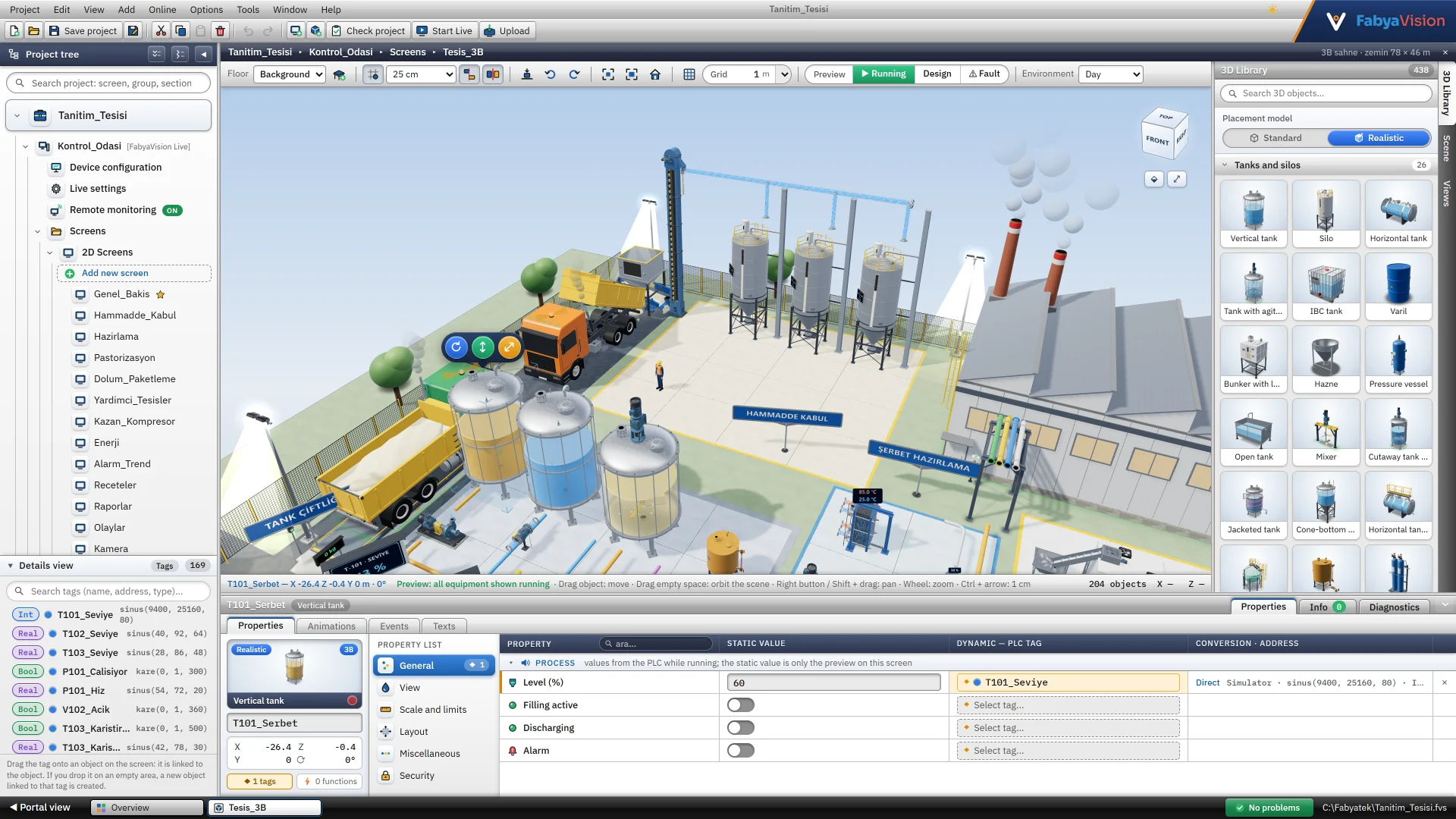
| Action | How |
|---|---|
| Placing an object | Click the object in the 3D Library and then the ground, or drag it. The Placement model selector decides whether it comes as Standard or Realistic. |
| Moving, rotating | Drag the object; Q / E rotates it by 15°. The raise and scale handles are above the selection. |
| Navigating | Dragging an empty spot rotates; dragging with the right button or Shift pans; the wheel zooms. |
| View | F focuses on the selection, Ctrl+0 fits the whole scene, Home returns to the initial view. |
The alignment guide and the collision check are switched on and off on the toolbar. While dragging, the Alt key turns off snapping, the guide and the collision check temporarily. The Preview buttons show the scene in the editor in the Running, Design or Fault state.
Floors, views and light
- + Add floor adds a platform the size of the ground 4 m above the highest floor. The Floor selector on the toolbar determines the floor on which a new object is placed. The height, columns, railing and transparency of a floor are edited in the Inspector.
- + Save current view gives a name to the position of the camera. Saved views appear in Live as buttons below the scene; the Go to 3D view function can also be connected to an event. The Home view is the opening view of the scene in Live.
- In the screen properties the ambient light is set to Day, Evening, Night or Studio, and shadows are switched on and off. Preset ground sizes range from 10 × 8 m to 80 × 50 m.
Standard and Realistic model
420+ of the 430+ 3D objects have two models. Standard is the plain model. Realistic is the detailed version of the same object, with parts such as flanges, bolts, feet and a nameplate. The model is the Model property of the object; it is not bound to a tag, and the object does not move when the model changes. 14 objects, such as basic shapes, have a single model.
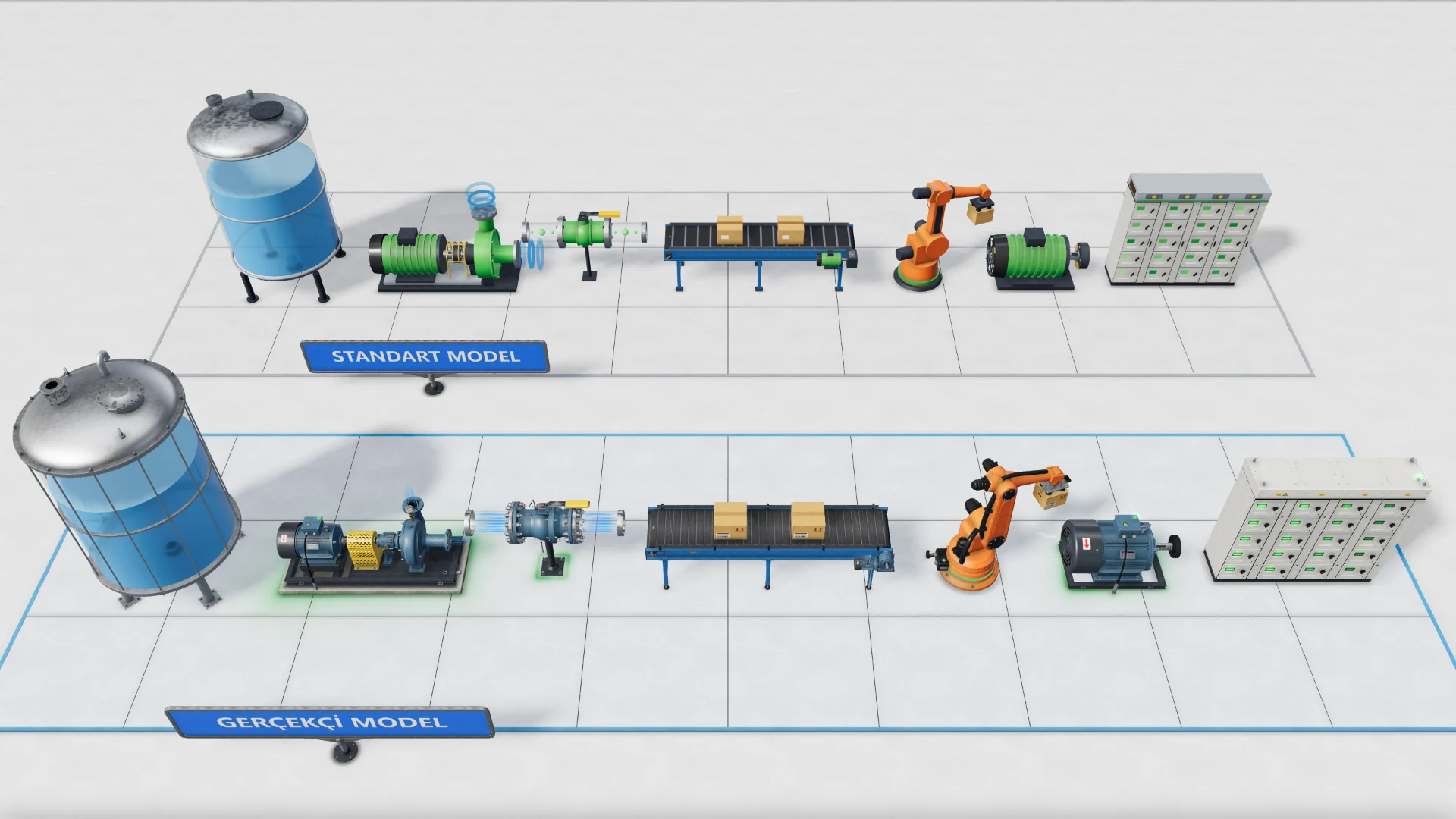
You change the model in three places: the Model property of the object; the right-click menu or Edit › Model for selected objects; and, for the whole screen, the Switch to Realistic model and Switch to Standard model buttons in the Scene category. A bulk switch is a single undo step. In large scenes it is smoother to place objects in the Standard model and bind the tags first, then switch to Realistic last.
The project-wide 3D render quality is set to High or Fast in the Object appearance card of Live settings. Fast is a plain appearance and is smoother on older graphics cards.
Convert page to 3D
It places the objects of a 2D screen drawn as a process diagram or a switchboard on a new 3D screen, using their counterparts in the 3D library. The 2D screen does not change; the result is a separate screen whose name ends with _3B. You then correct it manually in the 3D editor.
-
Select the command
Right-click the 2D screen and select Convert page to 3D…, or use the Add menu. The command does not work on 3D screens and design screens.
-
Select the conversion type
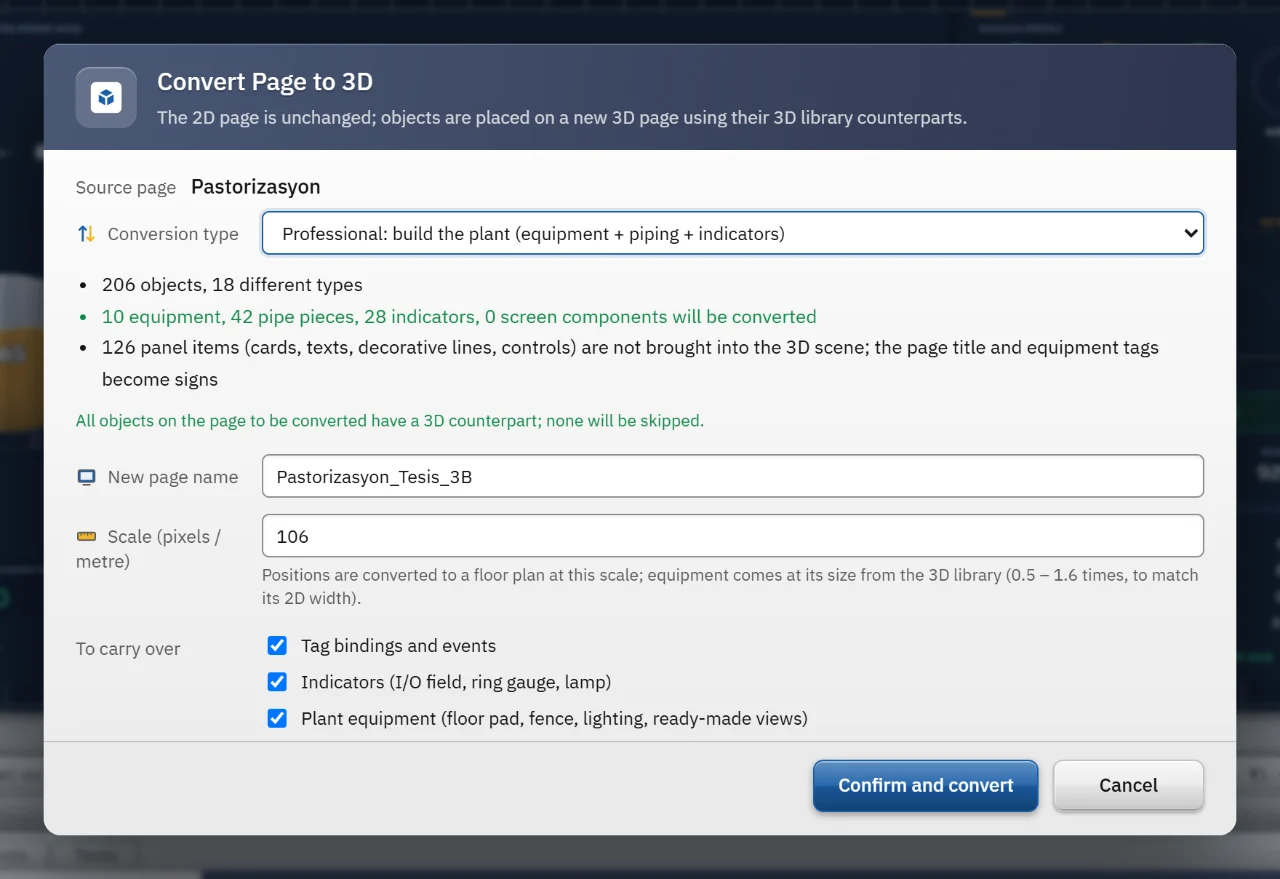
The conversion type has two options. The first is the default and builds a plant; Exact places every object as it is.
-
Handle objects without a counterpart
For each object type with no equivalent in the 3D library, select Skip or Placeholder box.
-
Review the settings
The new screen name, Scale (pixels / metre) and what to carry over are listed. The scale starts from a value between 40 – 250, calculated from the equipment on the screen.
-
Confirm
Click Confirm and convert. The result window counts the converted objects and those not brought into the scene. Ctrl+Z undoes the conversion in a single step.
| Mode | What it does |
|---|---|
| Professional (default) | Reads the screen as a process diagram. Equipment comes at its library size, pipes become 3D pipe, elbow and T parts fitted to the equipment, and indicators become signboards in front of the related equipment. A floor area, a fence, four lighting poles and three ready-made views are added. Cards, panels and controls are not brought into the scene; their counts are written in the result report. |
| Exact | Every object stands at its 2D position on the ground plan. The height is 0 and the rotation angle is kept. |
Tag bindings and events are carried over: the X binding is converted to meters and the Y binding moves to Z. Those that cannot be carried over are listed in the result window.
3D scenes in Live
- Dragging with the left button rotates the scene and the wheel zooms. On a touch screen one finger rotates, two fingers pan and pinching zooms.
- Clicking a face of the navigation cube at the top right shows the scene from that direction. Saved views appear as buttons at the bottom.
- The camera can be Free (the operator rotates and zooms), Automatic tour (the scene rotates by itself) or Fixed (saved views only). The frame rate is 60, 30 or 15 frames/s; a lower value puts less load on the processor of a weak computer.
- The bound properties of objects are applied as in 2D. 3D objects have no focus, key, double-click or cursor events.
For run-time details see running in Live.
Requirements and limits
- 3D drawing requires WebGL. If the graphics card driver does not provide WebGL, the scene is not drawn; the message “3D rendering (WebGL) is not available on this PC” appears in the editor and in Live. On weak computers, lowering the frame rate and turning off shadows reduce the load.
- No 2D objects can be placed on a 3D screen. 3D controls (alarm, trend, report and camera displays) stand in the scene as free-standing displays.
- Conversion is one-way: the 3D screen is not synchronized with the 2D screen afterwards. Layers and grouping are not carried over, objects start on the ground; floor and height are set in the 3D editor.
- Equipment dimensions are approximate. You review and correct the result in the 3D editor.
- Recipe and report components, the Menu bar, Toolbar and Event view, and ten elements (List box, Option buttons, Analog clock, HTML browser, Round button, Diamond button, PDF viewer, PC information, Increase / decrease, Selector switch) have no 3D counterpart. They are skipped in conversion or become a placeholder box.
Frequently asked
Can I put a 3D scene inside a 2D screen?
Yes. The Screen window object shows a 3D scene inside a 2D screen. Studio draws a placeholder icon; in Live the scene runs.
Related pages
2D screens and objects
Screen editor, object library, properties, layers, faceplates and the navigation menu.
StudioAnimation and events
Binding properties to tags, direct and range-table conversion, the state model, events and event functions.
LiveRunning a project
Opening a project, startup sequence, window and full-screen settings, files and folders of Live.