
Where scripts run
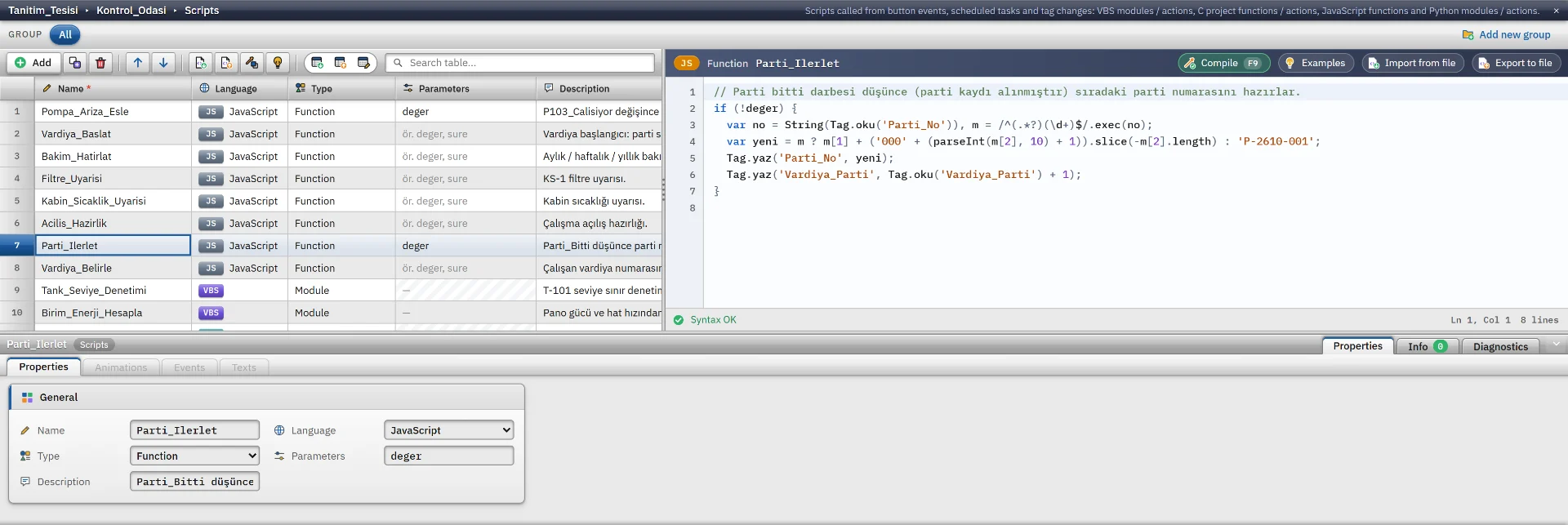
A script is a small program that reaches the tags and the objects of open screens while Live is running. It is written in four languages: VBScript, JavaScript, C and Python. Only the Live program runs scripts and tasks. Scripts, tasks and drivers do not run in monitoring from a browser or TV. To write scripts, see the scripts page.
| Caller | How it is connected |
|---|---|
| Object or screen event | The run script function on the Events tab: the script and the procedure to call are selected. |
| Code written in the event | VBS, C and Python code is written directly into the event. The object of the event is available as Item and its screen as Parent.
|
| Scheduled task | The script and procedure to run are selected in the task table. In a task triggered by a tag change, the new value of the tag is passed to the script as the first parameter. |
| Recipe transfer | The before and after scripts in the PLC transfer settings of the recipe. If the before script fails, the transfer does not start. |
Running rules
- VBS, C and Python scripts run in the background, so the interface does not freeze.
- A VBS, C or Python call can compute for at most 30 s. A longer loop is interrupted with the message “Betik süre sınırını aştı (30 sn); sonsuz döngü olabilir”. The limit measures only the time the code itself runs; the waiting time of tag writes, database, window and wait operations is not counted.
- In VBS, C and Python, a new call that arrives for the same trigger while the previous call is still running is skipped. A note is written once to the event log.
- The 30 s limit and the check for repeated calls do not apply to JavaScript.
- A script error does not stop the program; it is written to the event log with the type
betik. - There are no breakpoints or step-by-step execution. To track down errors, write output:
HMIRuntime.Tracein VBS,printfin C,printorscada.tracein Python.
Script permissions
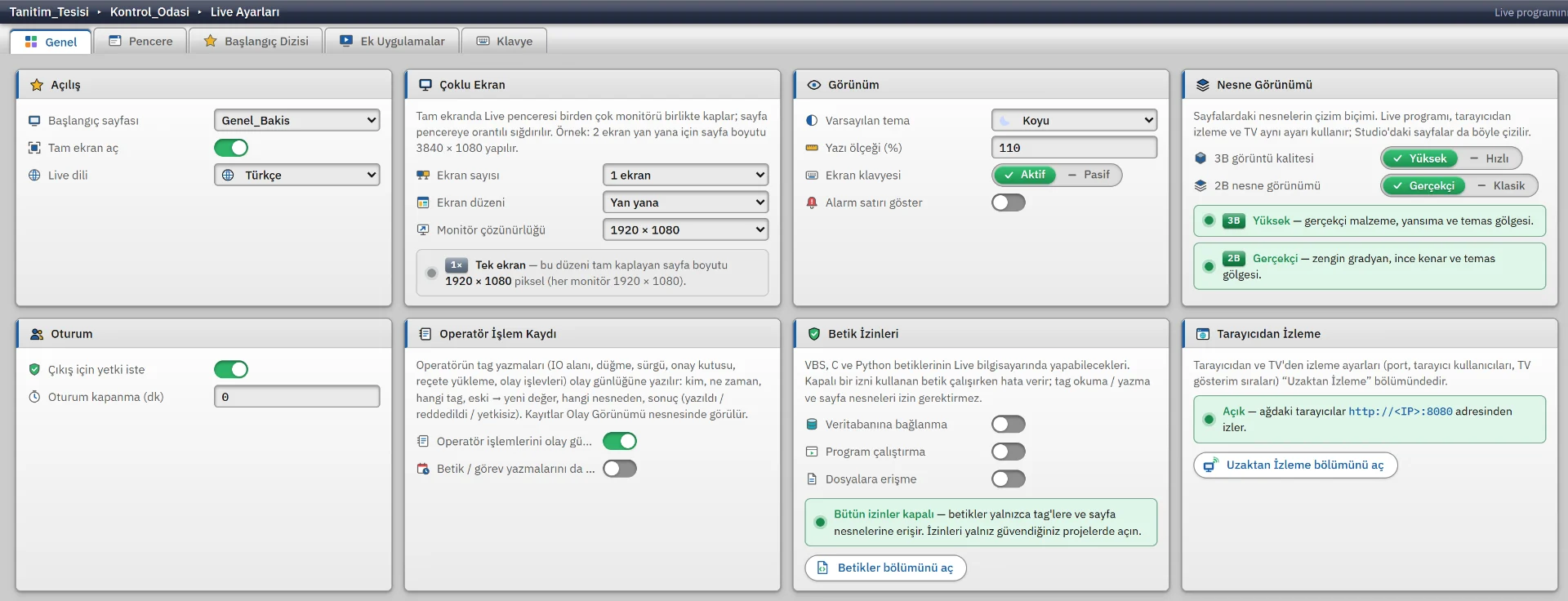
There are three permissions and all are off by default. They are turned on in Studio on the Live settings › General › Script permissions card. While a permission is off, a VBS, C or Python script gets an error when it performs that operation. Reading and writing tags and screen objects do not require a permission.
| Permission | Calls it covers |
|---|---|
| Database connection | ADODB.Connection, Recordset, Command in VBS. scada.db and pyodbc in Python. Queries go through ODBC.
|
| Program execution | WScript.Shell in VBS. ProgramExecute, WinExec, ShellExecuteA in C. scada.run in Python. Additional applications also depend on this permission.
|
| File access | Scripting.FileSystemObject in VBS. Functions such as fopen, fprintf, remove in C. open, os, shutil, pathlib in Python. Reading, writing and deleting files and creating folders.
|
Studio reports a call whose permission is off in the Problems list in advance. While a permission is on, the script performs these operations on the Live computer without asking the operator. Settings changes do not reach a running Live at once: save the project, upload it to Live and reopen it.
Task triggers
A scheduled task runs a script in your place. The task definition sets when the script runs; the script does the work. There are 10 triggers. Defining a task is covered on the tasks page.
| Trigger | When it runs in Live |
|---|---|
| Cyclic | Each time the selected cycle duration elapses, at most every 100 ms. A task is not scheduled with the On change cycle, whose duration is 0. |
| Daily at a fixed time | Every day at that time. |
| On selected weekdays | On the selected days at that time. |
| On a day of the month | Every month on that day and at that time. If the month has no such day (such as 31), it runs on the last day of the month. There is also a Last day of the month switch. |
| On a day of the year | Every year in that month, on that day and at that time. A task set for 29 February runs on 28 February in a non-leap year. |
| One-time | Once. After it runs, it becomes completed and does not run again. |
| On tag change | Each time the value of the tag changes. The new value is passed to the script as the first parameter. |
| Tag condition (threshold / edge) | Once when the condition starts to be met. It runs again when the condition is lost and then met again. It does not run if the condition is already met when Live starts. |
| At Live start | Once, when the project is opened. |
| At Live shutdown | Once when Live closes. Shutdown waits for the task to finish. |
For time triggers, the time and date are those of the local calendar of the Live computer. A task starts at most about 5 s after its scheduled time.
Startup, shutdown and additional applications
If Scheduled tasks is turned off in the Startup sequence tab of the Live settings, no task runs, including startup and shutdown tasks.
The Additional applications tab defines the programs that start together with Live, for example a barcode reader service. Starting depends on the Program execution permission. If it is off, no application is started and the reason is written to the program log of Live. For an application marked Close on exit, a close request is first sent when Live closes, and after 3 s the process is terminated. Processes that Live did not start are left untouched.
Task status and log
In Live, System menu › Tasks… shows the state of all tasks: the task (with the script name), trigger, last run and its source, result, next scheduled time and number of runs. The result can be OK, Error, Skipped, Completed, Running, Inactive or Not run yet.
If a script produces an error, the result of the task is Error and the message holds the script, the procedure and the line. An error does not stop the later runs of the task. Each run is written to the event log with the type gorev, and the state is kept when Live is reopened.
Frequently asked
Does a task whose time passed while Live was closed run at startup?
If the Run at startup if missed option is on for a task with a time trigger, the task runs once when Live opens; it does not run separately for each missed time. If the option is off, the missed time is skipped and “missed” is written to the event log. Past times are not made up for a newly added task.
Do I need to install extra software to run scripts?
No. VBScript, C and Python scripts run on the engines of the product itself; Windows Script Host, a C compiler or a CPython installation is not needed. JavaScript runs in the JavaScript environment of WebView2.
Related pages
Scripts
VBScript, JavaScript, C and Python; editor, compile, sample gallery and permissions that are off by default.
StudioScheduled tasks
10 triggers, catch-up of missed tasks at startup, the task status window and scheduling examples.
LiveOperator actions
System menu, login and authorization, the action log, Event view and closing the program.