Overview
The three drivers use the same protocol: S7 communication (PUT/GET) over TCP port 102. Tags are given by absolute address, for example DB1.DBX0.0 or MW20.
If a data block has Optimized block access turned on, or if you need secure communication, use the OPC UA driver.
| Driver | CPU | Default rack / slot | Note |
|---|---|---|---|
| Siemens S7-1500 | S7-1500 | 0 / 1 | All data types |
| Siemens S7-1200 | S7-1200 | 0 / 1 | Same parameters, addresses and data types as S7-1500 |
| Siemens S7-300 / 400 | S7-300, S7-400 | S7-300: 0 / 2 | No SInt, LReal or WString |
What to set up in the PLC
-
Allow PUT/GET access
The CPU properties must allow access by remote partners with PUT/GET communication. In TIA Portal the path is CPU properties › Protection & Security › Connection mechanisms; menu names vary with the TIA version. If the permission is off, the CPU rejects the requests.
-
Turn off Optimized block access in the data block
In the properties of every data block you read, Optimized block access must be cleared so that variables have fixed byte addresses. Recompile the block and download it to the CPU. Take bit, byte and word addresses from the Offset column of the block.
-
Find the rack and slot
In S7-1200 and S7-1500 the CPU sits in rack 0, slot 1. In S7-300 it is slot 2. For S7-400, take the rack and slot of the CPU from the hardware configuration.
-
Check network access
The Live computer and the PLC must be on the same network, and any firewall in between must allow TCP port 102.
Setting up the connection in Studio
-
Add a connection
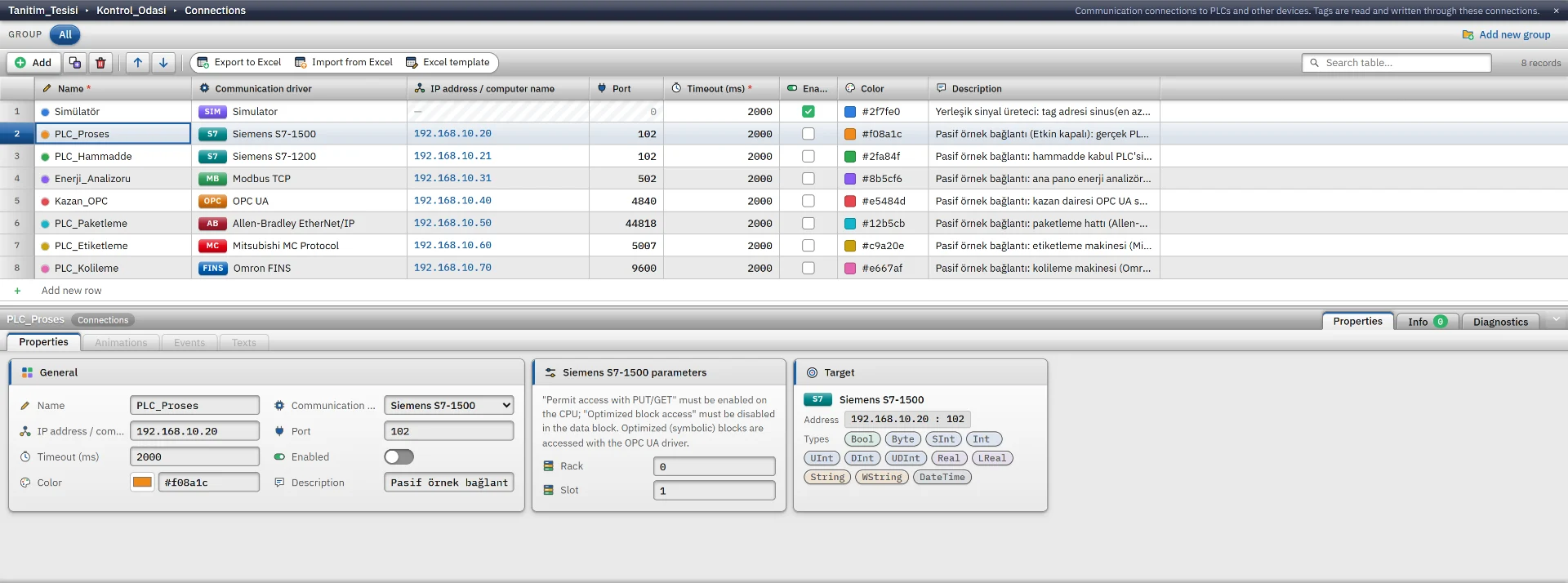
In the Connections section click Add and choose the S7 driver that matches your CPU as the communication driver.
-
Enter address and port
Type the IP address of the CPU in the IP address cell. The port stays 102.
-
Enter rack and slot
In the inspector fill in Rack (0 – 7) and Slot (0 – 31).
-
Add tags
In the HMI Tags section create tags bound to this connection. The address cell validates the address as you type and shows how it resolves. See the HMI tags page for details.
-
Test the connection
Online › Test connections only shows that TCP port 102 is open. The S7 session and the PUT/GET permission are tried in Live when a tag is read.
Address format
DB1.DBX0.0 // Bool DB1.DBB2 // Byte, SInt DB1.DBW4 // Int, UInt DB1.DBD12 // DInt, UDInt, Real MW20 // flag area, word I0.0 // input Q4.1 // output DB1.DBX16.0 // LReal, String, WString, DateTime (start byte) - The size letter must match the type:
DBXorM10.3for Bool,DBBorMBfor Byte and SInt,DBWorMWfor Int and UInt,DBDorMDfor DInt, UDInt and Real. - Long types (LReal, String, WString, DateTime) take no size letter. The start byte is given as
DB1.DBX24.0;DBBis accepted too. These types can only be held in a data block or the flag area. - Addresses are not case-sensitive and may start with
%. The German formsEfor input andAfor output are accepted.
Data types
- Bool
- Byte
- SInt
- Int
- UInt
- DInt
- UDInt
- Real
- LReal
- String
- WString
- DateTime
| Type | In the PLC |
|---|---|
| String | STRING[n]: 2-byte header + n characters, Windows-1254 encoding. The Length field of the tag is the maximum number of characters to read (default 32, maximum 254) and must match the PLC definition. Text longer than the PLC length cannot be written.
|
| WString | UTF-16, takes 2n + 4 bytes. |
| DateTime | DTL (12 bytes) in S7-1200 / 1500, DATE_AND_TIME (8 bytes) in S7-300 / 400. |
The S7-300 / 400 driver has no SInt, LReal or WString.
Read and write behavior
- Tags no more than 32 bytes apart in the same area are read in one request. Reads are split into multi-variable requests according to the PDU size the PLC agreed on.
- Giving the tags of one data block the same read cycle lowers the load.
- If the connection cannot be made or drops, the driver retries after 1 s, 2 s and 5 s, then every 10 s.
- Writes are made between reads and the written tag is read back at once.
- For many devices with the same structure use Structures (UDT). The base address (
DB30,DB31…) spreads from the instance to the member addresses.
Limits
- Only absolute addresses are used. There are no symbolic addresses, optimized blocks, array or structure types, Time / Date / Char types or 64-bit integers. Use the OPC UA driver for symbolic access.
- PLC passwords and S7 secure communication are not supported; PUT/GET is plain TCP.
- The RUN / STOP state of the CPU is not read; there is only connected or disconnected.
Common errors
| Message | Cause and fix |
|---|---|
| Device did not respond within 2000 ms | No TCP connection to the port. Check the IP address, network, cable and firewall. |
| S7 connection could not be opened (rack / slot) | The CPU was reached but no S7 session opened. Check the CPU type, the rack / slot numbers and the PUT/GET permission. |
| PLC rejected the request | PUT/GET access is not allowed in the CPU. Turn it on and download to the CPU. |
| PLC did not allow access | The data block uses optimized access. Turn optimized access off or use the OPC UA driver. |
| Data block not in the PLC | The DB number in the address does not exist in the PLC. |
| Address outside the area | The byte address is larger than the length of the data block. |
| Text does not fit the STRING[32] field in the PLC | The written text is longer than the string in the PLC. |
| Int needs a word (2 byte) address | The address cell in Studio gives this message: the size letter does not match the type. Use DBW for Int.
|
Frequently asked
Do I need to choose separate drivers for S7-1200 and S7-1500?
They are separate entries in the driver list, but the parameters, addresses and data types are the same. Pick the one that matches your CPU.
Can I read a data block with optimized block access?
Not with the S7 driver, because the byte addresses of the variables are not fixed. Turn off Optimized block access in the data block, or use symbolic addresses with the OPC UA driver.
Related pages
Connections
The Connections table, driver selection, connection test, diagnostics, reconnection and password storage.
StudioHMI tags
External and internal tags, scaling, quality, structures (UDT) and bulk transfer with Excel.
ConnectivityOPC UA
Connects to an OPC UA server as a client, with symbolic addresses and signed, encrypted communication.
ConnectivitySimulator
The built-in driver that generates signals for trials, demos and training without a PLC.