
Report definition
A report is a definition that reads the values of a series of tags at a given moment and stores them as a record. For example, when a batch is finished, brix, temperature, flow rate and total quantity are written to a batch record.
A report is prepared in the Reports section of the project tree on four tabs: Report definitions, Trigger and record, Period, Print and Approval and Screen design. Using the records in Live is covered on the reports in Live page.
Report and fields
-
Add the report
On the Report definitions tab, click Add; enter a Name and, optionally, a Display name. If an Authorization group is selected, deleting records and manual record creation are available only to users in that group.
-
Add the fields
Add a row to the Report fields table for each value. Tag is the tag the value is read from; Data type (Integer, Decimal, Text, Bool) determines how the record is stored. A field whose tag has not been read yet, or has bad quality, stays empty in the record.
-
Set the trigger and the record
On the Trigger and record tab, specify which condition starts the record.
| Field column | Meaning |
|---|---|
| Name, Display name | Definition name and the name shown in the table header, on the card and in print. |
| Decimal, Unit | Number of decimal places shown (0 – 6) and the unit shown in the heading and next to the value. |
| Format | Automatic (by data type), Number, Date / time, Text, Logical (Yes / No). |
| Period total | How the field is reduced to a single value in the period summary: Last value, Total, Average, Min, Max, Difference (last − first), Count. |
| Min. limit, Max. limit | Below the minimum an orange color appears, above the maximum a red one. Empty = no limit. Numeric fields only. |
| Card group, Order | The heading under which fields are grouped in the card of the selected record, and their position in the table / card. |
Trigger and feedback
| Condition | When a record is taken |
|---|---|
| Rising edge (0 → 1) | When the tag becomes non-zero (true, if it is Bool). |
| Falling edge (1 → 0) | When the tag is reset to zero. |
| On change | Every time the value of the tag changes. |
| When value equals | When the tag reaches the value in the Comparison value field. |
The condition that starts the record is on a single tag. If the trigger tag is left empty, the report is saved only manually, with the Take record button. The first value read when Live starts does not count as a trigger. If a new trigger arrives while a record is being taken, at most one trigger is put on hold.
Measurement delay (ms) is the time to wait after the trigger before the field tags are read (0 – 60 000). It gives the PLC time to place the values.
A report has no time-based trigger. To take a record at a specific time, a scheduled task sets a tag to 1 and this tag is selected as the trigger.
When the record has been written, a “saved” signal can be given to the PLC: Feedback tag (must be Bool), Value written (1 or 0) and Pulse duration (ms). If the pulse duration is 0, the value is held until the trigger drops; for a manually taken record it is reset after 1 s. The feedback tag must not be the same as the trigger tag.
Record number and retention
- The record number is the Record no. prefix plus a 6-digit number (example:
PRT-000100). The counter is kept in Live’s storage. - Max. records (default 10 000) is the largest number of records shown in the list and kept in storage.
- Retention (days) defaults to 365. With Keep approved records on, months containing approved records are not deleted.
The records are kept on the Live computer, in monthly files in the data folder of the project. About 25 seconds after startup and then once a day, Live checks the old monthly files and deletes the expired ones, starting from the oldest month. The period applied is at least 31 days. This month, the previous month and the newest two existing monthly files are never deleted.
Records are only appended. Approval and deletion are appended as separate rows, a deleted record is not removed from the file, and record values cannot be edited afterwards.
Period summary, approval and print layout
- Period summary groups the records by Day, Shift, Week, Month or Batch field and applies the Period total of the fields to each group. Records carrying the same batch number form one period. Default shifts: Shift 1 06:00 – 14:00, Shift 2 14:00 – 22:00, Shift 3 22:00 – 06:00.
- Approval / signature, when on, enables Approve / sign in Live. If Group that can approve is empty, the authorization group of the report approves; if that is empty too, everyone who is logged on can approve. With Lock approved record on, an approved record cannot be deleted. The approval note can be made mandatory. For groups see users and permissions.
- Print layout defines the PDF / print output: paper size (A4, A3, A5, Letter), direction, margins, report title, footer text, page number, field summary table, signature blocks and record order.
Report page design
If the default Report view is not sufficient, you design a free-form page for the report on the Screen design tab. The templates of the New design screen window: Empty, Batch record, Daily / Period Report, Shift Report, Record Card / Certificate and Record List. The page is opened from the navigation menu, or embedded in another page with the Screen design property of the Report view.
The Report group of the Toolbox contains these components:
- Record table
- Report field
- Date filter
- Report button
- Report info
- Record chart
- Report Statistics
- Signature Block
- Record Comparison
- Period Summary
- Report Header
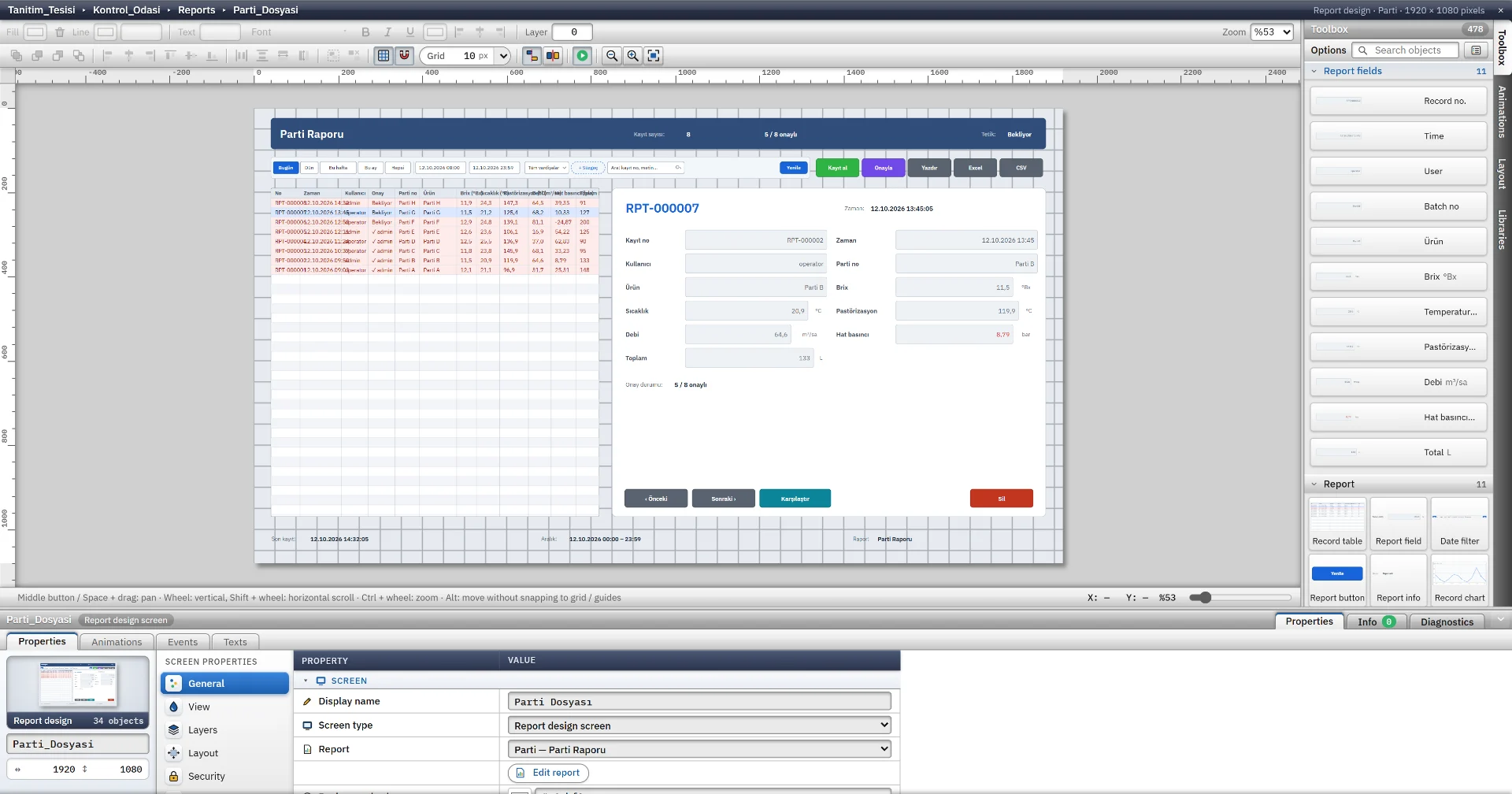
When Print is on in a design page, the page becomes a paper layout: page header (every page), report header (first page), detail, report footer (last page) and page footer bands. If the detail band contains a table object, the rows are split across pages and the header row is repeated on every page. If it contains other objects, the band is repeated for each record. Button and filter objects are not drawn in print.
Filters and output
The Report view filters the records by date and shift. The preset ranges are Today, Yesterday, This week, This month and All; a custom start and end can be entered. The search covers the record no., user and text fields, and filters built from a field, a condition and a value can be added. Out-of-limit values appear in orange or red. The Compare command compares two records field by field.
| Button | Result |
|---|---|
| Excel | Writes the records in the list to an .xlsx file. Numbers are real numbers, Bool fields are written as Yes / No. If approval is on, approver, time and note columns are added. |
| CSV | Writes the same content as a CSV with a semicolon delimiter and BOM. |
| PDF / Print | Opens a print preview window: page navigation, zoom, Print and Save as PDF. The PDF is produced by the print engine of the Live window (WebView2). |
Checks and limits
Check project (F7) flags: a report without fields, a deleted trigger tag, a text tag in an edge condition, a feedback tag that is not Bool, a feedback tag identical to the trigger tag, a retention period of 0 or shorter than 31 days, and a Max. records value below 100.
- If Report recorder is switched off in the Startup sequence of the Live settings, the trigger is not monitored. Manual and script-based record creation still works.
- Triggered records are taken only on the computer where Live runs.
Frequently asked
Can a report record be taken at a specific time?
A report has no time-based trigger. A scheduled task sets a tag to 1 at the given time, and the report is triggered by the rising edge of this tag.
Can the values of a saved record be corrected afterwards?
No. The report log only appends rows. Approval and deletion are appended as separate rows, and the record values never change.
Related pages
HMI tags
External and internal tags, scaling, quality, structures (UDT) and bulk transfer with Excel.
StudioScheduled tasks
10 triggers, catch-up of missed tasks at startup, the task status window and scheduling examples.
LiveReports and output
Triggered or manual records, filters, period summary, approval and signature; Excel, CSV and PDF output.
StudioUsers and authorizations
Users, groups and numbered authorizations; object, screen and menu authorization; session time and action log.