
Logging on and authorization
-
Open the login window
Click Login in the system menu. If an operation that requires authorization is attempted without a session, the window opens by itself.
-
Enter user and password
Select your name from the list, type your password and click Login or press Enter. On a touch panel the on-screen keyboard opens when you touch the password box.
-
Check the result
If the password is wrong, the window says “Wrong password.” and stays open. After logging on, your user name and group appear at the top of the system menu.
- To log off, use the Exit button next to your name in the system menu. To change users, log off first and log on again.
- If Session timeout (min) is set in the project, the session closes by itself that many minutes after logon. Performing actions does not extend the time.
- Logins and logouts are written to the event log with the type
oturum.
An operation whose authorization field is empty is open to everyone. If an authorization is selected, only a user who is logged on and whose group has that authorization checked can perform it. Authorizations are assigned to objects, screens, menu items, recipes and reports; the definitions are in users and authorizations.
On an unauthorized attempt, the login window opens if there is no session, and a notification “… is not authorized for this operation” appears if a session is open. If the open screen requires authorization and the session ends, a lock card appears in place of the screen. When an authorized user logs on, the screen opens by itself.
Entering values and control
Objects such as an input field, button, slider and check box run when clicked or touched. The value is written to the tag. Some buttons ask first (a Yes / No window); a script or an event makes the prompt. If a write is rejected, an “Operation failed” window opens in the center. The main causes:
- The value is outside the lower or upper limit of the tag.
- The tag is a connection status tag; communication determines its value.
- There is no tag with that name in the project.
- The user has no authorization for the operation.
Operator action log
The tag writes of the operator (input field, button, slider, check box, recipe loading, event functions) are written to the event log with the type operator. Each record holds who, when, which tag, the old and new value, from which object and the result. The result is one of four values:
- yazıldı (written)
- red (rejected): the value is out of limits or the tag cannot be written
- hata (error): a PLC write error
- yetkisiz (unauthorized): the authorization refused; the authorization requested is recorded too
Unauthorized attempts are recorded as well. Repeats for the same authorization and source within 2 s become a single record.
The log is managed in Live settings › General › Operator action log:
- Write operator actions to the event log is on by default. When it is off, unauthorized attempts are not written either.
- Also log script / task writes is off by default. When it is on, the writes of scripts, scheduled tasks, screen events, alarm acknowledgment bits and report feedback are recorded too. In scripts that write frequently, it makes the log grow.
Event view
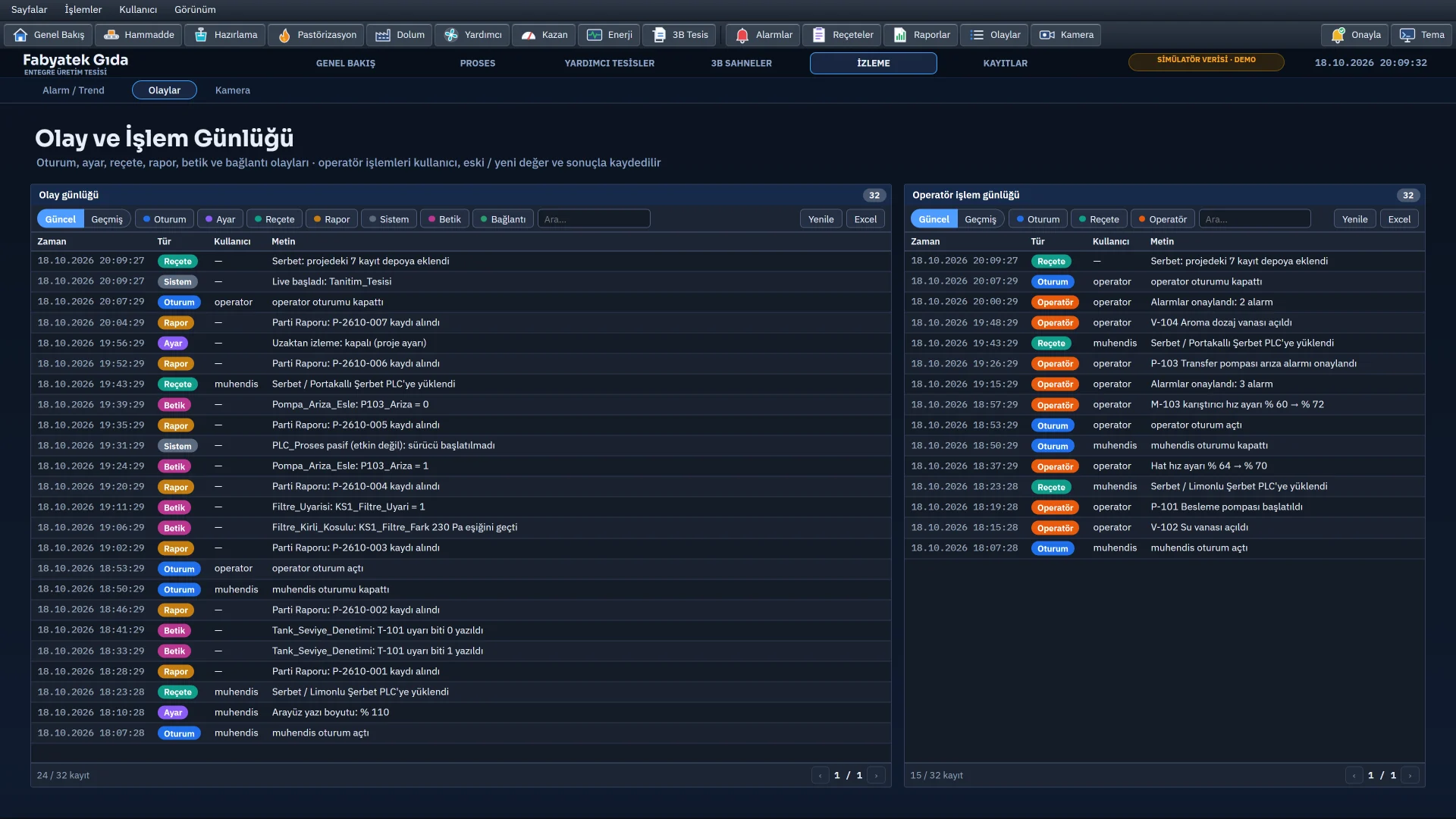
The Event view is a control object that shows the event log of Live as a table on a screen; the designer places it on the screen. Each row has time, type, user and text. Eight types can be turned on and off one by one: Session, Setting, Recipe, Report, System, Script, Operator and Connection.
- Current (live): a new event is added to the top of the list. The records in memory and the last 1000 records of the log are shown.
- History: read from the log with the Today, Yesterday, Week, Month, All buttons or a date range typed by hand, at most 20000 records.
- Toolbar: Current / History, type filter, search, date range, Refresh and Excel. The Excel file contains the whole filtered list.
The event log is kept in monthly olay_yyyyMM.log files and is not deleted by itself.
Closing the program
In the system menu click Exit Live and confirm the question “Exit the Live program? Monitoring, alarms and logging will stop.” with Close. At shutdown:
- The tasks with the “At Live shutdown” trigger run; see scripts and tasks.
- Additional applications marked Close on exit are closed.
- The values of persistent internal tags are written.
If Require authorization to exit is on in the project, closing the program and Change project… need a user with the exit authorization. Live runs one project at a time: Change project… closes the open project and opens the selected one; monitoring, alarms and logging stop until the new project opens.
Related pages
Alarms
Alarm view, alarm line, acknowledging, shelving, comments, audible alerts and the alarm log.
LiveBrowser monitoring
A small web server in Live shows the pages in computer, tablet and smart TV browsers.
StudioUsers and authorizations
Users, groups and numbered authorizations; object, screen and menu authorization; session time and action log.