
Text and graphic lists
The value of a PLC tag is most often a number (0, 1, 2), whereas the operator wants to see “Stopped”, “Running”, “Faulty”. A text list converts the value into text and color, a graphic list into an image.
On the Text lists or Graphic lists tab, click Add and enter a Name, set the Selection type and add one row to the List entries table for each mapping: Value, Upper limit in a range list, and Text (Graphic in a graphic list). You select the list from the Text list or Graphic list property of the object that will use it.
| Selection type | How the entry is found |
|---|---|
| Value (0, 1, 2 …) | The entry whose Value equals the tag value. |
| Range | Value is the lower limit and Upper limit is the upper limit, both inclusive. The first matching entry in list order is selected. If the upper limit is empty, there is no limit. |
| Bit (0 / 1) | The entry with the value 0 if the tag is zero, the entry with the value 1 if it is non-zero. |
| Bit number (0 – 31) | The entry for the lowest set bit that has an entry. When no bit is set, the entry with the value -1. |
0 – 20 // Very low 20 – 80 // Normal 80 – // High The limits are inclusive at both ends. The value 20 falls into both the first and the second range, and the first entry in the list wins. Check project (F7) reports overlapping ranges as a warning.
Lists are used in the Symbolic I/O field (text and color), the Status indicator (an image with a graphic list), the List box and Option buttons objects, and in the LookupText event function. Comparison in a range list is numeric; a list cannot be used for tags with text values.
Project languages
Any number of project languages can be defined. The first language in the Project languages table is the design language: you write the screen texts, alarm messages and list texts in it. A new project has a single language.
On the Project languages tab, click Add and enter the Language code (two lowercase letters: tr, en, de; optional region en-US) and the Language name. The start language of Live is selected in Live settings › General › Startup › Live language.
| Column | Meaning |
|---|---|
| Enabled in Live | A disabled language cannot be selected in Live. At least one language must be enabled. |
| Order | The order followed when switching the language (0 – 99). |
| Default font | Used while this language is selected for screen texts with no font of their own, for example a suitable family for Russian or Chinese. The font of the object itself takes precedence. |
| Menu font | Used in the Live shell (menus, alarm line, status bar, windows, on-screen keyboard) while this language is selected. |
Project texts and translation with Excel
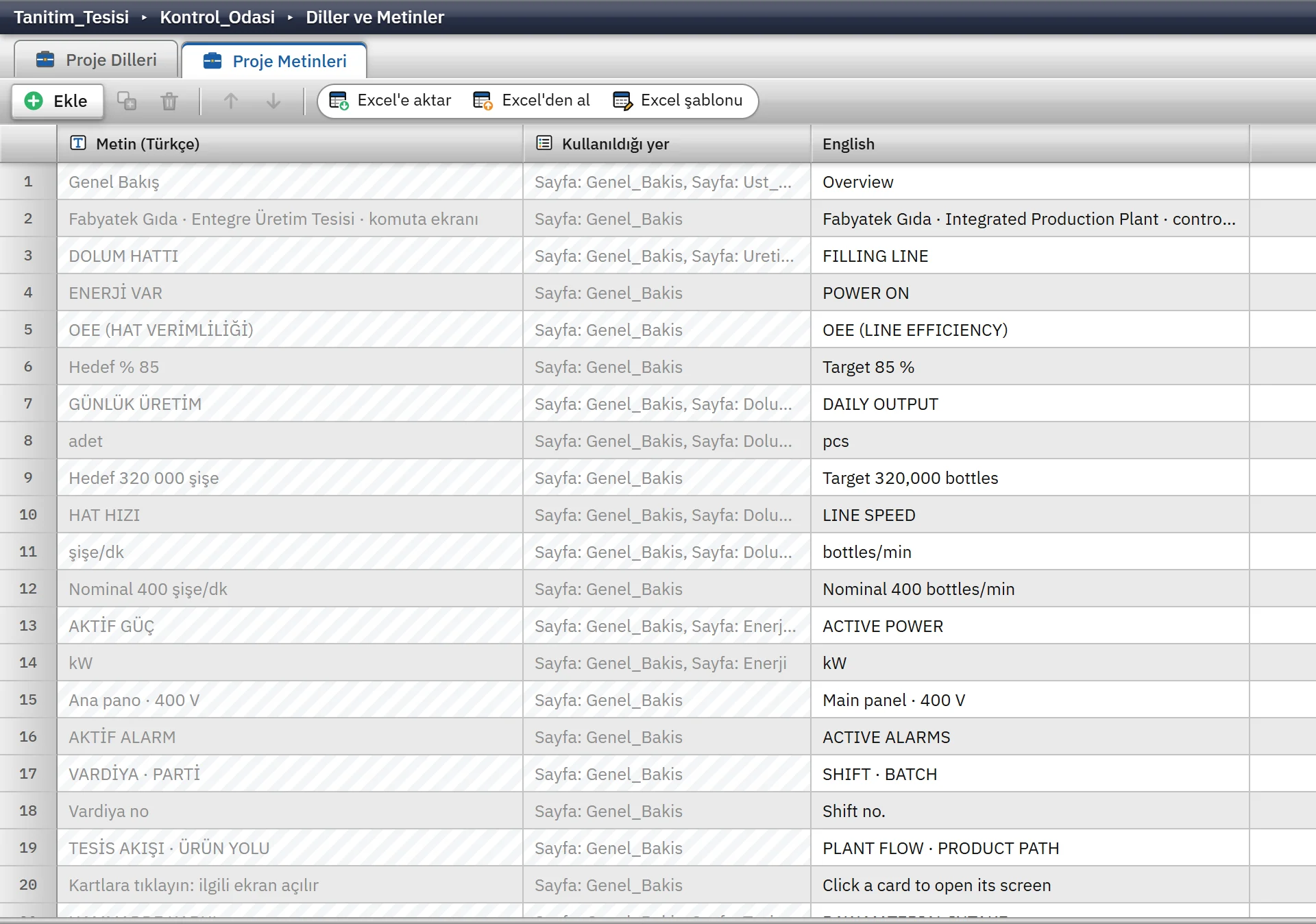
Studio itself fills the Project texts table; you do not add rows. Each row has the text in the design language, where the text occurs, and a translation column for each additional language. An untranslated cell shows “not translated”.
The table collects screen names, object texts and tooltips, alarm and class texts, text list entries, navigation and menu items, and recipe and report display names. Tag, connection and user names and file paths are not translated. If the same text occurs in several places, it is a single row and its translation is the same everywhere.
-
Export the table
Use the Export to Excel command on the Project texts table.
-
Fill in the language columns
The translator fills in only the columns of the additional languages. The Text column must not change; a changed row will not match.
-
Import it back
The Import from Excel command matches on the text in the design language. Only the translation columns are updated and no new rows are added.
Changing the language in Live
- If more than one language is active, language buttons appear in the Language section of the System menu. The selected language is applied immediately and the texts are redrawn in it.
- The Change Live language event function can be bound to a button. If no language code is given, the next enabled language is activated. Scripts can also change the language.
- Untranslated text appears as it is in the design language.
- Texts written to the alarm log and to report records are in the design language at the moment they are recorded. The text value of a tag and messages from the PLC are not translated.
Interface language of Studio
The interface language is separate from the project language. Studio, Live and Convert run in six languages: Türkçe, English, Español, Deutsch, Italiano and Français. The selector shows the flag of each language, the choice is saved, and English is selected on first start. In Studio it is changed from Options › Dil / Language or the Studio Settings window.
The translation covers only the appearance: menus, buttons, tooltips and window texts. Project data such as screen and object texts and tag, connection and group names does not change. The manual is in the same six languages, and F1 opens the manual in the language of the interface.
Limits
- The language code consists only of two lowercase letters and an optional region.
trandTRare not the same. - If no language is enabled in Live, the Problems list reports an error and the design language is used.
- The images of a graphic list are embedded in the project file and are not exported to Excel. Text list entries can be exported to Excel and imported back.
- Renaming a list does not break the places where it is used; objects are bound to the ID of the list.
Frequently asked
Are the project language and the interface language the same?
No. The project language determines the texts on your screens, while the interface language determines the menu and window texts of Studio and Live themselves. They are selected separately.
How does an untranslated text appear in Live?
It appears as it is in the design language. The State column of the Project languages table shows how many texts are translated for each language.
Related pages
HMI tags
External and internal tags, scaling, quality, structures (UDT) and bulk transfer with Excel.
StudioAlarms
Discrete and analog alarms, alarm classes, priority, hysteresis, delay, acknowledgment tag and the Alarm view.
StudioCheck and backup
Check project (F7), revisions and backup, the .fvs project file, upload to Live and table transfer with Excel.
LiveOperator actions
System menu, login and authorization, the action log, Event view and closing the program.