
Defining a data archive
-
Add the archive
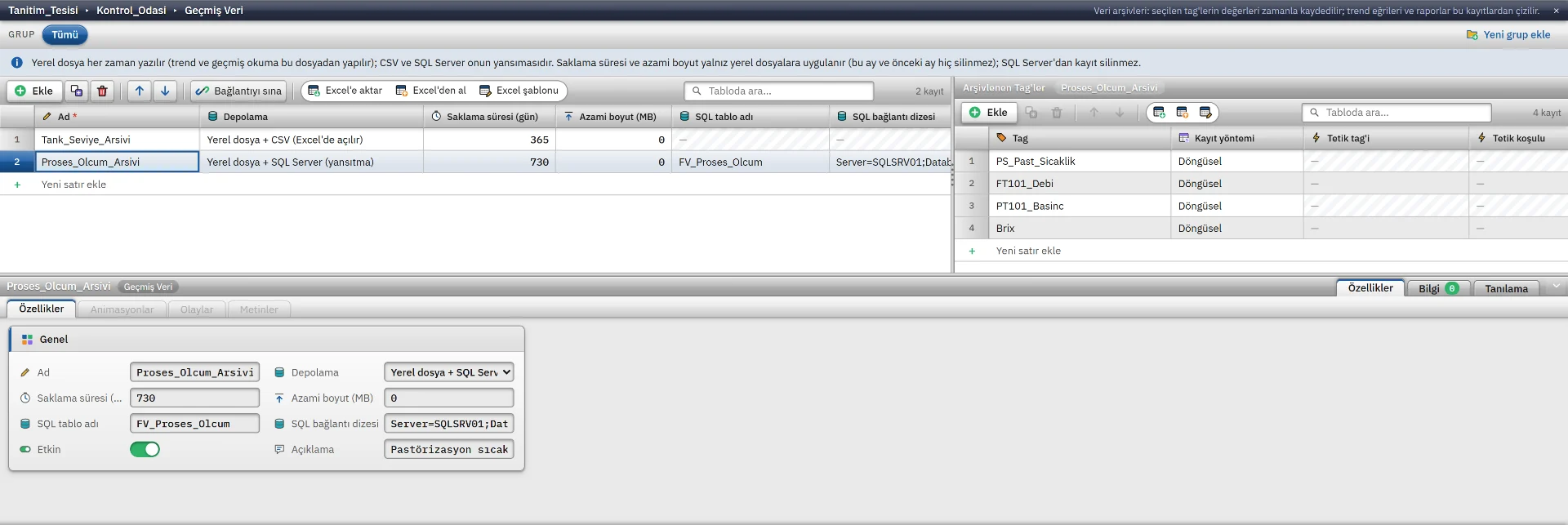
On the Data archives tab of the Historical data section click Add and type a name, for example
Tank_Seviye_Arsivi. An archive with Enabled checked is written. -
Add the tags
With the archive row selected, add a row to the Logged tags table and select the tag. An archive can hold several tags.
-
Select the logging method
Select a logging method for each tag. The Curve name and Curve color are used when a trend draws curves automatically from this archive.
-
Set storage and retention
Fill in the Storage, Retention period (days) and Maximum size (MB) fields.
Logging methods
| Method | When a record is written |
|---|---|
| Cyclic | When the selected Logging cycle elapses, at most every 100 ms. If the On change cycle is selected, the archive records every 1 s. |
| On value change | When the value differs from the previously recorded value by more than the Dead band. 0 records every change. |
| By trigger tag | When the trigger tag meets the condition (Rising edge or On change), the current value is saved once. The first value read at startup does not count as an edge. |
For a tag with bad quality or not yet read, cyclic and change records are not written; the trend breaks the line at that point. Text tags are written to the archive but cannot be drawn as a trend curve.
Storage and retention
| Storage | What is written |
|---|---|
| Local file (monthly) | The local log file. It is always written; the trend reads from this file. |
| Local file + CSV | In addition, a monthly .csv file: UTF-8, semicolon-delimited, opens in Excel.
|
| Local file + SQL Server | In addition, written in bulk to a SQL Server table. |
- If the SQL table name is empty, a name starting with
FV_Arsiv_is used. If the table does not exist it is created at the first record. The Test connection button tries the connection string in Studio and writes nothing. - If the SQL Server connection drops, rows are kept first in memory, then on disk (at most 200 MB), and sent when the connection returns. No row is missing from the local file.
- No records are deleted from SQL Server.
Password=in the connection string is stored readable in the project file; use Windows authentication if you can. - The retention period (days) deletes old monthly files: default 365, 0 never deletes, at least 31 days is applied. If the maximum size (MB) is exceeded, deletion starts with the oldest month. The files of this month and the previous month are never deleted.
- Records are written in batches every 5 seconds; in a crash, the samples of the last few seconds may be lost.
The Trend view object
-
Add the object
Drag the Trend view from the Controls group of the toolbox onto the screen and resize it.
-
Define the curves
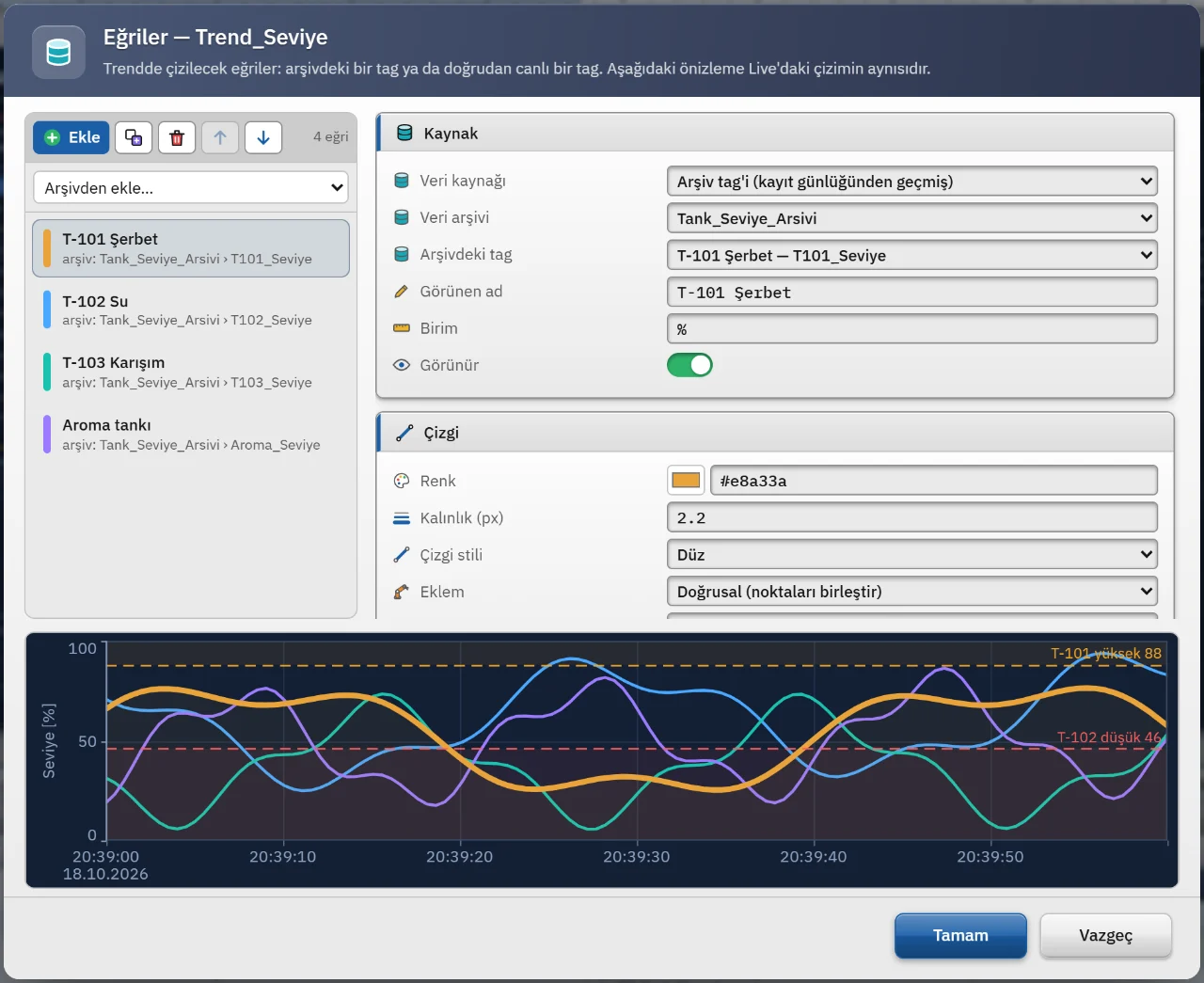
Select an archive from the Data archive (automatic curves) list; all tags of the archive become one curve each. Or define the curves one by one in the Edit curves... window.
-
Select the time window
Time range (min) is the length of the visible window, default 10 min. If Live monitoring is on, the right end of the window is the present and the window scrolls by itself.
-
Add axes and limits
For curves with different scales add axes with Edit Y axes...; for threshold lines use the Edit limits... window.
Curves, axes and limits
| Curve setting | Meaning |
|---|---|
| Data source | An archive tag or a direct live tag. A direct tag curve collects data only while the object is open; its history is lost when the screen closes. |
| Line | Color, thickness, style (solid, dashed, dotted), join (linear, step, smooth), point marker, fill below the curve. |
| Axis and scale | The linked Y axis, decimal places, scale factor and offset (such as converting mA to bar). |
| Behavior | Break the line on bad quality, break the line on a gap, the operator can hide the curve from the legend. |
Y axes have a name, unit, side (left or right), automatic scale or min / max values (which can also come from a tag), and logarithmic and inverted options. Axes are laid out in a common area or in separate bands. Limits add horizontal threshold lines: a fixed value or one taken from a tag, color, shaded region and painting the part of a curve beyond the threshold red.
Time, legend and toolbar
The time range type can be Last N minutes (sliding) or Absolute range; the window can be at most 62 days. Shift boundaries, for example 06:00, 14:00, 22:00, are drawn as a dotted line with a V1, V2 … label. If Time range, Live monitoring and the Y axis limits are bound to a tag, a PLC or script can change the trend window.
The legend sits at the bottom or on the right; the unit, current value, cursor value, minimum, maximum and average columns can be selected. The 19 toolbar buttons are switched on and off one by one: live / freeze, zoom, cursor, A / B measurement cursors, export to Excel and CSV, save as image, print. For how the operator uses it see the Live trends page.
Limits
- Reading history from an archive is limited to 12 pages per archive (50 000 rows per page). With very long ranges the oldest data may not be drawn.
- The trend reads only the local log files, not CSV or SQL Server. Months deleted after the retention period do not appear in the trend.
- If Data logging is switched off on the Startup sequence tab of Live settings, nothing is written to the archive.
Related pages
Trend and archive
Live trend, scrolling back, zoom, measurement cursors, export and archive logging.
StudioHMI tags
External and internal tags, scaling, quality, structures (UDT) and bulk transfer with Excel.
Studio2D screens and objects
Screen editor, object library, properties, layers, faceplates and the navigation menu.