
User, group and authorization
There are three concepts: the user is the person who logs on, the group is the set under which authorizations are collected, and the authorization is a numbered permission for an operation or a field. A user belongs to a group, and authorizations are given to the group.
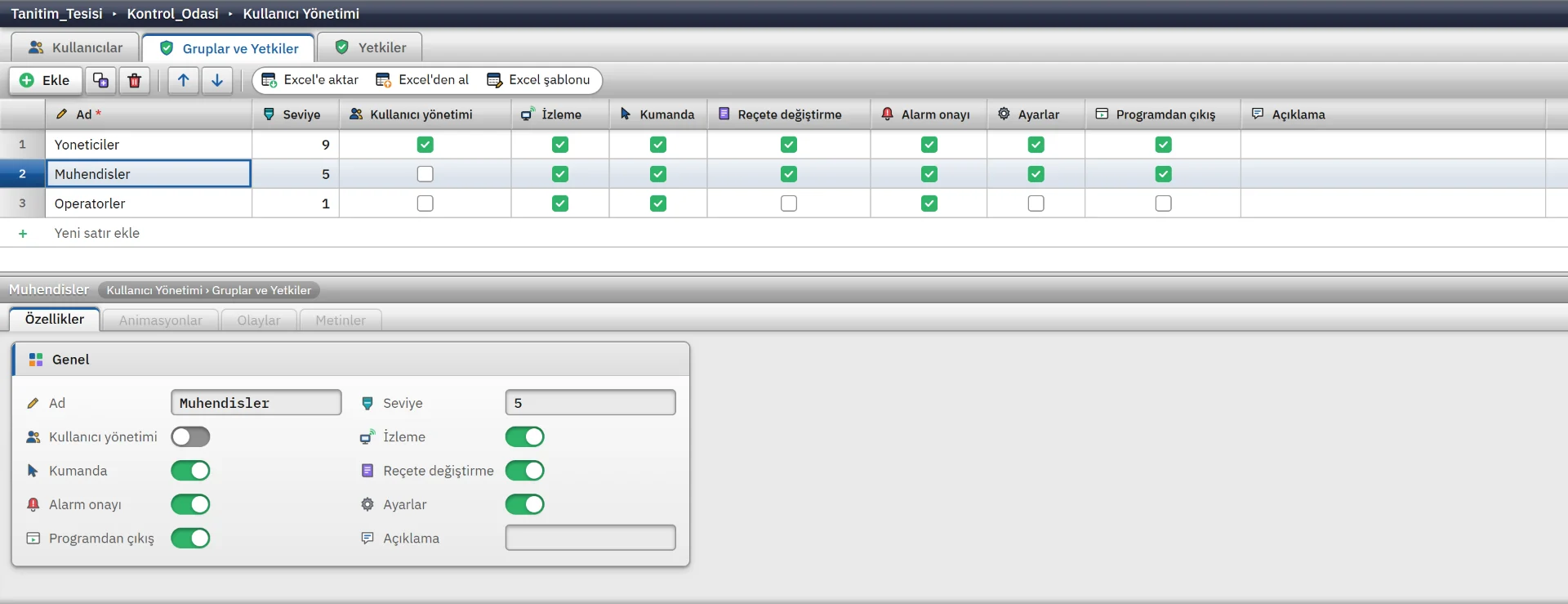
The tabs of the User administration section are Users, Groups and authorizations and Authorizations. A new project starts with three groups (Yoneticiler level 9, Muhendisler level 5, Operatorler level 1), seven predefined authorizations and the admin user. The password of the admin user is empty.
There is no central directory (Active Directory, LDAP). Users are defined in the project.
Defining
-
Review the authorizations
The predefined authorizations are listed on the Authorizations tab. If necessary, add your own authorization with Add, for example Reçete onayı.
-
Create the group
Add a group on the Groups and authorizations tab. There is a check box column for each authorization; tick the ones the group will have.
-
Add the user
On the Users tab, enter User name, Full name, Group and Password.
-
Check
F7 gives a warning for an enabled user without a password.
| User field | Rule |
|---|---|
| User name | Required and unique. May contain letters, digits, ., _ and -. In Live it is selected from a list in the login window.
|
| Password | Stored in the project file as a salted SHA-256 hash. A stored password cannot be displayed. There is no rule for password length. |
| Enabled | A disabled user does not appear in the login list in Live. |
Numbered authorizations
| No. | Authorization | Effect in Live |
|---|---|---|
| 1 | User administration | Not checked by the code; used as an object, screen or menu authorization. |
| 2 | Monitoring | Not checked by the code; can be selected in the authorization fields. |
| 3 | Control | Not checked by the code; can be selected in the authorization fields. |
| 4 | Recipe change | Recipe save, delete, load and approval operations. |
| 5 | Alarm acknowledgment | Acknowledging, shelving and commenting on alarms. |
| 6 | Settings | Entering and changing a connection password; adding a firewall permission from the Remote monitoring window. |
| 7 | Exit program | Closing the program from the System menu, if Require authorization to exit is on. |
- The authorization number is between 1 – 999 and unique. When a new authorization is added, a new column appears in the Groups and authorizations table.
- The Level value of a group (0 – 9) is an information field; Live makes no decision based on it. Only the checked columns determine the authorizations.
- Alarm acknowledgment, Recipe change, Settings and Exit program are looked up in Live by their codes. If you delete one of them, Live treats the corresponding operation as open to everyone.
Where authorizations apply
Defining an authorization does not protect anything by itself; you must assign it to the item to be protected. If the authorization field is empty, the operation is open to everyone. If an authorization is selected, only a user who is logged on and whose group has that authorization checked can perform the operation. On an attempt without authorization, the login window opens if there is no session; if a session is open, a message states that the user is not authorized.
| Location | Where it is set | Effect in Live |
|---|---|---|
| Object | Inspector › Properties › Security: Required authorization, Operable | An unauthorized user cannot use the events and input of the object. If Operable is off, the events do not run for anyone. |
| Screen | Screen properties › Security: Required authorization, Operable | An unauthorized user cannot open the screen, which appears with a lock icon in the System menu. If Operable is off, the screen can only be viewed. |
| Menu and toolbar item | Menus and Toolbars › Authorization › Required authorization | The item appears disabled for an unauthorized user. |
| Navigation menu | Screen management › Navigation menu › Authorization group | Only a logged-on user in that group sees the screen entry in the System menu. |
| Recipe, report | Recipes and Reports › Authorization group, Group that can approve | Recipe operations need the Recipe change authorization; deleting, manually taking and approving report records need group membership. |
| Alarm | No assignment needed | Acknowledging, shelving and commenting need the built-in Alarm acknowledgment authorization. |
| Camera | Camera object › Security › Required authorization | An unauthorized user cannot interact with the camera object. |
Scripts can query an authorization by its number in the Authorizations table. If the start screen requires an authorization, a lock card is shown instead of it until an authorized user logs on.
Login, logout and session time
- Login opens automatically for an operation that requires authorization. It is also opened by the Login button in the System menu, the User view, the User login event function or an assigned key. The user is not typed, but selected from the list of enabled users. There is no limit on the number of wrong password attempts.
- Logout is done from the System menu, the User view, the Logout event function or an assigned key.
- Session time is the Live settings › General › Session › Session timeout (min) field. If the value is greater than 0, the session closes that many minutes after login. Performing actions does not extend the time. 0 = does not close.
Every login and logout is written to the event log.
Operator action log
Live writes the operator’s tag writes (I/O field, button, slider, check box, recipe loading, event functions) to the event log: who, when, which tag, old and new value, from which object, and the result. The result is one of four values: written, rejected (tag outside the limits or not writable), error (PLC write error) or unauthorized.
- Logging is switched on and off with Write operator actions to the event log in the Live settings › General › Operator action log section. It is on by default.
- Also log script / task writes is off by default. When on, writes from scripts, scheduled tasks, screen events, alarm acknowledgment bits and report feedback are added.
- The records are monitored, filtered by type, in the Event view object.
Limits
- Live has no password change, account lockout, password validity period or Windows login.
- User, group and password information is in the project file. To add a user or change a password, you must edit the project in Studio and load it into Live again. Protecting the project file is your responsibility.
- The
adminuser has no password by default. Before using it in the field, set a password or deactivate the user. - If you delete an authorization from the Authorizations table while an object is bound to it, Live no longer looks for an authorization and everyone can access the item. Change the places where it is used first.
- Authorization protects only the operations in the Live user interface. Browser monitoring has its own browser users; see the remote monitoring page.
Frequently asked
Can users log in with Active Directory?
No. Users and groups are defined in the project. There is no Active Directory or LDAP connection.
What happens if someone attempts an operation without authorization?
If there is no session, the login window opens. If a session is open, a message states that the user is not authorized. An operator’s tag write attempt is also written to the action log with the result unauthorized.
Related pages
Alarms
Discrete and analog alarms, alarm classes, priority, hysteresis, delay, acknowledgment tag and the Alarm view.
StudioRecipes
Recipe items, Approved and Draft records, the total rule, PLC transfer methods, authorization and Excel.
StudioReports
Triggered records, period summary, approval, print layout, report page design, Excel / CSV / PDF output.
LiveOperator actions
System menu, login and authorization, the action log, Event view and closing the program.