
Recipe records
A recipe is a data set that brings together the production parameters of a product (quantities, temperatures, times …). Each of its elements is bound to a tag, and the recipe is defined in Studio in recipe design. Records (product recipes) can be entered in advance in Studio or created by the operator in Live.
Records are kept in the data folder of the Live computer (.veri\depo); values are written to the PLC only with Load to PLC. When Live starts, the records from Studio that have no same-named record in the store are added; a record the operator changed is preserved, and a record the operator deleted does not come back. A project update does not overwrite the operator’s data.
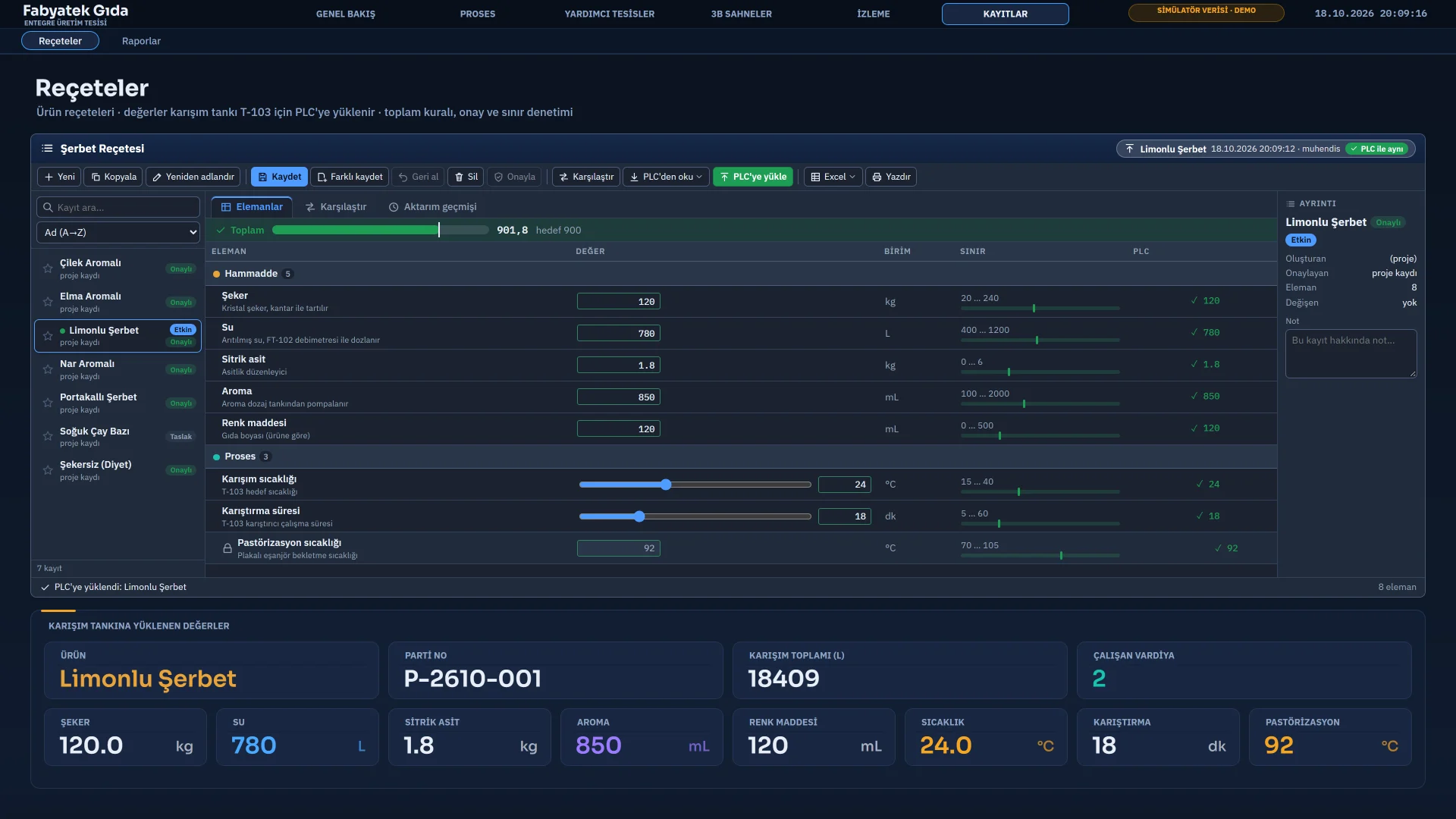
The screen
- The record list on the left: search box, sorting, favorite star and the Approved, Draft and Active badges.
- On the Elements tab each row shows a value box (number box, slider, switch or selection list), the unit, the limit and the current value in the PLC. Groups appear as tabs or headings.
- The total bar shows the total of the selected elements and the target if a total rule is defined.
- The active recipe indicator at the top right shows the record most recently loaded to the PLC successfully. Its badge tells whether the values in the PLC are still identical to that record.
- The Compare tab compares two sources element by element: a record, the values in the boxes, the current PLC values, the active recipe or the defaults. The Transfer history tab lists the transfers to the PLC from newest to oldest.
This screen is the Recipe view object. If the designer wishes, a free 2D design page can be prepared for the recipe as well; some of the buttons may be switched off in the design.
Entering and validating values
A value typed into a box is validated at once. If it is invalid, the reason appears below the row and saving and loading to the PLC are blocked: no number entered, decimals in an integer element, outside the minimum or maximum, text too long. If the deviation margin (tolerance) from the target value is exceeded, a yellow warning appears below the box. Elements with a lock icon cannot be changed. The button at the end of the row returns the element to its default value, and the button in the PLC column takes the PLC value into the box.
If the recipe has a total rule, the sum of the selected elements must be target total ± tolerance (example: mixture quantities 900 ± 5). If it is out of rule, saving and loading stop or only a warning is shown, depending on the design setting.
Record operations
| Button | What it does |
|---|---|
| New | Creates a new record with the values in the boxes and asks for a name. The same name cannot be used twice. |
| Copy, Rename | Copies the selected record under a new name or renames it. If the record is the active recipe, the name in the active record is updated too. |
| Save, Save as | Writes the values in the boxes to the selected record or under a new name. If approval is required and a value changed, the record becomes Draft and the previous approval is deleted. |
| Undo, Delete | Undo discards unsaved changes. Delete deletes the selected record after asking for confirmation. |
| Approve | Sets the record to Approved. If there are unsaved changes, save first. |
The number of records is subject to the maximum number of records defined in the recipe (1 – 100 000, default 500).
Reading from and loading to the PLC
Read from PLC offers two options: it takes the PLC values into the boxes (locked elements are skipped) or stores them as a new record.
-
Prepare the record
If the recipe requires approval, the record must be Approved and saved. A draft record is not loaded to the PLC.
-
Press Load
Press Load to PLC. If asking for confirmation before loading is selected in the design, a summary window shows how many elements will be written, how many changes there are, and the PLC value next to the value to be loaded.
-
Follow the progress
The transfer is shown step by step in the progress window; Cancel stops it. In handshake mode the trigger tag is reset.
-
Read the result
On success the record becomes the Active recipe. On an error, timeout or cancellation the reason is written; the Transfer history shows who, when, which record, the result, the duration and, if any, the PLC error code.
| Setting | How it works |
|---|---|
| Direct | Values are written to the tags and the job ends. It is not verified that the PLC has accepted them. |
| Handshake | Live waits until the Ready tag is 1 and the Busy tag is 0, writes the values and writes 1 to the Trigger tag. The transfer finishes when the PLC goes busy and the Done tag becomes 1; if the Error tag becomes 1, it ends with an error. Timeout 1 – 600 s, default 10. The trigger tag returns to 0 when the job ends. |
| Read-back | The written values are read back after a wait (default 300 ms). If the difference exceeds the larger of the read-back tolerance and the element’s tolerance, the transfer returns an error. |
A Before script and an After script can be defined in the design; if the before script raises an error, the transfer does not start. If “Stop at the first error” is selected, the PLC is not triggered on a write error. If “Record the error and continue writing the remaining elements” is selected, the transfer can end with a partial result and the PLC values differ from the record. For operations that need a safe transfer, use handshake mode and read-back.
Permissions and the log
Saving, deleting, copying, naming, loading to the PLC and creating a record from the PLC need the Recipe change authorization. If an authorization group is selected in the recipe, the group of the user must be that group too. For approval, the group-that-can-approve setting of the recipe is also checked. Comparing, viewing PLC values, exporting to Excel and printing need no authorization. If there is no session, Live opens the log-on window. Groups and authorizations are defined in user management.
Every operation is written to the event log with the type recete. Transfers to the PLC are also recorded in the recete_aktarim_yyyyMM.log file and on the Transfer history tab (200 records by default). If the operator action log is on (the default), recipe loads are also recorded with the old and new value, with the type operator.
Excel, CSV and printing
The Excel button opens: Export to Excel (all records), Excel template (an empty file with headers and limit validations prepared), Export to CSV and, if the user is authorized, Import from Excel…. When importing, the file is read first and a preview is shown: a record whose name exists is updated, a new name is added, every value is checked against the rule of its element and faulty rows are not imported. The file headers are the same as in the recipe records table in Studio, so the same file can be used in both programs. Print prints the recipe form of the selected record.
If Recipes is switched off on the Startup sequence tab of Live settings, the recipe buttons do not work and a notification is shown.
Related pages
Recipes
Recipe items, Approved and Draft records, the total rule, PLC transfer methods, authorization and Excel.
LiveOperator actions
System menu, login and authorization, the action log, Event view and closing the program.
StudioUsers and authorizations
Users, groups and numbered authorizations; object, screen and menu authorization; session time and action log.