
What it is for
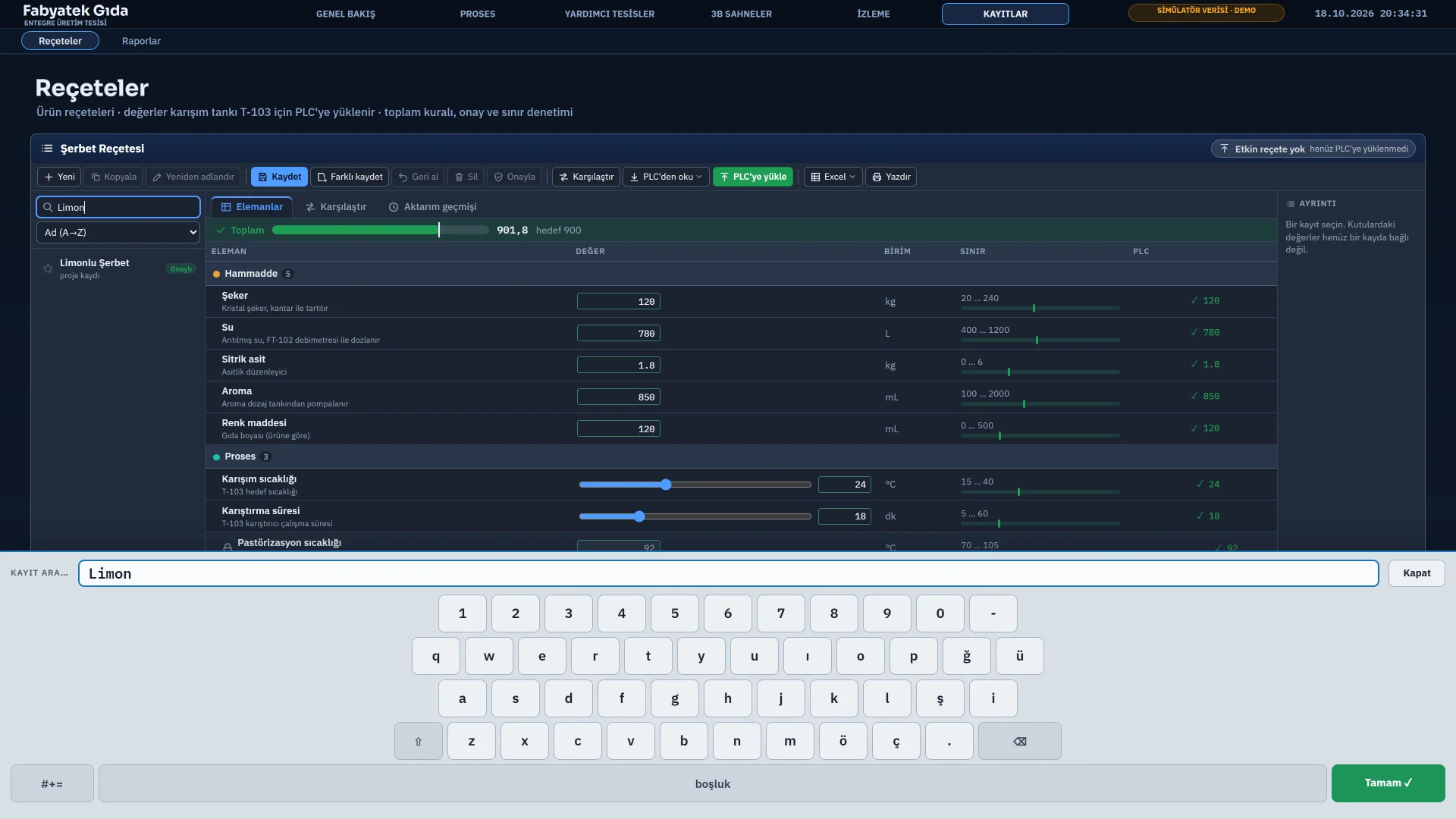
On a touch panel PC without a physical keyboard, Live opens its own keyboard at the bottom of the display when a text or number field is touched. The keyboard works in all fields of Live: input fields, the password box in the login window, and the fields of the recipe and report windows.
The keyboard opens only in the local Live window. A user monitoring from a browser or TV uses the keyboard of their own device.
Turning it on and when it opens
| Level | Setting |
|---|---|
| Project default | In Studio, Live settings › General › View › On-screen keyboard: Active or Inactive. It is active in a new project. |
| Station preference | In Live, system menu › Station › On-screen keyboard switch. It takes effect immediately, is stored on that computer and takes precedence over the project default. This way the keyboard can be turned off on a computer that has a physical keyboard. |
The keyboard opens when the cursor enters a text, number, password or search box, or a multi-line text field. It does not open in fields that cannot be edited or are disabled.
If you move to another field while the keyboard is open, it adapts to that field. If you touch a place where you cannot type, it closes. If the keyboard was closed while the field still has focus, touching the same field again reopens it.
A change of the setting is written to the event log with the type ayar.
Layouts
| Field type | Layout |
|---|---|
| Text, password, search, multi-line field | Letter layout: the number row and the letters of the Turkish Q layout (including ğ, ü, ş, ı, i, ö, ç). ⇧ switches between upper and lower case, ⌫ deletes, #+= opens the special character page and ABC returns to the letters.
|
| Number field | Numeric keypad: 0 – 9 and delete. Decimal number fields also have a comma key. |
- The OK key sends Enter to the field and closes the keyboard. Enter is not sent in a multi-line field.
- Close at the top right closes the keyboard and removes focus from the field.
- The top row shows the field name and the value typed so far. In a password field the value is shown as dots. If the field has a length limit, any excess is not entered.
- The layout is Turkish Q only; there is no other keyboard layout or language selection.
The field stays above the keyboard
If the field being typed in would end up under the keyboard, the screen or window is scrolled up as far as needed and returns to its place when the keyboard closes. The field is scrolled by at most its own height so that it does not overflow past the top of the display. If the layout changes, for example when a section is opened, the field is realigned above the keyboard.
Touch navigation
- You move between screens with the buttons on the screen, the navigation menu, or the screen list and the Previous screen button of the system menu. Details are on the operator actions page.
- On 3D screens one finger rotates, and two fingers pan and pinch.
- The Hide the mouse cursor option on the Window tab is for touch panel PCs. The mouse and keyboard still work.
- The font size buttons in the system menu (Normal, Large, Larger, Largest) enlarge the menu, windows, menus and toolbars, and the alarm row. The screen content does not change.
Action keys
The Keyboard tab of the Live settings makes a specific action run when a key is pressed while Live is running. Options: None, F1 – F12, Ctrl+F1 – F12, Shift+F1 – F12.
| Action | What it does |
|---|---|
| Log on, Log off | Opens the login window, logs off. |
| Save screenshot | Saves a PNG image of the Live window in the Belgeler\FabyaVision_Live\Ekran Görüntüleri folder.
|
| Acknowledge all alarms | Acknowledges all alarms and requires the alarm acknowledgment authorization. |
| Minimize / restore window | Minimizes Live; the same key restores it. It works even if the minimize block is on. |
| Forward, Back | Goes forward and back in the screen history. |
| Store page, Recall stored page | Marks the open main screen and later returns to it quickly. |
| Start screen | Opens the start screen. |
Action keys are processed before screen and object key events and menu shortcuts, and they also work while a text box has focus. If the same key is assigned to two actions, Studio reports an error. While a notification or question window is open, the action keys do not work.
Kiosk key locks
On the Window tab of the Live settings, these functions are blocked one by one: Alt + F4, resizing, moving the window, minimizing, maximizing, closing and extended zoom (Ctrl + wheel or two-finger zoom). If closing is blocked, the window close button, Close on the taskbar and Alt+F4 do not work. The program can be closed only from the system menu (Exit Live).
The Block Windows keys option on the Keyboard tab makes the Windows key, Alt+Tab, Alt+Esc and Ctrl+Esc stop working while Live is in the foreground. Ctrl+Shift+Esc and Ctrl+Alt+Del are not blocked.
If the title bar is off and both Closing and Alt+F4 are blocked, Live can be closed only from the system menu. The menu button at the bottom right is always there.
The window and keyboard settings apply only in the local Live window, not in browser monitoring or on the TV. Try the Alt+F4 block and the Windows key lock on a physical keyboard before you put them into use. The other window and startup settings are covered on the running Live page.