
Alarm types
The HMI alarms section has three tabs: Discrete alarms, Analog alarms and Alarm classes. The tables work like the other table editors: adding rows, editing cells, Excel.
| Type | When the alarm comes in | When it goes out |
|---|---|---|
| Discrete alarm | When the selected bit of the trigger tag reaches the value in the Trigger field (1 or 0). | When the bit leaves the trigger value. |
| Analog alarm | When the value of the monitored tag meets the Condition and Limit value. If there is a Delay, the condition must hold without interruption for that time. | When the value moves back from the limit by the Hysteresis. |
An alarm is re-evaluated only when the value of the tag changes and the value is valid. If the value has not been read yet or its quality is bad (connection down), the state of the alarm does not change: it does not come in, and if it has come in it does not go out.
Defining a discrete alarm
-
Add the alarm
Click Add on the Discrete alarms tab. The new row gets the highest number in the table plus one as No.
-
Choose the text and the class
The alarm text is the message the operator will see. The alarm class determines the color, whether acknowledgment is required and whether the alarm is logged.
-
Choose the trigger tag
Select the tag from the Trigger tag list; it must first be defined in the HMI tags table. Enter the bit number (0 – 31) in the Bit field and the value 1 or 0 in the Trigger field. For a Bool tag, Bit must be 0.
-
Fill in the optional fields
Priority, Fault location, Acknowledgment tag and Help text are described in the column table below. When finished, check the project with F7.
Analog alarm: condition, hysteresis, delay
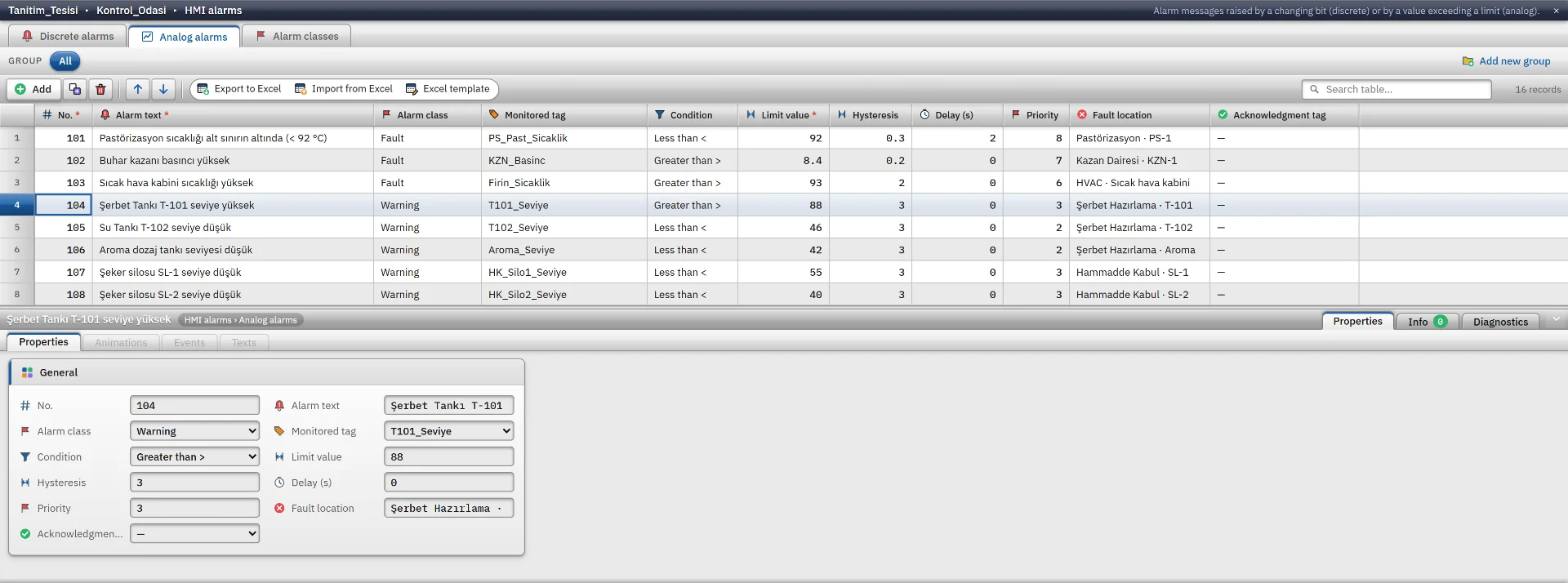
An analog alarm compares the value of a numeric tag with a limit. The steps are the same as for a discrete alarm; on the Analog alarms tab you fill in the Monitored tag, Condition, Limit value, Hysteresis and Delay (s) fields. The monitored tag cannot be Bool, text or DateTime.
- Condition: greater
>, greater or equal≥, less<, less or equal≤, equal=, not equal≠. - Hysteresis is applied after the alarm has come in. With
>and≥the alarm goes out when the value falls below limit − hysteresis; with<and≤when it rises above limit + hysteresis. It stops the alarm from coming and going continuously while the value jitters around the limit. It has no effect with=and≠. - Delay: if the condition is not met continuously for this time, the alarm does not come in; if the condition ends before the time has elapsed, the counter is reset. Maximum 3600 s. A discrete alarm has no delay.
Example: an alarm when the pasteurization temperature falls below 92 °C. Condition less <, Limit value 92, Hysteresis 0.3, Delay 2 s. If the temperature stays below 92 for 2 seconds, the alarm comes in; it goes out when the temperature rises to 92.3 °C or above.
Alarm columns
| Column | Meaning |
|---|---|
| No | Alarm number, 1 – 999999. Unique in the same table; the match key in Excel import. |
| Priority | 0 – 16. A higher number is more important: the list is sorted first by priority, then by recency; the alarm row shows the alarm with the highest priority. |
| Fault location | Free text, for example Mikser 1. It appears as a column in the list and is searched in the filters. |
| Acknowledgment tag | When the operator acknowledges the alarm, 1 is written to this tag; the PLC learns of the acknowledgment from this bit. Live does not reset the tag; the PLC program must. |
| Help text | Describes the cause of the alarm and what to do. It appears in the detail panel of the Alarm view. It can be entered only in the discrete alarm table. |
Alarm classes
A class groups alarms that should behave the same way; every alarm belongs to one class. A new project comes with four classes: Hata (requires acknowledgment, flashes), Uyari, Bilgi and Sistem. The class table has the name, the main color, the Incoming / Outgoing / Acknowledged row colors (derived from the main color if empty) and three options: Acknowledgment required, Flashing and Logged.
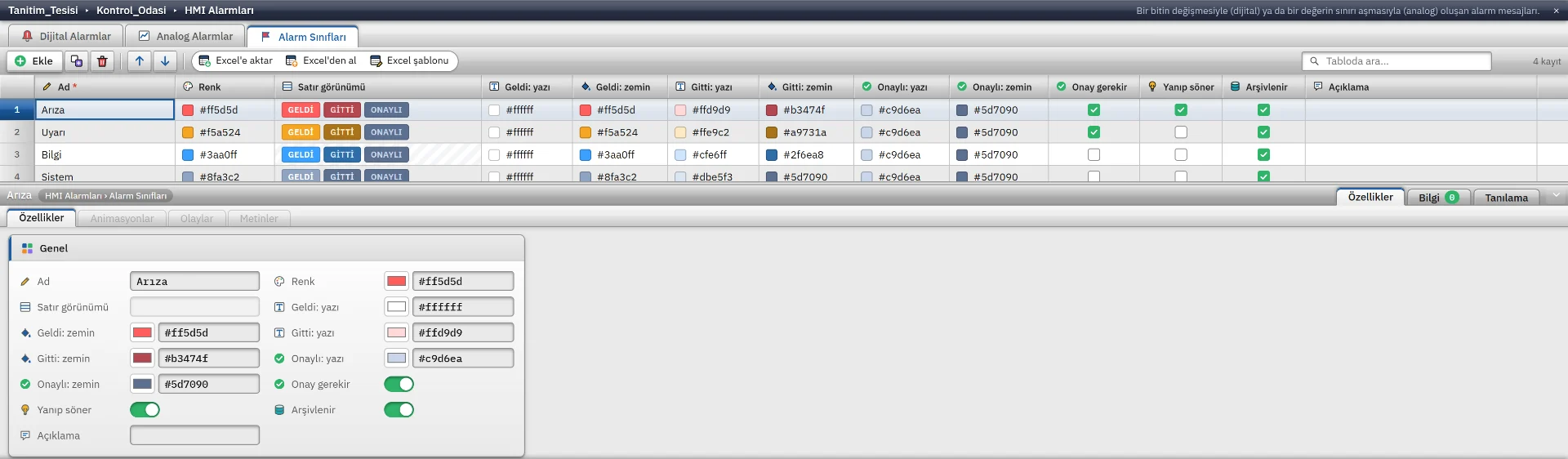
In Live an alarm is Incoming, Outgoing, Acknowledged or Shelved. Outgoing is seen only in classes with Acknowledgment required checked: the condition has cleared but the alarm has not been acknowledged. In classes that do not require acknowledgment the alarm leaves the list by itself when the condition clears.
Alarm view and audible alert
The Alarm view is the ready-made alarm list in the Controls group; you drag it onto a screen. In the Inspector you set the tabs (Current, Awaiting ack., History, Shelved), the pre-filter that the designer sets and the operator cannot remove (class, priority range, fault location), the columns, the row color, the detail panel and the export. Studio shows the object with sample rows. The alarm row at the bottom of the screen shows the alarm with the highest priority and is switched on and off in Live settings.
With the audible alert on, a short sound plays on the speaker of the Live computer for a new alarm awaiting acknowledgment; no sound file is needed. If Sound type is By priority, priority 7 and above plays a siren, 3 – 6 a double beep and lower a single beep. With Repeat until acknowledged on, the sound repeats every 8 seconds.
Acknowledging, shelving and commenting are operator actions; they are covered on the Live alarms page.
Log and limits
- Every state change of alarms whose class has Logged checked is written to the monthly
alarm_yyyyMM.logfile in the data folder of the project. The log is not deleted automatically; keep an eye on the disk. - The current state of alarms is held in memory. When Live restarts, alarms whose condition persists come in again and acknowledgment is requested again; shelving is cleared. The history is kept in the log.
- An alarm whose class has been deleted works without a class: it does not require acknowledgment and is shown in red. Move its alarms to another class before deleting a class.
- The uniqueness of the alarm number is checked separately in each table. To avoid confusion, give discrete and analog alarms separate number ranges.
Related pages
HMI tags
External and internal tags, scaling, quality, structures (UDT) and bulk transfer with Excel.
LiveAlarms
Alarm view, alarm line, acknowledging, shelving, comments, audible alerts and the alarm log.
Studio2D screens and objects
Screen editor, object library, properties, layers, faceplates and the navigation menu.