
What it is for
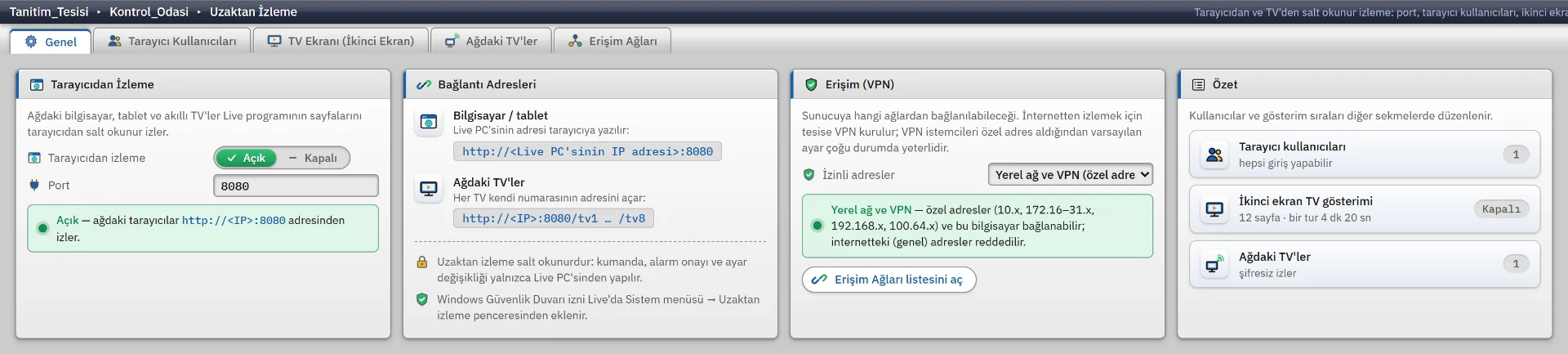
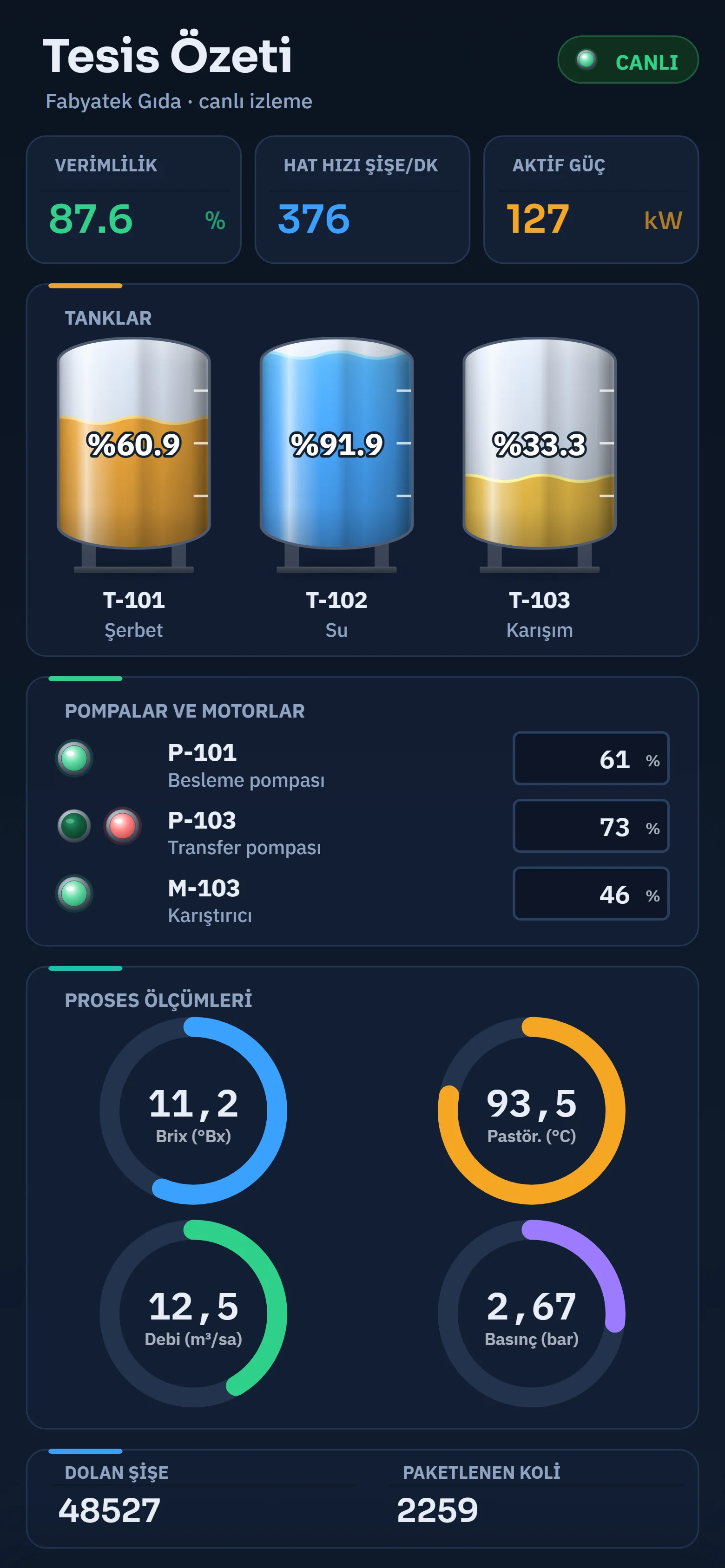
While browser monitoring is on, Live starts a small web server on its computer; the default port is 8080. The viewer enters the address of the Live computer in the browser (for example http://192.168.1.20:8080), logs on with a user name and password, and sees the pages with the same appearance as in Live, with data refreshed about once per second.
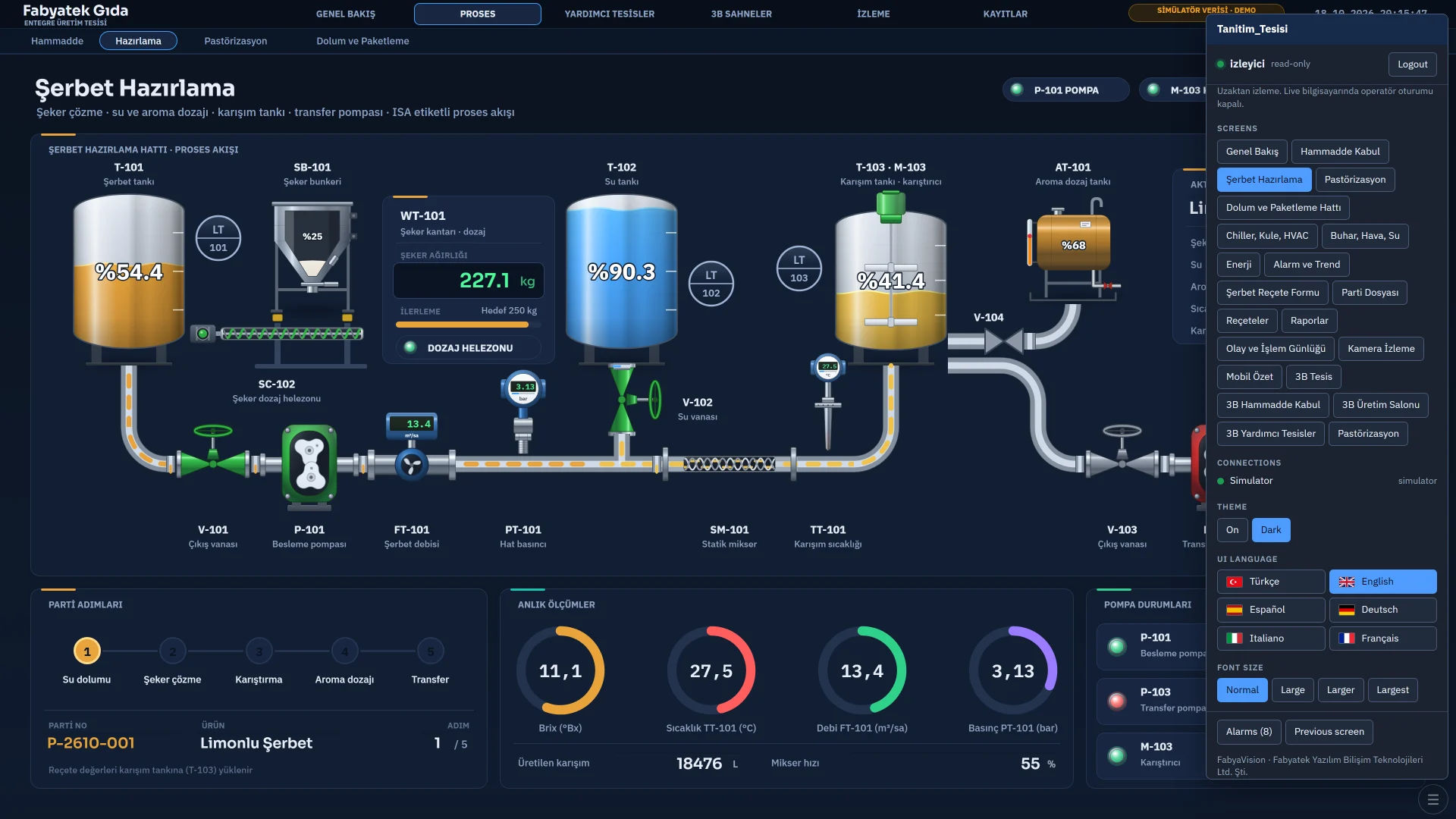
Monitoring is read-only: control, alarm acknowledgment, recipe and report operations and setting changes cannot be made from the browser, only on the Live computer. The connection does not use HTTPS; it is plain HTTP, and user names, passwords and data travel unencrypted. Do not expose the server directly to the internet (do not forward the port on the router); use a VPN to monitor over the internet.
Setup
-
Turn on monitoring
In Studio, in the Remote monitoring section, set Browser monitoring to On in the General › Browser monitoring group. The port is chosen between 1024 and 65535; the default is 8080. While it is off, Live is not open to the network.
-
Add a browser user
On the Browser users tab, enter a name (at most 40 characters, must not start with @, unique) and a password (at least 4 characters) for each viewer. A user without a password cannot log on. Operator users are separate and are defined in user management.
-
Review the access rule
Check General › Access (VPN) › Allowed addresses and, if needed, the Access Networks tab (below).
-
Upload the project to Live
The server starts when the project is opened. The address strip in Studio shows the monitoring address.
-
Add the firewall permission
On the Live computer, in the system menu › Remote monitoring… window, click Add firewall permission.
What the viewer sees
On the login screen, if Remember me (30 days) is selected, the session is valid for 30 days, otherwise for 12 hours. If a user is deleted or the password changes, the session becomes invalid.
- The system menu is simplified: pages, connection states, language, theme, interface language, font size and log out.
- Scripts, scheduled tasks and drivers run only in the Live program.
- Camera images and PDF Viewer files are delivered through the server, with a session.
- A page that requires authorization opens according to the session on the Live computer; until an authorized user logs on in Live, an authorization message appears instead of the page.
- If Web access › Viewable from browser / TV is switched off in the page properties, the page does not appear in the viewer’s list and is skipped in the TV sequence.
Users and the access rule
The server looks at the address the connection comes from. The Allowed addresses setting offers three options:
| Option | Who can connect |
|---|---|
| Local network and VPN (private addresses), default | This computer and private addresses: 10.0.0.0/8, 172.16.0.0/12, 192.168.0.0/16, 169.254.0.0/16, 100.64.0.0/10. The Access Networks list adds further networks. Internet addresses are rejected.
|
| Only those in the “Access Networks” list | This computer and the enabled networks in the list. If the list is empty, only this computer can connect. |
| From anywhere (not recommended) | Any address. The server is exposed directly to the internet; Studio warns. |
A rejected request receives a 403 response. If there are 5 failed logins from the same address within 10 minutes, that address is put on hold for 60 seconds. Passwords are stored in the project file as a SHA-256 hash. The origin of the request is checked, and the session cookie has HttpOnly and SameSite=Strict set. TV addresses have no password by default; for details see the TV and multi-monitor page.
Firewall and the monitoring window in Live
For devices on the network to connect, Windows Firewall needs an inbound connection permission for this program and port. Add firewall permission does this: first the settings authorization is checked, then Windows administrator approval (UAC) is requested. The rule that is added is named “FabyaVision Uzaktan Izleme”; if the port changes, the old rule is deleted and a new one is added.
In Live, the system menu › Remote monitoring… window refreshes the server status every two seconds: status and number of viewers, browser and TV addresses (with Copy buttons), networks allowed to connect, the number of rejected connections, the last rejected address and the firewall state. If the port is used by another program, Live reports it; the server then runs on a random port bound to this computer only, so choose another port in the project.
Monitoring over the internet with a VPN
To monitor over the internet, set up a VPN to the plant. The administrator first connects to the VPN, then opens the address on the local network in the browser. Only the VPN port is opened to the internet (UDP 51820 for WireGuard); the monitoring port and the PLC ports are not forwarded. FabyaVision also checks the source address: a request from an address on the internet receives 403 even if the router is opened by mistake.
| Situation | Solution |
|---|---|
| The plant has a VPN-capable router or firewall | The built-in WireGuard, OpenVPN or IPsec feature of the device |
| The device has no VPN support | WireGuard on a small computer |
| No fixed public IP (GSM modem, CGNAT) | A WireGuard-based service that opens no ports (Tailscale) or ZeroTier, installed on the Live computer or on the gateway computer |
- Define a separate browser user for each administrator, with a password that cannot be guessed and has at least 10 characters.
- If the VPN address pool is in a private block, no extra setting is needed; if it is in a public block, add it to the Access Networks list. In strict mode, enter the VPN subnet and the local network of the TVs in the list.
- Let the VPN client reach only the monitoring port on the Live computer, with no access to the PLC network.
- Keep the Live computer in a VLAN or DMZ separate from the PLC network and the office network. Generate a separate VPN key for each device.
Commissioning test and troubleshooting
-
From inside the plant
Open the address of the Live computer in the browser and log on; the pages arrive live.
-
With the VPN off
Switch the phone to mobile data. The address must not open (timeout); this confirms that there is no direct access from the internet.
-
With the VPN on
Turn the VPN on; the same address opens and live values flow.
-
Check in Live
In the Remote monitoring window the viewer count increases and the number of rejected connections is 0.
-
Try strict mode
An attempt from an address that is not in the list returns 403 and the rejected counter increases. 5 attempts with a wrong password put that address on hold for 60 seconds.
| Symptom | Cause and fix |
|---|---|
| VPN connected, page does not open (timeout) | There is no Windows Firewall permission: add it. Or the Live computer does not know the VPN network: add address translation (MASQUERADE) on the gateway or give a route for the VPN network. |
| 403, Access from this address is not allowed | The VPN pool is in a public address block or is outside the list in strict mode: add the last rejected address shown in the Live window to Access Networks. |
| The login page appears, login fails | The browser user has no password or the wrong one: enter the password again in the Browser users table. |
| The Live computer is not responding, data is not up to date | The server responds, but the Live main engine has not been broadcasting for 15 seconds. |
| VPN does not connect over mobile data | The network provider may restrict UDP: use OpenVPN over TCP 443 or Tailscale. |