
External and internal tags
- An external tag is bound to a connection and corresponds to an address in a PLC or another device. Live reads the value from the device and sends written values to it.
- An internal tag has no connection and no address. Its value lives only inside Live: a recipe name, a batch number, an intermediate calculation.
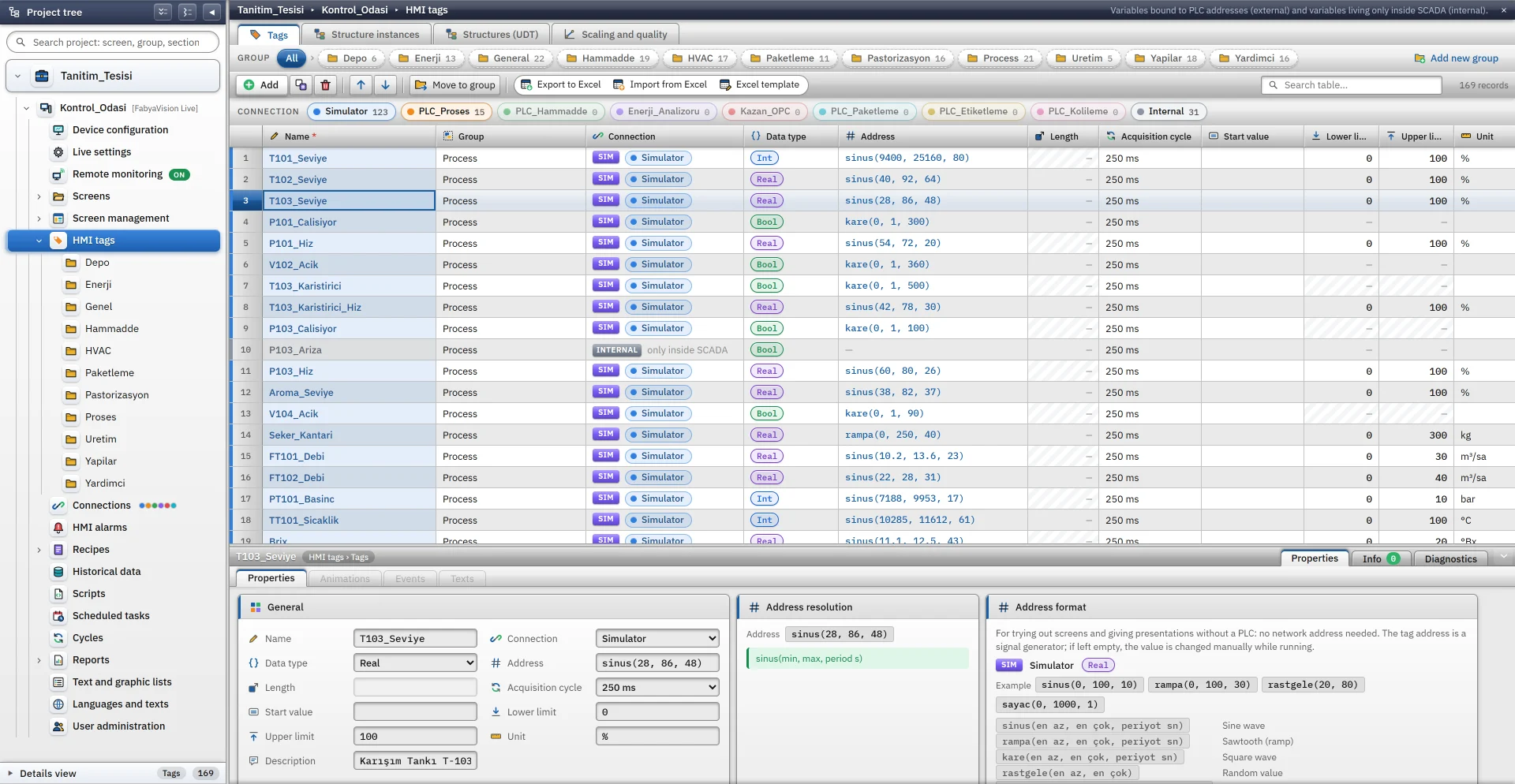
Tags are defined in the HMI Tags section of the project tree. The sections tabs are Tags, Structure Instances, Structures (UDT) and Scaling and Quality.
Adding a tag
-
Open the table
Click the HMI Tags section in the project tree.
-
Add a row
Add creates the new tag as
Tag_1,Tag_2…: bound to the first connection, Bool type, 1 s cycle. If the project has no connection, the tag is internal. -
Name it
The name starts with a letter or
_, contains letters (including Turkish letters), digits and_, and is unique in the project. -
Choose connection and type
Choose the connection in the Connection cell, then the Data type. The type list narrows to the types the driver of the connection supports.
-
Type the address
Type the address in the device into the Address cell. It is validated against the driver of the connection; an invalid address does not enter the table. For address formats see the communication protocol pages.
-
Choose the read cycle
The read cycle sets how often the PLC tag is read.
Columns of the tag table
| Column | Meaning and rules |
|---|---|
| Name | Required and unique. Locked on a tag generated from a structure instance, which carries a STRUCT badge. |
| Connection | The name of a connection in the project, or the “Internal tag” option. |
| Data type | The driver of the connection narrows the list. |
| Address | PLC address. Locked on an internal tag. |
| Length | String and WString only: maximum number of characters, 1 – 254 (default 32). |
| Read cycle | A cycle from the Cycles table. |
| Start value | The first value of an internal or simulator tag when Live starts. It has no effect on a PLC tag, whose value comes from the PLC. |
| Lower limit, Upper limit | Numeric types only. The operator cannot write a value outside this range. |
| Unit | Descriptive text (%, bar, °C). It is not used in calculations; it appears next to the value in the detail panel of the Alarm View. |
| Description | Free text. Used in the tag picker and in search. |
The table can be grouped: you organize tags with the Group column and the folders in the project tree. The color bar above the table lists each connection as a pill; clicking a pill filters the table to the tags of that connection.
Data types
| Type | Size and range |
|---|---|
| Bool | 1 bit |
| Byte / SInt | 1 byte: 0 – 255 / −128 – 127 |
| Int / UInt | 2 bytes: −32768 – 32767 / 0 – 65535 |
| DInt / UDInt | 4 bytes: −2147483648 – 2147483647 / 0 – 4294967295 |
| Real / LReal | 4 / 8 byte floating-point number |
| String / WString | Text / Unicode text |
| DateTime | Date and time |
Scaling and quality
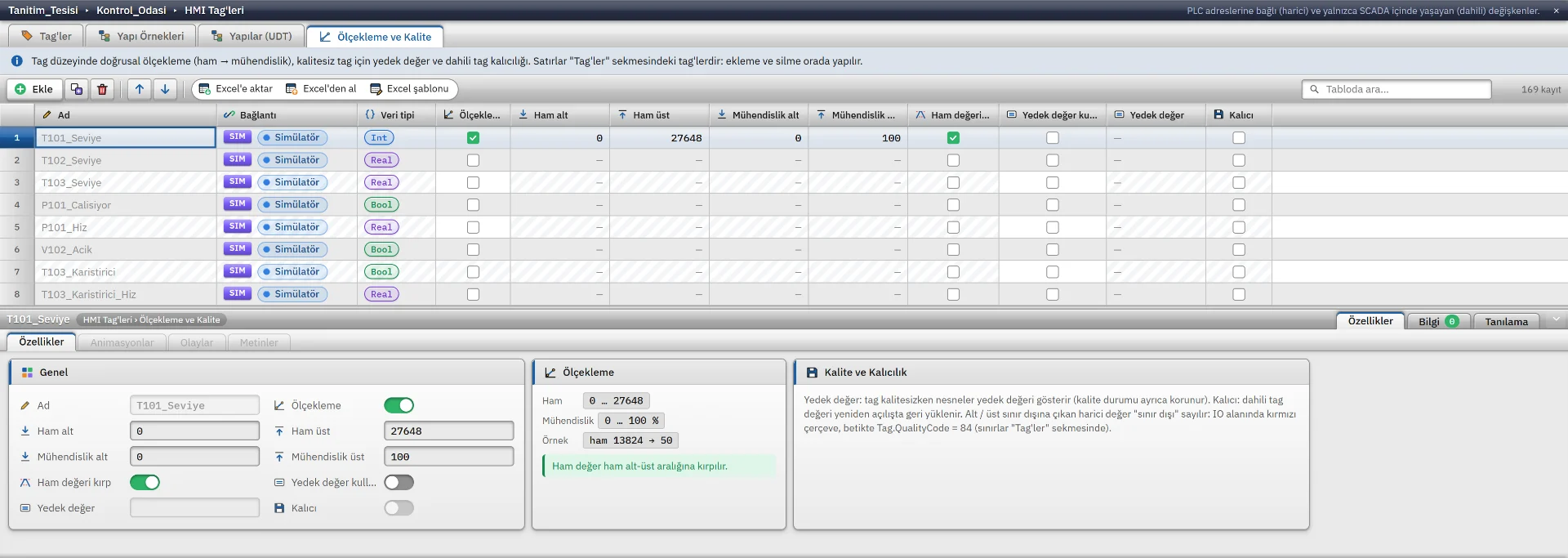
Analog inputs usually sit in the PLC as raw numbers: a range such as 0 – 27648 on Siemens. The operator should see °C, bar or %, not this number. The Scaling and Quality tab does this conversion once, at tag level.
Scaling applies only to external, numeric tags. Objects, trend and archive, alarms, reports, scripts and browser monitoring all use the scaled value of the tag.
-
Turn on scaling
Tick the Scaling box on the tag row. Empty fields fill with defaults: raw low 0, raw high 27648, engineering low 0, engineering high 100.
-
Enter the ranges
Raw low and high are the ends of the number the driver delivers. Engineering low and high are the real values for those ends. Engineering high may be lower than low (inverted scale).
-
Optionally turn on clipping
With Clip raw value on, the raw value is limited to the raw low-high range. Sensor breaks or overflow numbers do not leave the engineering range.
Formula: engineering = eng. low + (raw − raw low) × (eng. high − eng. low) / (raw high − raw low). If raw 0 – 27648 is converted to 0 – 100, the value 13824 becomes 50. The engineering value the operator writes is inverted and sent to the PLC as a raw value.
A PLC tag has bad quality while the connection is down, before the first read, or on a read error. An object bound to a bad-quality tag is drawn faded and gray, and a numeric field shows ####. With Use fallback value on, objects and scripts see the fallback value instead of ####.
The Scale option on the Animations tab of an object property is separate from tag scaling and is applied on top of it. If you set scaling on the tag, do not scale again in the animation.
Structures (UDT)
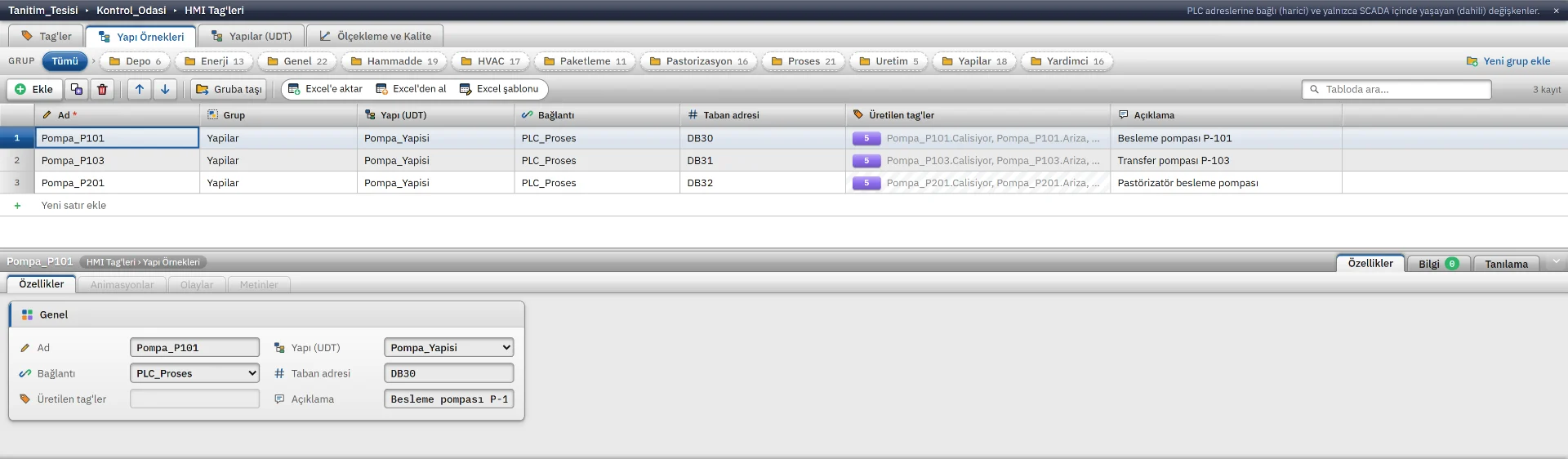
A plant has dozens of devices with the same structure: every pump has running, fault, speed, current and pressure values. Instead of writing separate tags and addresses for each, you define the structure (the member list) once and add one structure instance per device: name, connection and base address.
Studio generates tags such as Pompa_P101.Hiz and their addresses for each instance. Generated tags are recognized by the STRUCT badge in the table and bind to screen objects and alarms like any other tag. On Siemens S7 the base address is given as DB30; member addresses are calculated from byte and bit offsets.

Bulk transfer with Excel
You can export many tags to Excel (.xlsx) or CSV, edit them, or fill in the template and import it. Excel does not need to be installed. The commands are in the Tools menu and in the toolbar of the table.
- The template contains the column headers, drop-down lists for Connection and Data type, and a Description sheet that explains each column.
- A preview opens before the import: new, to be updated, unchanged, faulty and skipped rows are counted separately. The reason for a faulty row is in the Description column.
- The match key is the Name column: a tag with the same name is updated, a missing one is added.
- The whole operation is a single undo step; Ctrl + Z reverses it all.
Read cycles
A cycle is a record with a name and a duration. Instead of writing the duration everywhere, you define it once in the Cycles table; tags, archives, tasks and screens choose it by name. A new project comes with these cycles: On change, 100 ms, 250 ms, 500 ms, 1 s, 2 s, 5 s, 10 s and 1 min.
- The duration can be 0 (on change) or 20 ms – 24 hours.
- Live applies a read cycle of at least 100 ms for PLC and simulator tags.
- Only changed values are passed to the screens, in batches at most every 100 ms per connection.
- A tag with no cycle selected is read every 1 s.
Frequently asked
What is an internal tag for?
It is for values that have no counterpart in the PLC: a recipe name, a batch number, an intermediate result calculated in a script. A persistent internal tag is written on shutdown and read back at startup.
Can an operator write an out-of-range value to a tag?
No. If Lower and Upper limits are defined, the operator cannot write a value outside the range. If a value from the PLC leaves the range, the tag counts as out of range.
Related pages
Connections
The Connections table, driver selection, connection test, diagnostics, reconnection and password storage.
StudioAlarms
Discrete and analog alarms, alarm classes, priority, hysteresis, delay, acknowledgment tag and the Alarm view.
ConnectivitySiemens S7
Connects to S7-1500, S7-1200 and S7-300 / 400 CPUs through PUT/GET.
StudioTrend and historical data
Data archive recording methods, storage, retention and the Trend view: curves, axes and limits.