
Adding a connection
-
Add a row
Click Add in the Connections section of the project tree. The new connection opens as
Baglanti_1with the Siemens S7-1500 driver, the first unused address in the 192.168.0.x range, port 102 and a timeout of 2000 ms. -
Choose the driver
Choose the driver that matches your device in the Communication driver cell. When the driver changes, the port and driver parameters return to the defaults of that driver.
-
Type the address
Type the IPv4 address or the computer name in the IP address / computer name cell. An invalid address does not enter the table; the reason is shown below the cell.
-
Enter the parameters
With the row selected, the driver parameters card opens in the Inspector: driver-specific fields such as rack / slot, unit ID and security are entered here.
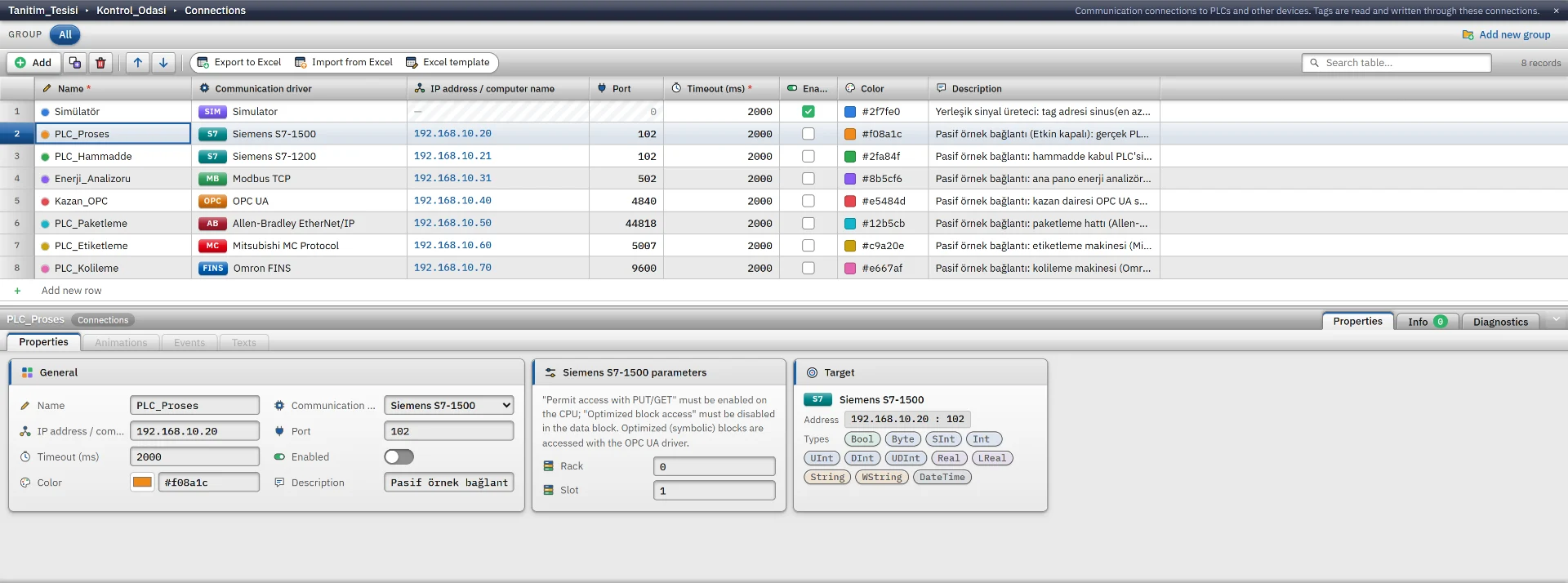
| Column | Meaning and rules |
|---|---|
| Name | Required and unique. Starts with a letter; contains letters, digits and _.
|
| Port | 1 – 65535. The default port is entered when a driver is selected. The simulator and OPC DA have no port. |
| Timeout (ms) | 100 – 60000, default 2000. The time to wait for the device to respond to a request. |
| Enabled | If off, Live never establishes the connection; its state appears as Inactive and the bound tags stay at bad quality. |
| Color | The tags of the connection are marked with this color in Studio. |
For drivers that need a network address, two connections cannot use the same address (except OPC DA and MQTT), so the same PLC cannot be reached with S7 and OPC UA at the same time. For every connection an internal Bool tag, named after the connection like PLC_Proses_Baglanti, is added automatically. Live writes its value (1 = connected); it can be used in animations, alarms and scripts.
Choosing a driver
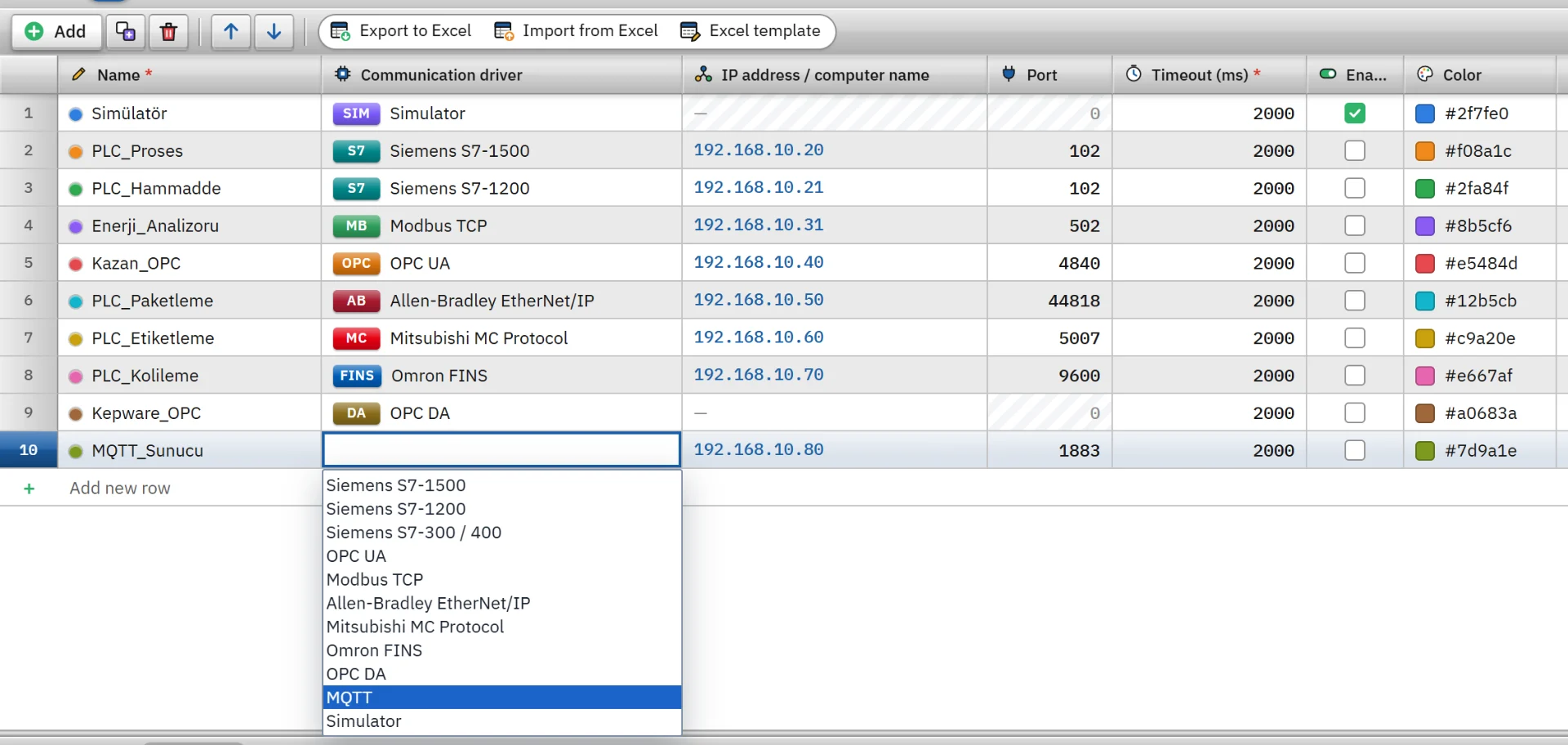
| Driver | Device | Default port |
|---|---|---|
| Siemens S7 | S7-1500, S7-1200, S7-300 / 400; absolute address | 102 |
| Modbus TCP | A device that speaks Modbus TCP | 502 |
| OPC UA | A device with an OPC UA server; optimized blocks | 4840 |
| EtherNet/IP | ControlLogix, CompactLogix, Micro800 | 44818 |
| Mitsubishi MC | MELSEC-Q / L, iQ-R, iQ-F | 5007 |
| Omron FINS | CJ / CS / CP / NJ | 9600 |
| OPC DA | A classic OPC DA server (COM / DCOM) | none |
| MQTT | An MQTT server (broker) | 1883, TLS 8883 |
| Simulator | No device: trial, demonstration, training | none |
The data type list of a tag narrows to the types the driver of its connection supports, and the address is validated against the rules of the driver. All drivers work over Ethernet. There is no serial line driver; for devices on a serial network use an Ethernet gateway or an OPC server.
Reading, writing and reconnection
These rules apply to all PLC drivers.
- Each connection runs in its own thread; a device that does not respond does not delay the other connections.
- A read cycle of at least 100 ms is applied for PLC and simulator tags. Only changed values are passed on, at most every 100 ms per connection.
- Writes are made between reads and the written tag is read back. A write is rejected while the connection is down.
- If the connection cannot be made or drops, the driver retries after 1 s, 2 s and 5 s, then every 10 s.
- A tag that cannot be read is removed from the read set and retried every 30 s; the other tags are not affected.
Connection test and diagnostics
Studio never connects to a device. Online › Test connections… shows for each connection whether a TCP connection can be opened (it waits at most 2 s). No protocol test is made: the S7 session, the PUT/GET permission, the OPC UA security selection, the user name and the password are tried only in Live. The Diagnostics tab of the Inspector lists the target and the number of bound tags of each connection.
| State in Live | Meaning |
|---|---|
| Connected | Connected to the device; the tags are being read. |
| No connection | The connection could not be established or was lost; the last error message is shown below the state. |
| No driver | The driver ID is not recognized; the connection is never attempted. |
| Inactive | Enabled is off in the table. |
| Simulator | It always counts as good. |
The states appear in the Connections section of the Live system menu and in the PLC connection status control placed on a screen. The Event view shows the connection established, lost, could not be established and unstable entries.
Even when the connection is up, a single tag may be unreadable, for example with a wrong address or a data block that does not exist. Only that tag gets bad quality and the connection stays Connected. An object bound to a bad-quality tag is drawn faded gray. The message the driver produces for a tag error is not shown in Live; to find the cause, verify the address in Studio and check the error table on the driver page.
Passwords and security
For OPC UA, MQTT and OPC DA connections the user name stays in the project and the password does not. The password is not written to the project file; sharing, backing up or uploading the project to Live does not carry it. You enter the password in Live:
- The Settings authorization is required to enter a password.
- In the Connections section of the system menu, click the Enter password button next to the connection that asks for one.
- Type the password and press Save. Communication restarts and the connections drop and reconnect briefly.
The password you enter is stored unencrypted in the baglanti_sifreleri.json file in the data folder of the project on the Live computer. Open the folder only to the account that runs Live, using Windows permissions.
| Driver | Authentication and encryption |
|---|---|
| S7, Modbus TCP, EtherNet/IP, Mitsubishi MC, Omron FINS | None. Anyone on the network can make the same connection; place these devices on a separate control network and put a firewall or VPN between them and Live. |
| OPC UA | Anonymous or user name / password. Security: none, signed, or signed and encrypted (Basic256Sha256). |
| MQTT | Anonymous or user name / password. Encryption: none or TLS 1.2. |
| OPC DA | The Windows user that runs Live, or an explicit user name / password (DCOM). |
Limits
- A connection has a single address; there is no automatic switch to a backup PLC.
- Enabled is set only in the design. There is no button or function to switch a connection on and off while Live is running.
- After changing a connection setting, save the project and upload it to Live; Live establishes the connections when the project is opened.
- The station name, computer name and operating mode in the Device configuration section are only information stored in the project. Live does not read them.
Related pages
HMI tags
External and internal tags, scaling, quality, structures (UDT) and bulk transfer with Excel.
ConnectivitySiemens S7
Connects to S7-1500, S7-1200 and S7-300 / 400 CPUs through PUT/GET.
ConnectivitySimulator
The built-in driver that generates signals for trials, demos and training without a PLC.
LiveRunning a project
Opening a project, startup sequence, window and full-screen settings, files and folders of Live.