
The IP Camera object
The IP Camera object shows the image of an IP camera or recorder (NVR) in a box on the screen. The object is in the Controls group of the Toolbox; it also exists in the 3D library as a monitor on a stand.
The image does not come from the camera to the screen directly. The main program of Live reads the camera and passes the image on to the screen. For this reason the address, user name and password never reach the screen or the browser that is monitoring remotely, and the viewer does not need network access to the camera either.
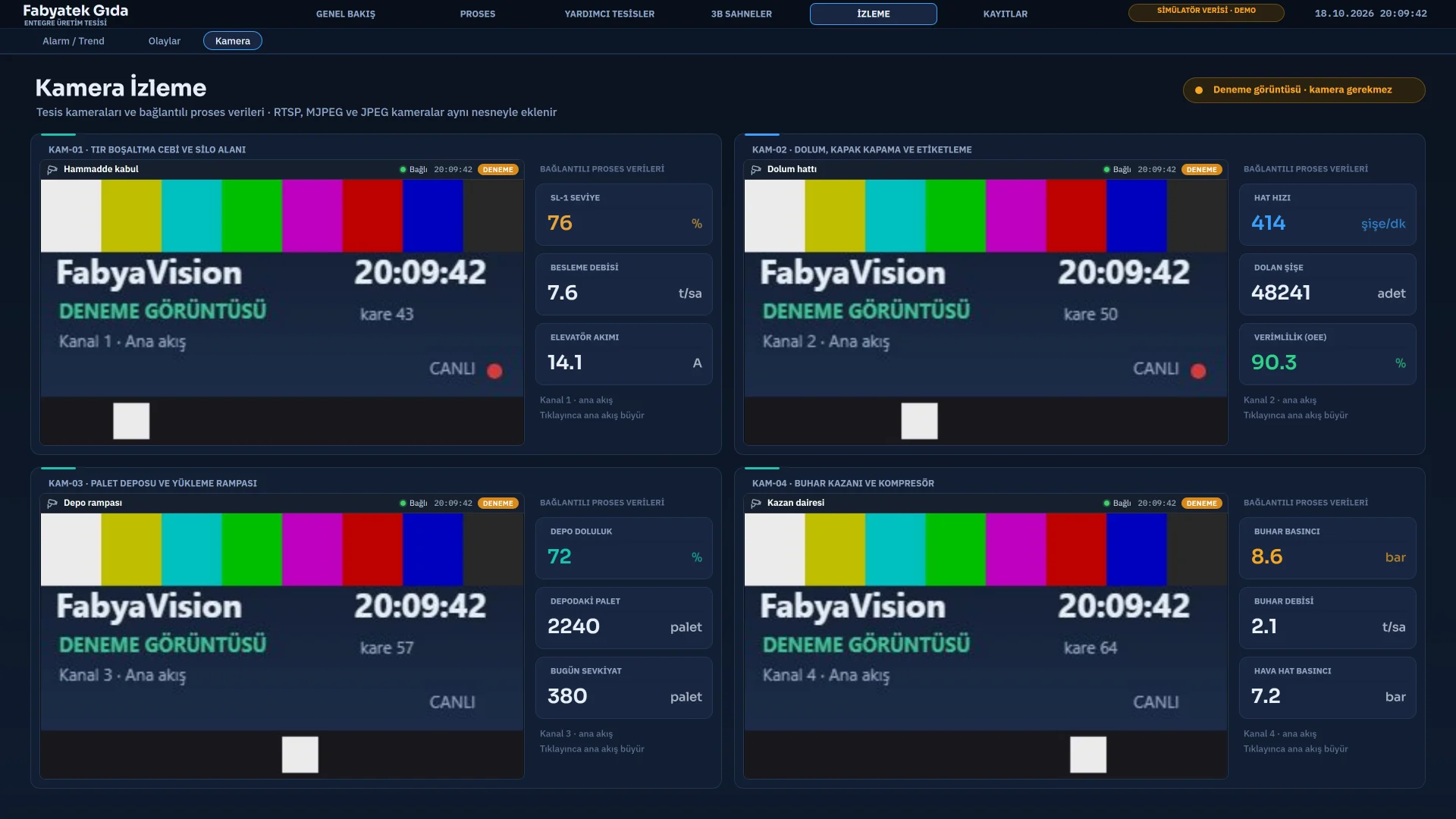
Source types
| Source | Details |
|---|---|
| RTSP (H.264) | For cameras and recorders. It connects over TCP; authentication is Basic and Digest. Only H.264 is played. |
| MJPEG (HTTP) | Read over HTTP; authentication is Basic and Digest. https is not supported. |
| JPEG snapshot (HTTP) | Requests a snapshot at intervals equal to the Refresh interval (100 – 60000 ms, default 500). https is not supported. |
| Test image | For presentations and testing when no camera is available. Live generates a test image with color bars, the brand and the time. |
H.265 (HEVC) is not supported. If the camera sends H.265, switch the encoding or the sub stream to H.264 in the camera settings. The HTTP sources (MJPEG, JPEG) have a connection timeout of 5 s and a data timeout of 10 s.
Setting up the camera
-
Place the object
Drag Toolbox › Controls › IP Camera onto the screen. The live image appears in Live.
-
Select the source type
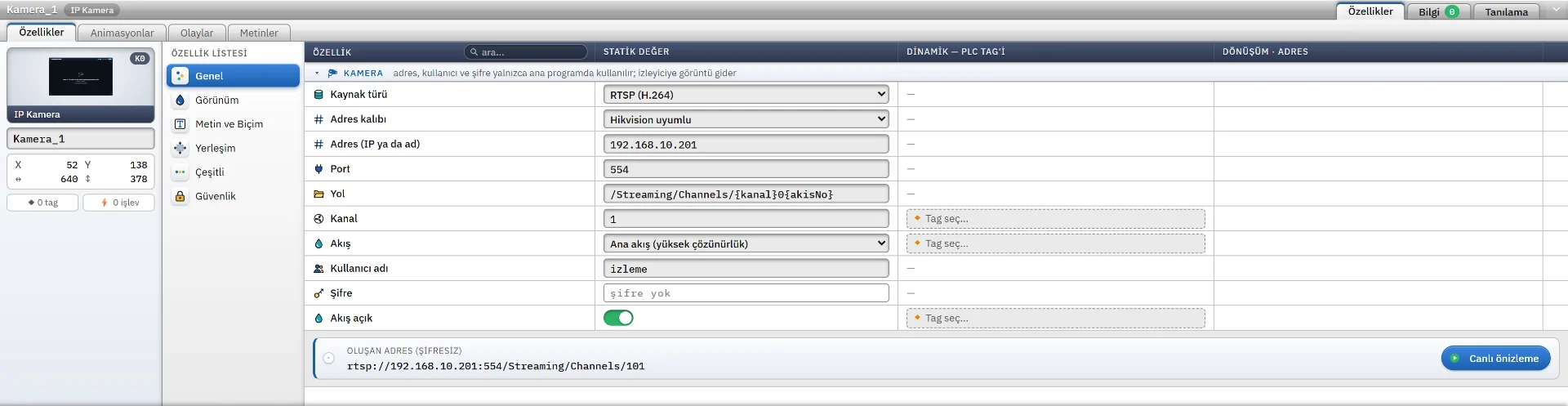
In the Camera group of the General category of the Inspector, choose RTSP, MJPEG, JPEG or Test image from the Source type list.
-
Enter the address
In the Address (IP or name) field, enter the IP address of the camera or recorder, or its computer name. Do not type
rtsp://orhttp://in front of it. If Port is 0, the default is used: 554 for RTSP, 80 for HTTP. -
Specify the path
The Address pattern list has ready patterns for Hikvision, Dahua, Axis and Uniview. When you select one, Path is filled with the common address of that brand, and Port too if it is empty. The generic pattern leaves the path untouched. The path uses placeholders for the channel and stream number. The address may differ with the manufacturer’s firmware, so correct the path by hand.
-
Enter channel, stream and credentials
Channel is the camera number on the recorder (1 – 256). The stream is Main stream (high resolution) or Sub stream (low resolution). If credentials are required, fill in User name and Password.
-
Check the address
The Resulting address (without password) row shows the assembled address, for example
rtsp://192.168.0.10:554/Streaming/Channels/101. The Live preview button connects to the camera at that moment and shows the image in Studio.
First set the source type to Test image and check that the box, the buttons and remote monitoring work, then switch to the camera itself. On screens with many cameras, select Sub stream for the small boxes.
Use in Live
In a tile, Live shows a title strip (name, connection state, clock, source badge), the image, and three buttons that appear when the mouse is over it: Enlarge, Save snapshot and the MAIN / SUB stream button. The status can be Off, Queued, Connecting, Connected or Error.
- Enlarge: clicking the image or the Enlarge button opens the main stream in a large window in the center. The stream of the small box is released at that time, so two streams are never opened on the same camera. Esc or clicking outside the window closes it.
- Snapshot: saves the current frame as JPEG. In Live the Save window opens; in the remote monitoring browser the file is downloaded through the browser.
- Switching the stream: the MAIN / SUB button is a temporary selection by the operator. If the stream is changed by a tag, the temporary selection is discarded.
- Tag binding: Channel, Stream on and Title can be bound to a tag. The operator or the PLC can change the camera number and the stream at run time and switch the stream on and off. Address, port, path, user and password cannot be bound.
- Authorization: the buttons and enlargement do not work if the Operable setting of the object or the control of the screen is off, or if the object’s authorization is missing; the image still appears. On a TV there are no buttons or enlargement.
Camera server and limits
| Topic | Behavior |
|---|---|
| Single connection | However many objects or viewers show the same camera (address, channel, stream, user), only one connection is opened to the camera. It is closed 10 s after the last viewer leaves. Live reads at most 32 sources at the same time. |
| Reconnection | When the connection drops, Live retries by itself. The wait is 2, 4, 8 … s and at most 30 s. When the image arrives, the wait resets. If no data arrives for 8 s, the connection is considered dead. |
| Error messages | They are shown in the interface language and contain no address, user name or password. The main causes: a wrong user name or password, a refused connection, an address not found, a timeout, a wrong path or channel, and no key frame arriving. |
Camera in a 3D screen
The IP camera in the 3D library is a monitor on a stand. In the displayed camera field you select a 2D IP Camera object of the project. The address, user and password stay in that 2D object, and Live opens the stream with its settings. The stream is Sub stream by default. Frames are drawn on the monitor at most 12 times per second; when there is no image, a camera icon and a status text are shown. Designing 3D screens is covered on the 3D screens page.
Frequently asked
How is the camera password stored in the project file?
It is stored obscured, and it is not shown on screen or copied. This is not encryption; it only keeps a person who opens the file from seeing the plain text. Give the camera an account defined only for this purpose with view-only rights, and keep the project file in a protected folder.
Related pages
2D screens and objects
Screen editor, object library, properties, layers, faceplates and the navigation menu.
LiveBrowser monitoring
A small web server in Live shows the pages in computer, tablet and smart TV browsers.
LiveTV and multi-monitor
Pages rotate on network TVs and a second screen; the Live window can span several monitors.