
How a record is created
A report is a definition that reads the values of a set of tags at a given moment and stores them as a record. For example, when a batch ends, brix, temperature, flow and total quantity are written to a batch record. The definition is prepared in Studio; Live takes and shows the records.
-
Trigger
The trigger tag of the report meets its condition, or the operator presses Take record. While the previous record is being processed, at most one trigger waits in the queue.
-
Measurement
If a measurement delay is defined, it is waited first, then the tags of the fields are read. The field of a tag that has not been read or has bad quality stays empty in the record.
-
Write
A record number is assigned (prefix and 6-digit number) and the row is written to the report log: time, number, user, source (
tetik,elle,betik) and field values. -
Feedback
When the record is written, the defined value is written to the feedback tag, a report entry is added to the event log and open Report views update their list by themselves.
Report view
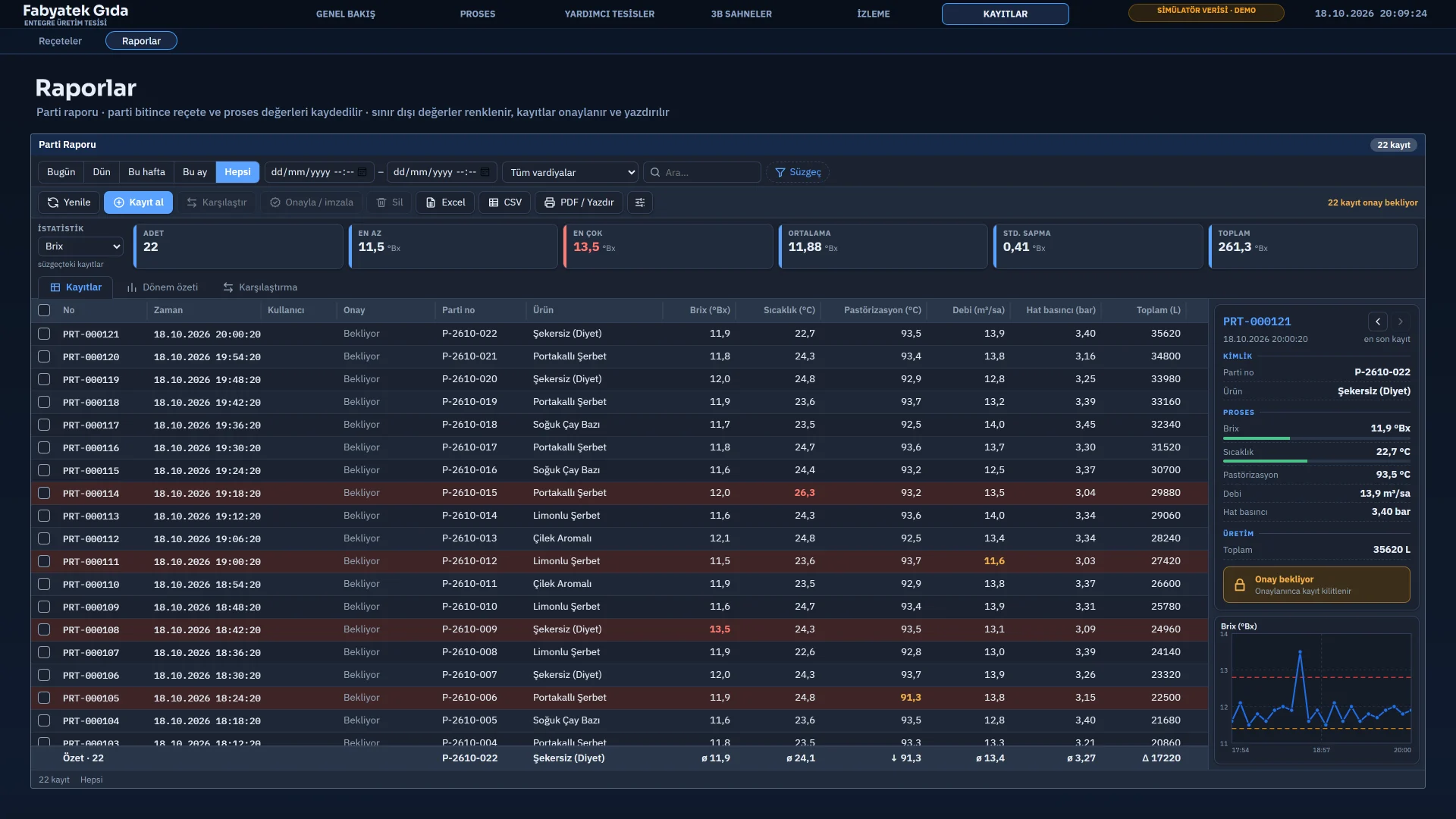
- Filter bar: the ranges Today, Yesterday, This week, This month and All, custom start and end, a shift selector, a search box and field, condition, value filters. Filters appear as chips; Clear filters removes them all.
- Statistics strip: count, minimum, maximum, average, standard deviation and total for the selected numeric field. If you mark two or more records, only the marked records are calculated.
- Record table: No, Time, User, Approval and field columns. Clicking a header sorts the table. Out-of-limit values appear in orange or red, and the Summary row below shows the period total of each field. The column layout is saved per station.
- Selected record card and mini trend: the card groups the fields and shows limit indicators. The mini trend is a graph of the selected field across the records; clicking a point selects that record.
Period summary and comparison
The Period summary tab groups records by day, shift, week, month or a batch field. The aggregation method defined for each field is applied: last value, total, average, minimum, maximum, difference (last minus first) or count. Records carrying the same batch number form one period.
The default shifts are 06:00 – 14:00, 14:00 – 22:00 and 22:00 – 06:00. A shift definition may cross midnight.
The Comparison tab compares two records field by field and shows the difference and the percentage difference. If you marked two records, those are compared; otherwise the selected record and the one before it.
Taking, approving and deleting records
Deleting, taking records by hand and approval can be tied to the authorization group selected in the report. Groups are defined in users and authorizations.
| Action | Condition and result |
|---|---|
| Take record | Reads the field tags at once and writes a record. The source is elle and no delay is awaited.
|
| Approve / sign | If approval is on in the report, approves the selected record. The user, the time and the note (if mandatory) are written to the log. A user must be logged on. An approved record cannot be approved again. |
| Delete | Deletes the selected record after asking for confirmation. The record is not removed from the file; a deletion marker is written to the log and applied when reading. If Lock approved record is on, an approved record cannot be deleted. |
The report log only appends rows. Approval and deletion are appended as separate rows, and record values cannot be edited afterwards.
Excel, CSV and PDF output
| Button | Result |
|---|---|
| Excel | Writes the records in the list to an .xlsx file. Columns: No, Time (a date cell), User, fields (display name and unit) and, if approval is on, Approval, Approved by, Approval time, Approval note. Numbers are written as number cells and Boolean fields as Yes / No.
|
| CSV | Writes the same content as a semicolon-delimited CSV with a BOM. |
| PDF / Print (Ctrl+P) | Opens a print preview window: paper pages, page navigation, zoom, Print and Save as PDF. The PDF is written by the PDF generation of the Live window (WebView2). |
The print layout comes from the setting of the report: paper size (A4, A3, A5, Letter), orientation, margins, report title, footer text, page number, field summary table, signature blocks and record order.
Custom report screens
If the default Report view is not enough, you design a free-form screen for the report. Templates: Empty, Batch record, Daily / Period Report, Shift Report, Record Card / Certificate and Record List.
If printing is on, the screen turns into a paper layout. The table in the detail band is split across pages and its header row repeats on every page. Button and filter objects are not drawn in print.
Record files and retention
- Records are kept under
gunlukin the data folder of the project, in monthly files that start withrapor_. The record counter is underdepo. - Old monthly files are deleted according to the Retention (days) and Max. records settings defined in the report. The defaults are 365 days and 10 000 records. A retention period of at least 31 days is applied. While Keep approved records is on, months that contain approved records are not deleted.
- If Report recorder is turned off in the Startup sequence of the Live settings, the trigger is not monitored. Taking records by hand and from scripts still works.
- A user monitoring from a browser sees, filters, sorts, exports and prints records. Taking records, approval and deletion are done on the Live computer.
Frequently asked
Can I record a report automatically at a set time?
The trigger of a report is a tag condition; there is no time-based trigger. A scheduled task sets a tag to 1 at the given time, and that tag is selected as the trigger tag of the report.
Does Excel have to be installed to get an Excel file?
No. Live produces the .xlsx file itself.
Related pages
Reports
Triggered records, period summary, approval, print layout, report page design, Excel / CSV / PDF output.
LiveOperator actions
System menu, login and authorization, the action log, Event view and closing the program.
LiveScripts and tasks
Scripts and tasks run only in Live: script permissions, time limit and task triggers.