Binding a property to a tag
The value you give a property in the design is static. If you bind the property to a tag, the tag sets its value in Live: the tank level comes from the tag, the pump turns when the tag is 1. The binding is made with the ID of the tag. Renaming the tag does not break the binding; deleting it leaves the binding as “deleted tag” and Check project reports an error.
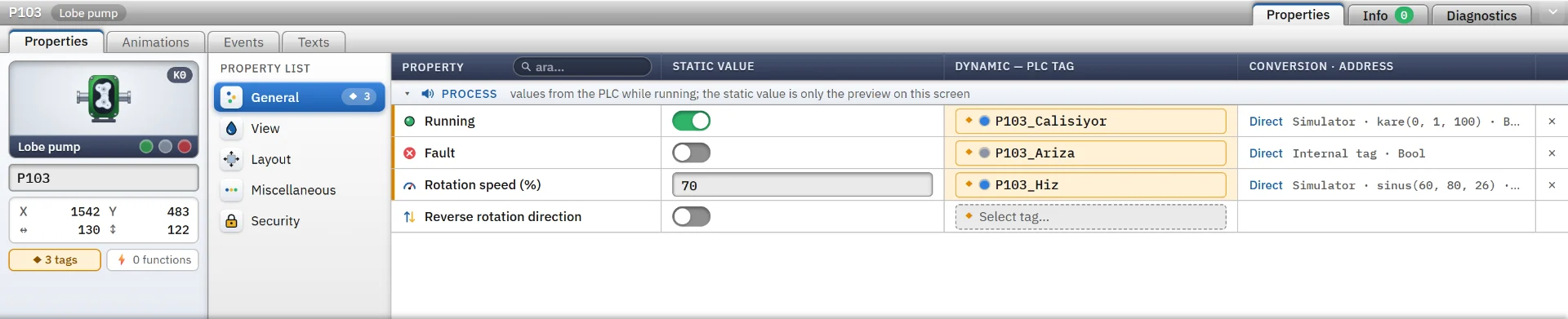
- The Select tag... button in the row of the property on the Properties tab of the Inspector.
- The Animations tab: all connectable properties of the object, including color, visibility and position.
- Dropping a tag from the Details view onto an object: the tag is bound to the first suitable process property of the object that is not yet bound. A Bool tag dropped on an empty spot becomes a Signal lamp, any other tag an I/O field.
- With several objects selected, a tag bound to a common property applies to all of them.
Connectable properties
| Property type | Tag types bound directly and the value in Live |
|---|---|
| On / off | Bool and integer types. On if the tag is not 0. For an integer tag, Select bit and Invert can be used. |
| Number | Byte … UDInt, Real, LReal. Scaling can be applied. |
| Text | Any type. The value is converted to text. |
| Color | String, WString, DInt, UDInt. A text tag carries #rrggbb; the lower 24 bits of an integer become the color.
|
| Selection | String, WString and integer types. |
If you select a numeric tag whose type does not fit, Studio turns the binding into a range table; a range table can be bound to any property with any numeric tag. Image, font, password and Edit... fields cannot be bound to a tag. One tag is bound to a property. If you need a value such as the sum of two tags, calculate it in the PLC or in a script and write it to an internal tag.
Conversions
| Conversion | Settings and result |
|---|---|
| Direct, on / off | Bit number and Invert. The property is on if the tag is true or not 0. |
| Direct, number | If Scale is turned on, you enter Tag min. (a), Tag max. (b), Property min. (c) and Property max. (d). The result is c + (x − a) × (d − c) / (b − a). Values outside the range are extrapolated linearly, not limited.
|
| Range table | Each row has Tag min., Tag max. and the value the property takes. Rows are tried from top to bottom and the first match applies. If none matches, the static value stays. |
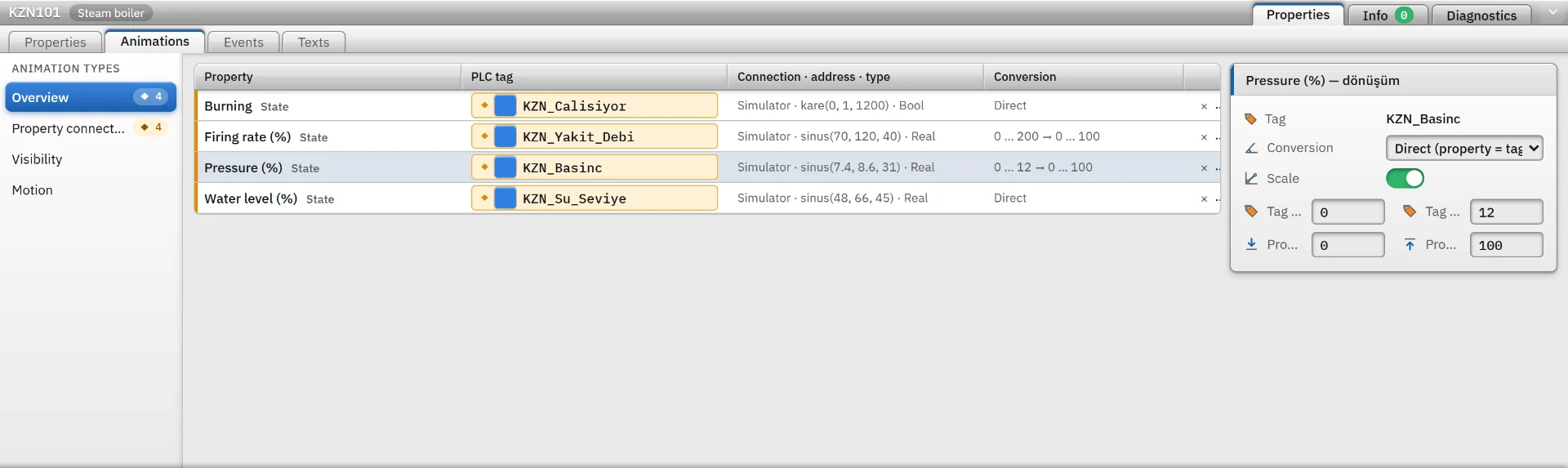
Example: a temperature bar. If you bind the Width of a rectangle to the temperature tag and enter 84 – 100 → 0 – 460 in Scale, the bar is 0 pixels at 84 °C and 460 pixels at 100 °C. You bind the fill color to the same tag with a range table: red below 92, green above 92. On decimal tags leave no gaps between ranges; for open ends use -1000000 and 1000000.
If scaling is defined on the tag itself, the scale in the binding is applied on top of it (HMI tags). Studio does not generate tag values; to see the effect select Online › Start Live (F5). If there is no PLC, bind the tags to a Simulator connection.
Common properties and the state model
Every object has two common groups. Visibility: Visible, Flashing and Opacity (%), 0 – 100. Movement: X, Y, Width, Height and Angle (°). In a movement property the tag value becomes the absolute position or size of the object on the screen; use Scale to convert a PLC value to pixels.
260+ objects come alive with a running and fault state. Binding the Running and Fault properties to tags is enough, the object does the drawing: stopped is gray, running is green with motion, and a fault flashes between red and yellow. Not every object has this model.
If a bound tag is not reliable (connection lost, value not yet read), the object is drawn faded gray. If the tag has a fallback value, it is used.
On control objects such as trend, alarm, recipe, report, user view, camera and Screen window, Live applies only the Visible, X, Y, Width and Height bindings. Flashing, Opacity and Angle bindings can be defined in Studio but do not work.
Events
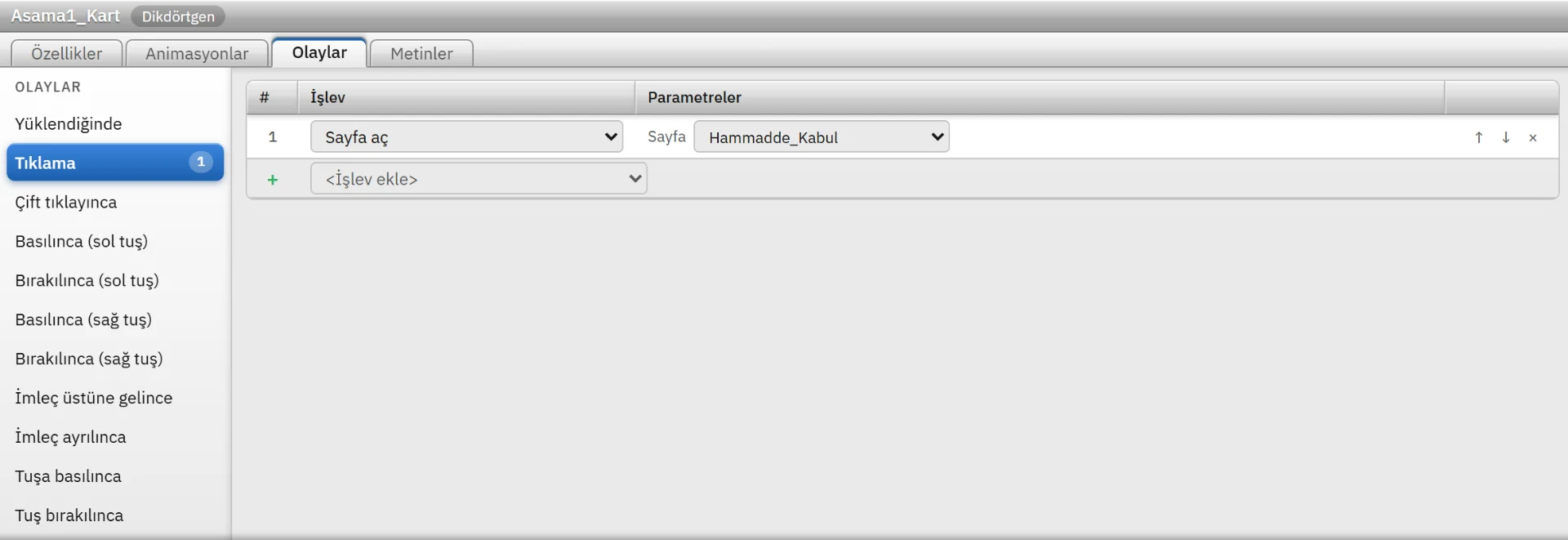
On the Events tab you attach a list of functions to an event. When the event occurs, the list runs from top to bottom; if a function writes to the PLC or runs a script, the next row starts when it has finished. An object has 13 events and a screen has 4.
| Event | When it runs |
|---|---|
| Loaded | Once per object, after the screen has opened and the first tag values have been applied. |
| Click, On double-click | When the object is clicked; when it is clicked twice within 450 ms. |
| Press, Release | When the left or right mouse button is pressed or released over the object. |
| Key press, Key release | On a keyboard key while the object has focus. The Key column is a condition; if empty, any key. |
| Object change | When a property of the object changes through a tag binding. |
An event started by the operator runs if the Operable property of the object and of the screen is on, the object is not hidden and the Required authorization is held. The screen events are Screen opened, Screen closed and two key events.
- Start / Stop button: Set bit to 1 and Reset bit to 0 on the Click event.
- Button that acts while held down: Set bit to 1 on the Press event, Reset bit to 0 on the Release event.
- Navigation button: Open screen on the Click event. Such buttons placed on the fixed-area screen are visible on every screen.
- In browser monitoring only the functions that change the view work; no event runs on TV displays.
The Release event runs only if the mouse button is released over the object. If the operator moves the pointer outside the object and releases there, the bit can stay at 1. For dangerous outputs use time-out logic in the PLC instead of a hold-down button.
Event functions
Functions are chosen from the Add function list on the Events tab. More than 30 functions are in these groups. Fields that select a tag show only the types that suit the function.
| Group | Functions |
|---|---|
| Bit and value | Set bit to 1, reset bit to 0, invert bit (three more for bit n of an integer tag); Set value, Increase value, Decrease value; scale a raw value and write it to a tag, and the reverse. |
| Screen | Open screen, Go to previous screen, Open pop-up window (with tag prefix), Close pop-up window, Go to 3D view, Show / hide layer. |
| Object and window | Set an object property to a constant, a tag value or another object’s property; Show screen in screen window. The change lasts for the session and is not written to the project. |
| Script | Run script; run VBS, C or Python code. |
| System | Acknowledge alarms, Log on, Log off, Change Live language, Close Live. |
| Recipe and report | Load a recipe record to the PLC, save PLC values as a record, take a report record, save the report to PDF or export it to Excel. |
Frequently asked
Can I bind two tags to one property?
No. One tag is bound to a property. If you need a combination of two tags, calculate it in the PLC or in a script and write the result to an internal tag.
Related pages
2D screens and objects
Screen editor, object library, properties, layers, faceplates and the navigation menu.
StudioHMI tags
External and internal tags, scaling, quality, structures (UDT) and bulk transfer with Excel.
StudioScripts
VBScript, JavaScript, C and Python; editor, compile, sample gallery and permissions that are off by default.
LiveRunning a project
Opening a project, startup sequence, window and full-screen settings, files and folders of Live.