Overview
Devices, gateways and IoT systems usually share data over MQTT. The driver subscribes to each topic once, and the last message published to a topic becomes the value of that tag. The OPC UA driver polls with the read cycle, while the MQTT driver is subscription based.
What to set up on the broker
-
Provide access
The MQTT broker must be reachable from the Live computer. The default port is 1883, and 8883 is usually used with TLS.
-
Define the user
If authentication is used, a user must be defined on the broker and the user must have read / write permission. Without permission the broker rejects the subscription.
-
Find the topics and the payload format
Know the topic names the devices publish and the payload format: plain value or JSON.
Setting up the connection in Studio
-
Add a connection
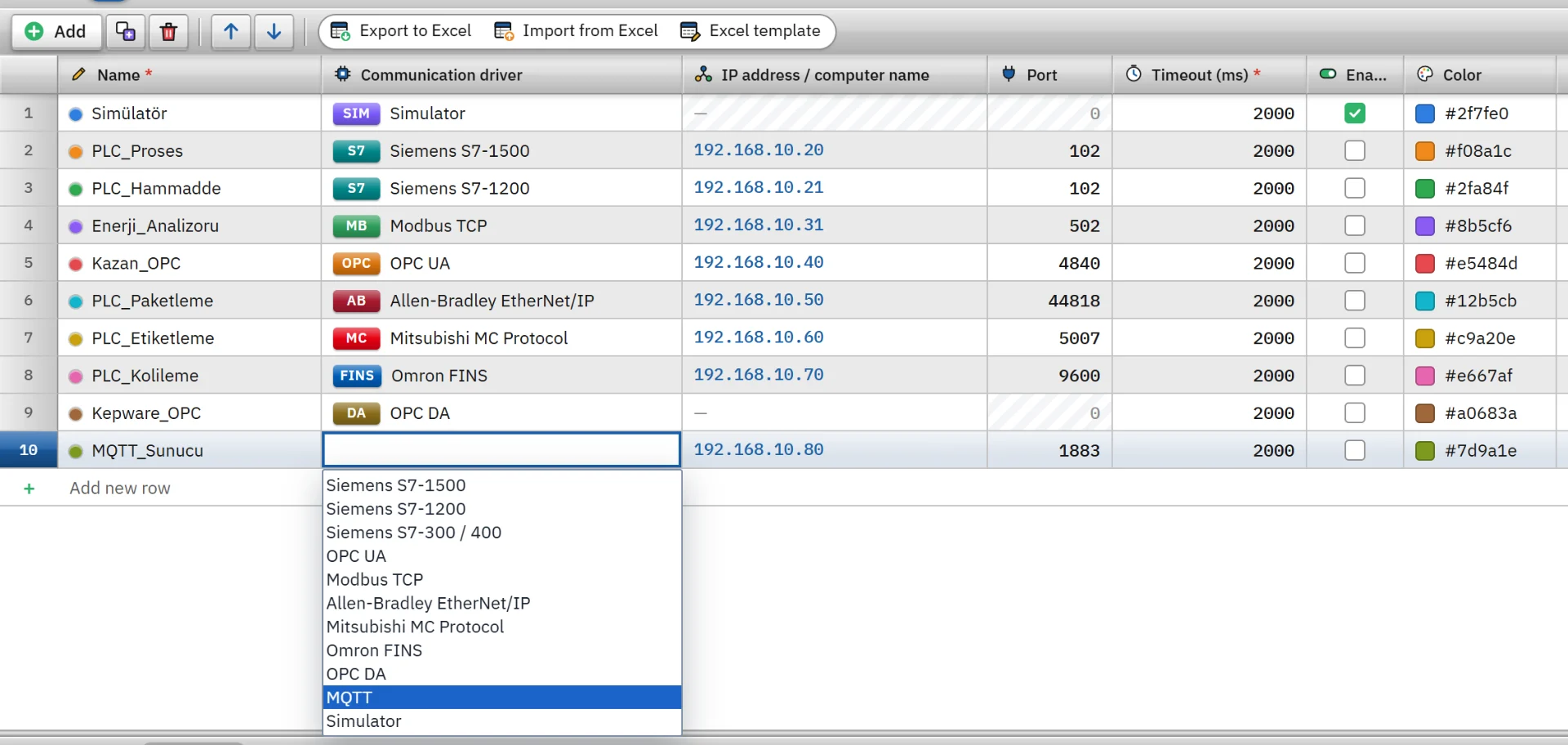
In the Connections section click Add and choose MQTT as the communication driver. Type the address of the broker; the port is filled in as 1883. If you use TLS, set the port to 8883 or paste the address in the form
mqtts://sunucu:8883; the security switches to TLS. -
Enter the parameters
Fill in the fields below in the inspector. The Target card shows the
mqtt://ormqtts://address. -
Add tags
In the HMI Tags section create tags and type the topic name in the Address cell. See the HMI tags page for details.
| Field | Meaning |
|---|---|
| Security | None (unencrypted), TLS (server certificate is verified) or TLS (certificate is not verified). TLS 1.2 is used. |
| Authentication | Anonymous or User name and password. |
| User name | The password is not written to the project file; it is entered in Live. |
| Client ID | If empty, an ID starting with fv- is generated from the computer and connection names. If two clients connect with the same ID, the broker drops the older one.
|
| Subscription quality (QoS) | QoS 0 at most once (default) or QoS 1 at least once. |
| Write quality (QoS) | QoS 0 no response is awaited, or QoS 1 the acknowledgment of the broker is awaited (default). |
| Keep written message on the broker (retain) | If on, the written message is stored on the broker and sent immediately to clients that subscribe later. Off by default. |
| Bool write format | true / false (default), 1 / 0 or ON / OFF. |
| Keep-alive interval (s) | 0 – 3600, default 30. On a quiet connection a ping is sent to the broker at this interval; if nothing arrives within 1.5 times that time, the connection is considered lost. 0 is off. |
Address format
fabrika/hat1/sicaklik // The whole payload is the value of the tag (number, true / false, on / off, text, ISO date) hat1/durum#motor.hiz // The payload is a JSON document; the tag is the value inside it (# separates the topic from the JSON path) hat1/olcumler#deger[2] // Element of a JSON array (the index starts at 0) cihaz/role/durum|cihaz/role/komut // Read and write on separate topics (separated by |) - A topic does not contain wildcard characters (
+,#); a tag is the value of a single topic. The topic and the JSON path are case-sensitive. The write topic cannot start with$. - A JSON path consists of field names separated by dots and array indexes (
motor.hiz,dizi[0].alan). The leading$.is optional; a path can have at most 16 steps.
Data types
- Bool
- Byte
- SInt
- Int
- UInt
- DInt
- UDInt
- Real
- LReal
- String
- DateTime
- The payload is UTF-8 text; a payload larger than 1 MB is not read. WString is not supported.
- For Bool, true / false / 1 / 0 / on / off / yes / no are read.
- For DateTime, ISO 8601 or Unix seconds / milliseconds are accepted.
- A value that does not fit the tag type is not clipped; the tag gets an error.
Read and write behavior
- Reading: the broker sends the retained message to the subscription immediately. The tag of a topic for which no message has been published yet does not raise an error; it waits until a value arrives and appears with bad quality.
- Writing: the value is published to the write topic of the tag. If it is the same as the read topic, the value is also applied to the tag without waiting for it to return from the broker. If the connection is lost, the write is rejected.
- Writing a JSON field: only the relevant field of the document last received on the topic changes, and the other fields are kept.
- If the connection drops, the driver retries after 1 s, 2 s and 5 s, then every 10 s. For the behavior common to all drivers see the communication drivers page.
TLS, password and limits
- TLS (server certificate is verified) requires the certificate to be signed by an authority that Windows trusts, and the address to match the name in the certificate. Add a self-signed certificate to Windows as trusted; type the name in the certificate instead of the IP in the address.
- TLS (certificate is not verified) does not check the identity of the server; a man in the middle can read the traffic. Use it only in closed networks.
- The password is entered in Live with the Enter password button under Connections in the system menu; the Settings authorization is required. The password is stored unencrypted in the
baglanti_sifreleri.jsonfile on the Live computer; open the project data folder only to the account that runs Live. - There is no MQTT 5, no authentication with a client certificate and no bulk subscription with topic wildcards.
Common errors
Connection messages appear in the Connections section of the system menu in Live. For tag errors during reading no message is shown; the tag only gets bad quality.
| Message | Cause and fix |
|---|---|
| The MQTT broker did not respond within 2000 ms | The broker cannot be reached. Check the address, the port and the network connection. |
| The MQTT broker rejected the user name or password | The user or password is wrong, or the password may not have been entered in Live. |
| The MQTT broker rejected the client ID | The ID is invalid, or another client is connected with the same ID. Change the Client ID field. |
| The MQTT broker rejected the subscription to this topic | The user has no permission to read that topic. |
| This computer does not trust the server certificate | The certificate is self-signed or the authority is unknown. Add the certificate to Windows as trusted. |
| The name of the server certificate does not match … | Type the computer name in the certificate instead of the IP in the address. |
| … cannot be read as Bool · … is not a number; cannot be read as Int | The format of the payload does not match the tag type. |
| The payload is not a valid JSON document · The JSON path … was not found in the payload | If you wrote # and a path in the address, the payload must be JSON. If the path is not in the document, check the field name.
|
Frequently asked
How do I read a JSON field?
Write # and the field path after the topic name: hat1/durum#motor.hiz. When you write to the field, only that field changes and the other fields of the document are kept.
Related pages
Connections
The Connections table, driver selection, connection test, diagnostics, reconnection and password storage.
StudioHMI tags
External and internal tags, scaling, quality, structures (UDT) and bulk transfer with Excel.
ConnectivityOPC UA
Connects to an OPC UA server as a client, with symbolic addresses and signed, encrypted communication.
ConnectivitySimulator
The built-in driver that generates signals for trials, demos and training without a PLC.