
Five steps
-
Source
You choose where the TIA project is read from. The options are on the source selection page.
-
Selection
You mark the HMI devices and the content to convert.
-
Settings
You set the project name, the file path and the conversion options.
-
Convert
The data is exported and converted; a progress bar and a log are shown.
-
Result
A report and a page preview appear. The details are on the conversion report page.
When no conversion is running, you can go back to the earlier steps by clicking Source, Selection or Settings in the side bar.
Device and content selection
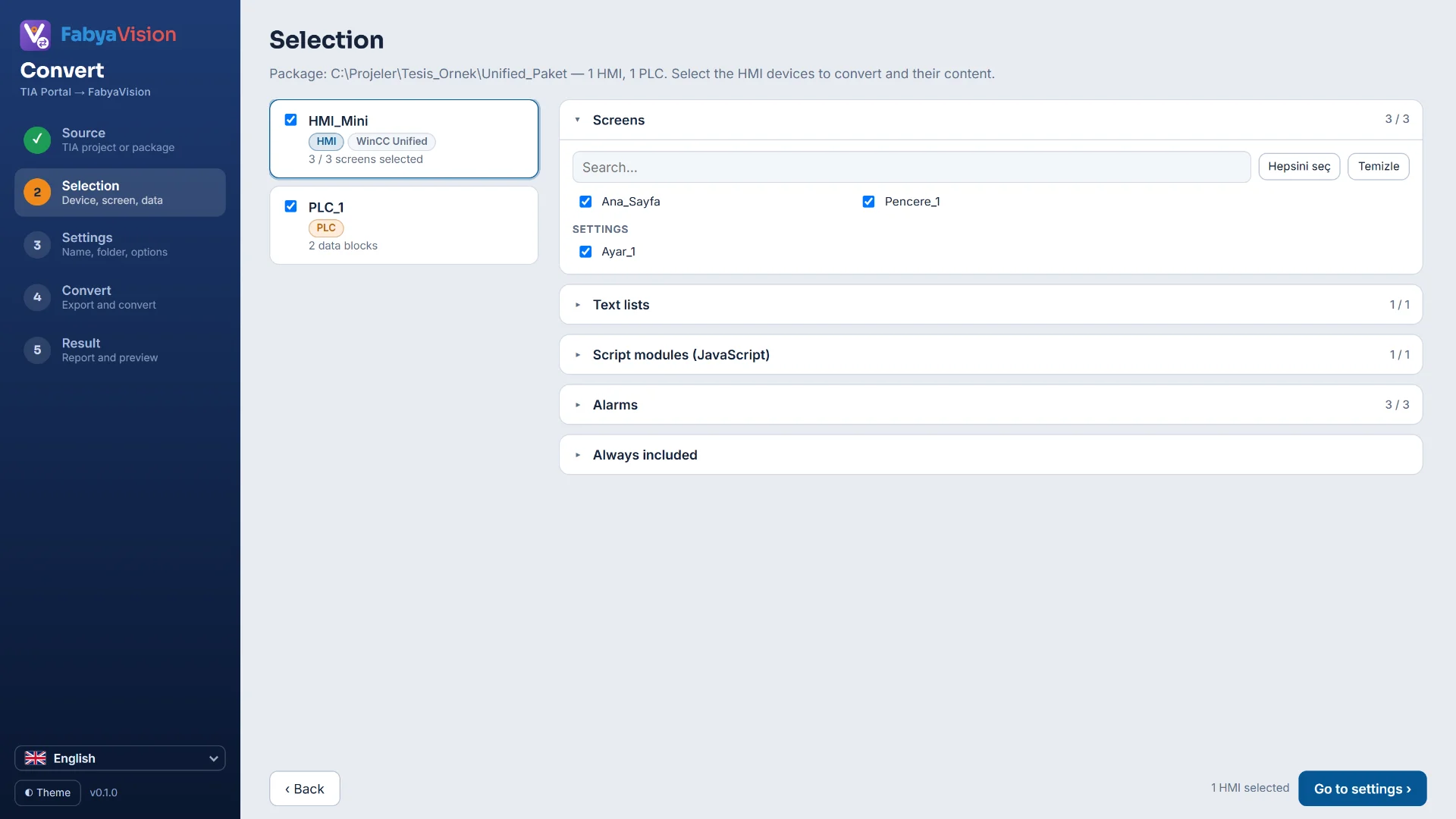
When the source has been read, the devices are listed as cards. A card shows the device type (HMI or PLC) and the HMI family (Basic / Comfort / Advanced, WinCC Unified, WinCC Professional). You mark the devices to convert with the check box; a device that cannot be converted stays inactive and states the reason. Clicking an HMI card opens its content on the right.
| HMI family | Content you can select |
|---|---|
| Basic / Comfort / Advanced | Screens, Pop-up windows, Templates, Slide-in screens, HMI tag tables, Text lists, Graphic lists, VBScript scripts |
| WinCC Unified | Screens, Text lists, Script modules (JavaScript), Alarms (Discrete alarms, Analog alarms, Alarm classes) |
| WinCC Professional | Screens and VBS scripts |
Each category has a search box and the Select all and Clear buttons; screen groups appear as headings. An item that is not selected is left out of the conversion.
What is always included
The Always included section of the Selection step lists what is converted regardless of the selection: read cycles, connections and connection information, the graphics in use, and, from the selected PLCs, the data blocks used by the HMI tags and the PLC tag tables.
The data blocks and PLC tag tables are needed to convert symbolic addresses to absolute addresses. If you have tags with symbolic addresses, leave the PLC selected. Address resolution is described on the tags and addresses page.
The Settings step
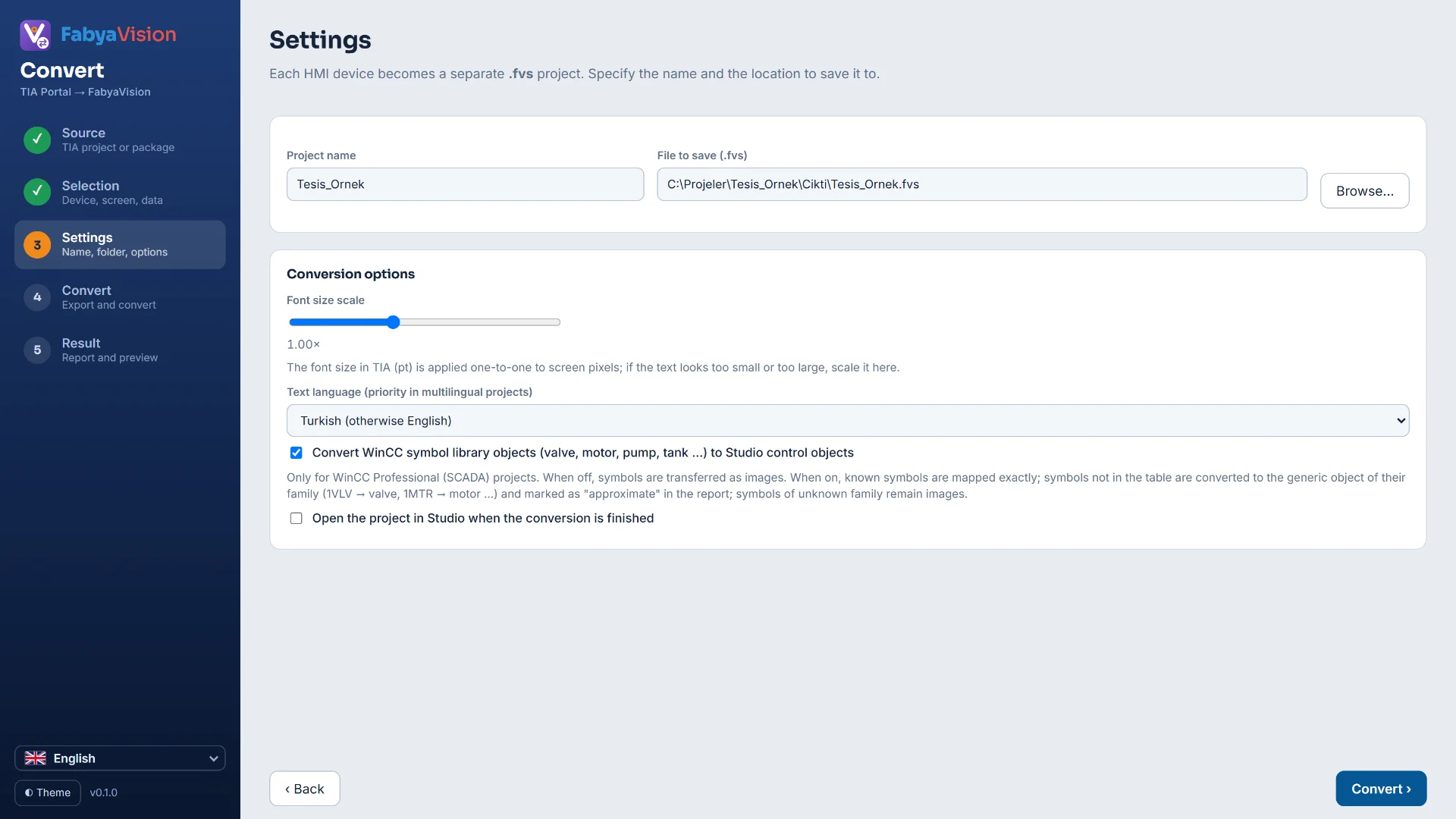
There is one row for each HMI device: the project name and the .fvs file to be saved. You pick the folder with Browse…. The file path must end with .fvs and the project name must not be empty.
| Option | Meaning |
|---|---|
| Font size scale | The font size (pt) in TIA is applied to the screen pixels one to one. If text looks too small or too large, scale it with the slider: 0.7 to 1.5, default 1.0. |
| Text language | Which language takes priority in multilingual projects: Turkish (English if missing) or English (Turkish if missing). |
| WinCC symbol library objects | WinCC Professional only. When on (the default), symbols are converted to Studio control objects; when off, they are transferred as images. Details are on the WinCC Professional page. |
| Open the project in Studio when the conversion is finished | If ticked, the project opens in Studio when the conversion ends. The Open in Studio button in the Result step does the same afterwards. |
Conversion
Convert › runs for each device in turn. First the source is read and the data is exported to a temporary folder; with a TIA source, the connection to TIA is released when reading is finished. For WinCC Professional projects, a symbol mapping panel may open next. Then the data is converted and the .fvs file is written. Each device has a progress bar, and a log appears below.
If a device fails, the conversion stops, the details are written in the log, and you return to the Settings step with ‹ Go back.
Frequently asked
Can I convert several HMI devices at once?
Yes. You can mark several HMIs in the Selection step. In the Settings step you enter a separate name and file path for each, and each becomes a separate .fvs project.
Why did the symbol mapping panel not open?
The panel opens only for WinCC Professional projects, when the symbol option in the Settings step is on and there is a symbol without an exact match.
Related pages
Classic HMI
Screens, tags, lists and scripts of Basic, Comfort and Advanced panels.
ConvertWinCC Unified
Unified screens, tag dynamizations, event scripts, alarms and connections; what is not converted.
ConvertWinCC Professional
PDL screens, tags, VBS scripts and symbols of WinCC Professional (SCADA) stations.
ConvertConversion report
Objects reported as exact, approximate or placeholder, the Warnings list and the preview.