
What Live does
Live (FabyaVision_Live.exe) reads the .fvs project prepared in Studio, connects to the PLCs the tags are bound to, shows the pages to the operator, monitors alarms, archives data, and runs tasks and scripts.
Live only runs the project; to change a definition you edit the project in Studio and upload it to Live. Pages are drawn with WebView2, so Microsoft Edge WebView2 Runtime must be installed on the computer.
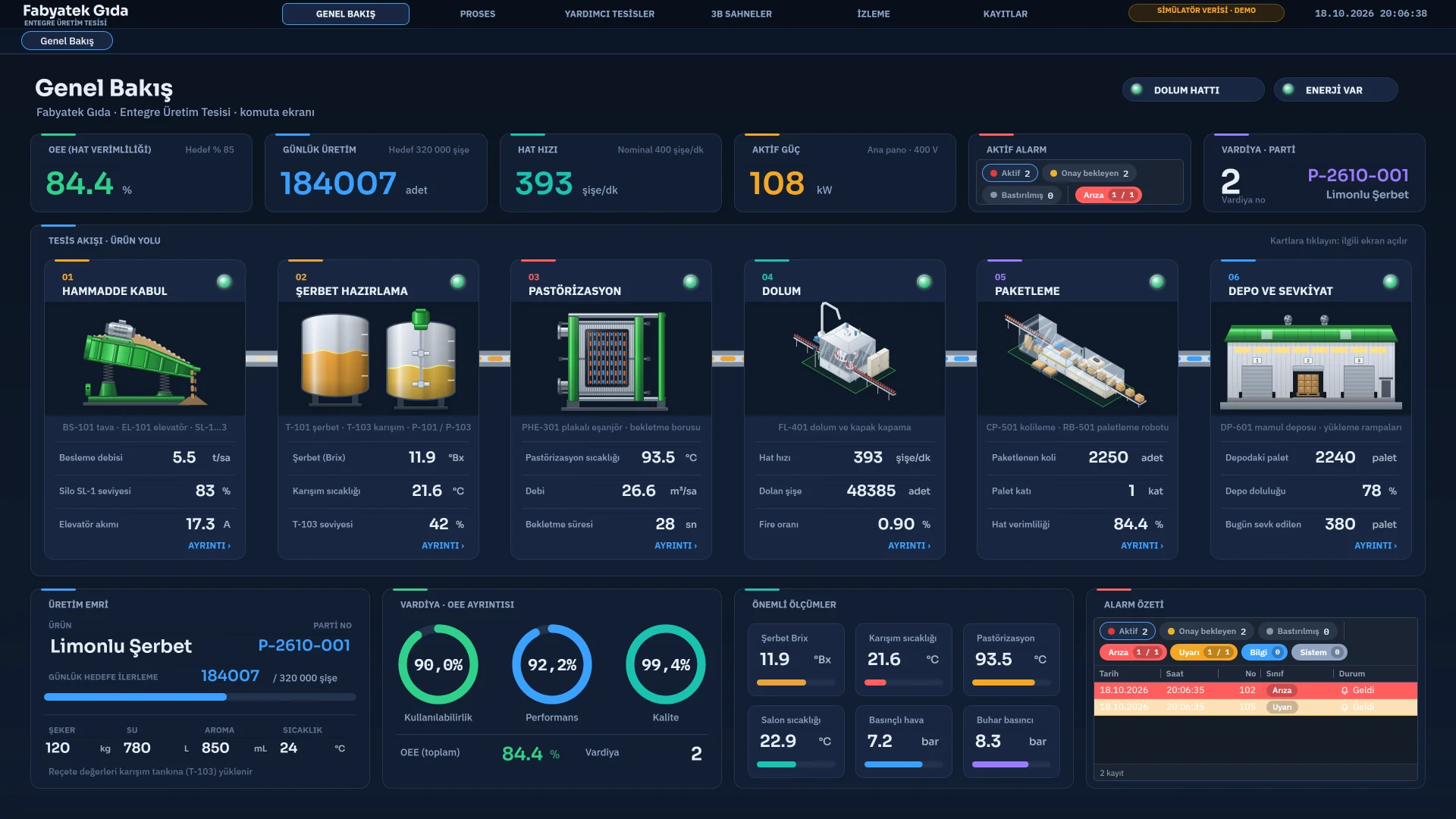
Uploading the project to Live
Start Live (F5) saves the project and opens Live with the path of this file; it is for trying the design. Upload delivers the project to the project folder of Live and saves each upload, with its description, as a revision. If Live is on another computer, it is enough to reach the target folder: a share, a mapped drive or a USB stick.
-
Run the command
Choose the Upload project to Live… command (Project menu, Online menu or Upload in the toolbar) and write the required revision description.
-
Choose the target folder
Choose the project folder of Live. The project is written to a subfolder of it with its own name.
-
Confirm overwriting
If a project with the same name exists, the old version is kept in the
Yedekfolder of the project; at most 10 backups are kept.
Uploading does not touch the .veri folder, which holds the records of Live. A running Live does not pick up the new version by itself; it takes effect when you reopen the project with Change project… or when Live restarts.
Startup and project selection
-
Command line
If a project file is passed to Live (
FabyaVision_Live.exe C:\Projeler\Tesis\Tesis.fvs), that project opens. The Start Live button in Studio starts Live this way. -
Last project
If Start automatically with the last project is on, the last opened project opens without the selection screen. In a new installation this option is off.
-
Select project screen
Otherwise the projects in the project folder of Live are listed as cards: name, description, number of pages and tags, author, date and last revision. Clicking a card or pressing Enter opens the project, H shows the revision history, F5 scans the folder again.
Change folder… selects another project folder, Open from file… opens a project file outside the folder. Old .fyscada projects are listed too.
Live settings
Live settings is below Device configuration in the Studio project tree. The settings are written to the project file and applied when Live opens the project. It has five tabs:
| Tab | What is set |
|---|---|
| General | Startup, multi-screen, appearance, session, operator action log, script permissions |
| Window | Title bar, border, status bar, cursor, functions to block |
| Startup sequence | Services that start at startup |
| Additional applications | Programs that start together with Live |
| Keyboard | Action keys, blocking the Windows keys |
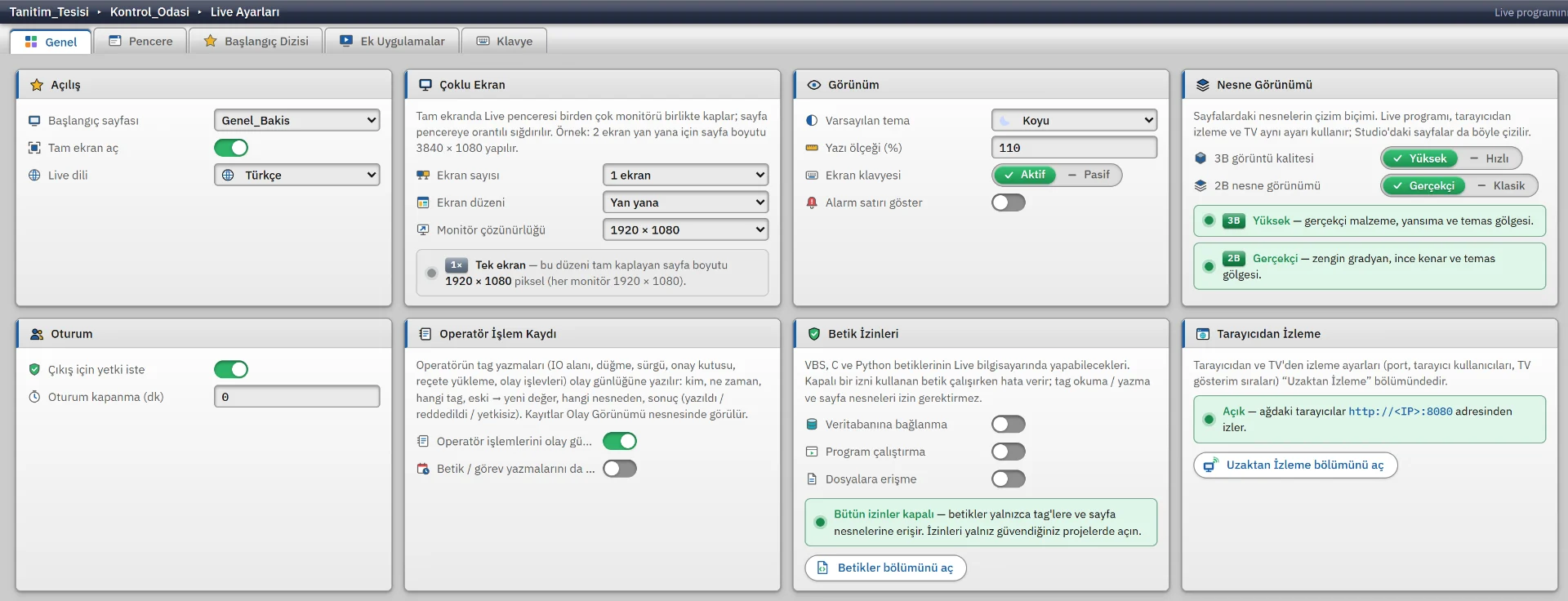
- If Open in full screen is on, Live opens as a borderless window that covers the display.
- Default theme is Light, Dark or Automatic. With Automatic, the time is checked when the project opens: dark is chosen from 19:00 – 07:00.
- Session timeout (min) sets how many minutes after logon the session closes; if 0, it does not close. If Require authorization to exit is on, closing the program needs an authorized user.
- The operator’s tag writes are recorded in the event log by default with who, when, which tag, and the old and new value. Script permissions are off by default.
The on-screen keyboard, interface language and font size are station preferences; they are changed in Live from the system menu and stored on that computer.
Window and full screen
| Field | Effect |
|---|---|
| Title bar, Border, Maximize, Minimize | An item that is off does not appear in the window. Not applied while full screen is on. |
| Page size | Fit to window: the page is fitted proportionally (default). Actual size: the designed pixel size, with scroll bars when needed. |
| Status bar | At the bottom: the logged-on user, the open page, the PLC connection summary and the clock. |
| Hide the mouse cursor | The pointer is hidden; mouse and keyboard still work. For touch-screen panel PCs. |
| Prevent sleep | On by default. While Live is open, Windows does not dim the display or put the computer to sleep. |
| Functions to be disabled | Alt + F4, resizing, moving, minimizing, maximizing and closing are selected separately. |
The window, keyboard and additional application settings apply only in the local Live window. If closing is blocked, the window button and Alt + F4 do not work; the program is closed with Exit Live in the system menu. For kiosk use, try these blocks and the Windows key block on the keyboard you will use.
Startup sequence, additional applications and keyboard
The Startup sequence tab selects which services start when Live opens; a service that is not checked does not start. Switching them off one by one is for testing and maintenance.
| Service | When off |
|---|---|
| Scheduled tasks | No task runs. |
| Report recorder | Trigger-based report recording is not set up; reports are taken manually. |
| Alarm system | Alarms are not monitored; no alarm line or record is created. |
| Data logging | Archives are not written; trends show the value held in memory. |
| Recipes | Recipe load, save and event functions do not work. |
The Additional applications tab defines programs that start with Live: path, parameter, working directory, window style, delay (0 – 600 s) and Close on exit. Starting depends on the Program execution script permission.
The Keyboard tab assigns actions to F1 – F12, Ctrl+F1 – F12 or Shift+F1 – F12: log on and log off, screenshot, acknowledge all alarms, minimize the window, forward, back, store and recall a page, start page. Block Windows keys disables the Windows key, Alt+Tab, Alt+Esc and Ctrl+Esc while Live is in the foreground; Ctrl+Shift+Esc and Ctrl+Alt+Del are not blocked.
Files and folders
Projeler\Tesis\Tesis.fvs // project file Projeler\Tesis\Tesis.veri\ // data written by Live, created on first write Projeler\Tesis\Yedek\ // older versions kept at upload | Location | Content |
|---|---|
logs\Live_yyyyMMdd.log
| The program log of Live. |
live_ayarlar.json
| Last project, project folder, automatic start and screenshot folder. |
.veri\depo
| Persistent values: persistent internal tags, task state, recipe records, report counters, station preferences, connection passwords. |
.veri\gunluk
| Monthly logs: event, alarm, archive, report and recipe transfer. |
Event, alarm and recipe transfer logs are not deleted automatically; archive and report records are cleaned up by their own retention settings. Connection passwords are not written to the project file; they sit unencrypted in baglanti_sifreleri.json, so restrict access to the .veri folder.
When you move a project, copy the .veri folder together with .fvs, otherwise persistent values, recipe records and historical data are empty on the new computer. For a consistent backup, copy the .veri folder and live_ayarlar.json after closing Live.
Single project, shutdown and Windows service
Live runs only one project at a time. Change project… closes the open project and opens the selected one; monitoring, alarms and logging stop meanwhile, and Live asks for confirmation. Once Exit Live is confirmed, the “At Live shutdown” tasks run, additional applications marked Close on exit are closed and persistent tag values are written.
Live is not a Windows service; if it is closed, it does not start again by itself. The setup program has a separate option to start Live when Windows starts (off by default).
Related pages
Operator actions
System menu, login and authorization, the action log, Event view and closing the program.
LiveBrowser monitoring
A small web server in Live shows the pages in computer, tablet and smart TV browsers.
LiveOn-screen keyboard
Turkish Q on-screen keyboard for touch panels, numeric keypad, action keys and kiosk key locks.
LiveTV and multi-monitor
Pages rotate on network TVs and a second screen; the Live window can span several monitors.