Defining a task
-
Prepare the script
In the Scripts section, write the script the task will run: a VBS module or action, C, a JavaScript function or Python. For details see the scripts page.
-
Add the task
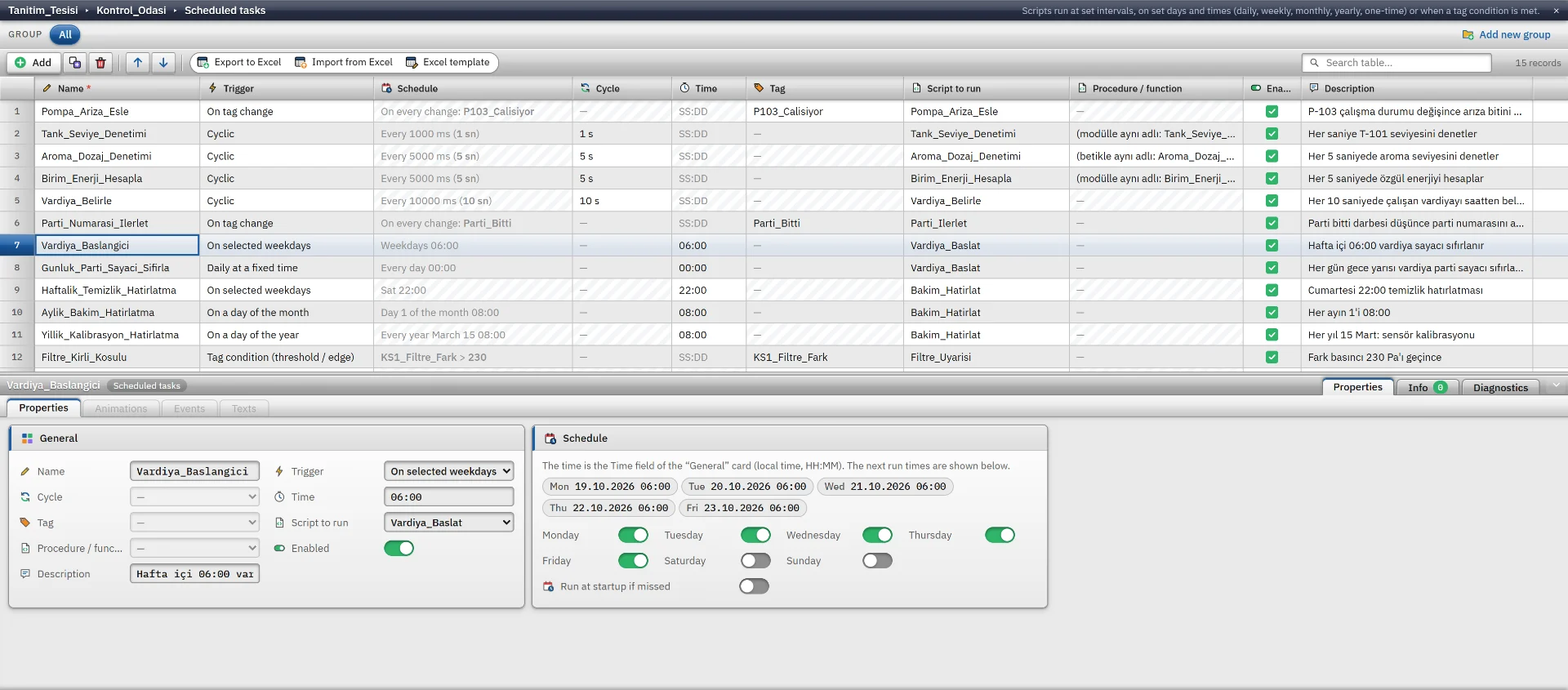
In the Scheduled tasks section, click Add and enter a Name.
-
Select the trigger
Select a type from the Trigger list. Depending on the type, time, date, day or tag fields appear.
-
Connect the script
Select the script from the Script to run list. For a VBS module, a C script and a Python script, the procedure / function to call is selected in the Procedure / function column. If it is empty, the procedure or function with the same name as the script is called.
-
Check
F7 lists a missing script, time, tag, date or day selection as an error or warning.
Triggers
| Trigger | When it runs | Fields |
|---|---|---|
| Cyclic | Each time the duration of the selected cycle elapses (at most every 100 ms). | Cycle |
| Every day at a specific time | Every day at that time. | Time (SS:DD, example 07:30) |
| On specific days of the week | At that time on the selected days. Default: weekdays. | Time, Monday … Sunday switches |
| On a specific day of the month | Every month on that day and at that time. If the month does not have that day (example 31), it runs on the last day of the month. | Time, Day of the month (1 – 31) or Last day of the month |
| On a specific day of the year | Every year in that month, on that day and at that time. A task set for 29 February runs on 28 February in a non-leap year. | Time, Month, Day of the month |
| One-time | Once. After it runs, it becomes completed and does not run again. | Time, Date |
| On tag change | Each time the value of the selected tag changes. The new value is passed to the script as the first parameter. | Tag |
| Tag condition | Once when the condition starts to be met. It runs again when the condition is lost and then met again. It does not run if the condition is already met when Live starts. | Tag, Condition, Threshold |
| When Live starts | Once, when the project is opened. | – |
| When Live closes | Once when Live closes. Shutdown waits for the task to finish. | – |
In a tag condition, Condition can be Rising edge, Falling edge, When the value changes or a comparison of the value with the threshold: >, ≥, <, ≤, =, ≠. A text tag can only use equal and not equal. If On every change while met is on, the task also runs each time the tag changes while the condition holds.
For time triggers, the time and date are those of the local calendar of the Live computer. The Schedule card lists the next five run times of the selected task.
Scheduling examples
| Task | Trigger |
|---|---|
| Check a tank level every second | Cyclic, 1 s cycle |
| Reset the batch counter at the start of a shift | On specific days of the week, 06:00 |
| Reset a counter every midnight | Every day at a specific time, 00:00 |
| Write a maintenance note on the last day of each month | On a specific day of the month, Last day of the month |
| Set a warning bit to 1 when the filter difference value exceeds a threshold | Tag condition, KS1_Filtre_Fark > 230
|
| Increment the batch number when a batch ends | On tag change, Parti_Bitti
|
| Prepare counters at startup, write a record at shutdown | When Live starts and When Live closes |
| Take a report record at a specific time | A timed task sets a tag to 1 and the report uses this tag as its trigger |
One script can be connected to several tasks. In the sample project (Tanitim_Tesisi), the single script that resets the shift counter runs from a weekly, a daily and a shutdown task.
Operation in Live
- Time triggers are checked every few seconds. A task starts at most about 5 s after the scheduled time.
- If the same script is triggered again while its previous call is still running, the new call is skipped.
- A time that does not exist during the daylight saving change (example 02:30) runs once at the moment of the change. A repeated time runs only the first time it occurs.
- Every run is written to the event log. The state (last run, result, number of runs and errors) is stored in the data folder of the project and is retained when Live is opened again.
- If Scheduled tasks is switched off in the Startup sequence, no task runs.
Missed tasks
If a scheduled time passes while Live is closed or the computer is asleep, the task cannot run at that moment. For a task with a time trigger, if Run at startup if missed is on, the task runs once when Live opens. It does not run separately for each missed time. If it is off, the missed time is skipped and “missed” is written to the event log.
A run that starts at most 2 minutes after the scheduled time is not considered late. Past times are not made up for a newly added task. If the definition of a task changes, its completed and catch-up state is reset.
Task status window
In Live, System menu › Tasks… shows the state of all tasks: trigger, last run and its source, result (OK, Error and its message, Skipped, Completed, Running, Inactive, Not run yet), next scheduled time and number of runs. The window refreshes every second.
If a script produces an error, the result of the task is Error and the message contains the script, the procedure and the line. An error does not stop the later runs of the task.
Limits
- A cyclic task with the On change cycle, whose duration is 0 ms, is never scheduled, and Studio does not warn about it. In a cyclic task, choose a cycle of 100 ms or more. To run based on a value, use the On tag change or Tag condition trigger.
- A task does not run if Script to run is not selected or Enabled is off.
- There is no scheduled report printing task. Silent printing is not supported.
- Tasks run only on the computer where Live runs, not in browser monitoring.
Frequently asked
Does a task run while Live is closed?
No. Tasks run inside Live. For a missed time, if Run at startup if missed is on, the task runs once when Live opens.
If a task fails, do later runs stop?
No. The result becomes Error, the message is written to the event log and the status window, and the task runs again at its next time.
Related pages
Scripts
VBScript, JavaScript, C and Python; editor, compile, sample gallery and permissions that are off by default.
StudioHMI tags
External and internal tags, scaling, quality, structures (UDT) and bulk transfer with Excel.
StudioReports
Triggered records, period summary, approval, print layout, report page design, Excel / CSV / PDF output.
LiveScripts and tasks
Scripts and tasks run only in Live: script permissions, time limit and task triggers.