
Two separate features
| Feature | What it does | Where it is set |
|---|---|---|
| Multi-monitor | The Live window covers several monitors together in full screen. A single wide page is shown and operated. | Live settings › General › Multi-Screen |
| TV display | Selected pages are shown in turn, full screen. There is no menu and nothing can be clicked. It runs on a local second screen or in the browser of TVs on the network. | Remote monitoring › TV display (second monitor) and Network TVs |
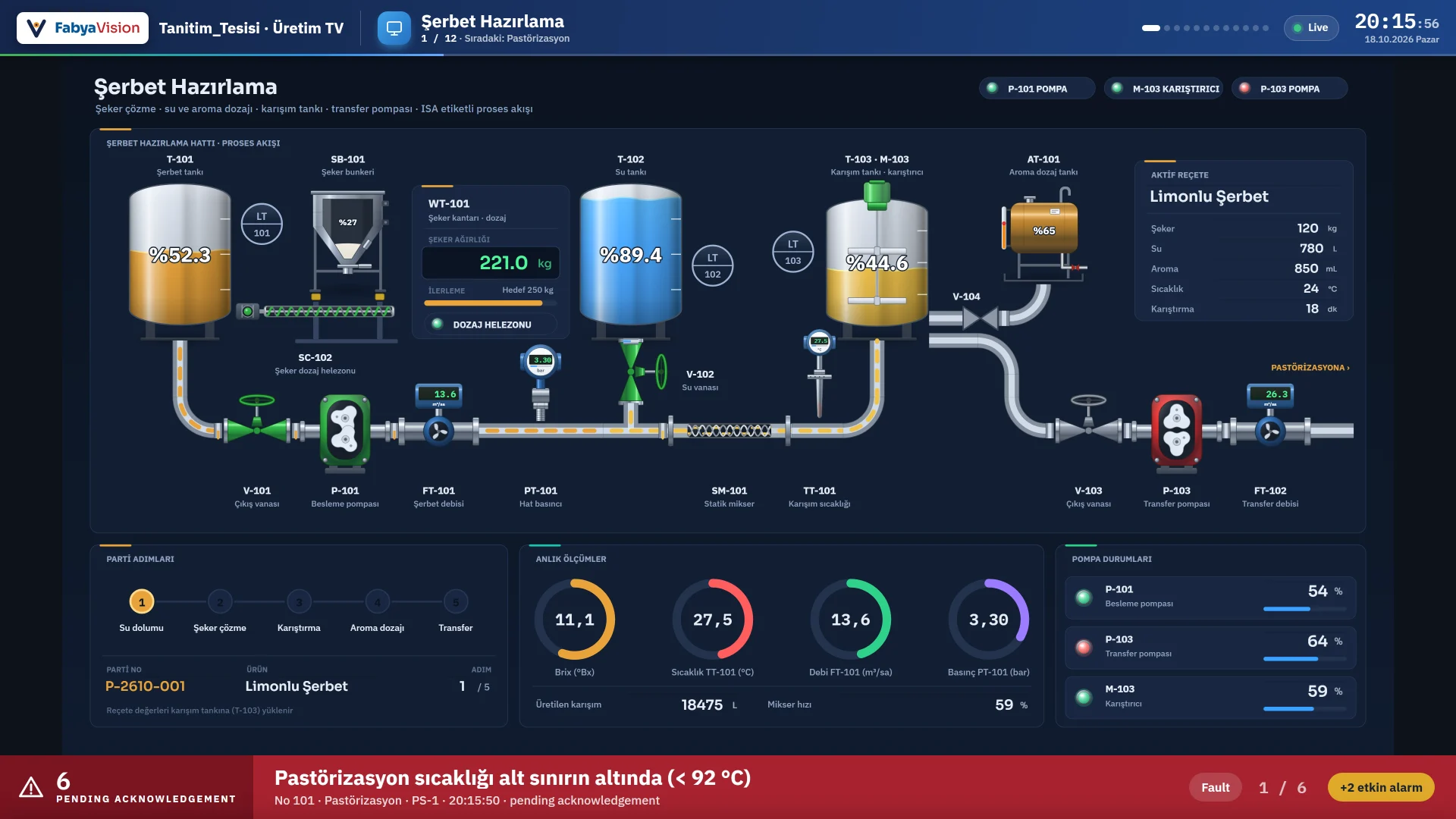
The two can be used together. Only on the monitors covered by multi-monitor mode does the TV display not open.
Multi-monitor
-
Choose the layout
In Live settings › General › Multi-Screen, choose the Number of screens (1, 2, 3, 4, 6 or 8), the Screen layout (Side by side, Stacked, Grid: two rows) and the Monitor resolution. The strip on the tab gives the page size that fully covers this layout: 2 screens side by side, each 1920 × 1080, gives 3840 × 1080.
-
Set the page to this size
Choose the recommended size in Page properties › Layout › Preset sizes. If the ratio does not match, the page is fitted proportionally and empty space remains on the displays.
-
Leave full screen on
If Open in full screen is off, multi-monitor mode is not applied and the window opens on a single monitor.
Monitors are ordered from left to right by their position in Windows. Live covers the requested number of monitors, starting from the monitor on which its window opens. If there are not enough monitors to the right, the selection shifts to the left; if fewer monitors are connected than requested, all connected ones are covered. Screen layout and Monitor resolution only calculate the recommended size in Studio; Live uses the monitor positions set in Windows.
Second screen display
If a second monitor or a TV is connected to the Live computer, the selected pages of the project rotate there in turn.
-
Turn on the display
In Studio, on the TV display (second monitor) tab of the Remote monitoring section, set TV display on the second monitor to On.
-
Choose the monitor
Choose Automatic (the first monitor without the panel) or Monitor 1 … Monitor 4; the number is the one in the Windows Display settings. The monitor on which Live runs and the monitors covered by multi-monitor mode cannot be chosen.
-
Enter the display sequence
Add at most 40 page rows to the table (below).
Display sequence, transitions and alarm banner
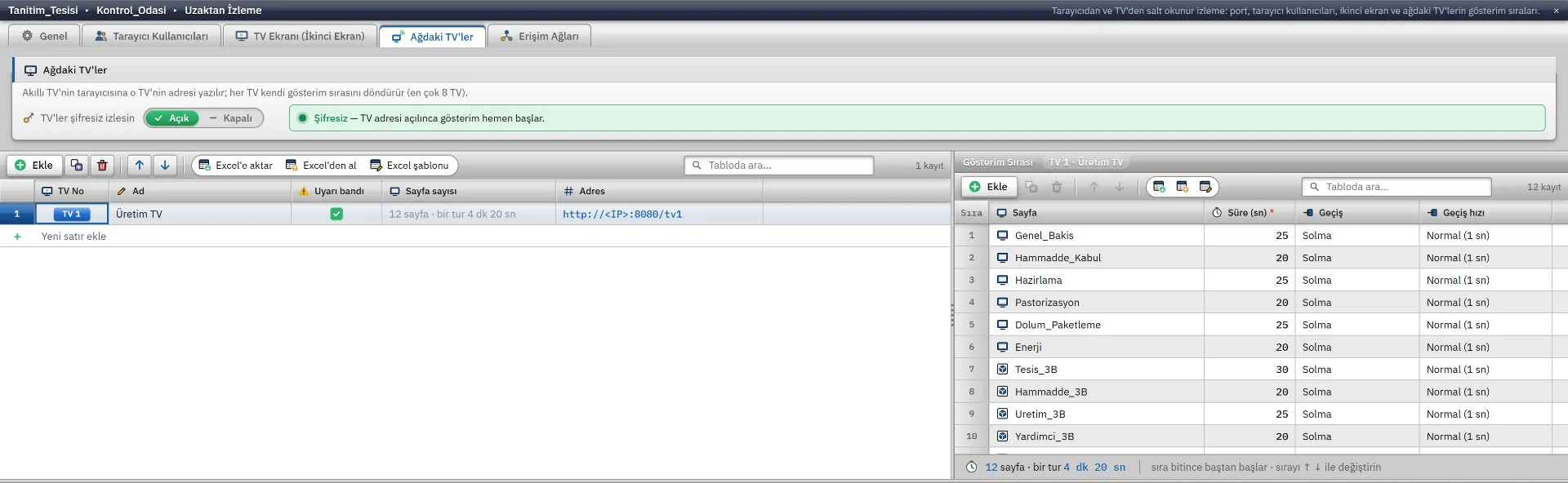
| Column | Meaning |
|---|---|
| Page | The full 2D or 3D page to show. Pop-up and template (fixed area) pages cannot be shown. |
| Duration (s) | How long the page stays on the screen: 5 – 3600 s, default 20. |
| Transition | None, Fade, Slide left, Slide up, Blur, Zoom in, Curtain or Random. |
| Transition speed | Fast (0.5 s), Normal (1 s), Slow (2 s), Very slow (3 s). |
Rows are reordered with the up and down arrows; the strip at the bottom shows the number of pages and the total duration of one round. When the sequence ends it starts again, and with a single row the page stays fixed. Fixed top and bottom area pages are not shown on the TV; the whole screen goes to the next page in the sequence. The language follows the language on the Live computer.
If the Alarm banner is on, active alarms are shown in turn in the band at the bottom: alarms awaiting acknowledgment in a red band if there are any, otherwise the active alarms, and a thin quiet band if there are none. An alarm stays in the band for 6 – 8 seconds. The top bar shows the project name, the displayed page, the next page, the connection state, the clock and a progress line for the transition time.
TVs on the network
An address is entered in the browser of a smart TV or another computer; the TV runs through its own display sequence. Browser monitoring must be on for this, because the TV addresses connect to the web server of Live.
- At most 8 TVs can be defined. The address is the address and port of the Live computer with
/tv1…/tv8added, for examplehttp://192.168.1.20:8080/tv1. - Each TV has its own Name (at most 30 characters), its own Alarm banner option and its own display sequence. A new TV starts with a copy of the display sequence of the second screen.
- TVs watch without password is on by default: anyone who knows the address and is on a permitted network can open the TV. If it is off, the TV asks for a log-on with a browser user.
- The live addresses are listed in Live in the system menu › Remote monitoring… window with Copy buttons.
Limits
- If Live runs on the only screen, the TV window does not open. This is by design, so as not to cover the panel.
- Multi-monitor mode is applied only in full screen. The TV display does not open on the covered monitors, and if no uncovered monitor is left, the TV does not open at all.
- There is no control, alarm acknowledgment or setting on the TV, and scripts do not run.
- The state of the TV window is shown in Live in the Second screen (TV) section of the system menu › Remote monitoring… window; the resolution of the connected screens is listed too.
- On computers with several monitors, try the layout on your own hardware when you commission it.