
Trend view
The Trend view draws the value of one or more tags on a time axis. Curves are fed from the data archive or directly from live tags. The object is prepared in Studio (trend design): several curves, left or right, logarithmic and inverted Y axes, limit lines, and linear, step and smooth joints. Text tags are not drawn.
In Live the trend runs live by default: the right edge is the present moment and the window scrolls by itself. As soon as you drag or scroll the view, live monitoring stops; Back to live resumes it. The designer chooses the buttons on the toolbar.
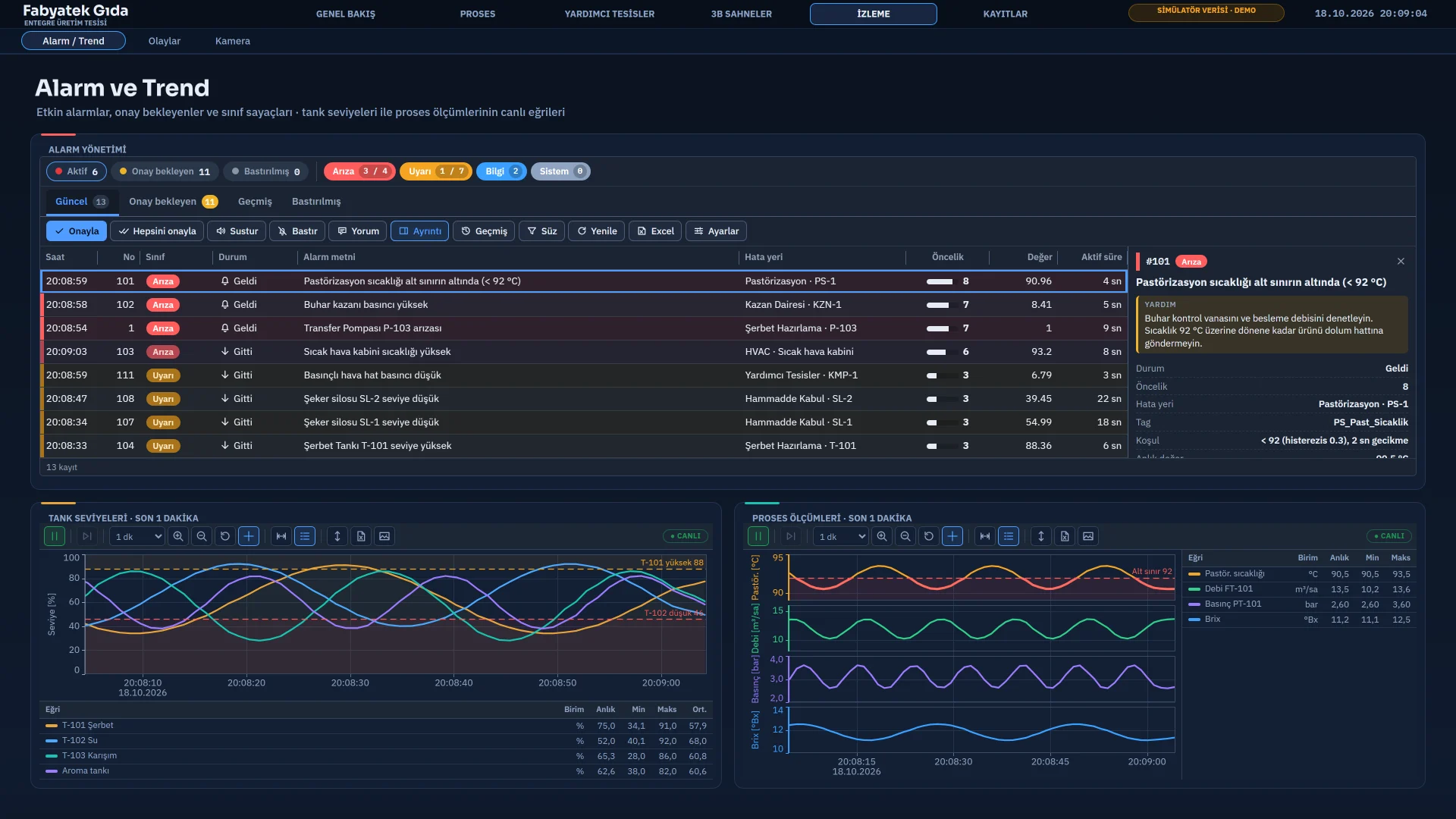
Time window and zoom
| Action | How to do it |
|---|---|
| Stopping live monitoring | The Live / Freeze button at the far left, or Space. The badge shows PAUSED; Back to live or End returns to live. |
| Scrolling back in time | Drag the plot area horizontally. The left and right arrow keys shift the window by 10%, the Previous window and Next window buttons by 90%. |
| Choosing the window length | A preset duration from the time range selector (1 min, 10 min, 4 h, 7 days …), or Custom… for the last N seconds, minutes, hours, days or an absolute start and end. |
| Zooming in and out | The mouse wheel, the Zoom in and Zoom out buttons (×1.5) or the + and - keys. On a touch screen, spread or pinch with two fingers. |
| Zooming with a box | Hold Shift and drag a rectangle in the plot area. |
| Returning to the start | The Reset button, a double-click on the plot area, or Home. |
The window can be at least 2 seconds and at most 62 days. When the right end of the window approaches the present, the trend switches back to live mode; if the designer entered an automatic return to live time, it returns to live that many seconds after scrolling stops.
Axes, cursor and measurement
- The wheel over the axis strip, or Ctrl + wheel in the plot area, zooms the value range of that axis in and out. Dragging the strip shifts the range up or down.
- Clicking the axis strip fits the axis to the range of the visible data; double-clicking clears the setting you made by hand. Fit axes fits all axes in one step.
- While Cursor is on, move the mouse over the curves; the tooltip box and the value table show the values at that moment.
- Click Measurement cursors (A / B), then click point A and point B in the plot area. The measurement panel shows the two times, the duration between them (Δt) and, for each curve, A, B, difference, minimum, maximum, average and integral values.
The value table at the bottom or on the right shows the unit of each curve, its current value, its cursor value and its minimum, maximum and average in the visible range. Clicking a row selects the curve; curves that may be hidden are hidden with the button in the row.
Export and printing
| Button | Result |
|---|---|
| Export to Excel | A two-sheet .xlsx: on the Trend sheet each row is a time and each column a curve. The Summary sheet has, per curve, the number of samples, minimum, maximum, average, and the time of the first and last sample. If the row count exceeds 250 000, samples are thinned out.
|
| Export to CSV | The same table as CSV. The delimiter is chosen in the design: semicolon goes with a decimal comma, comma with a decimal point. |
| Save as image | A PNG image of the title, plot and value table of the trend. |
| The image opens in a full-screen preview and the print dialog is requested. |
Depending on the selection in the design, the file contains either only the visible range or all loaded data. Hidden curves are not written.
Archive logging
A data archive is defined in the Historical data section of Studio and writes the values of the selected tags to a file with a timestamp while Live runs. An archive can hold several tags, and each tag has its own logging method:
| Method | When a record is written |
|---|---|
| Cyclic | When the duration of the selected cycle elapses, at most every 100 ms. If the On change (0 ms) cycle is selected, once every 1 s. |
| When the value changes | When the value differs from the previous recorded value by more than the deadband. With a deadband of 0, on every change. |
| By trigger tag | When the trigger tag meets its condition (rising edge or on change), the current value once. |
No cyclic or on-change records are written for a tag with bad quality or one that has not been read yet; when a tag becomes bad-quality, a single marker row is written and the trend breaks the line at that point. Text tags are written to the archive but cannot be drawn in the trend. Live writes records in batches every 5 seconds; if a crash occurs, the samples of the last few seconds may be lost.
Storage and retention
| Storage | What is written |
|---|---|
| Local file (monthly) | Always written. Trend and history reading is done from this file. |
| Local file + CSV | In addition, a monthly .csv: UTF-8 (BOM), semicolon-delimited, decimal point, with a header row. Opens in Excel.
|
| Local file + SQL Server | In addition, written in bulk to a SQL Server table (mirroring). |
- If the SQL table does not exist, it is created on the first record with the columns
zaman,tag,deger,metin,kaliteandistasyon. - If the connection drops, rows are kept first in memory and then on disk (up to 200 MB) and sent when the connection returns. No row is missing from the local file.
- No records are deleted from SQL Server; the retention period applies only to local files. The trend reads only the local record files.
- If you write
Password=in the connection string, the password sits in readable form in the project file; useIntegrated Security=truewhere possible.
At startup (after about 20 s) and then once a day, Live deletes old monthly files. Retention period (days) is 365 by default, 0 never deletes, and the rule is applied with a minimum of 31 days. If Maximum size (MB) is exceeded, files are deleted starting with the oldest month; 0 is unlimited. The current month, the previous month and the two newest existing monthly files are never deleted. The default period deletes monthly files older than 365 days at the first opening; back up any data you need to keep beforehand.
Limits
- A curve bound directly to a tag has no history: it accumulates from the moment the page is opened. For a permanent history, add the tag to a data archive.
- Reading history from the archive is limited to at most 12 pages per archive (50 000 rows per page). For very long ranges the trend shows the note “The whole history could not be loaded (log read limit)”; older records stay in the file.
- If Data logging is switched off on the Startup sequence tab of Live settings, nothing is written to the archive and trends show only the value in memory.
Related pages
Trend and historical data
Data archive recording methods, storage, retention and the Trend view: curves, axes and limits.
LiveAlarms
Alarm view, alarm line, acknowledging, shelving, comments, audible alerts and the alarm log.
LiveReports and output
Triggered or manual records, filters, period summary, approval and signature; Excel, CSV and PDF output.