
Defining a recipe and its items
The Recipes section has four tabs: Recipes (definition and items), Recipe data records, Screen design and Transfer and rules.
-
Add the recipe
On the Recipes tab click Add; enter a Name, for example
Serbet, and optionally a Display name. -
Add the items
Add a row to the Recipe items table for each parameter and select the tag the value is written to. An item without a tag cannot be loaded to the PLC.
-
Enter the type and limits
Fill in the Data type (integer, decimal, text), Default, Min and At most fields. Every value entered in the records is checked against these rules.
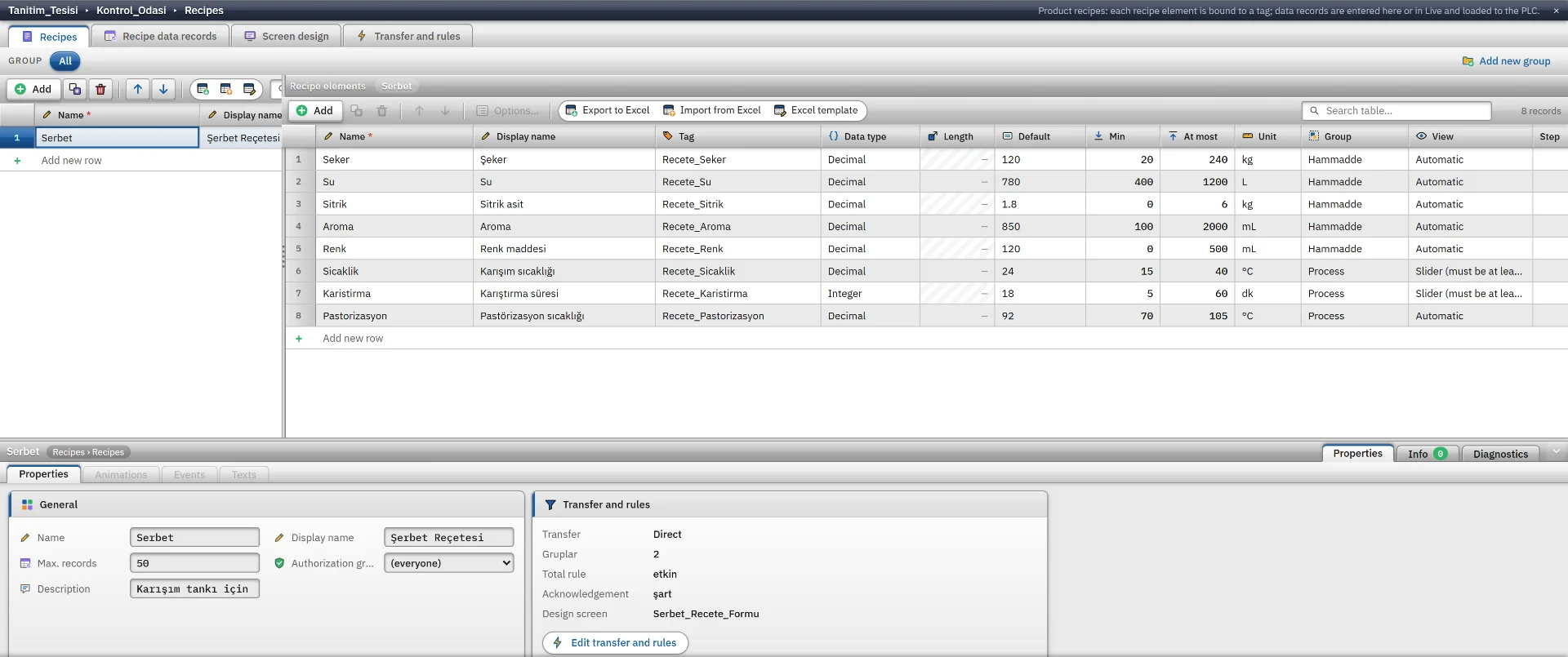
| Item column | Meaning |
|---|---|
| Length | 1 – 254. Enabled only for the text type; a text value cannot exceed this length. |
| Unit, Group | The unit appears in the header and the box. The group becomes a tab or heading in Live. |
| Appearance | How the operator enters the value: Automatic, Number box, Slider, Switch or Selection list. |
| Tolerance | The deviation accepted from the default value, Absolute or Percent. A value outside it gets a yellow warning in Live. |
| Locked | If checked, the operator cannot change the value; it changes only from Studio or Excel. |
Records, authorization and Excel
On the Recipe data records tab each row is a record (a product recipe) and each item is a column. The Status column is Approved or Draft, and every cell is checked against the rules of the item. The table can be exported to Excel, filled in and imported back.
- A recipe holds at most 1 – 100 000 records, default 500.
- If an Authorization group is selected, only users in that group can modify the recipe (save, delete, load to the PLC). If empty, everyone with the Recipe change authorization can modify it.
- Records entered in Studio are added to the store when Live starts, if there is no record of the same name. A record the operator has changed or deleted is not overwritten by a project update.
- Records are kept in the data folder of the Live computer. Values are written to the PLC only with the load-to-PLC command.
Approval and the total rule
On the Transfer and rules tab you enter the groups, the approval condition, the total rule and the transfer settings of the selected recipe.
- If Approval required for loading is on, only Approved records are loaded to the PLC. A modified record becomes Draft again; approval is given with the Approve button in Live. If a Group that can approve is selected, only users in that group approve.
- In the total rule the sum of the selected items must be Target total ± Tolerance, for example mixture quantities 900 ± 5. If it is out of rule, saving and loading to the PLC are blocked, or only a warning is given.
Transfer to the PLC
There are two transfer modes. In direct mode the values are written to the tags and the job ends; it is not verified that the PLC has accepted them. In handshake mode Live calls the PLC with a Trigger tag and waits for its answer. The handshake tags are Trigger (required), Ready, Busy, Done, Error and Error code; Timeout is 1 – 600 s, default 10.
-
Validation
When the operator loads to the PLC, the record is validated (including the total rule and the approval condition). All selected tags must exist in the project. If a Before script is selected it runs; if it fails, the transfer does not start.
-
Writing
In handshake mode Live first waits until the Ready tag is 1 and the Busy tag is 0. The value of every item with a bound tag is written. On a write error you can choose to stop at the first error, or to log the error and continue with the remaining items.
-
Trigger and wait
In handshake mode 1 is written to the Trigger tag. The transfer ends when the PLC becomes busy and the Done tag becomes 1; if the Error tag becomes 1 it ends with an error and the Error code is added to the message.
-
Read-back and log
If read-back verification is on, the written values are read after a wait (default 300 ms); if the difference exceeds the larger of the read-back tolerance and the tolerance of the item, the transfer returns an error. The After script runs, the active recipe and the transfer history are updated and written to the event log.
Recipe view and design screen
The Recipe view (Controls group) offers the list, table, comparison with the PLC and history in one object. If you want your own layout, you design a free 2D screen for the recipe on the Screen design tab. The New design screen window offers these templates: Empty, Form, Master-detail, Operator card, Comparison and Dosing recipe.
On a design screen the Recipe group appears in the toolbox: Recipe field (the value box of an item), Record selector, Recipe button (functions such as New, Save, Approve, Compare, Load to PLC, Export to Excel), Recipe info, Item table, Comparison, Transfer panel, Transfer history, Total indicator and Group tabs. For how the operator uses it see the Live recipes page.
Limits
- If Recipes is switched off on the Startup sequence tab of Live settings, saving, deleting and loading to the PLC do not work.
- F7 checks the recipe definition: an item without a tag, a default that does not match its type, a minimum greater than the maximum, the total rule and the handshake tags give warnings.
- The Before script and After script fields need a script definition.
Related pages
Recipe transfer
The operator selects, edits, approves and loads a recipe record to the PLC; the transfer can be read back.
StudioHMI tags
External and internal tags, scaling, quality, structures (UDT) and bulk transfer with Excel.
StudioScripts
VBScript, JavaScript, C and Python; editor, compile, sample gallery and permissions that are off by default.